
Every podcast on Mato needs at least one host. You can create a host from scratch with a short description, or start from a template in the talent directory and customize it. Either way, Mato generates a full personality profile, voice assignment, and portrait automatically.
Open the talent page
From the left sidebar in your workspace, click Talent. This shows your roster of existing hosts.
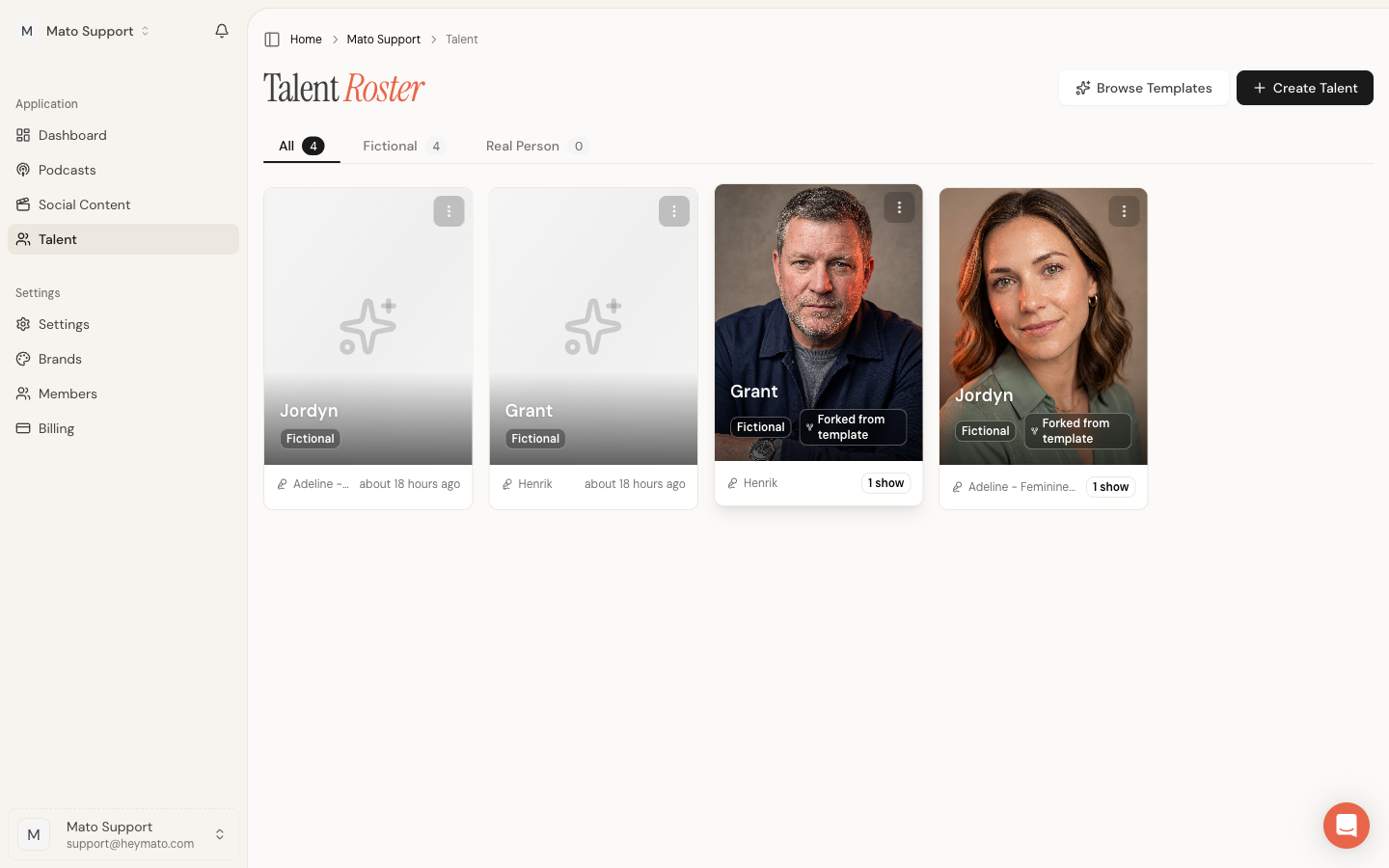
Two buttons appear in the top-right corner:
- Browse Templates opens a side panel with platform templates you can fork.
- Create Talent starts the creation wizard for a brand-new host.
Option A: Create from scratch
Click Create Talent to open the wizard.
Step 1: Choose host type
The wizard asks whether you want a Fictional Character or a Real Person. Real Person is marked as coming soon, so select Fictional Character to continue.
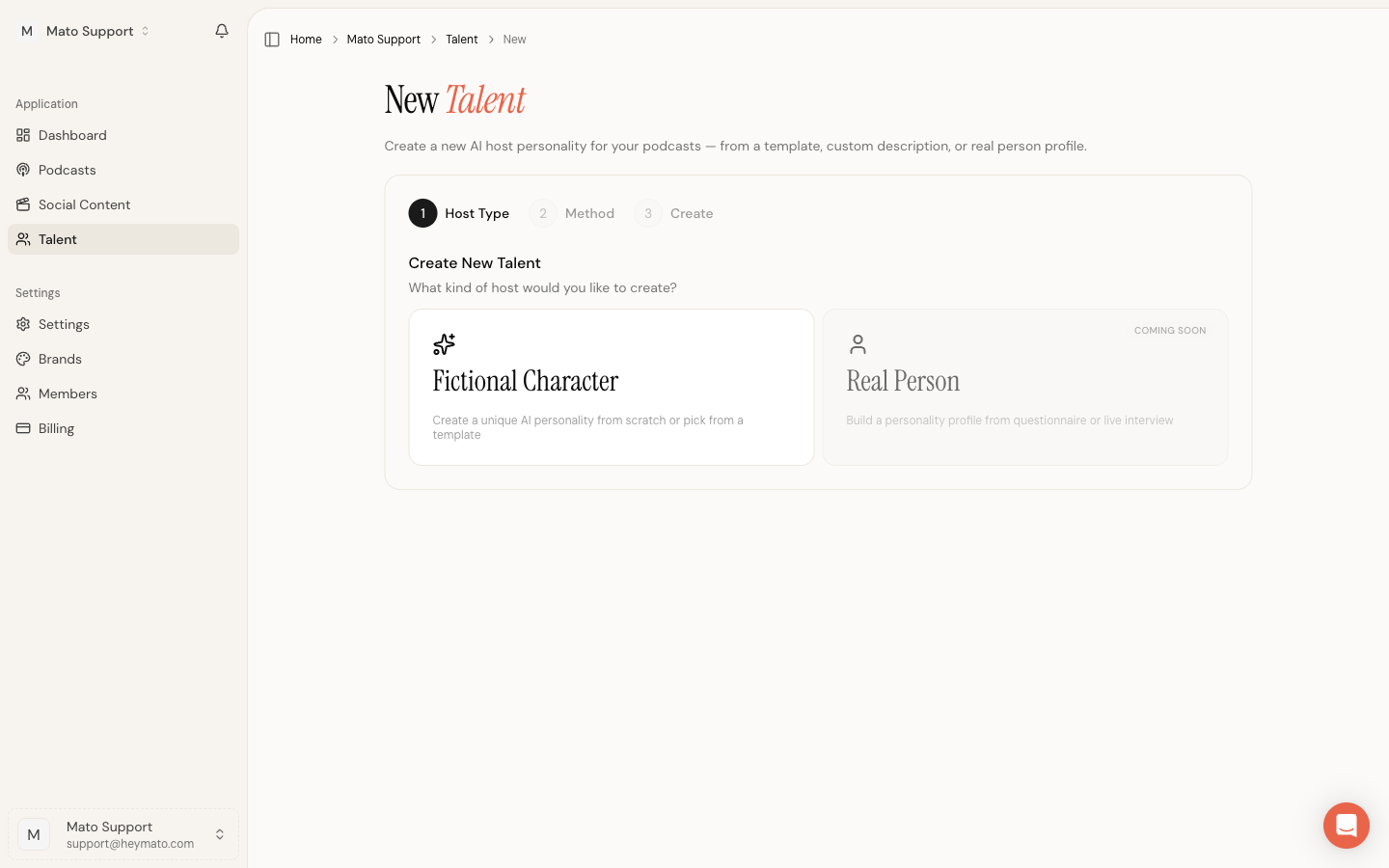
Fictional characters are AI-generated hosts with their own personality, voice, and backstory. Real Person hosts (when available) will be built from an interview or questionnaire with an actual person.
Step 2: Choose creation method
You have two paths:
- Browse Templates shows pre-built hosts from the Mato platform directory. Pick one and Mato forks a copy into your workspace.
- Create Custom opens a form where you describe your host from a blank slate.
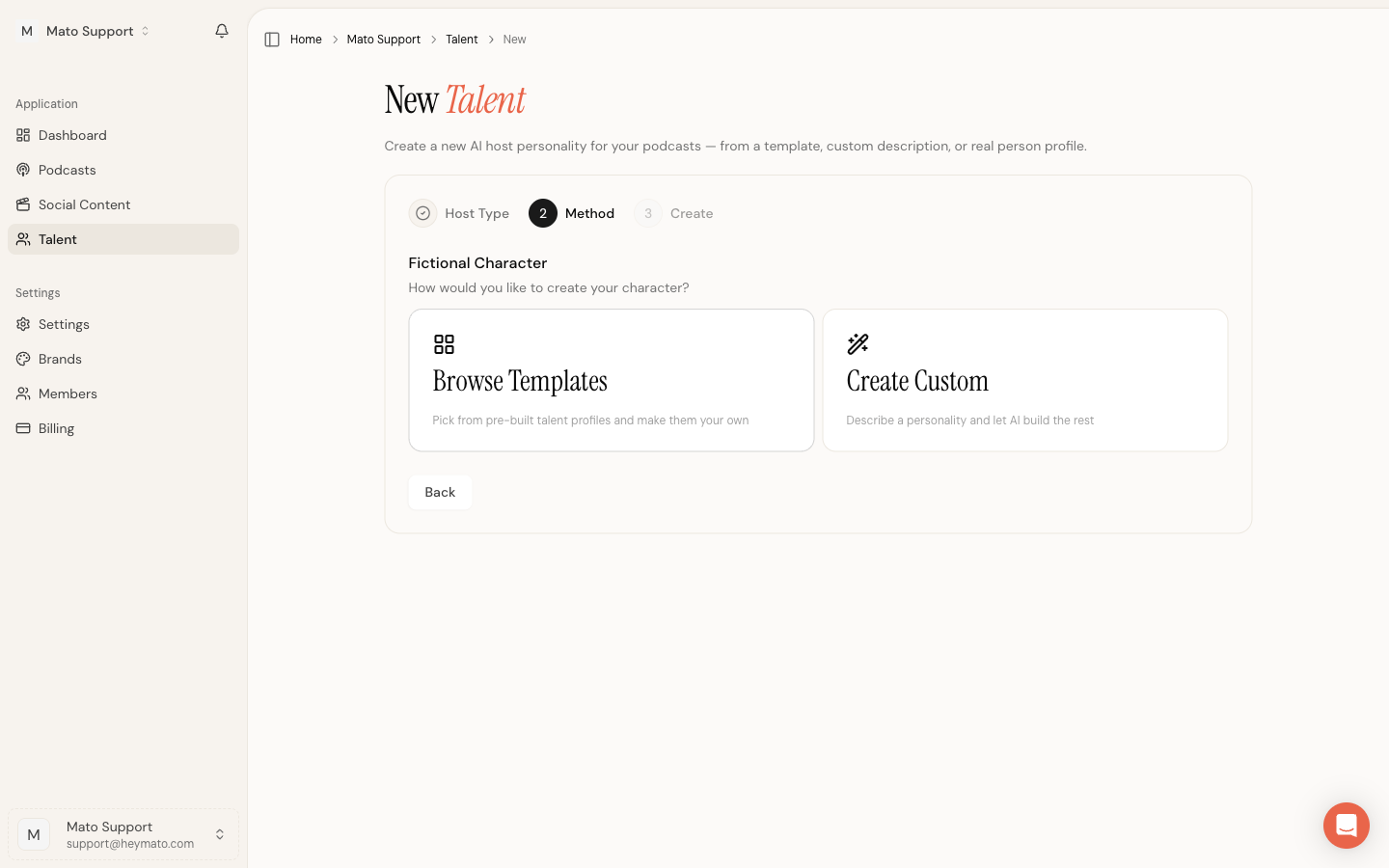
If you chose templates, skip ahead to "Option B: Fork from a template" below.
Step 3: Fill in the custom form
The form asks for three things:
- Name. The host's display name as it will appear on episodes and in your roster.
- Personality description. A free-text field (10 to 2,000 characters) describing the host's tone, speaking style, expertise, and character traits. Be specific. "Casual tech journalist who leans into sarcasm and uses analogies from cooking" gives the AI much more to work with than "friendly and professional."
- Gender. Choose from Male, Female, Non-binary, or Unspecified. This affects voice assignment and avatar generation.
An optional Podcast dropdown appears if you already have shows in your workspace. Selecting a podcast here auto-assigns the new host to that show as long as it has fewer than two hosts already.
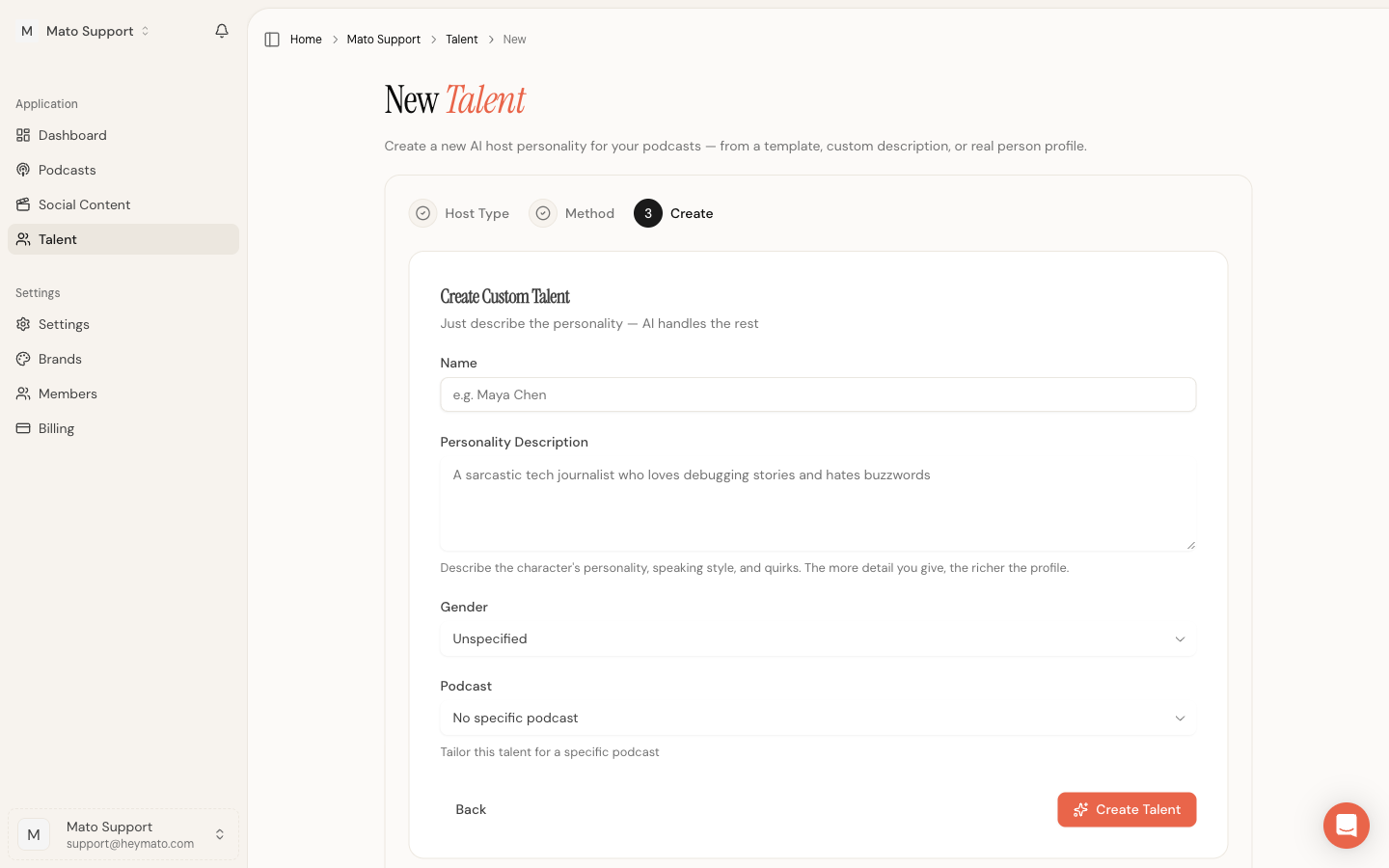
Click Create Talent to submit. A loading screen appears while Mato generates the full profile. This typically takes 10 to 20 seconds.
What happens behind the scenes
When you submit, Mato:
- Runs the personality description through an AI enrichment step that produces a tagline, short bio, long bio, personality traits, radar scores, sample conversation, "best for" use cases, FAQ entries, tags, and hosting style.
- Assigns a voice automatically based on the host's gender and personality.
- Queues avatar generation for a photorealistic portrait based on the profile.
- Queues audio sample generation so you can preview the voice.
You land on the new host's detail page once the profile is ready. The avatar and audio samples may still be generating in the background, indicated by a spinner on the portrait area and a "Generating..." label under Audio Samples.
Option B: Fork from a template
Templates are pre-built hosts maintained by Mato. Forking a template copies it into your workspace as an editable host that you own.
Browse templates from the talent page
On the Talent page, click Browse Templates in the top-right corner. A side panel slides open with a grid of available templates. Each card shows the host's portrait, name, hosting style badge, tagline, and tags.
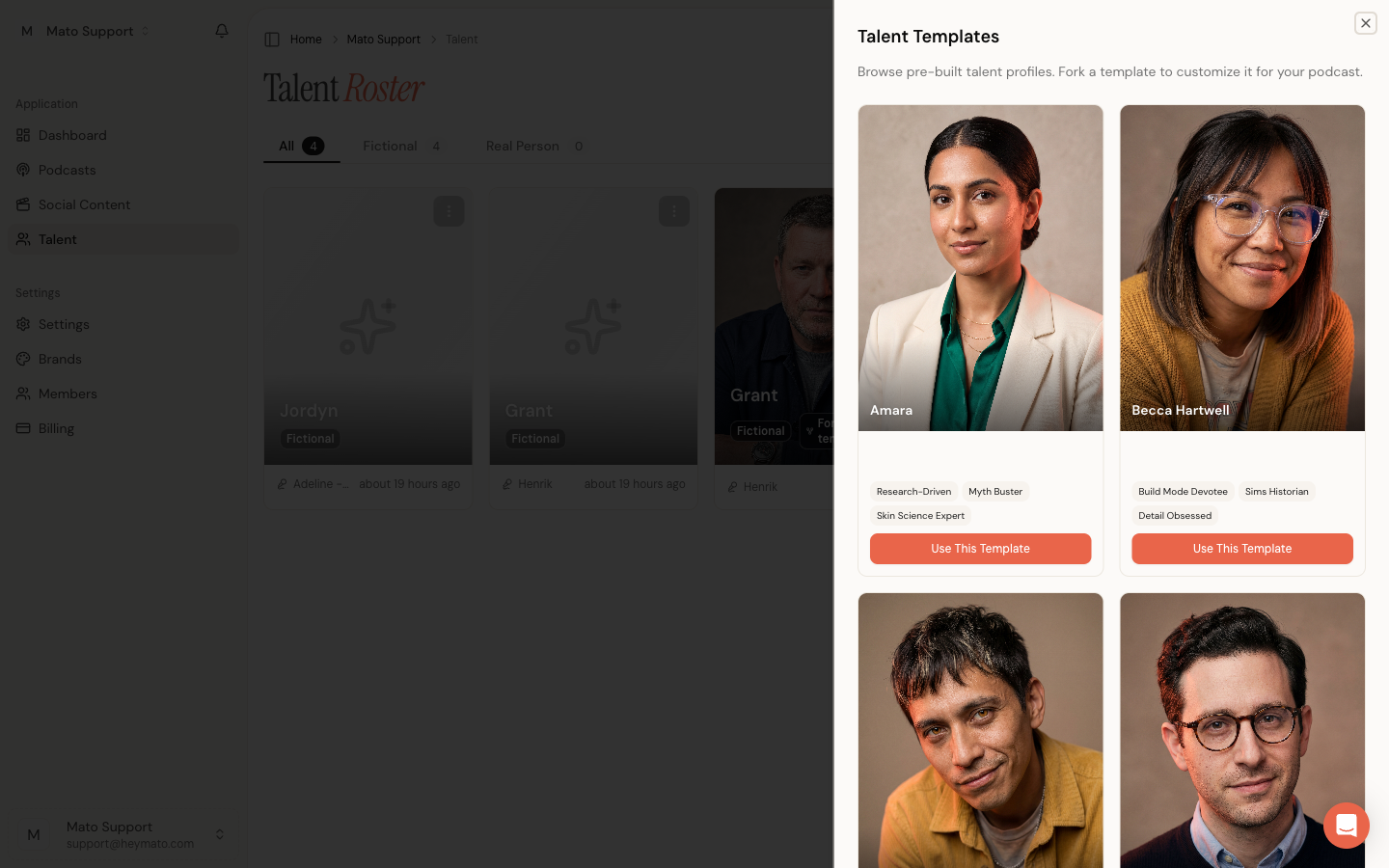
Click Use Template on any card to fork it.
Browse templates from the wizard
You can also reach templates through the creation wizard. After selecting Fictional and then Browse Templates, you see the same template grid inline.
Clicking a template card in the wizard forks it directly.
After forking
Once the fork completes, Mato opens an "Adapt to Podcast" dialog. This optional step lets you pick one of your podcasts. Mato then adjusts the host's personality narrative, sample conversation, tags, and "best for" cards to fit that show's topic and audience. You can skip adaptation by closing the dialog, and the host appears in your roster as-is.
Edit the host profile
After creation, open the host from your Talent roster. The detail page shows the portrait, personality radar chart, tags, characteristics, a sample conversation, "best for" cards, FAQ, and voice settings.
Click Edit to open the full editing form. The editable sections include:
- Name and visibility. Rename the host or set visibility to Private (only you), Team (workspace members), or Public (listed in the Mato talent directory).
- Radar chart. Five personality axes (Improvise, Explorer, Humor, Formal, Technical) shown as 0 to 100% sliders. Drag the sliders or use Auto-Generate Profile to have AI fill them from the personality data.
- Characteristics. Key-value pairs describing the host (up to 12).
- Tags. Free-form labels like "tech," "conversational," or "deep-dive."
- Personality narrative. A longer prose description of who the host is.
- Sample conversation. A short back-and-forth showing the host's style (up to 8 exchanges).
- Best for. Use-case cards describing what kinds of shows this host suits.
- FAQ. Common questions about the host.
- Audio samples. Generate short clips to preview the voice. Requires a voice to be assigned first.
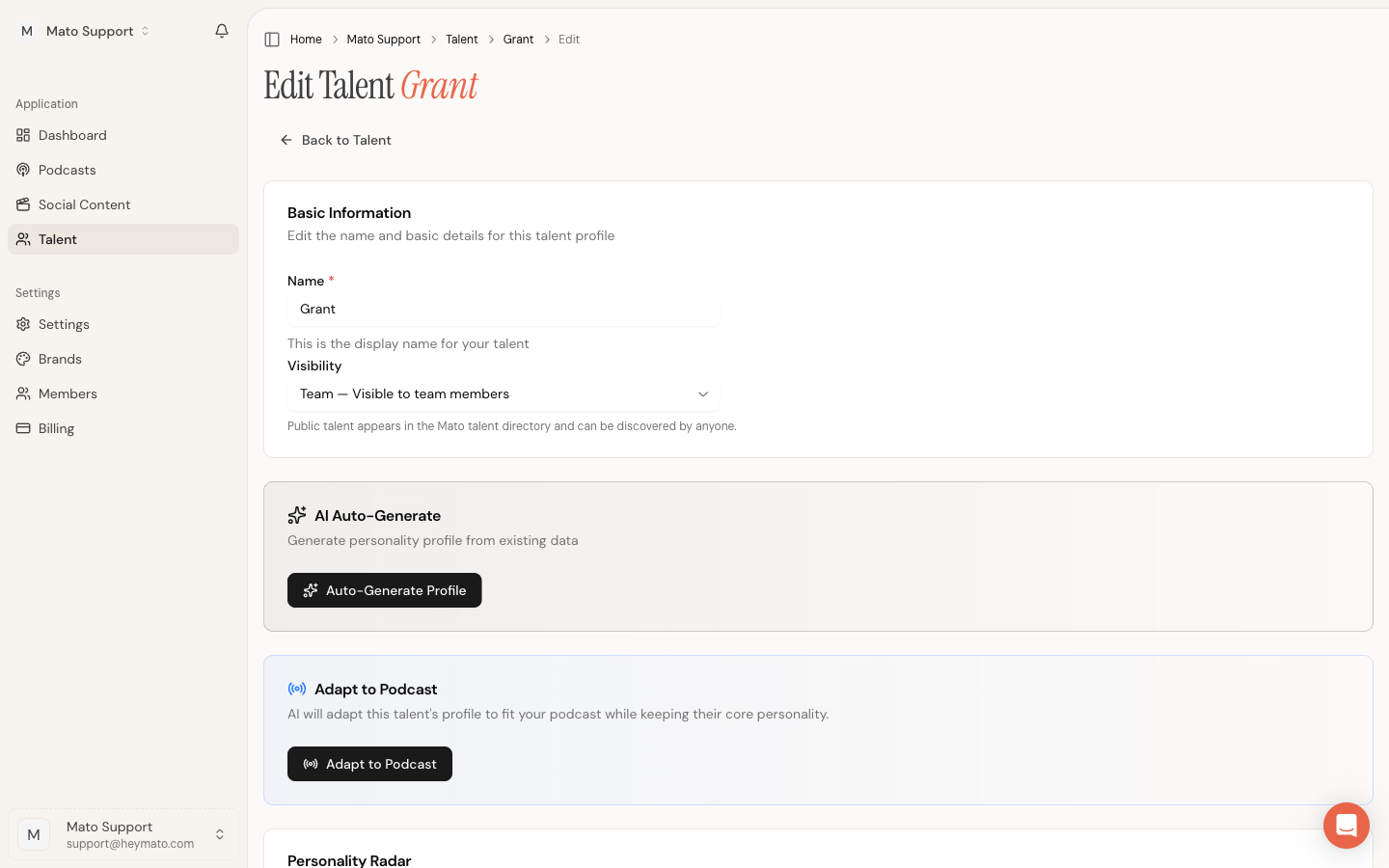
AI auto-generate
The edit page has an Auto-Generate Profile button. If the host already has personality data (from creation or manual entry), clicking this runs an AI pass that fills in the radar scores, characteristics, tags, narrative, sample conversation, "best for" cards, and FAQ. A confirmation dialog appears if it would overwrite existing content.
Adapt to podcast
The Adapt to Podcast button opens a dialog where you select a show. Mato rewrites the host's profile fields to match that podcast's topic and audience, then optionally assigns the host to the show.
Generate or change the avatar
Hover over the host portrait on the detail page and click to open the avatar dialog. You can enter a custom art direction prompt or leave the field blank to let Mato generate one from the profile automatically. Click Generate (or Regenerate if an avatar already exists).
Avatar generation runs as a background job. The portrait area shows a spinner while it works and updates automatically when the image is ready.
Assign a host to a podcast
There are three ways to assign a host:
- During creation. Select a podcast in the custom form's podcast dropdown.
- After forking. Use the Adapt to Podcast dialog that appears automatically.
- From podcast settings. Open a podcast's settings, go to the Talent tab, and add hosts from your roster.
Each podcast supports up to two hosts. If a podcast already has two, Mato warns you and skips the assignment.
Tips for better results
Write personality descriptions that include concrete details. Mention the host's expertise area, speech patterns, sense of humor (or lack of it), and how they interact with a co-host. Short, vague descriptions produce generic profiles.
If the first generated profile does not match what you need, open the edit page and run Auto-Generate Profile again after updating the personality data. Each generation pass can produce different results.
Tags help you find hosts later, especially as your roster grows. Use tags consistently across hosts (for example, always "finance" rather than mixing "finance," "financial," and "money").