
Mato can generate episodes on a repeating schedule without you pressing a button. You pick a frequency, a day, and a time, and Mato handles the rest: pulling content from your sources, writing a script, rendering audio, and (if auto-publish is on) pushing the finished episode to your distribution channels.
This guide covers the cadence settings and explains what happens behind the scenes each time a scheduled generation fires.
Open the cadence section
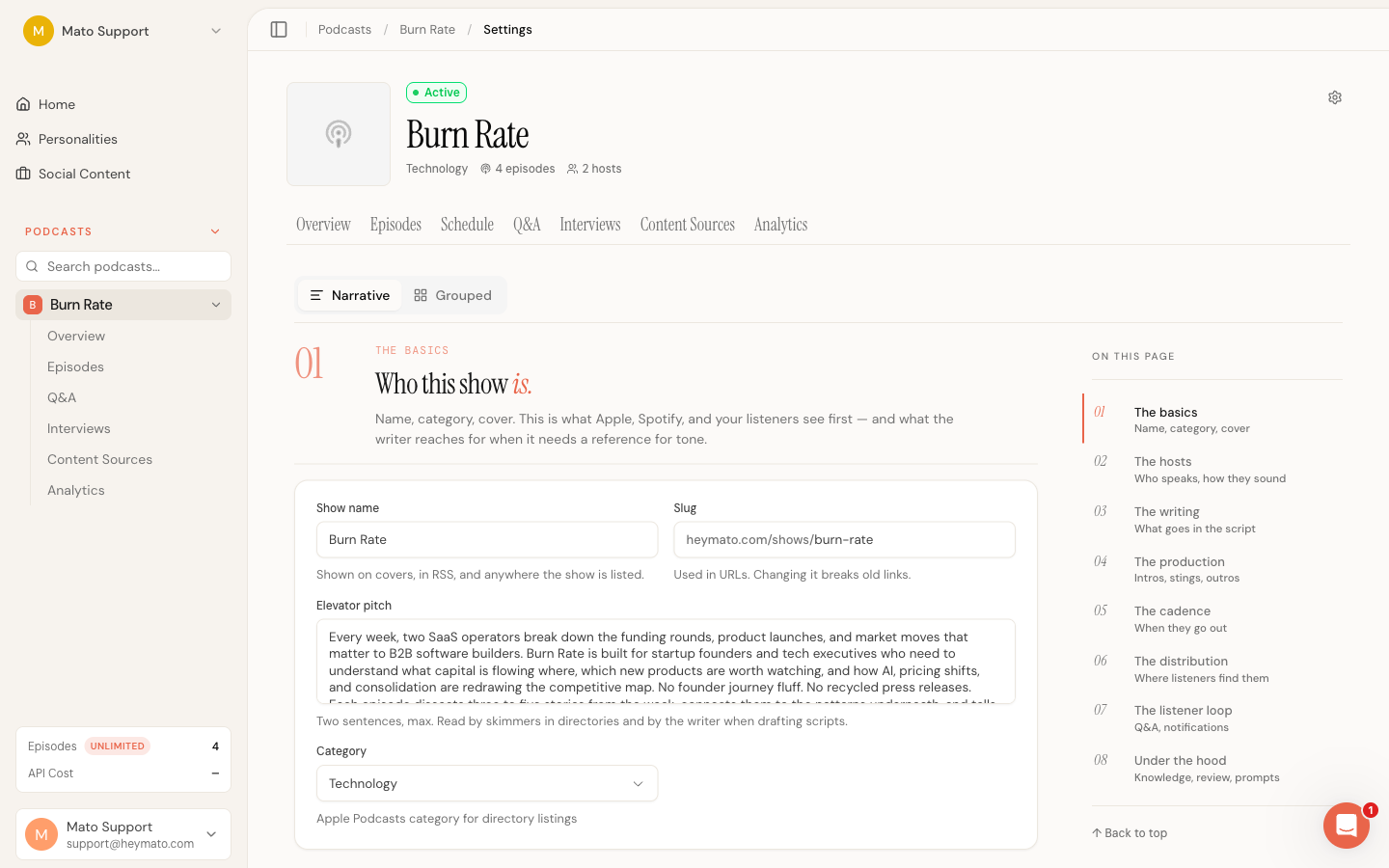
Go to your podcast's Settings page. In Narrative mode, scroll to section 05: The cadence. In Grouped mode, click Episodes in the sidebar, then look for the cadence card.
Choose a frequency
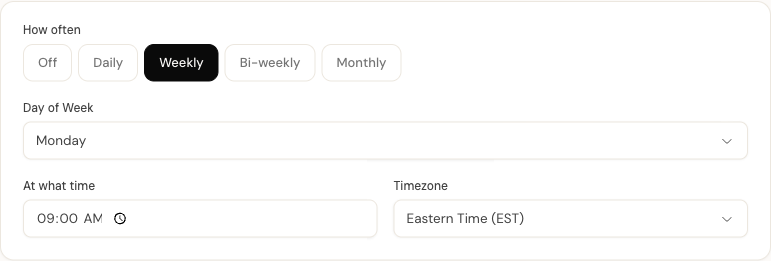
The first control is a row of pill buttons labeled Off, Daily, Weekly, Bi-weekly, and Monthly. Click one to set how often Mato generates an episode.
- Off disables scheduled generation entirely. You can still generate episodes manually.
- Daily generates at the time you set on the active weekdays you choose. With every weekday selected, it runs every day.
- Weekly generates once a week on the day and time you set.
- Bi-weekly generates every two weeks. Mato tracks the last generation date and waits at least 14 days before the next run.
- Monthly generates once a month on a specific calendar day (1st through 31st). If the month does not have that day (for example, the 31st of February), that cycle is skipped.
When you select anything other than Off, the remaining schedule controls appear below.
Pick a day
For Weekly and Bi-weekly, a Day of Week dropdown appears with Sunday through Saturday.
For Monthly, a Day of Month dropdown lists the 1st through the 31st. A note below the dropdown reminds you that months without the selected day will be skipped.
For Daily, an Active days row lets you choose any combination of Sunday through Saturday. An empty selection is treated as every day.
Set the time and timezone
Two fields sit side by side: a time picker and a timezone dropdown.

The time picker uses 24-hour format. Set the hour when you want the episode to publish. The scheduler checks for due shows every 15 minutes and dispatches each scheduled hourly slot once.
The timezone dropdown lists common IANA zones grouped by region: Hawaii, Alaska, Pacific, Mountain, Central, Eastern, São Paulo, UTC, London, Paris, Berlin, Moscow, Dubai, India, Singapore, Tokyo, China, Sydney, and Auckland. Mato defaults to your browser's timezone when no value has been saved.
All scheduling logic runs in the timezone you select here. If you set 6:00 AM Eastern, Mato checks for due podcasts at 6:00 AM Eastern regardless of what time it is in UTC.
Pick a content source
Once the schedule is active, a second card appears: Where the content comes from.
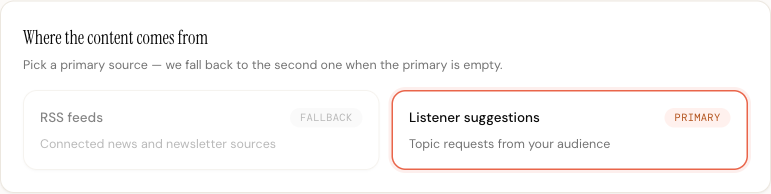
You have two options:
- RSS feeds pulls from the content sources connected to your podcast (news feeds, newsletters, blog imports).
- Listener suggestions uses AI-generated episode suggestions based on your podcast's topic and audience.
Clicking one card makes it the Primary source. The other card automatically becomes the Fallback. When the primary source has no new content at generation time, Mato tries the fallback before giving up.
If the RSS feeds option is dimmed, you have not connected any content sources yet. Add them from the content sources section of your podcast dashboard first.
Include listener Q&A
Below the content source card, a toggle labeled Include Listener Q&A controls whether approved listener questions get woven into scheduled episodes. The toggle is on by default. Turn it off if you want scheduled episodes to cover news and topics only, without a Q&A segment.
This setting only applies when Q&A is enabled for the podcast. If Q&A is disabled, the toggle has no effect.
Review the summary card
At the top of the cadence section, a dark summary card shows your current schedule in plain language. It reads something like:
A new episode publishes weekly every Monday at 6:00 AM ET, sourced from your RSS feeds, with listener Q&A included when available.
Below that summary, a line reads "Writing begins 45 minutes before publish." This is a rough estimate of how long the pipeline takes, not a configurable offset. Mato triggers generation at the scheduled hour and works through the steps (sourcing, writing, rendering) before publishing.
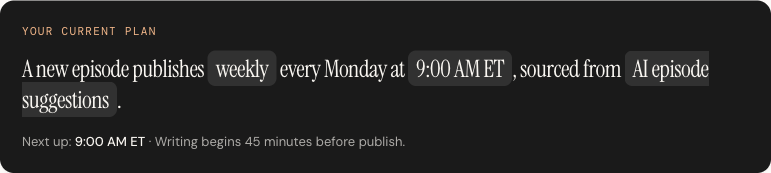
The summary updates live as you change settings. It disappears when the frequency is set to Off.
Save your changes
After adjusting cadence settings, a floating save bar appears at the bottom of the settings page. Click Save to persist your schedule. If you navigate away without saving, your changes are lost.
The cadence section saves together with any other settings sections you modified in the same session. One click saves everything.
What happens when a scheduled generation triggers
Behind the scenes, Mato runs a background job every 15 minutes. On each run, it checks all active podcasts and compares their schedule settings against the current time in each podcast's configured timezone. Here is the sequence when your podcast is due:
- Content sourcing. Mato checks your primary source (RSS or suggestions) for available material. If the primary source is empty, it tries the fallback source. If both are empty, the cycle is skipped, and Mato retries at the next scheduled window.
- Script generation. Mato sends the selected content into the AI writing pipeline. The number of segments, host styles, and writing configuration all come from your podcast settings.
- Audio rendering. Once the script is written, Mato renders audio using your configured TTS voices and production assets (intro, outro, transition stings).
- Publishing. If your podcast is set to auto-publish, the finished episode is sent to your distribution channels (Mato Distribution, Buzzsprout, WordPress, or any other connected platform). If auto-publish is off, the episode lands in your episode list as a draft for manual review.
- Slot completion. Mato records the scheduled slot so it does not create a duplicate job for the same release time. A recovery path can catch a missed slot without consuming it twice.
If you have Manual review enabled in the Automation section (under "Under the hood" in settings), step 3 pauses after the script is written. The episode sits as a draft, and you receive an email notification (if enabled). You review and approve the script, then Mato continues with audio rendering and publishing.
Manage the suggestion queue
When your content source is set to Listener suggestions as the primary source, an advanced panel called Suggestion queue becomes available in the cadence section. Click Advanced settings to expand it and manage queued episode suggestions.
The queue lets you:
- Pin specific suggestions to the top so they are used first.
- Reorder suggestions using the up and down arrow buttons.
- Remove suggestions you do not want.
- Add new suggestions from the pool of AI-generated options.
Queued suggestions are consumed in order. Once the queue is empty, Mato uses AI to pick the most relevant pending suggestion based on urgency, timeliness, and what you have already covered.
Turn off scheduled generation
To stop scheduled generation, go back to the cadence section and set the frequency to Off. Your other settings (day, time, timezone, content source) are preserved, so you can turn scheduling back on later without reconfiguring everything.
Tips
- Start with weekly. A weekly cadence gives you enough time between episodes to review scripts and refine your settings without falling behind.
- Match your audience's timezone. If most of your listeners are on the US East Coast, set the timezone to Eastern. The episode will be ready when they start their morning.
- Use the fallback source. If your RSS feeds occasionally go quiet, set listener suggestions as the fallback. Mato will always have something to work with.
- Combine with manual review if you are new. Turn on manual review in the Automation section until you trust the output quality, then switch to auto for a hands-off workflow.
- Use the schedule calendar to manage upcoming episodes. After configuring cadence here, head to the Schedule tab to see your upcoming episodes on a timeline, drag suggestions onto dates, and approve queued topics.