
Every podcast in Mato has a settings page where you control how episodes are generated, branded, scheduled, and distributed. This article walks through each section so you know what is available and where to find it.
Open the settings page
From any page inside your podcast, click Settings in the left sidebar. You can also click the gear icon near the top-right corner of the podcast header.
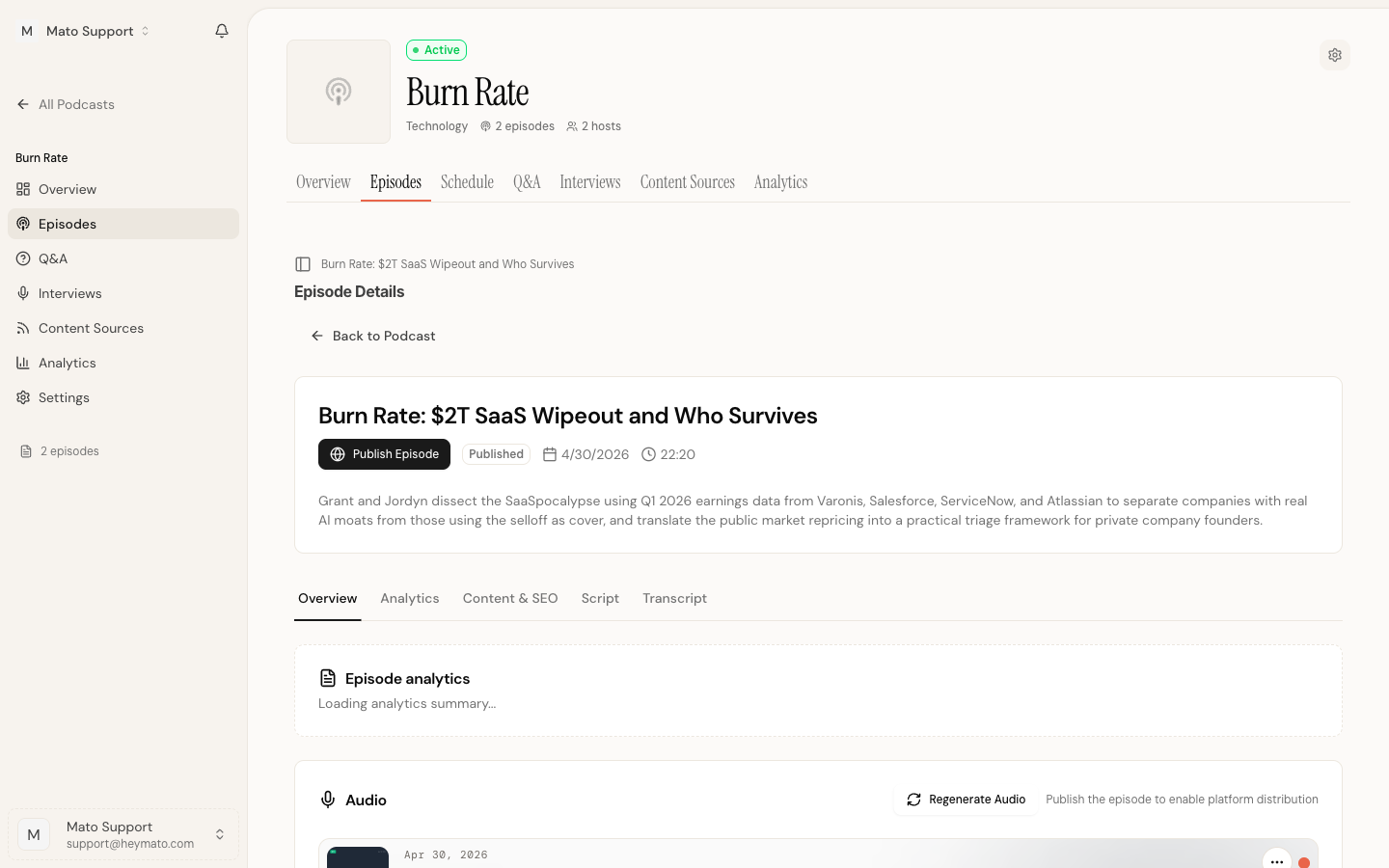
The direct URL pattern is:
https://heymato.com/home/<workspace>/podcasts/<podcastId>/settings
Settings page layout
The settings page has two viewing modes. A toggle at the top lets you switch between them. Mato remembers your preference in your browser.
Narrative mode
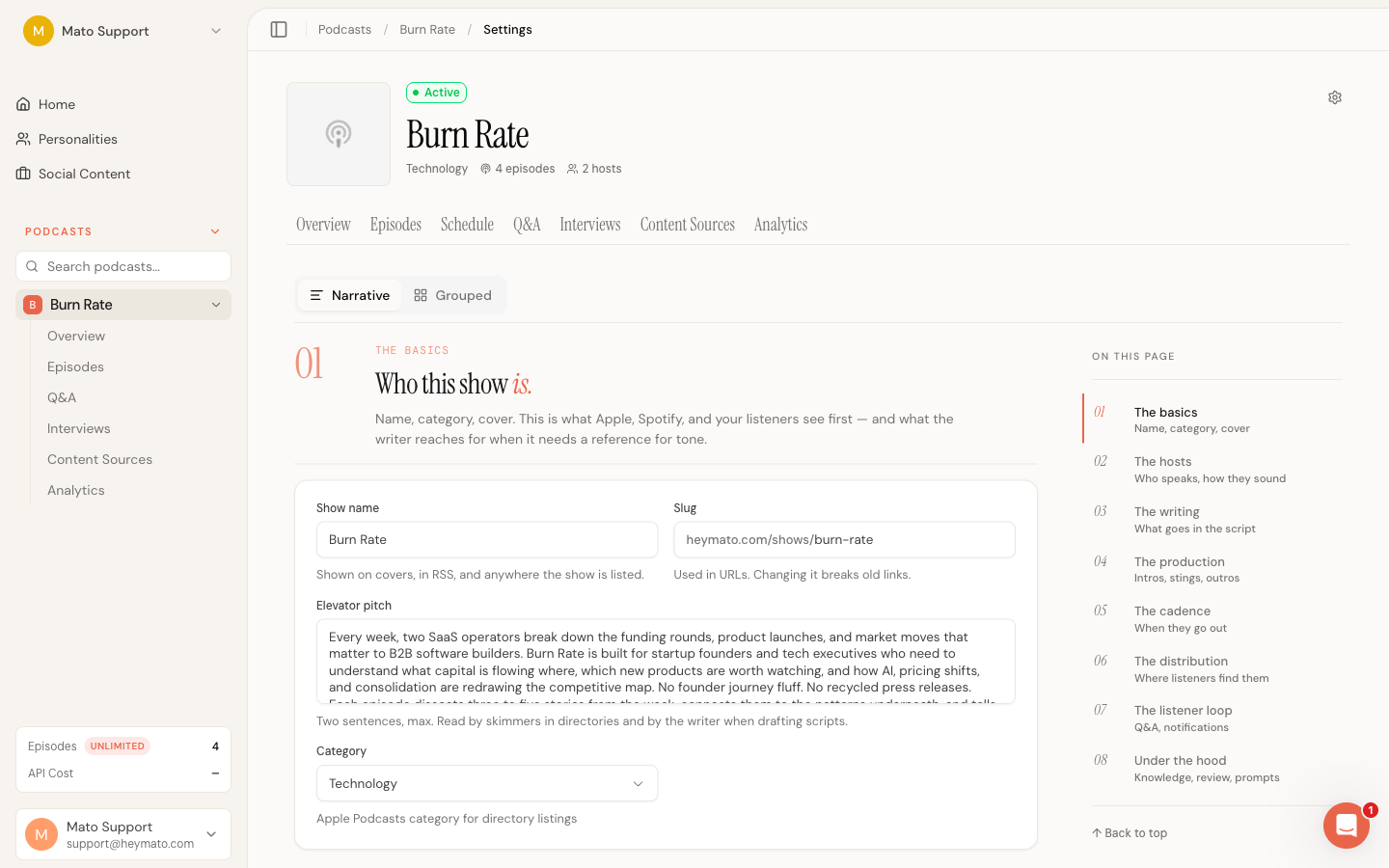
Narrative mode displays all eight sections in a single scrollable page, each numbered 01 through 08. A sticky table of contents on the right side tracks your scroll position and lets you jump to any section.
The eight sections are:
- The basics (name, category, cover)
- The hosts (who speaks, how they sound)
- The writing (what goes in the script)
- The production (intros, transitions, outros)
- The cadence (when episodes go out)
- The distribution (where listeners find them)
- The listener loop (Q&A, notifications)
- Under the hood (knowledge base, review, prompts)
Grouped mode
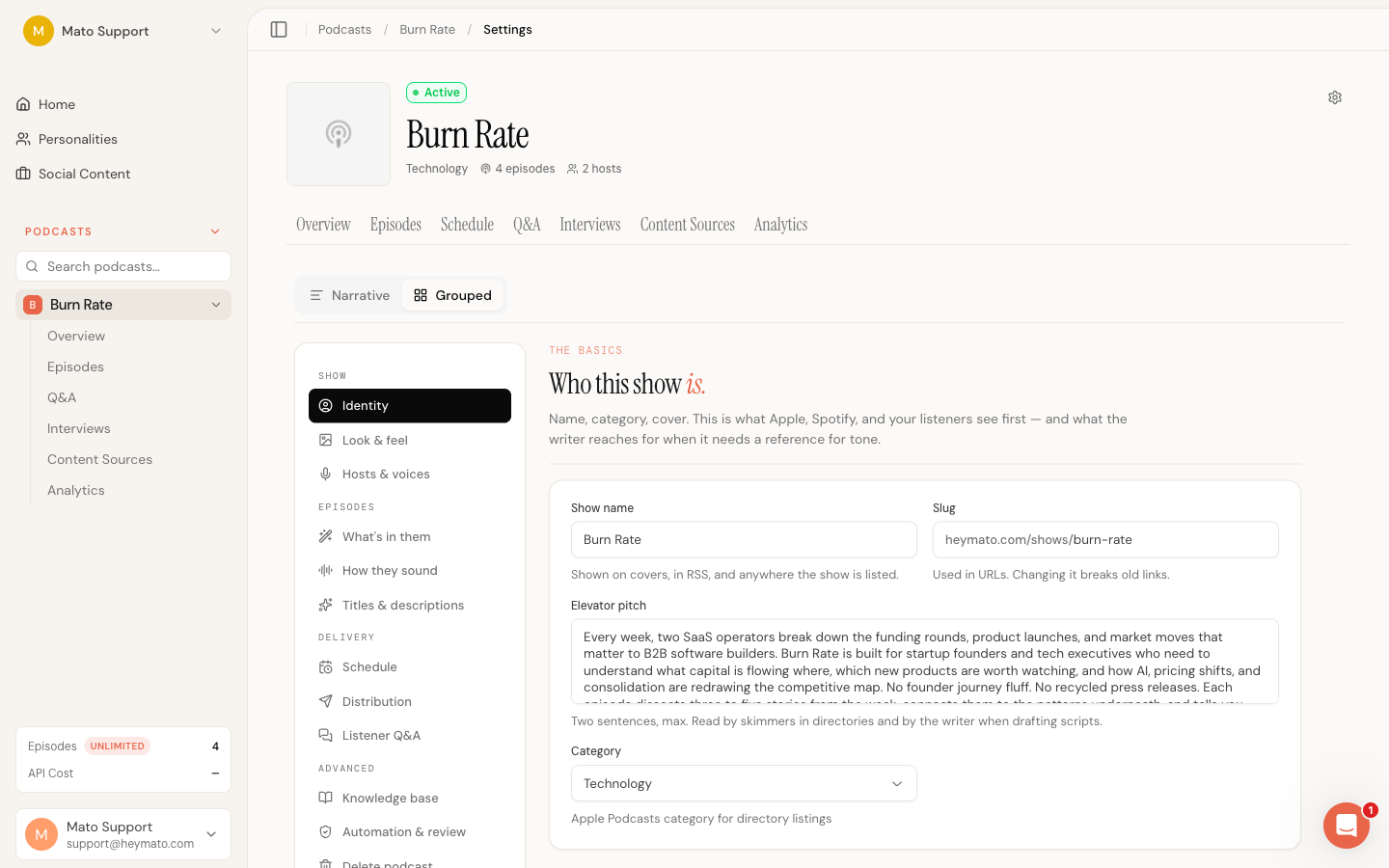
Grouped mode organizes the same sections into four sidebar groups. Only one group is visible at a time. Click a group item in the sidebar to focus on that area.
- Show: Identity, Look & feel, Hosts & voices
- Episodes: What's in them, How they sound, Titles & descriptions
- Delivery: Schedule, Distribution, Listener Q&A
- Advanced: Knowledge base, Automation & review, Delete podcast
Deep links
You can link directly to a section by appending ?tab= to the URL (for example, ?tab=audio or ?tab=publishing). Mato maps legacy tab names to the correct section in whichever view mode you are using. The valid tab values are general, audio, hosts, metadata, publishing, qna, and knowledge.
The basics
The basics section is the default view when you open settings. It covers your podcast's core identity and branding.
- Name, slug, and description
- Apple Podcasts category and optional subcategory
- Podcast status (Active, Draft, or Paused)
- Color scheme (primary, secondary, accent, background, text) or a linked brand profile
- AI cover generation with style selection and edit prompts
You can link a brand profile to the podcast, which pulls in colors and styling automatically. If no brand is linked, five color pickers and a logo URL field appear instead. A live cover preview updates as you change colors.
You can also upload a manual cover image in PNG, JPEG, or WEBP format, up to 5 MB. A manual cover overrides auto-generated covers for future episodes.
The writing
This section controls how the AI writes your scripts: target episode length, tone (casual, professional, educational, entertaining, news brief, or comedy), AI provider (OpenAI or Anthropic), optional style guidance, a call to action, and a content age filter that limits how old source articles can be.
A TTS scene description tells voice actors about the physical environment and mood of your show. You can write one manually or click Regenerate to have the AI create one from your podcast's tone and description.
The cadence
Set the publishing frequency for automated episode generation: off (manual only), daily, weekly, bi-weekly, or monthly. For weekly and bi-weekly schedules, pick the day of the week. For monthly, pick the day of the month.
Choose a time and timezone, then select a content source. Scheduled episodes can pull from RSS feeds and content sources or from the AI episode suggestion queue. You can set a fallback source in case the primary source has nothing available.
The Episode Generation Settings area controls how many segments each scheduled episode includes (1 to 10, roughly 5 minutes each) and whether approved listener Q&A questions are folded into scheduled episodes.
The production
The production section manages your podcast's audio assets: intro music, outro music, and transition sounds. Upload files or select from your audio asset library, and toggle whether the intro and outro are included in generated episodes.
The hosts
The hosts section shows which AI hosts are assigned to this podcast. You can add or remove talent, reorder them, and adjust per-podcast overrides like accent, audio profile, director notes, and speech speed.
For details on creating and managing talent profiles, see the Talent article in the Help Center.
Under the hood
Under the hood contains settings that most users rarely need to change.
Titles and descriptions. You write custom AI prompts that guide how episode titles and descriptions are generated, with support for date variables. A preview dialog shows how your prompts would apply to recent episodes.
Automation and review. Two toggles control the generation pipeline. Manual Review pauses episode generation after the script is created, giving you a chance to edit before audio rendering begins. An optional email notification tells you when a script is ready. Web Search lets the AI search the web for additional context during script generation.
The distribution
The distribution section connects your podcast to the Mato directory and external platforms.
Mato Distribution. Sync your podcast to the Mato directory and track submission status across platforms like Apple Podcasts, Spotify, and others. The Mato sync card shows your feed URL, owner details, and publish mode.
Auto-publish. A toggle controls whether finished episodes go live automatically or wait for your review.
- When auto-publish is on and the show is synced to Mato Distribution, episodes publish through the Mato feed after audio generation. Feed playback and analytics stay in sync.
- When auto-publish is on but the show is not yet synced, Mato will sync the show first, then publish the episode through the feed.
- When auto-publish is off, every episode waits in a review queue before going live.
Also send to. Buzzsprout is configured in the Advanced drawer at the bottom of this section. Enter your API key and podcast ID, choose a publish mode (manual, draft, or auto), and test the connection. WordPress article publishing is managed from the Content workspace settings, where connections can be shared across the workspace or limited to one podcast.
Featured episode. Also in the Advanced drawer, you can pick a "Start Here" episode to highlight for new listeners on your public page.
The listener loop
The listener loop section enables listener questions through multiple channels: a web form, SMS, voice, and WhatsApp. Configure which channels are active, set rate limits per phone or email, and manage phone number provisioning.
Notification settings control whether you receive email alerts for incoming questions, who gets notified (owner, admins, or all members), and whether notifications are batched or sent instantly.
An embeddable Q&A widget code block is available for adding the question form to your own website.
Knowledge
The knowledge section (also accessible under the "Under the hood" group in Grouped mode) is where you upload reference documents that the AI uses during script generation. These files give the AI additional context about your industry, company, or topic area so it can produce more informed episodes.
Saving changes
Most sections share a floating save bar that appears at the bottom of the screen when you have unsaved edits. The bar shows a "You have unsaved changes" label with Discard and Save changes buttons. When you click Save changes, all dirty sections are sent to the server in a single request.
A few sections save independently because they write to their own tables instead of the main podcast record. These include Q&A channel settings, knowledge base uploads, and Buzzsprout configuration. Each of these has its own save or apply button within the card.
Changes are not auto-saved. In Grouped mode, switching between sidebar groups keeps your unsaved edits alive (the save bar stays visible), so you will not lose work by browsing other groups.
Deleting a podcast
In Narrative mode, scroll to the bottom of the "Under the hood" section (section 8). In Grouped mode, click Delete podcast in the Advanced sidebar group. A Danger Zone card lets you permanently delete the podcast. This archives the podcast and all of its episodes. You will be asked to confirm before anything is deleted.