
Your podcast's visual identity shows up everywhere: episode listings, podcast directories, embedded players, and social shares. Mato gives you two ways to create cover art (AI generation or manual upload), a five-color scheme for episode covers, an optional logo, and brand profiles that tie everything together.
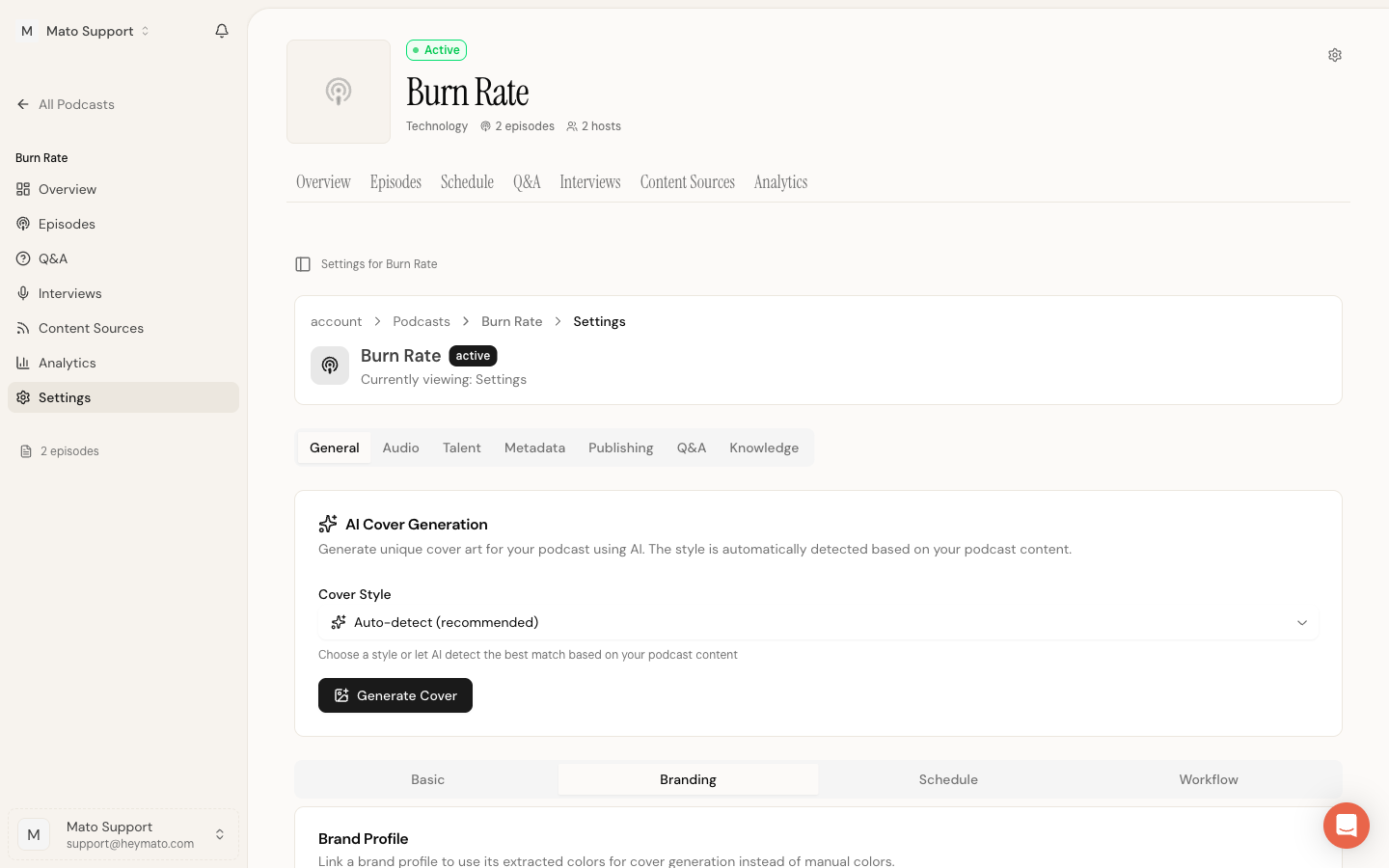
Branding controls are split across two sub-tabs inside your podcast's Settings page on the General tab. The AI Cover Generation card sits at the top of the General tab (visible on any sub-tab). The color scheme, manual cover upload, logo, and brand profile controls live on the Branding sub-tab.
Open branding settings
- Go to Podcasts in the sidebar and select your podcast.
- Click Settings (the gear icon in the top-right of the podcast header, or the Settings link in the sidebar).
- You land on the General tab. The AI Cover Generation card sits at the top of this tab.
- Click the Branding sub-tab to access color scheme, cover upload, logo, and brand profile options.
Generate a cover with AI
The AI Cover Generation card on the General tab creates unique cover art from your podcast's content and metadata. No design tools required.
Pick a style
Open the Cover Style dropdown. You can choose from 16 styles across five categories:
- Photography (Professional Headshot, Cinematic Noir, Editorial Lifestyle, Documentary Photojournalistic)
- Illustration (Illustrated Character, Flat Vector Infographic)
- Typography (Bold Typography)
- Graphic (Futuristic Tech Minimal, Abstract Conceptual, 3D Rendered, Modern Gradient, Object Forward, Neon Synthwave, Silhouette High Contrast)
- Mixed Media (Vintage Retro, Collage Mixed Media)
Select Auto-detect (recommended) to let Mato classify your podcast's genre, tone, and content, then pick the best-fitting style automatically.
Generate and preview
Click Generate Cover. A progress indicator walks through each step: loading podcast data, classifying content, generating the prompt, generating the image, and uploading the preview. The whole process takes 30 to 60 seconds.
When the preview appears, you see the generated image with a badge showing which style was used. You have three options:
- Accept Cover saves the image as your podcast cover.
- Regenerate opens a dropdown with three choices: regenerate with the same style, try an alternative style, or go back to the style selector to pick a different one.
- Edit Cover opens a dialog where you can refine the image using text instructions (for example, "make the background warmer and increase title contrast"). Type your edit, click Apply Edit, and the AI modifies the current cover. You can apply multiple edits before accepting.
Accept or reject
Click Accept Cover when you are satisfied. Mato saves the final image and removes the temporary preview. The accepted cover appears on the General tab with a green "Cover saved successfully" indicator.
To start over at any time, click Generate New Cover.
Upload a custom cover image
If you already have artwork, upload it directly from the Branding tab.
- Click the Branding tab in podcast settings.
- Under Manual Cover Image, click the file input to select an image.
- Requirements: PNG, JPEG, or WEBP format and under 5 MB. Mato does not reject a cover based on pixel dimensions, but a high-resolution square image works best in podcast directories.
- A preview appears. Click Upload Cover to save it, or Cancel to discard.
This cover applies to all future episodes. Existing episodes keep their current covers.
To remove an uploaded cover, click the red Remove Cover button next to the preview image.
Set your color scheme
The color scheme controls how AI-generated episode covers look. These fields appear on the Branding tab (hidden when a brand profile is linked, since the brand manages colors instead).
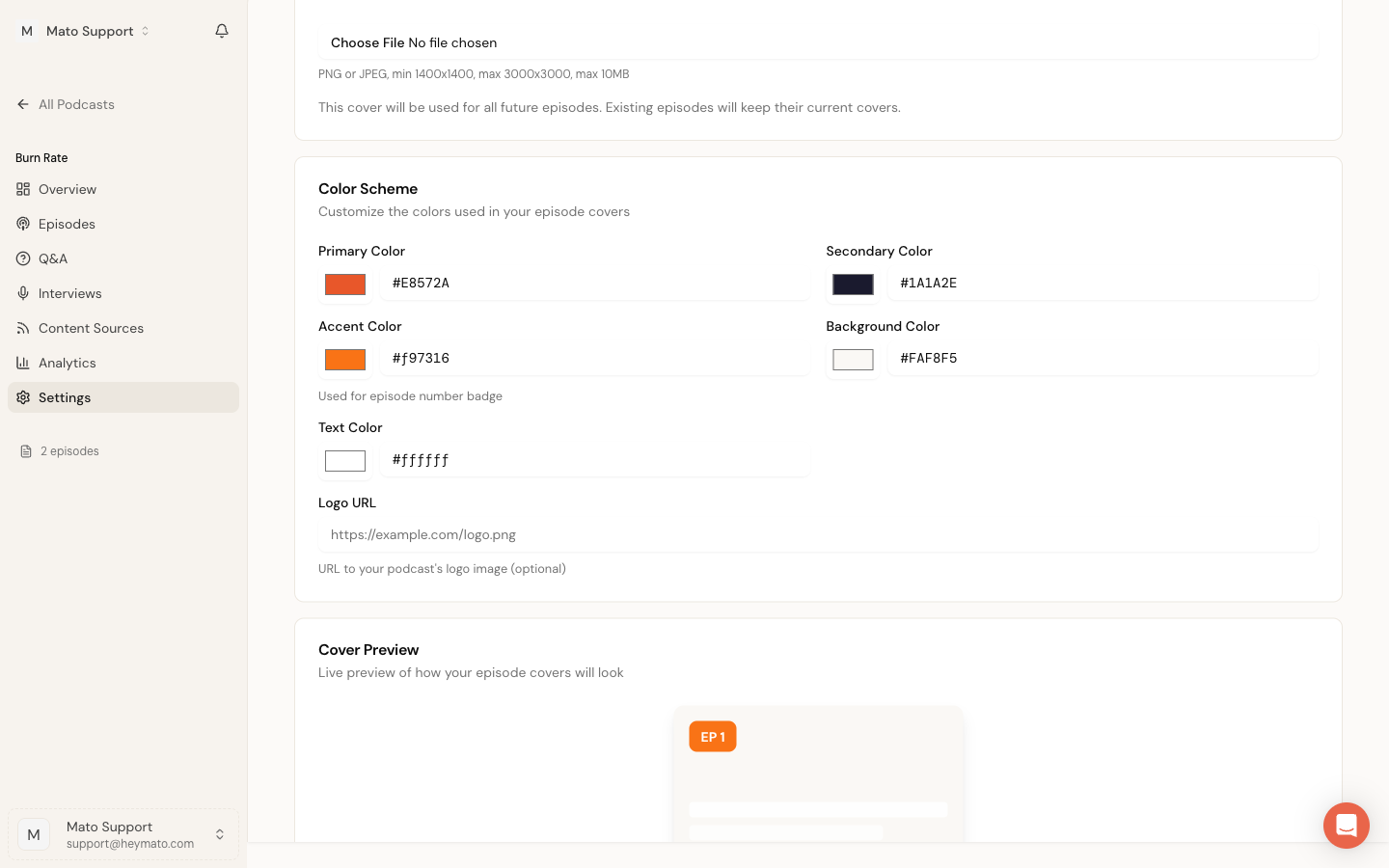
Each color has a visual picker and a hex input field:
| Color | Purpose | Default |
|---|---|---|
| Primary | Main brand color used in cover design | #3b82f6 |
| Secondary | Supporting color for visual accents | #6366f1 |
| Accent | Episode number badge | #f97316 |
| Background | Cover background | #1f2937 |
| Text | Title and label text on covers | #ffffff |
Click the color swatch to open the system color picker, or type a hex value directly. Changes appear instantly in the live preview below the color fields.
Live preview
The Cover Preview card below the color fields shows a mock episode cover using your current colors. It displays an episode number badge (using accent color), placeholder title lines (using text color), your podcast name, and small swatches for primary and secondary colors on a background-colored canvas.
This preview updates as you adjust colors, so you can experiment before saving.
Add a logo
On the Branding tab, the Logo URL field accepts a URL to your podcast logo image. Paste the full URL (for example, https://example.com/logo.png) and save. This logo is optional and supplements the cover art.
Link a brand profile
Brand profiles let you manage visual identity across multiple podcasts from one place. If your workspace has brands configured, the Branding tab shows a Brand Profile selector at the top.
- Open the dropdown and select a brand.
- When a brand is linked, the color scheme and logo fields are hidden. The brand manages those values centrally.
- A link appears below the dropdown to View Brand profile for editing.
To disconnect a brand, set the dropdown back to the "No brand" option. The color scheme and logo fields reappear so you can set podcast-specific values.
Save your changes
After adjusting colors, logo, or brand profile on the Branding tab, scroll to the bottom and click Save Changes. Mato redirects you to the podcast overview page.
AI cover generation (accept, reject, edit) saves automatically through its own buttons on the General tab. Manual cover uploads also save immediately when you click Upload Cover. The Save Changes button applies to the form fields: color scheme, logo URL, and brand selection.