
The schedule calendar shows your upcoming episodes, queued suggestions, and published history on a single timeline. You can drag suggestions onto dates, swap entries between slots, and configure how often Mato generates new episodes.
Open the schedule
From your podcast's page, click the Schedule tab. Mato loads your episodes, queued suggestions, and AI-generated topic ideas into the calendar view.
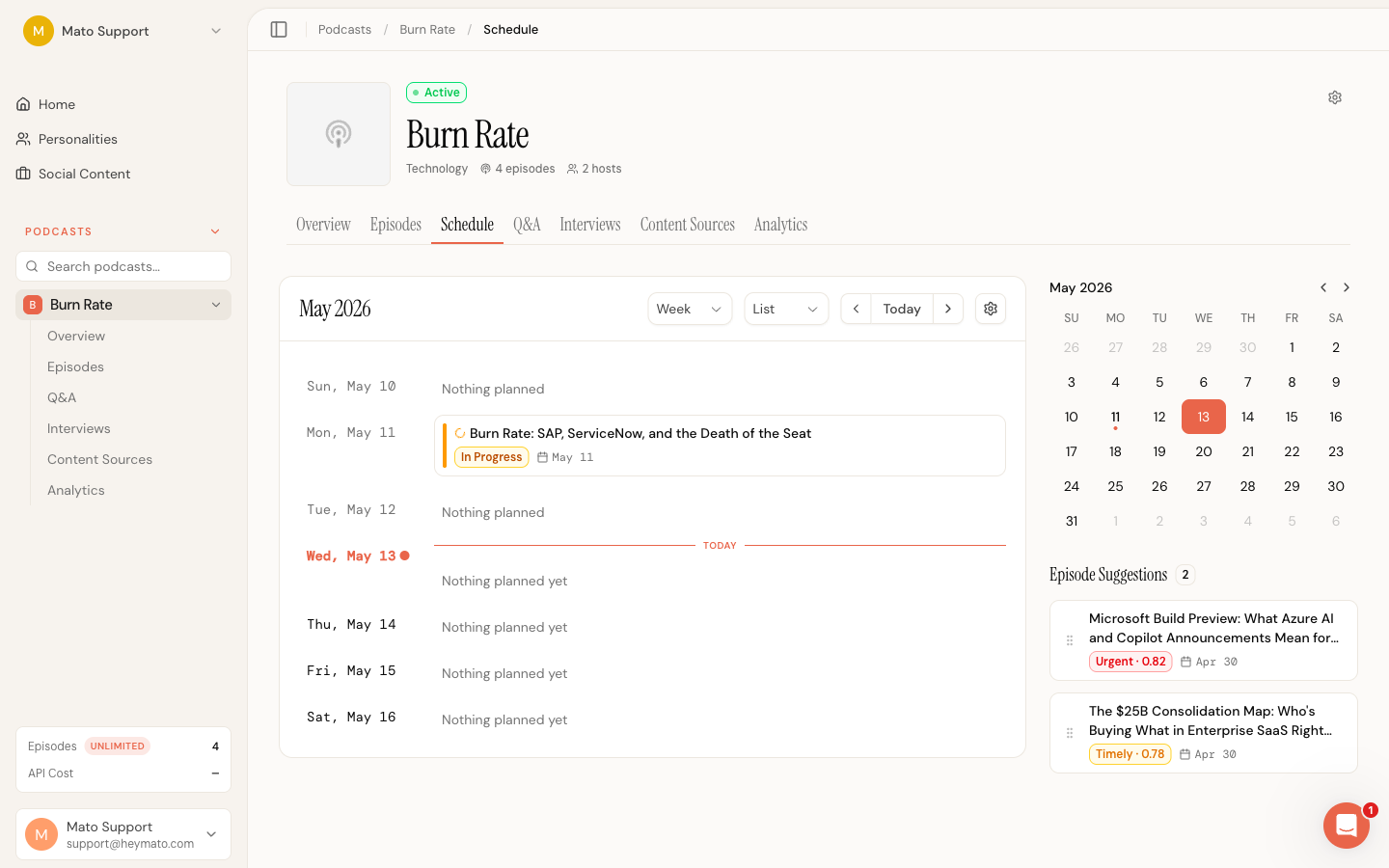
If you have not set a publishing cadence yet, a banner appears at the top prompting you to configure one. Click the Configure schedule button or the gear icon in the header to open the settings modal.
Switch between list and calendar
The header bar at the top of the schedule offers two layout options and three time ranges.
Layout toggle (right side of header):
- List shows one row per day, with event cards stacked vertically. This is the default.
- Calendar displays a traditional grid with days as columns and weeks as rows.
Time range selector (also in the header):
- Week shows seven days starting from Sunday.
- Bi-weekly shows fourteen days across two weeks. This is the default for bi-weekly schedules.
- Month shows a full calendar month with partial weeks at the edges.
Use the arrow buttons next to Today to move forward or backward by one period. Click Today to jump back to the current date.

Understand the color coding
Each card on the schedule uses a color-coded left edge and badge to show its status:
- Green with a "Published" badge marks episodes that are already live. These show download counts and duration if available.
- Amber with a spinner and "In Progress" badge marks episodes currently generating (script, audio, or cover art still processing).
- Blue with a "Scheduled" badge marks confirmed upcoming episodes. These are either episodes with a set publish date or suggestions that have been pinned to a specific date in the queue.
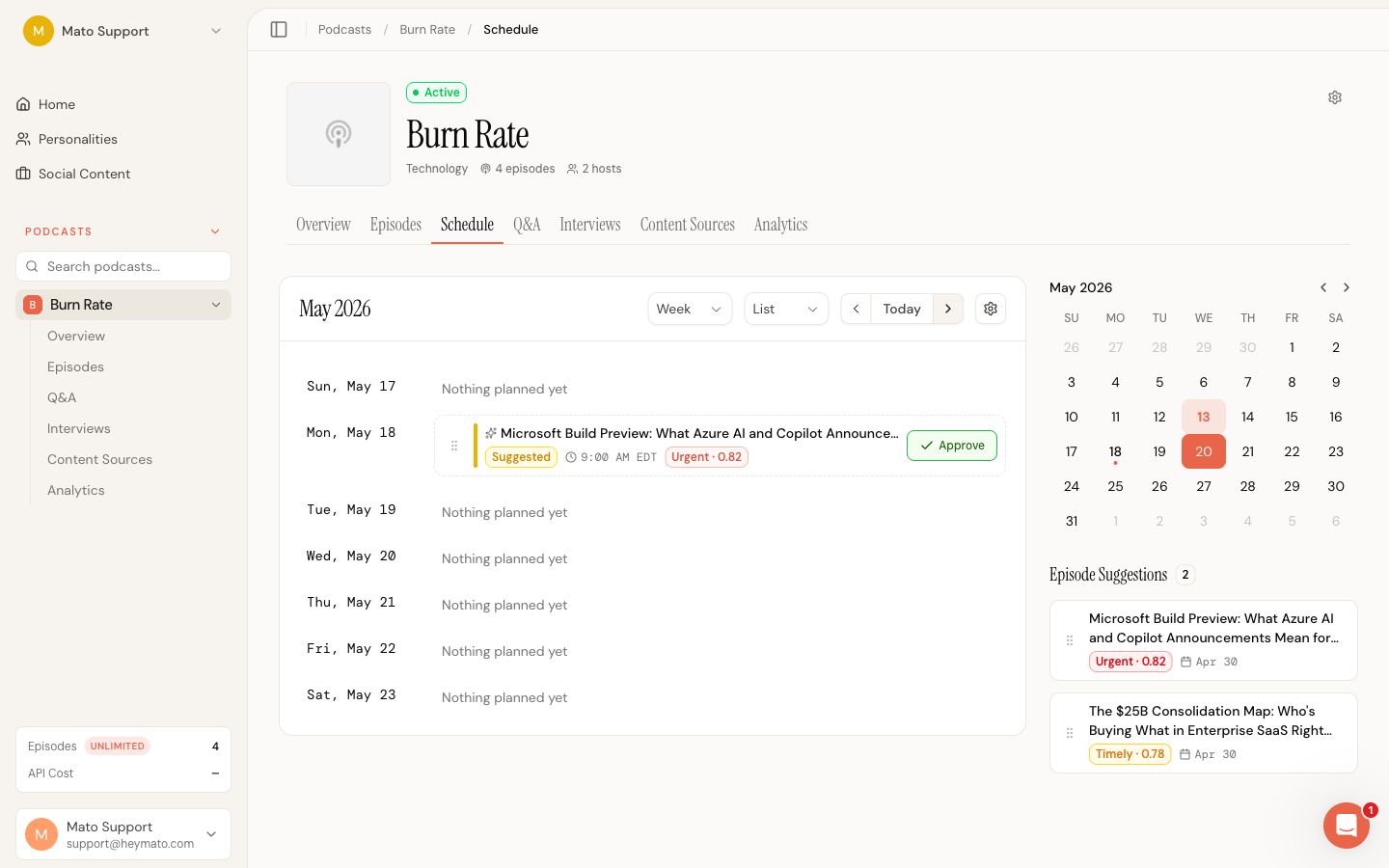
- Yellow with a dashed border and "Suggested" badge marks AI-generated topic suggestions that Mato has auto-filled into open slots. These are not confirmed yet.
In list view, each row displays the date on the left and the event card on the right. Schedule days with no content show "Nothing planned yet" as a clickable placeholder. Past days without content show "Nothing planned" as plain text.
In calendar view, the same color coding applies to compact cards within each cell. Today's date is highlighted with a coral circle around the day number.
Use the suggestion sidebar
The right side of the schedule shows two panels.
Mini calendar: A small month view where dots under certain dates indicate days with events. Click any date to jump the main view to that day. Use the arrows to navigate months.
Episode suggestions: Below the mini calendar, a list of unqueued topic suggestions sorted by urgency. Each card shows the suggestion title, an urgency badge (Urgent, Timely, or Evergreen), and the date it was created.
Click any suggestion card to open a detail popup showing the full description, editorial angle, content gap analysis, and target keywords. From that popup you can click Create episode to start generating an episode from the suggestion.
Drag and drop suggestions onto the calendar
Every suggestion card in the sidebar has a grip handle on its left edge. Grab the handle and drag the card onto any future date in the main schedule view.
When you drag over a valid date, the day cell highlights with a coral ring. Drop the card to pin that suggestion to that date. Mato adds it to your queue with a scheduled date and shows a confirmation toast.
A few rules apply:
- You cannot drop onto past dates. They dim during a drag to signal they are off limits.
- Dropping onto an empty future date creates a new scheduled entry.
- Dropping onto a date that already has a scheduled suggestion triggers a swap. The existing entry gets removed from the queue (returned to the sidebar pool), and the dragged entry takes its place. A swap icon appears over the target cell so you know what will happen before you release.
- Published and in-progress episodes block drops. Their dates are locked.
If you drop a suggestion on a day that is not part of your regular cadence, a hint banner appears offering to open schedule settings.
Move scheduled entries between dates
Suggestions already pinned to a date are also draggable. Grab the grip handle on a blue "Scheduled" card and drag it to a different date. This moves the entry without removing it from the queue.
Unschedule an entry
Drag a scheduled entry from the calendar back to the sidebar suggestion list. The sidebar highlights with a dashed ring when you hover over it. Dropping there removes the entry from the queue and returns the suggestion to the unqueued pool.
Approve a suggestion
Suggested (yellow) cards in both views include an Approve button. Clicking it pins the suggestion to that date and adds it to your queue. In list view, the approve button appears directly on the card. In calendar view (week and 2-week periods), it appears below the suggestion title inside the cell.
From the suggestion detail popup, clicking Create episode takes you to the episode generation page with the suggestion pre-filled. This skips the approval step and goes straight to generation.
View event details
Click any event card (published, in-progress, scheduled, or suggested) to open a detail dialog.
Published episodes show the cover art, title, publish date, listen count, and duration. A View details button links to the full episode page.
Scheduled episodes show similar information with a Generate now link to the episode page.
Scheduled suggestions show the suggestion title, description, angle, content gap, keywords, and a Remove from queue button. A Create episode button links to the generation page with the suggestion pre-selected.
Suggested (auto-fill) entries show the same suggestion details with an option to create an episode directly.
Remove a suggestion from the queue
There are three ways to remove a queued suggestion:
- Drag to sidebar: drag the scheduled card back onto the suggestion sidebar.
- X button on the card: in list view, hover over a scheduled suggestion card to reveal a close button on the right side.
- Detail dialog: click the card, then click Remove from queue in the dialog.
All three remove the suggestion from the queue and return it to the sidebar pool.
Configure schedule settings
Click the gear icon in the schedule header to open the settings modal.
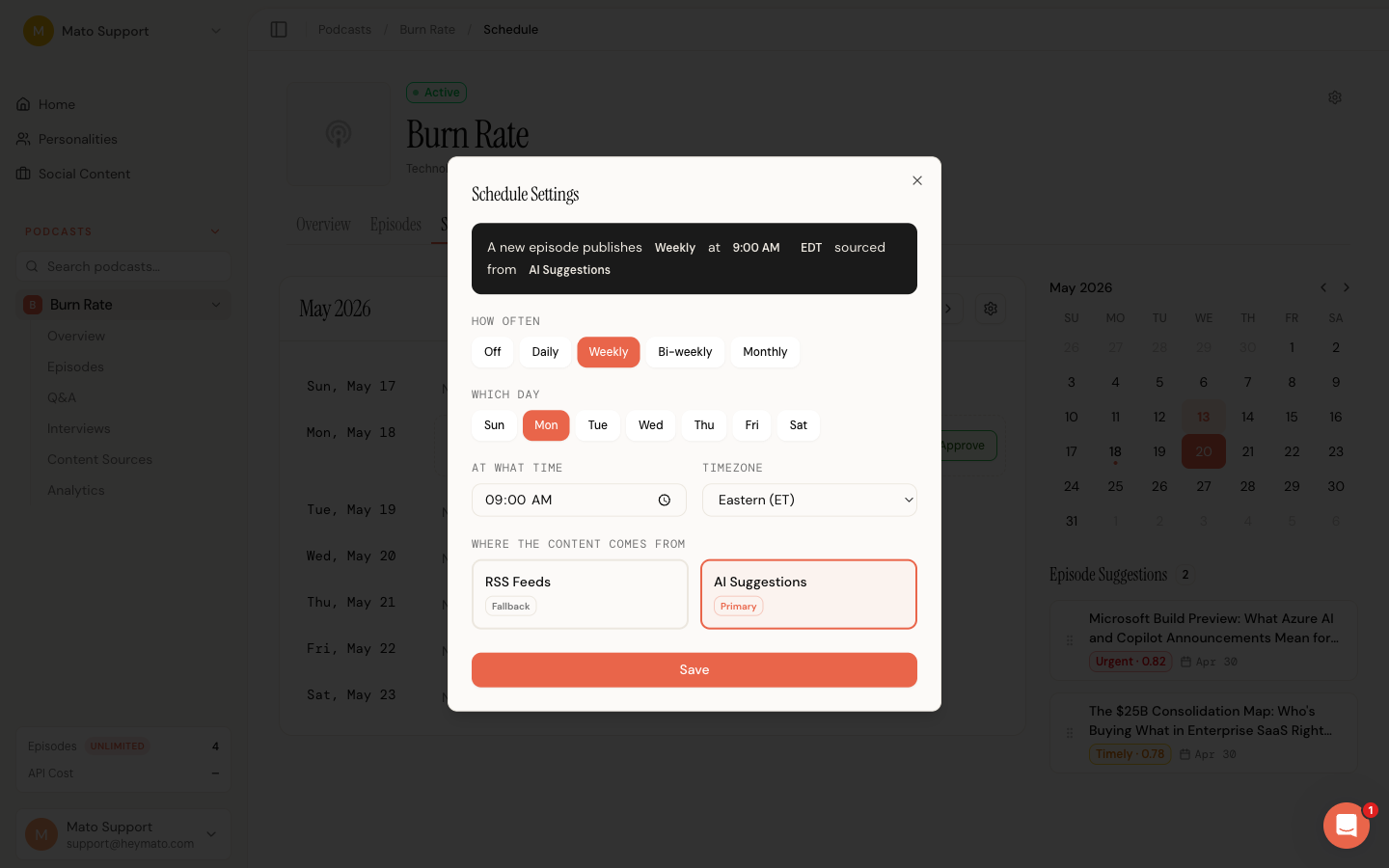
The modal has four sections:
Frequency: Choose how often Mato should generate episodes. Options are Off, Daily, Weekly, Bi-weekly, and Monthly.
Day: For weekly or bi-weekly schedules, pick the day of the week (Sunday through Saturday). For monthly schedules, pick the day of the month (1 through 31).
Time and timezone: Set the time of day and timezone for scheduled generation. The time picker uses 24-hour format. The timezone dropdown includes common US, European, and Asia-Pacific zones plus UTC.
Content source: Choose whether scheduled generations pull from RSS feeds or AI suggestions as the primary source. The other option automatically becomes the fallback.
A summary card at the top of the modal previews your settings as a sentence (for example, "Weekly at 6:00 AM ET sourced from RSS feeds").
Click Save to apply changes. The schedule view updates immediately to reflect the new cadence.
Keyboard and accessibility
All calendar cells, suggestion cards, and drag handles are keyboard-accessible. The drag-and-drop system announces actions through screen readers: when you pick up a card, hover over a day, and drop it, each state is announced. Past dates are disabled as drop targets.
The mini calendar supports keyboard navigation and marks today with aria-current="date". Selected dates use aria-selected.