
Mato generates full podcast episodes from a topic you describe or from articles in your RSS feeds. This guide walks you through the entire flow: starting generation, reviewing the script, editing metadata, and rendering audio so you can listen before publishing.
By the end, you will have a generated episode with a polished script and audio ready for review.
Start from the podcast overview
Open your podcast and look at the Overview tab. If you have no episodes yet, Mato starts generating topic suggestions in the background based on your podcast's focus area.
While suggestions are being created, the overview shows a spinner and three skeleton placeholder cards. This usually takes two to five minutes. The cards fill in automatically once the suggestions are ready, so you can leave the page and come back.
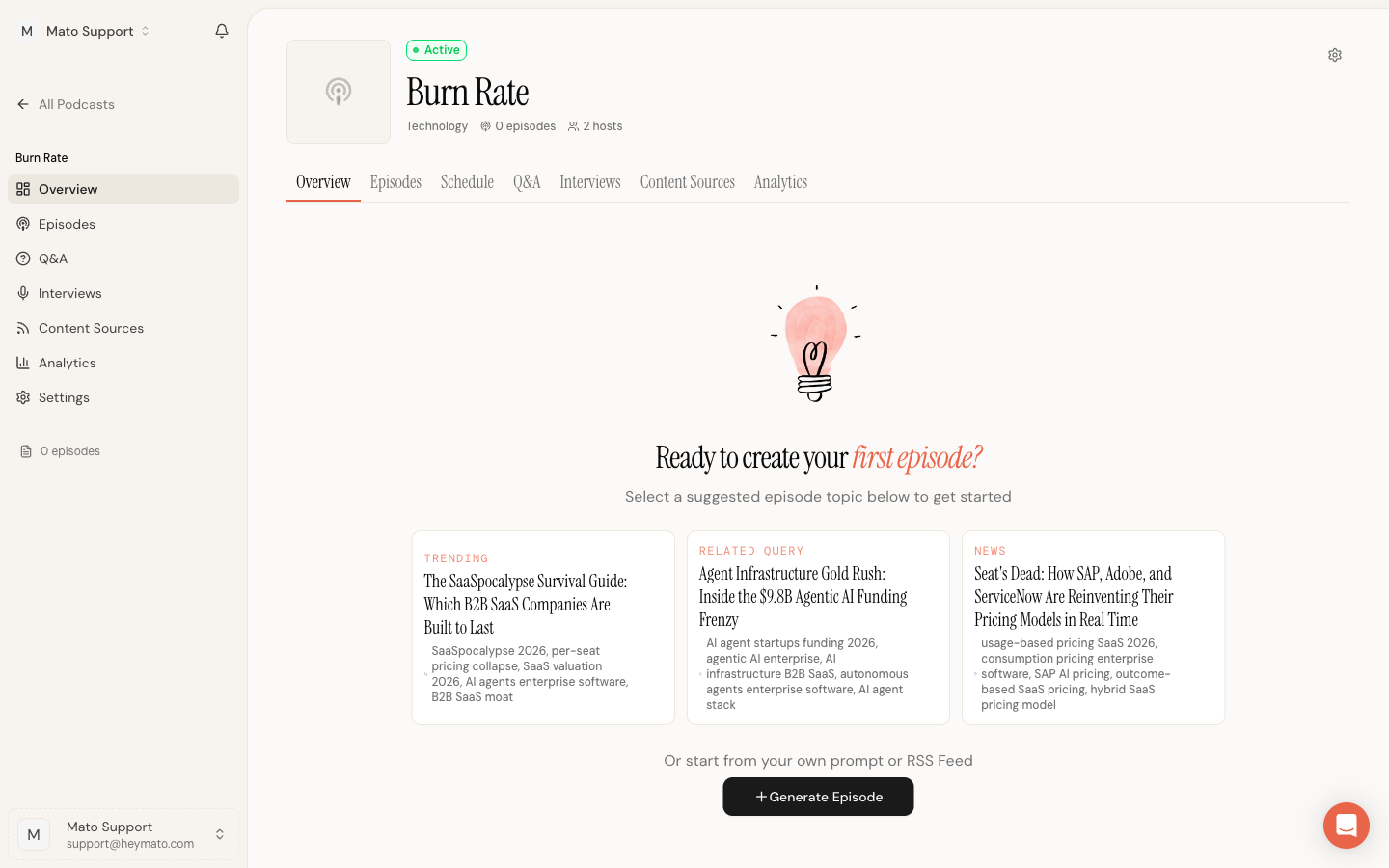
If the suggestion job takes longer than expected or you opened a podcast that was created more than ten minutes ago, the placeholder UI is skipped and you go straight to the Generate Episode button instead.
Each suggestion card shows a category label (such as Trending, News, Content Gap, or RSS News), a title, and relevant keywords. Click a suggestion card to jump straight to the generate page with that topic pre-filled.
You can also click Generate Episode at the bottom to start from scratch with your own topic.
Choose a generation mode
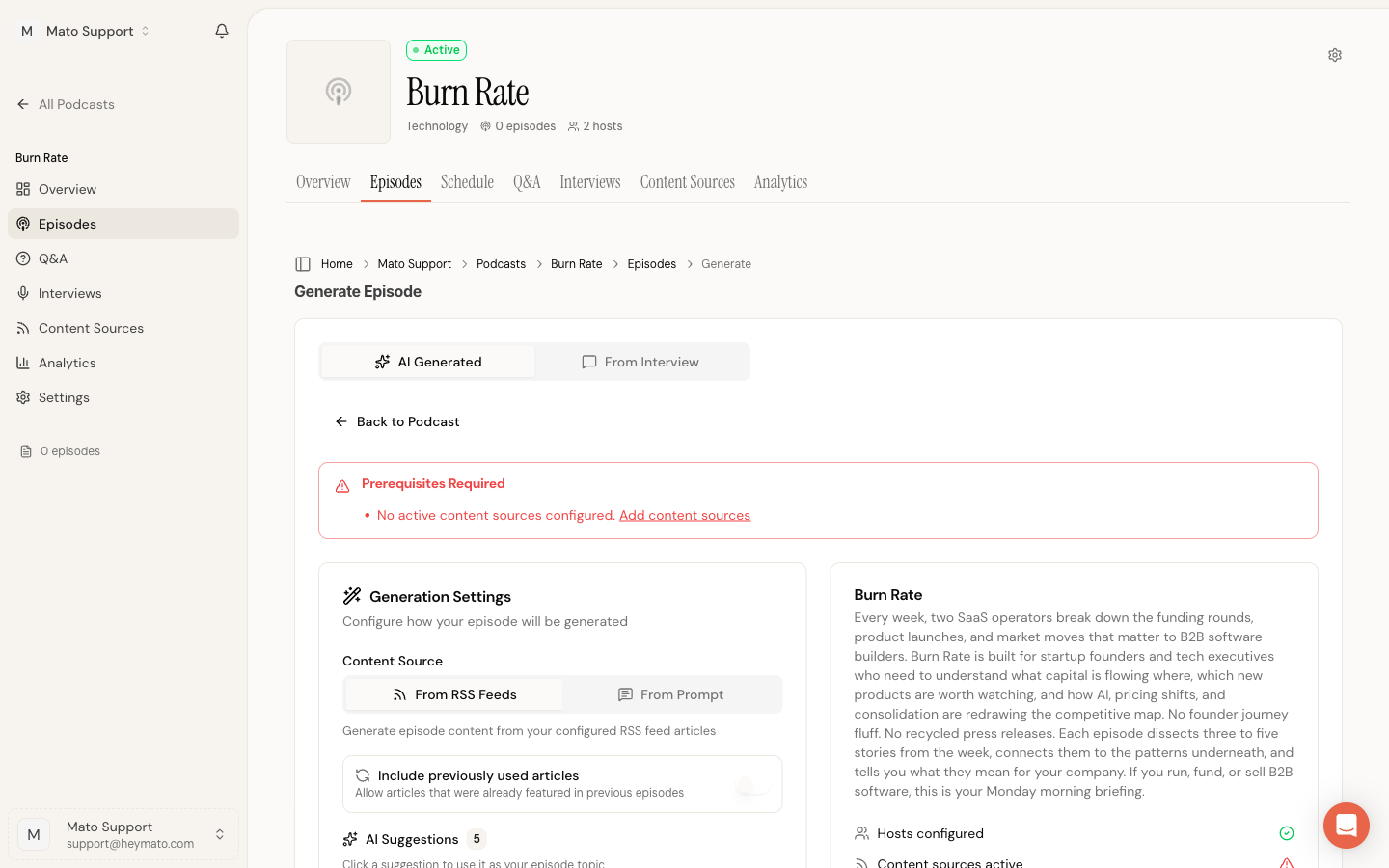
The generate page has two content source tabs: From RSS Feeds and From Prompt.
From RSS Feeds pulls articles from your configured content sources and uses them as material for the episode. If you have not added any content sources yet, this tab shows a prerequisites warning with a link to the Content Sources page.
From Prompt lets you describe the episode topic directly. Type what the episode should cover, and optionally paste article URLs inline for Mato to scrape and use as context.
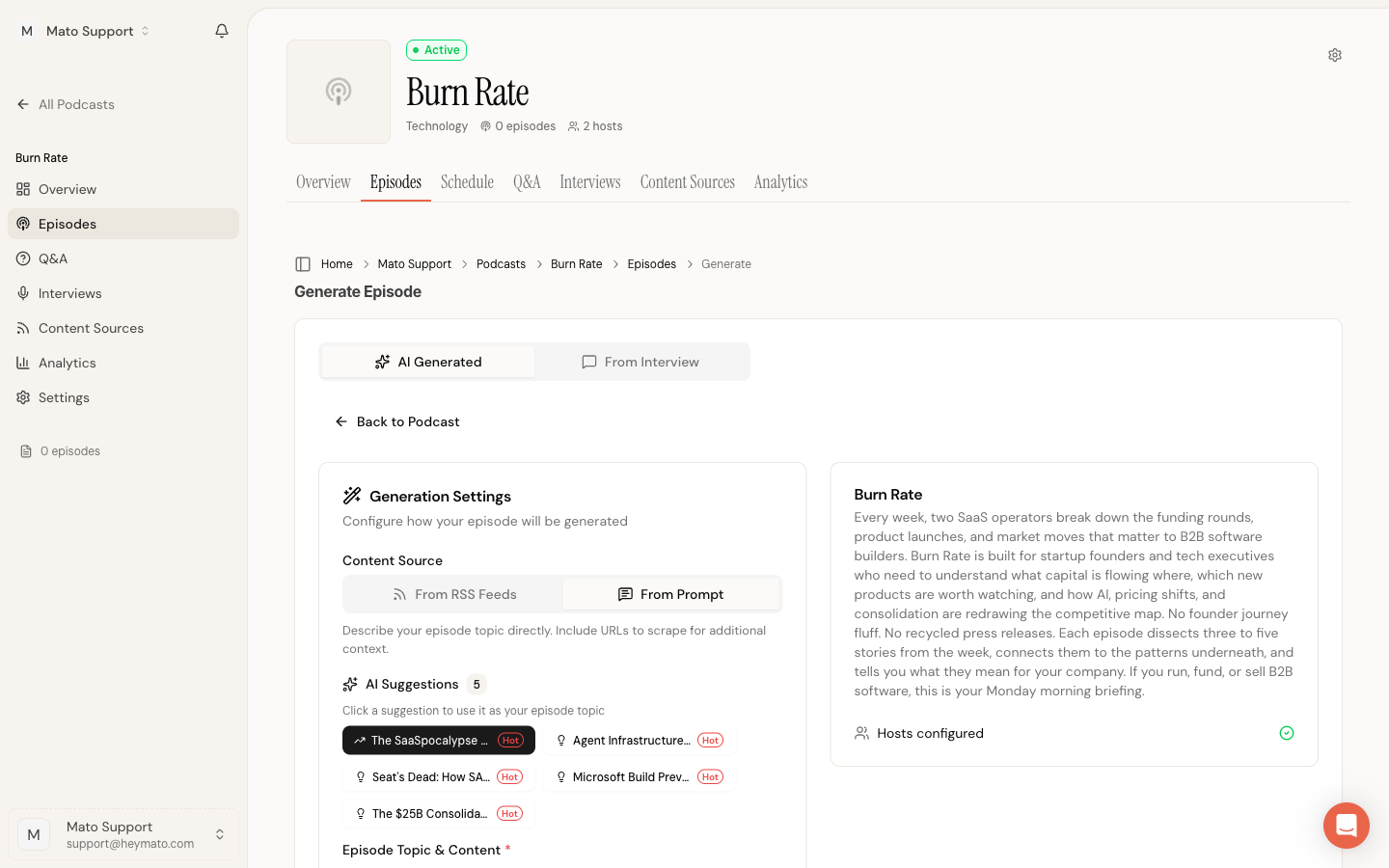
If you clicked a suggestion from the overview page, the prompt field is already filled with a detailed topic, angle, and source URLs. You can edit it or replace it entirely.
Below the prompt, you will see:
- AI Suggestions chips. Click any one to auto-fill the prompt with that topic.
- AI Provider selector. Defaults to your podcast's configured provider, or OpenAI (GPT-5.1) if no default is set. You can switch providers per episode, including Anthropic (Claude Sonnet 5).
- Number of Segments controls how many discussion sections the episode will have. The default is calculated from your podcast's target episode length (roughly one segment per five minutes).
Generate the episode
Click Generate Episode to start. The form disables while Mato works, and a progress panel appears on the right side.
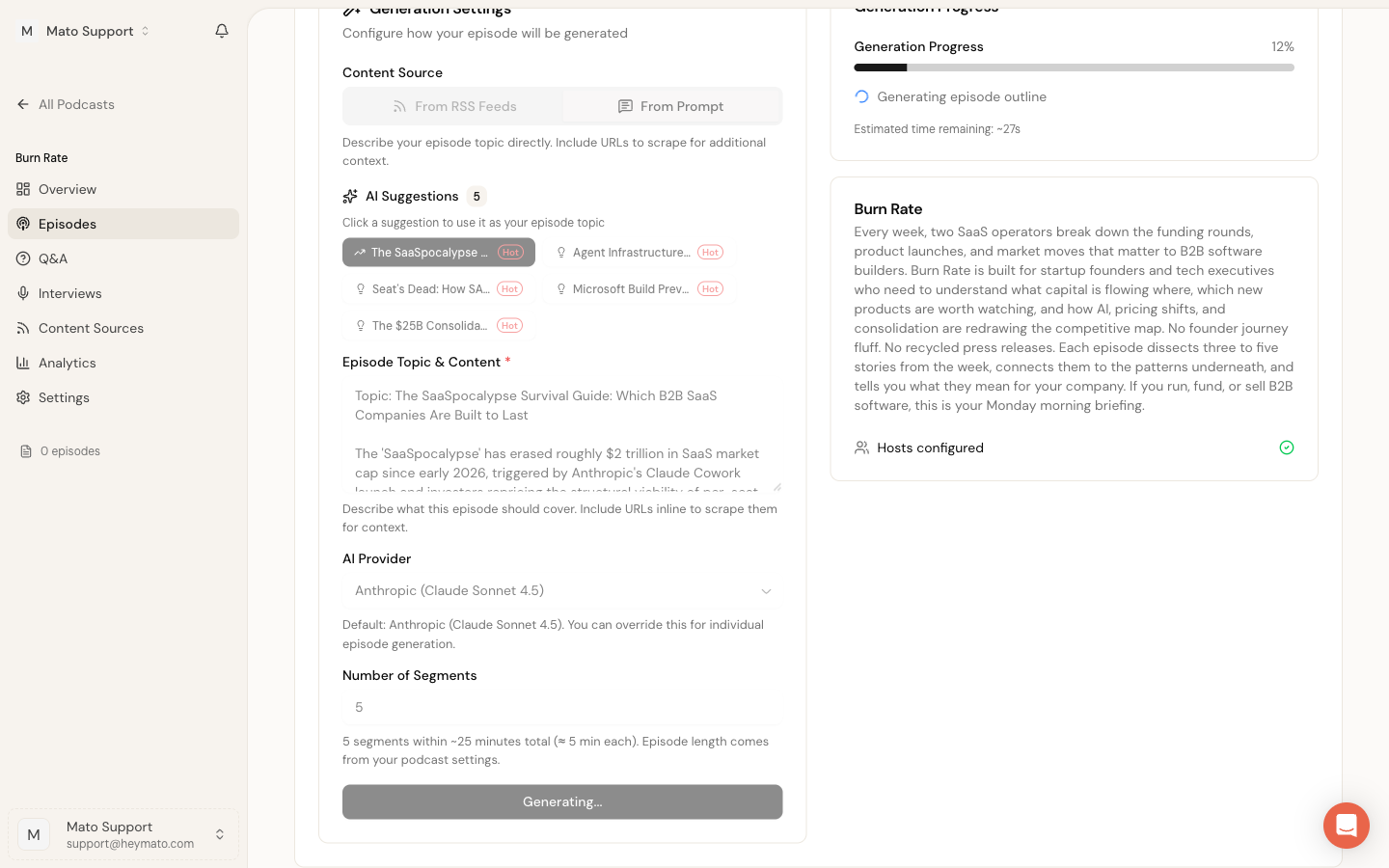
The progress panel shows a percentage bar, the current step (for example, "Generating episode outline" or "Generating segment 2/5"), and an estimated time remaining. Generation time varies based on the number of segments and whether the prompt includes URLs to scrape. A three-segment episode from a simple prompt typically finishes in one to two minutes.
When generation completes, Mato redirects you to the episode details page automatically.
Review the episode
After generation, you land on the episode overview. This page shows the episode title, description, date, duration, and lifecycle status. It also includes the audio player (if audio has been rendered), plus links to the Script and Content & SEO tabs.
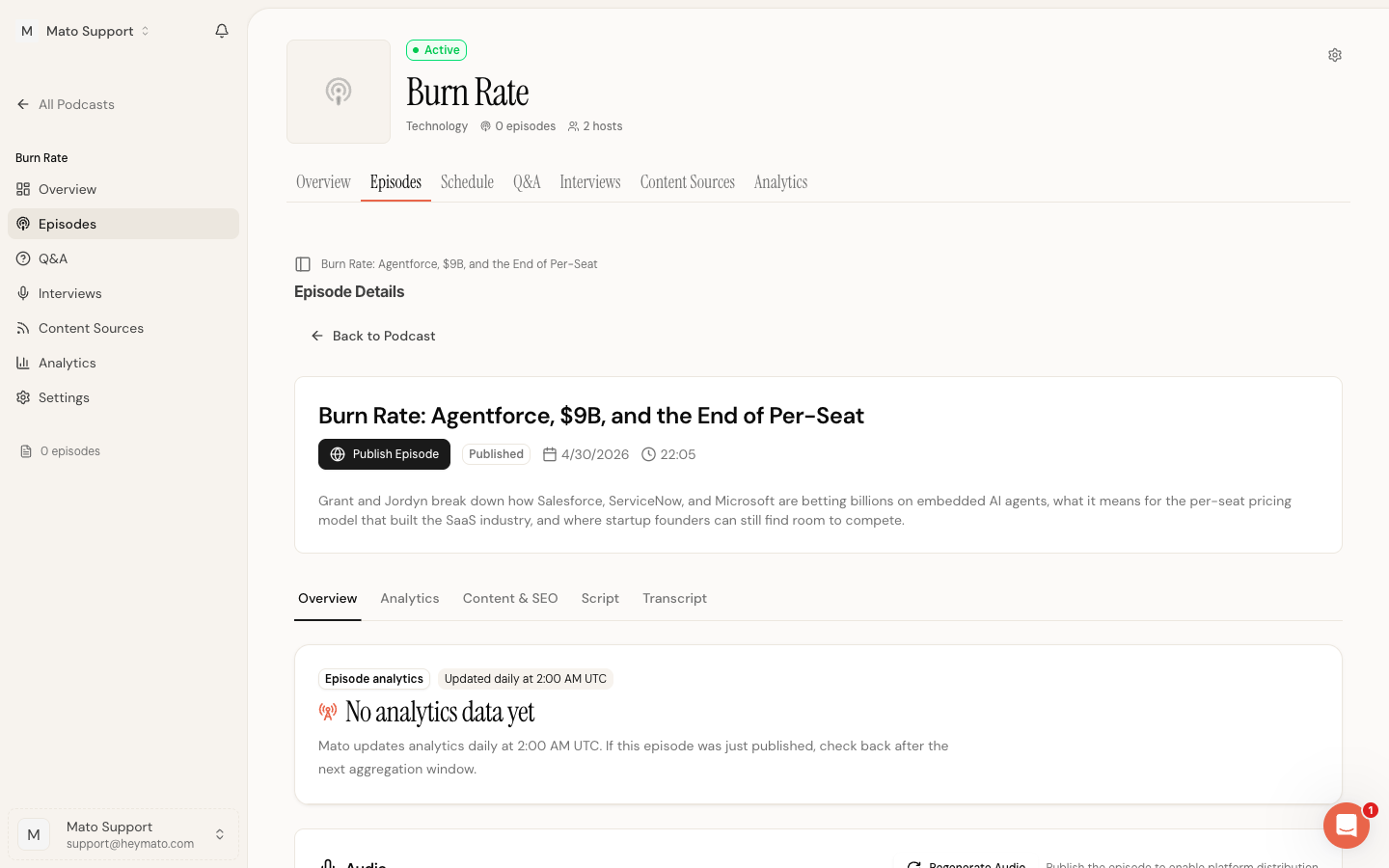
The tab bar below the episode header lets you switch between Overview, Analytics, Content & SEO, Script, and Transcript.
Edit the script
Click the Script tab (or Edit Script from the overview) to open the script editor.
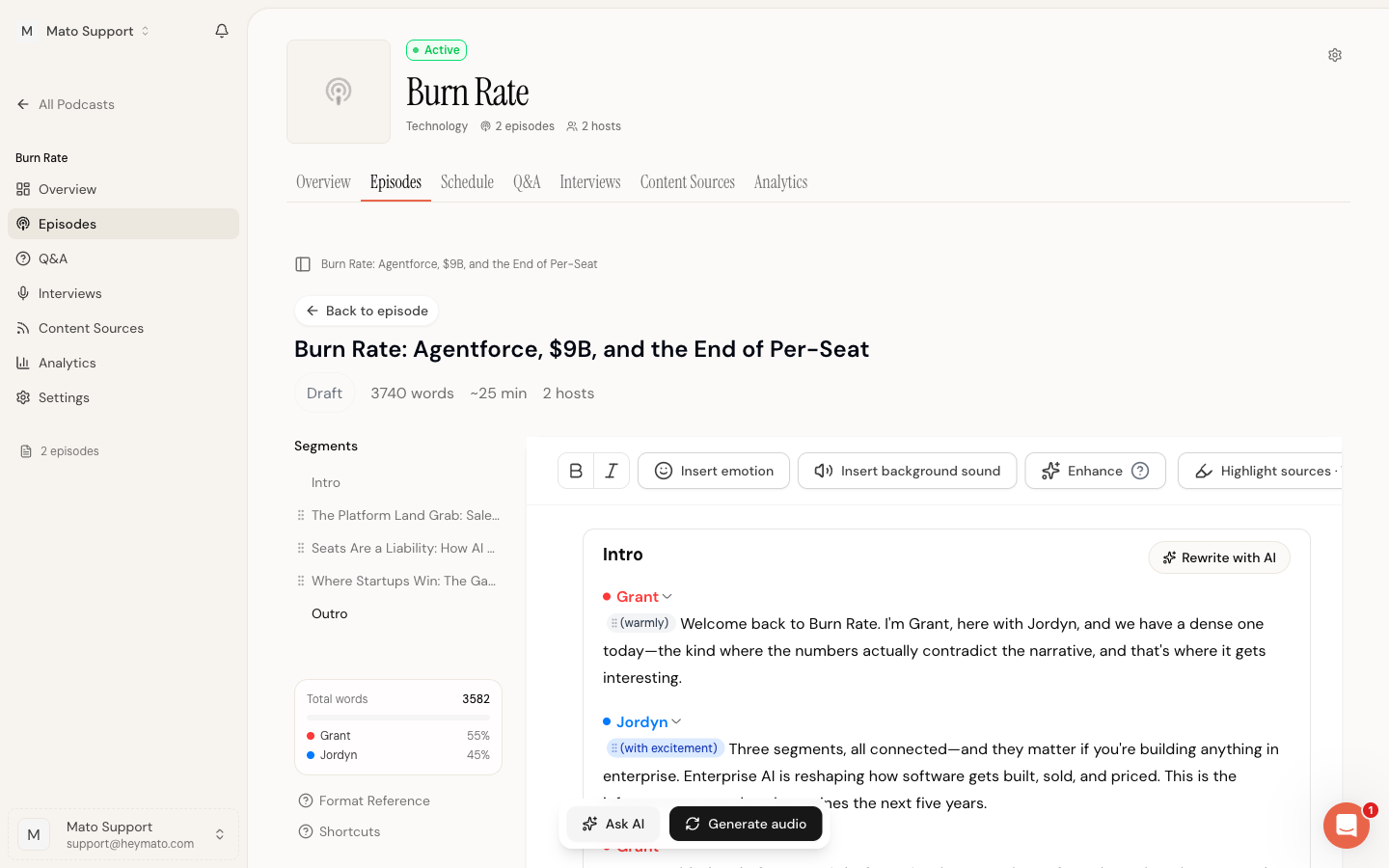
The editor has two main areas:
Segment sidebar (left) lists every segment in the episode: Intro, your discussion segments, and Outro. Each segment shows a truncated title. Drag the grip handle next to any segment to reorder it. Below the segment list, you will see word count totals and the speaking balance between hosts (for example, Grant 55%, Jordyn 45%).
Editor area (right) shows the selected segment's full dialogue. Each line is tagged with a host name (color-coded) and optionally an emotion tag like "(warmly)" or "(with excitement)". Click into any text to edit it directly.
The toolbar across the top of the editor provides:
- Bold and Italic formatting
- Insert emotion to add delivery cues for the AI voice
- Insert background sound to add ambient audio cues
- Enhance to trigger AI improvements on the selected text
- Highlight sources to toggle visibility of source annotations on facts and claims
Each segment also has a Rewrite with AI button in its top-right corner. Click it to have Mato regenerate that segment while keeping the rest of the script intact.
If the episode was generated from an interview, Mato populates the script editor with metadata and chapter markers automatically. You can review and edit the script the same way you would for a standard episode, including per-segment regeneration.
At the bottom of the editor, two buttons appear:
- Ask AI opens a prompt where you can give Mato instructions about what to change
- Approve & generate audio marks the script as approved and starts the audio rendering process. If your podcast does not have manual review enabled, this button reads Generate audio and starts rendering immediately.
When editing, focus on these areas first:
- Reorder segments if the flow feels off
- Tighten the intro and outro
- Remove repeated points or overlapping examples
- Adjust wording that does not sound natural for the host
Check episode metadata
Click the Content & SEO tab to review and edit the episode's metadata. Mato generates all of these fields automatically during episode creation, but you can edit any of them.
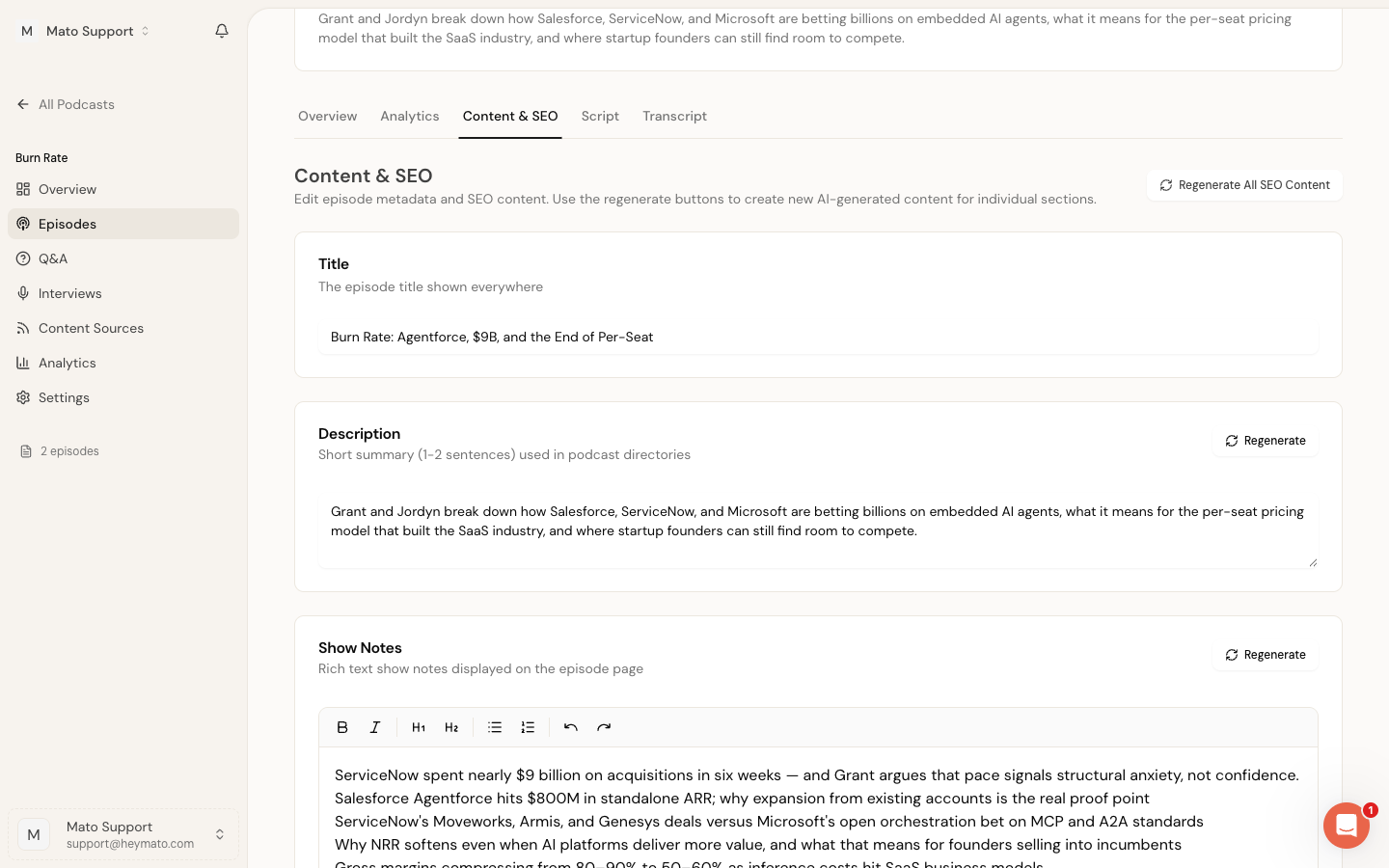
The metadata fields are:
- Title is the episode name shown in podcast directories and on your show page.
- Description is a one-to-two sentence summary used in RSS feeds and directory listings.
- Show Notes is a rich text field displayed on the episode page. It typically lists the key topics covered.
- Tags are keywords associated with the episode for search and categorization.
- Highlights are timestamped key moments that listeners can jump to.
- FAQ is a set of question-and-answer pairs generated from the episode content.
Each section (except Title) has a Regenerate button that re-generates just that field using AI. You can also click Regenerate All SEO Content at the top to refresh everything at once.
Changes are saved when you click the save button. The page warns you if you try to navigate away with unsaved edits.
Render and preview audio
Once you are satisfied with the script, generate the audio. You can do this from the Script tab (click Generate audio at the bottom) or from the episode overview (click Regenerate Audio in the Audio section).
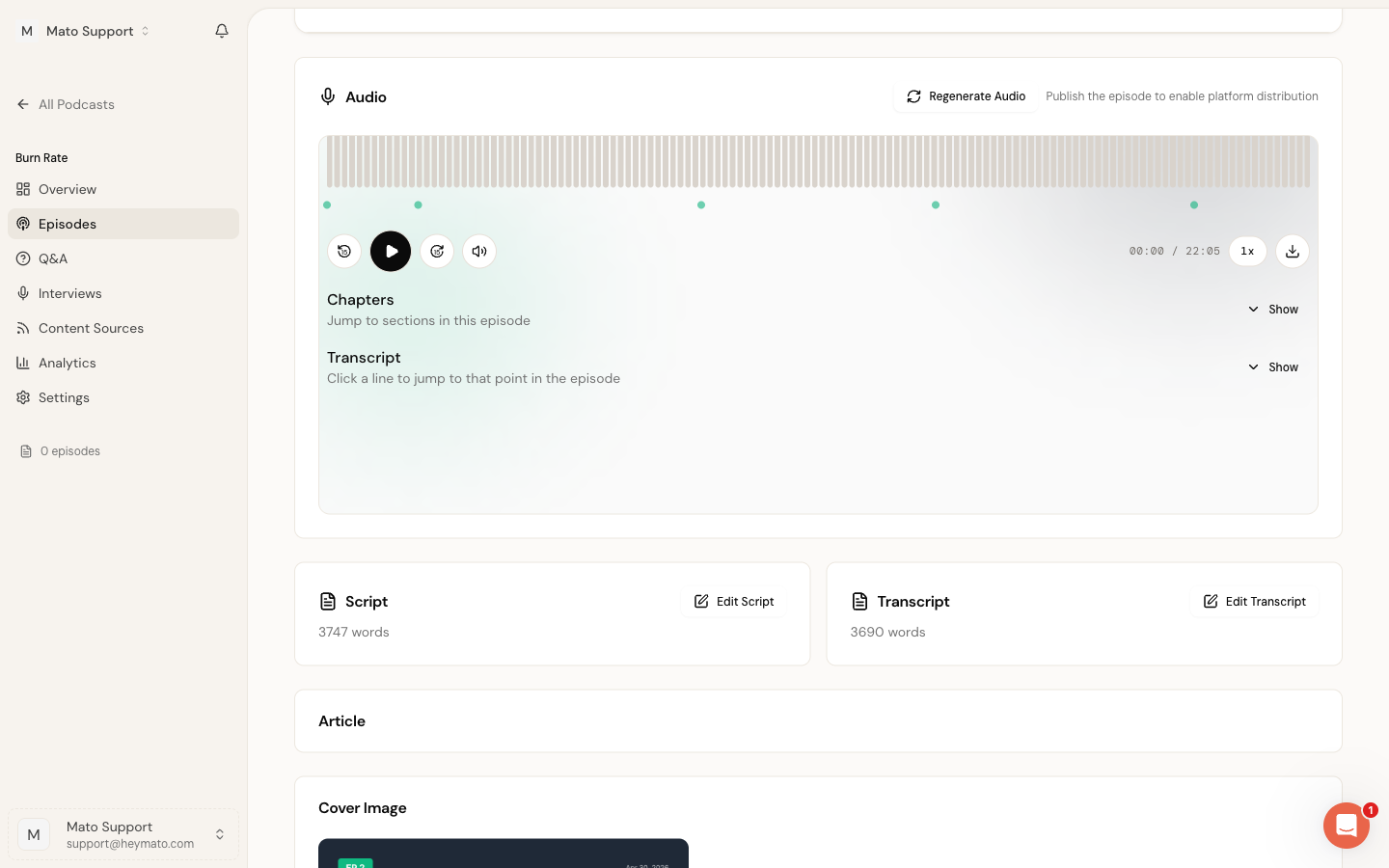
After audio rendering completes, the player appears with:
- A waveform visualization with chapter markers (green dots)
- Playback controls: skip back/forward 15 seconds, play/pause, volume, speed (1x/1.5x/2x)
- A duration display and download button
- Expandable Chapters and Transcript sections
Listen through the episode before publishing. Pay attention to pacing, pronunciation, and tone. If something sounds off, go back to the script, edit the problem section, and regenerate audio. Mato only re-renders the segments you changed.
Episode lifecycle
Every episode moves through a publishing flow:
- Draft is the initial state after generation. You can edit the script freely.
- Publishing means Mato Distribution is uploading audio, updating the RSS feed, and preparing public playback.
- Distributed means the episode is live on your show page, RSS feed, and CDN.
You can publish from the episode overview by clicking Publish Episode after your show has been synced to Mato Distribution. If you need to take an episode down, use Unpublish from the episode header.
A full reference on episode states and transitions is covered in a separate article.
What to do next
Your first episode is generated, edited, and ready to go. From here:
- Publish the episode from the overview page.
- Set up distribution to push episodes to platforms like Buzzsprout, Spotify, and Apple Podcasts.
Each of these steps has its own guide in the Help Center.