
Mato Distribution connects your podcast to major listening platforms through a single RSS feed. You configure it once in the Publishing tab of your podcast settings. From there, you can publish episodes to the feed, submit to directories, track submission status, and control whether new episodes are sent to Mato automatically.
Before you start
You can sync the show before the first episode is ready. Before you submit the feed to directories, confirm these details are final:
- Cover art uploaded and at least 1400x1400 pixels.
- Show title and description filled in.
- Owner name and a monitored owner email set. Spotify and YouTube use the RSS email for ownership verification.
- At least one episode published to Mato.
Changing show metadata after submitting to directories can delay approvals or trigger re-review.
Open the Publishing tab
Go to your podcast settings page:
Podcasts > [your podcast] > Settings > Publishing
The Mato Distribution card is at the top of the Publishing tab.
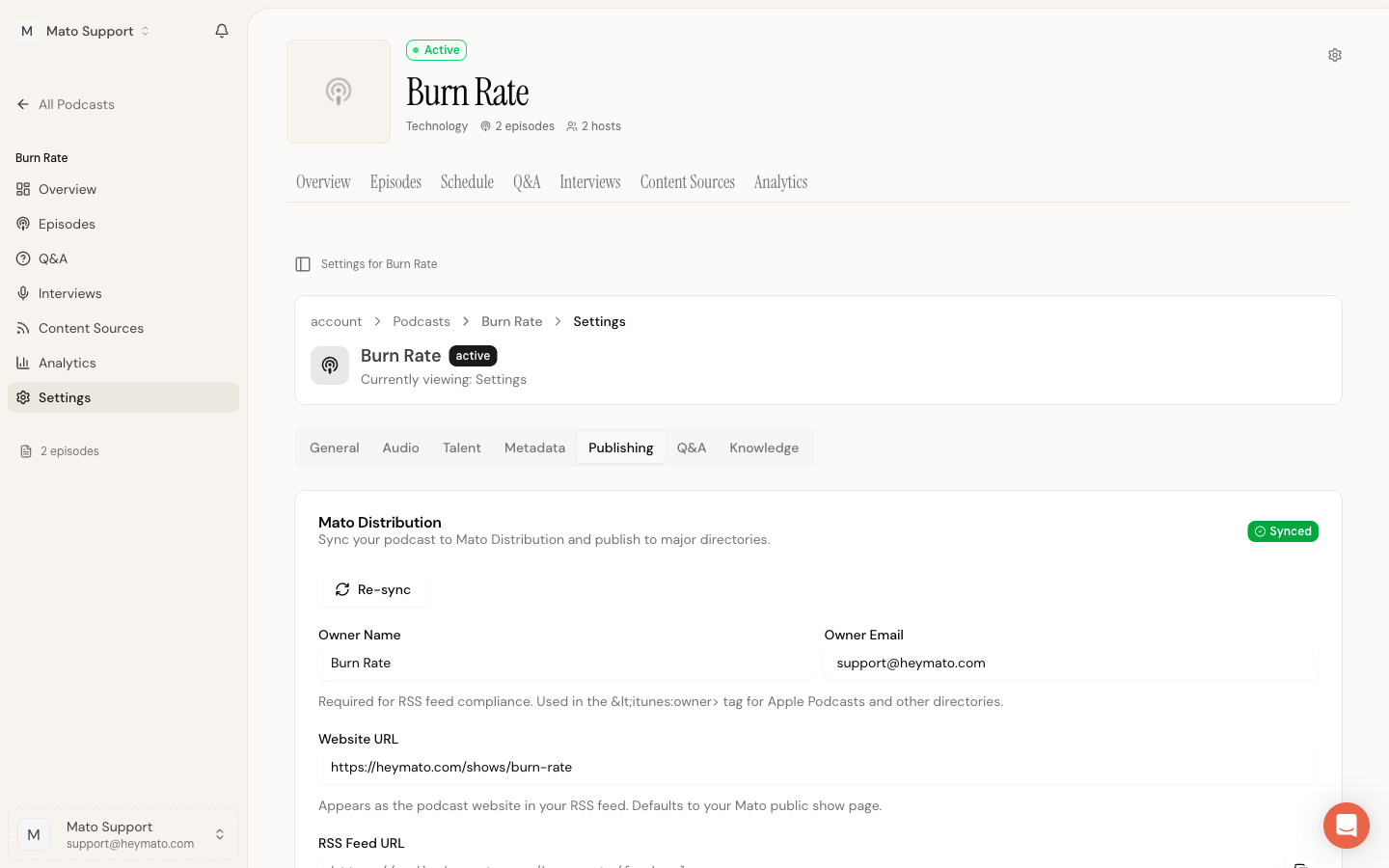
Sync your show
- Fill in the Owner Name and Owner Email fields. These populate the owner contact metadata in the RSS feed. Use an inbox you can access because Spotify and YouTube send verification codes to the feed email.
- Set a Website URL if you want the RSS feed to point to your own site. If you leave this blank, it defaults to your Mato public show page.
- Click Sync Now.
Owner, contact, and website fields are saved through the global sticky Save bar at the bottom of the settings page. If you have unsaved changes in those fields when you click Sync Now (or Re-sync), Mato saves them automatically before starting the sync job. The button label changes to Save & sync or Save & re-sync to confirm this.
Mato creates your show record, prepares the RSS feed, and uploads your show artwork. The status badge next to the card title changes from "Pending" to "Syncing" and then to "Synced" once the process finishes. This typically takes under a minute.
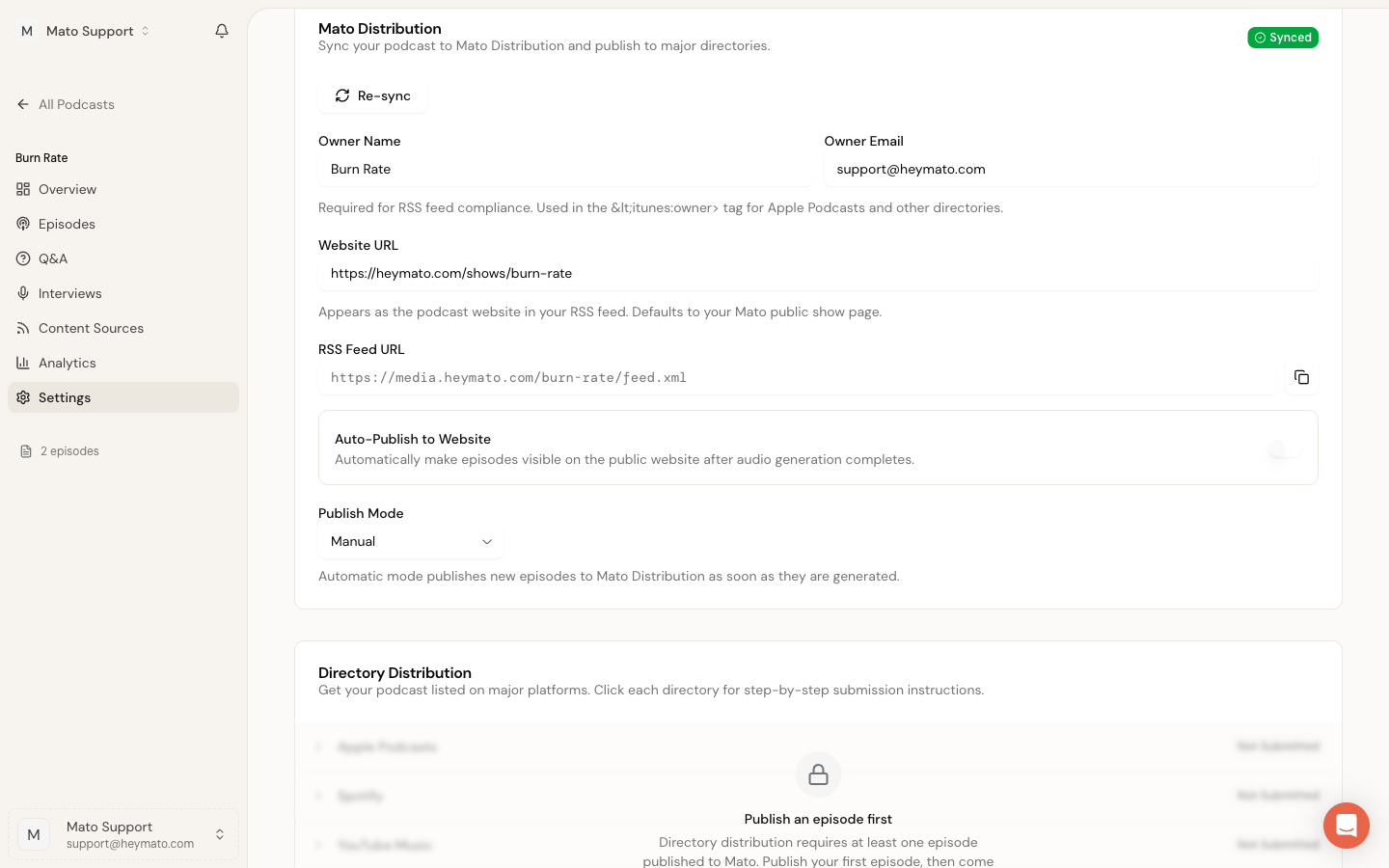
After the sync completes, your RSS Feed URL appears in a read-only field. Copy it. You will need it for directory submissions.
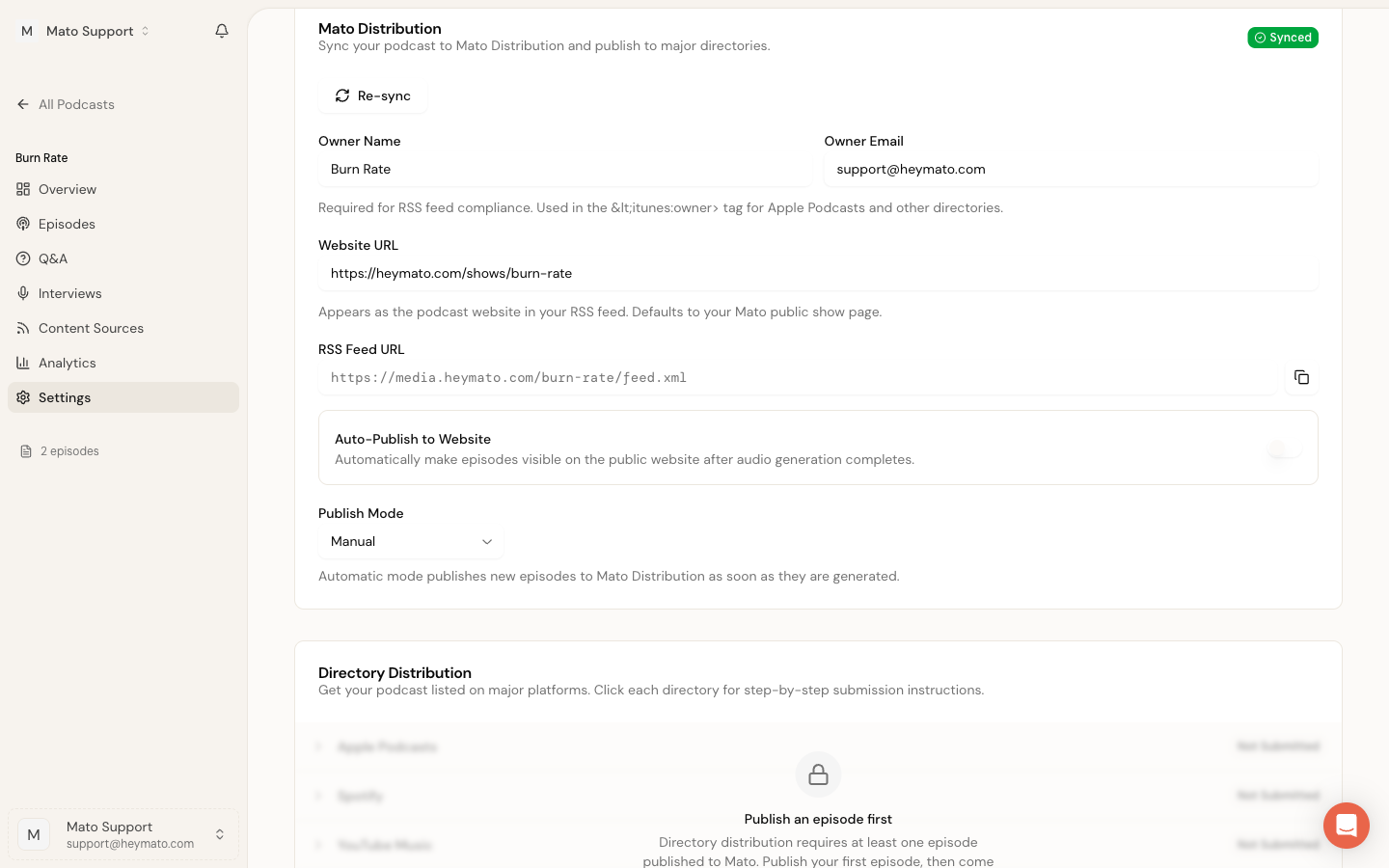
The Directory Distribution list stays locked until at least one episode has been published to Mato. That keeps directories from seeing an empty feed.
To update show details later (new cover art, changed description), click Re-sync to push the latest data.
Choose a publish mode
Below the feed URL, you will find the Publish Mode selector with two options:
- Manual (default): New generated episodes wait for review. Sync the show first, then use Publish Episode on the episode detail page when you are ready to send an episode to Mato Distribution.
- Automatic: Mato queues feed publishing after audio generation finishes for a synced show.
Pick manual if you want to review scripts and audio before anything appears in listener apps. Switch to automatic once your workflow is stable.
Turn on auto-publish episodes
The Auto-publish episodes toggle sits just above the publish mode selector. When enabled, completed generated episodes go straight into the public publish flow instead of waiting for manual review.
Auto-publish uses Mato Distribution. For synced shows, Mato uploads the episode audio to the CDN, updates the RSS feed, and then makes the episode public. If the show is not synced yet, the background job syncs the show first, then publishes the episode through the feed.
Submit to directories
After syncing, scroll down to the Directory Distribution card. This section is locked until you have published at least one episode to Mato. Once an episode is live in the feed, the lock lifts and you see the full list of supported directories.
If a synced show has an eligible episode that still needs Mato publishing before directories can unlock, the Directory Distribution card shows a contextual lock state instead of the standard "Publish an episode first" message. The lock state names the waiting episode and displays a Publish to Mato button. Clicking the button starts the upload and feed publish pipeline. While that runs, the button is replaced by a progress indicator, and the directory list stays dimmed until the episode reaches the Mato feed.
If publishing fails, the lock state shows a Retry Mato publish button with the error message so you can try again without leaving the page.
Once at least one episode is live in the Mato feed, the lock lifts and you see the full list of supported directories. Click Distribute to All when you are ready to initialize the directory checklist. Mato creates the tracking rows and submission links, then you can work through the manual directories and monitor the auto-indexed ones.
Directories are split into two groups:
Submit manually
These platforms require you to create an account on their portal and paste your RSS feed URL. Mato shows step-by-step instructions and estimated approval times for each one.
- Apple Podcasts: Follow the Apple Podcasts submission guide to add the RSS feed in Podcasts Connect and send it for review.
- Spotify: Follow the Spotify submission guide to add or claim the show and verify the RSS owner email.
- YouTube and YouTube Music: Follow the YouTube submission guide. In YouTube Studio, use Create > New podcast > Submit RSS feed.
- Amazon Music and Audible: Follow the Amazon Music submission guide to add or claim the feed and confirm ownership from the RSS email.
- iHeartRadio: Follow the iHeartRadio submission guide. The public portal currently supports submitters in the United States, Canada, Mexico, Australia, and New Zealand.
- Pandora and SiriusXM: Follow the Pandora submission guide. The current route is Simplecast Creator Connect, not the retired Pandora for Podcasters portal.
- Pocket Casts, Castbox, Podbean, Listen Notes, and Podcast Index: Use the more podcast apps guide when a show is missing or you want to claim its creator account.
To submit, expand the directory row by clicking it. Copy your RSS feed URL from the field shown, open the submission portal link, and follow the steps listed. When the directory gives you a public listing URL, click Add Listing URL and save it. Once a listing is saved, use Edit Status to keep the directory state current.
Other directories Mato monitors
Mato checks these directories periodically and updates the status when your show appears. Some crawl public feeds automatically, while others change or restrict their submission process.
- Podchaser
- Player FM
- Samsung Podcasts
- TuneIn
- Gaana
The current public TuneIn and Deezer submission paths are unavailable, so avoid old third-party walkthroughs and contact support before entering account information elsewhere. Listing and discovery times vary by directory.
Track submission status
Each directory row shows a status badge: Not Submitted, Submitted, Pending Review, Listed, or Rejected.
The counter in the card header (for example, "5/17") shows how many directories have confirmed your listing.
Click Check Statuses to ask Mato to refresh every badge. Mato performs the platform-specific checks server-side, including API checks where available and URL checks for directories that do not expose a public status API.
For manual directories, you can update the status yourself. Expand the row, click Add Listing URL before the listing is recorded, or Edit Status after it has been added. You can also save the directory-assigned ID and listing URL for your records.
How auto-publish works with episode visibility
Episode visibility is gated by Mato Distribution. Public pages and embeds wait for three things to be true: the lifecycle is Distributed, the Mato publish status is Published, and the episode has a Mato CDN audio URL.
When you click Publish Episode on an episode, the header moves from Draft to a yellow Publishing state while Mato runs the distribution pipeline. The episode does not become public during this step. Mato uploads audio to the CDN, creates or updates the episode in the RSS feed, regenerates the feed, and then transitions the episode to Distributed status.
If publish mode is set to Automatic, Mato starts that distribution work after generation finishes. If publish mode is Manual, use Publish Episode from the episode detail page after you have reviewed the episode.
The audio generation worker no longer emits the public episode event before Mato Distribution finishes. Only the Mato publish pipeline marks an episode as distributed and triggers downstream notifications (SEO indexing, email alerts, Intercom sync). This prevents listeners from seeing an episode before its audio is available on the CDN.
Unpublishing an episode reverses the process. The episode moves back to draft status, and Mato removes it from the RSS feed.
When an episode becomes visible on heymato.com
An episode appears on your public show page at heymato.com once the full distribution pipeline finishes. That means the episode has reached "Distributed" status, the Mato publish completed successfully, and the audio file is hosted on the Mato CDN.
Episodes that are still uploading, mid-pipeline, or failed do not appear on your public page. Fix the error and retry publishing so Mato can complete the CDN upload and feed update before listeners see the episode.
What to do if a directory rejects your show
Check the common causes:
- Missing or undersized cover art.
- Description too short or containing placeholder text.
- RSS feed with zero episodes.
- Owner email that does not match the submission account.
Fix the issue, re-sync the show, and resubmit. Most directories allow resubmission after a rejection.