
Mato generates topic suggestions for each podcast based on trends, content gaps, and your show's history. Suggestions show up on your podcast overview and in the episode generation form, giving you a starting point when you are ready to produce your next episode.
This guide covers how suggestions are created, where they appear, and how to turn one into an episode.
How suggestions are generated
Mato runs a three-stage pipeline to create suggestions:
- Research planning. An AI model plans targeted search queries based on your podcast's niche, existing episodes, and any knowledge base documents you have uploaded.
- Trend research. Mato pulls structured trend data from DataForSEO and Google Trends to find topics gaining traction in your space.
- Research and synthesis. A second AI model runs web searches using the planned queries, cross-references the trend data, and produces a batch of five suggestions.
Each suggestion includes a title, a description, a recommended angle, an urgency score, a value estimate, target keywords, and (when relevant) links to related news sources.
Suggestion generation is triggered automatically in two situations:
- When you create a new podcast. Mato kicks off the first batch while you finish setup, so suggestions are often ready by the time you reach the overview page.
- After you publish an episode. Mato refreshes suggestions to reflect the new gap your latest episode filled.
You can also trigger generation manually from the Suggested Topics card (more on that below).
View suggestions on the podcast overview
When your podcast has no episodes yet, the overview page shows suggestion cards front and center, right below the heading. Up to three suggestions appear as clickable cards with a category label (Trending, News, Content Gap), the topic title, and keyword tags.
If Mato is still generating your first batch, skeleton placeholders appear with a spinner and a status message. Once the pipeline finishes, the cards replace the skeletons automatically. You do not need to refresh the page.
After your podcast has episodes, suggestions move to the Suggested Topics card in the sidebar-style layout on the overview page. This card lists up to five pending suggestions, ordered by urgency score (highest first). Each row shows:
- A source icon (trend, news, content gap, or related query)
- The suggestion title
- Urgency and value badges
Click any row to open a detail dialog with the full description, angle, content gap analysis, and keywords.
Refresh suggestions
The Suggested Topics card has a Refresh button (or Generate if no suggestions exist yet). Click it to request a fresh batch. Mato retires old pending suggestions and runs the three-stage pipeline again.
While generation runs, a spinner replaces the suggestion list with a "Generating suggestions..." message. The card polls for results and updates automatically when the new batch is ready. If the pipeline takes longer than expected, the card shows a notice prompting you to try refreshing again.
Two limits apply to manual refreshes:
- Daily limit. Regular users can refresh twice per day per podcast. A badge on the card shows how many refreshes you have used. Once you hit the limit, the Refresh button is disabled until the next day.
- Cooldown. There is a one-hour cooldown between refreshes for all users. If you try to refresh too soon, Mato shows the number of minutes remaining.
Workspace admins with super-admin access have unlimited refreshes.
Approve a suggestion from the schedule
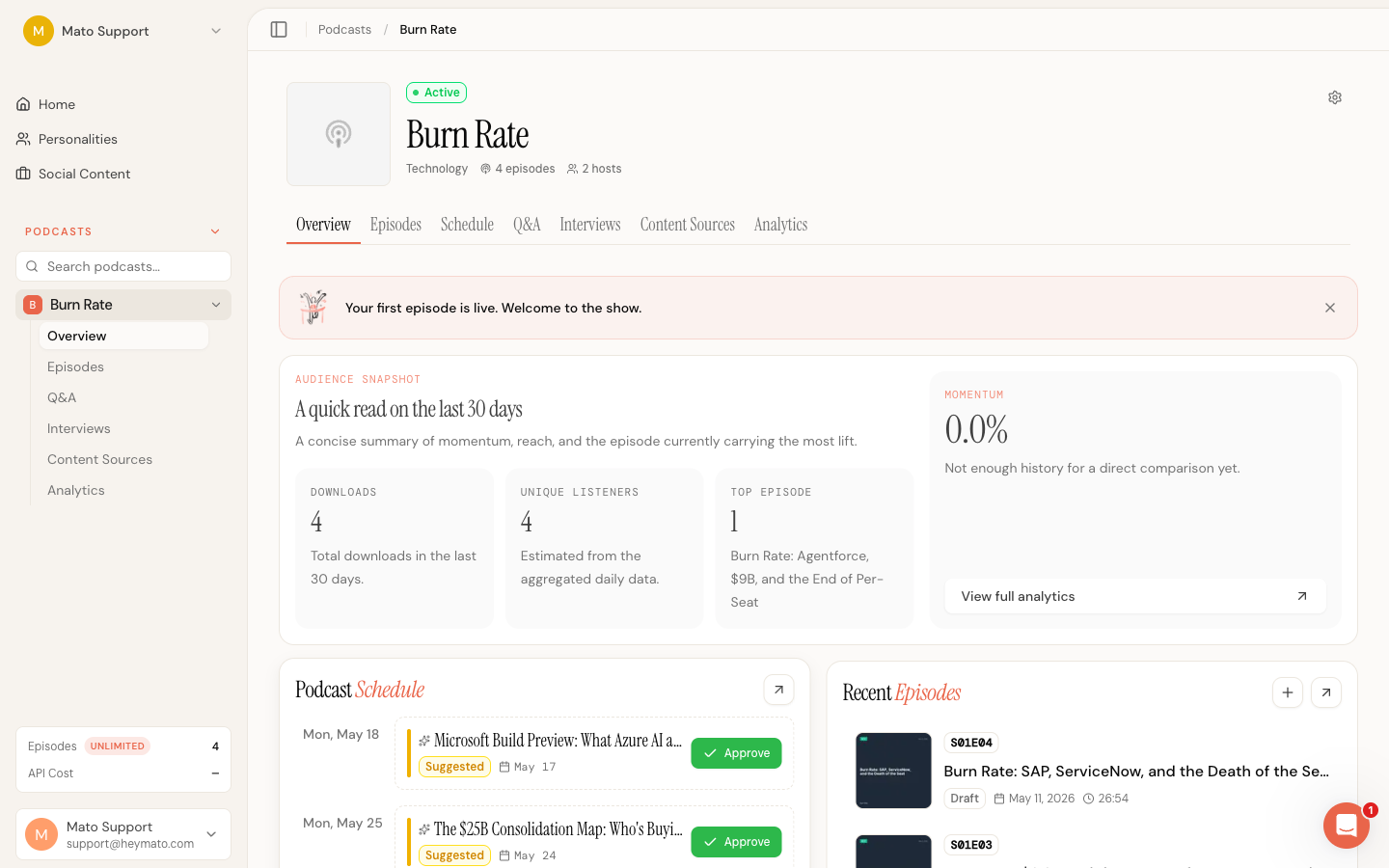
When Mato auto-fills a suggestion into an open slot on the schedule calendar, the suggestion card shows an Approve button on the right side. Clicking it pins the suggestion to that date and adds it to your queue as a confirmed entry. The card changes from a yellow dashed "Suggested" state to a blue "Scheduled" state.
This is the quickest way to approve a topic without leaving the schedule view. See Use the schedule calendar for more on how the calendar works with suggestions.
Use a suggestion to generate an episode
There are three ways to turn a suggestion into an episode:
From the overview
Click a suggestion card (on the empty overview) or click a suggestion row and then press Create episode in the detail dialog. Both paths take you to the episode generation page with the suggestion pre-loaded.
From the schedule
Click a suggestion card on the schedule calendar to open its detail dialog, then click Create episode. This takes you to the generate page with the suggestion pre-filled.
From the detail dialog
When you open a suggestion's detail dialog (from the Suggested Topics card or the suggestion queue), click Use this suggestion now at the bottom. This navigates to the generate page with the suggestion already applied.
In both cases, Mato:
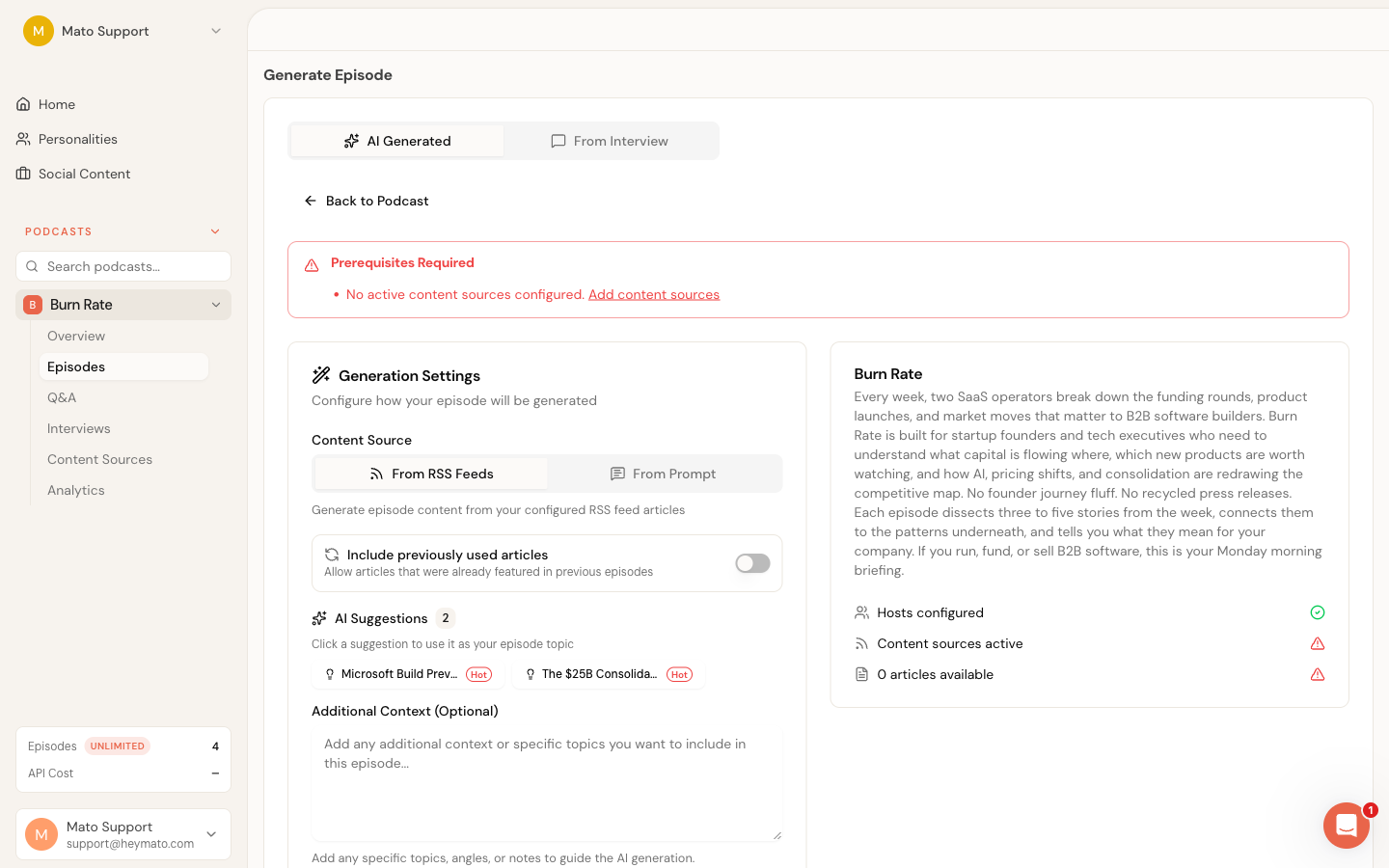
- Switches the generation form to Prompt mode.
- Pre-fills the prompt field with the suggestion's title, description, angle, content gap, and any related source URLs.
- Tracks which suggestion is active so Mato can mark it as "used" after generation completes.
You can edit the pre-filled prompt before generating. If you change the text, the suggestion link clears and Mato treats it as a freeform prompt instead.
The suggestion queue
If your podcast has a publishing schedule turned on and Listener suggestions is set as the primary content source, you can queue suggestions for upcoming episodes. The queue controls which suggestion Mato uses for each scheduled generation.
Add a suggestion to the queue
In the Suggested Topics card, expand a suggestion and click the Add to queue button. Mato appends it to the end of the queue and shows a confirmation with the assigned position number.
View the queue on the overview
When you have queued suggestions, an Up Next card appears on the podcast overview alongside the Suggested Topics card. It shows the next three queued items in order. Click any entry to open its detail dialog, or click the X to remove it from the queue.
The Manage link on the Up Next card takes you to the schedule section of your podcast settings, where you can reorder and manage the full queue.
Manage the queue in settings
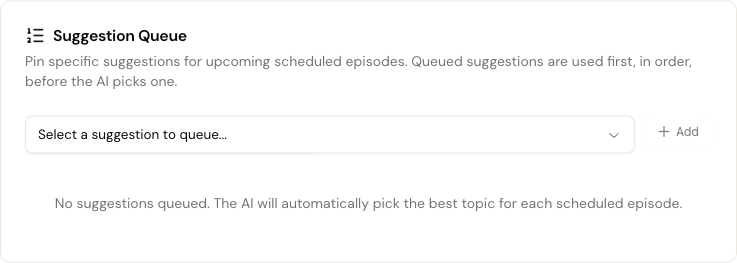
Open your podcast settings and go to the Schedule tab. The Suggestion Queue section shows all queued suggestions with their position numbers.
From here you can:
- Add suggestions. Pick from a dropdown of pending suggestions not already in the queue.
- Reorder. Use the up/down arrows to change a suggestion's position.
- Remove. Click the trash icon to remove a suggestion from the queue.
- View details. Click a suggestion title to see the full detail dialog.
How scheduled generation picks from the queue
When Mato runs a scheduled episode generation, it checks the queue first:
- If a suggestion is pinned to today's date, that suggestion is used.
- If no date-pinned suggestion exists, Mato takes the suggestion at position 1 in the queue.
- If the queue is empty, Mato uses AI to pick the best available pending suggestion based on urgency, value, seasonality, and recency.
After a queued suggestion is used, it is removed from the queue and the remaining positions shift up.
Suggestion details explained
Each suggestion carries several metadata fields. Here is what they mean.
Urgency score (0.0 to 1.0): How time-sensitive the topic is. On the overview page, a score of 0.7 or higher gets a red "Time-sensitive" badge, 0.4 to 0.7 shows as "Moderate", and below 0.4 shows as "Evergreen". The schedule sidebar uses slightly different thresholds (0.8 for Urgent, 0.5 for Timely) since scheduling context weights timeliness differently.
Value estimate (High, Medium, Low): How much audience value Mato expects the topic to deliver. Shown as a color-coded badge (green, yellow, gray).
Source type: What kind of data the suggestion came from. Possible sources:
- Trending: rising search trends in your niche
- News: recent industry news or events
- Content gap: a topic your podcast has not covered yet
- Related query: queries related to your existing content
Angle: A recommended editorial direction for the episode.
Content gap: When present, a description of what is missing from your existing episode library that this topic would fill.
Keywords: Target keywords associated with the topic, shown as small chips.
Knowledge badge: A blue "Knowledge" badge appears when the suggestion was informed by documents from your podcast's knowledge base.
Tips
- Review suggestions after publishing an episode. Mato refreshes them automatically, so the new batch accounts for your latest content.
- Queue your top picks if you use scheduled generation. The queue gives you control over which topics run next, instead of leaving the choice to Mato's AI selector.
- Edit the pre-filled prompt before generating. Suggestions are a starting point. Adding your own angle or specific talking points will produce a more focused script.