
When you create a podcast with the wizard, Mato generates one or two AI hosts and assigns them automatically. This guide covers how to review those hosts, swap them for different talent, and adjust voice and delivery settings.
Review your assigned hosts
Open your podcast and click Settings in the sidebar or the gear icon in the top-right corner. Select the Talent tab.
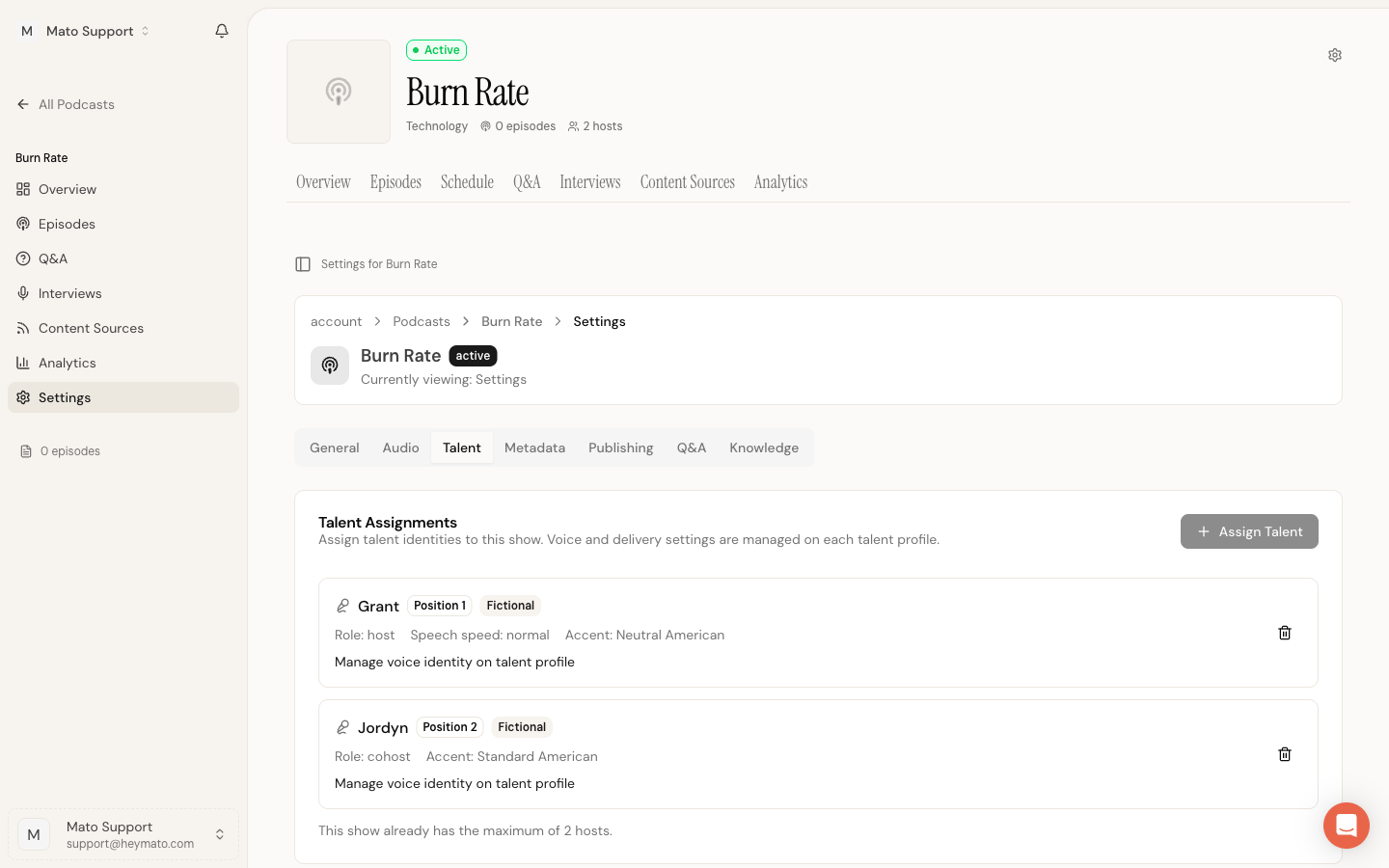
The Talent Assignments card lists every host on this podcast. Each entry shows the host's name, position number, type (Fictional or Real Person), role, speech speed, and accent.
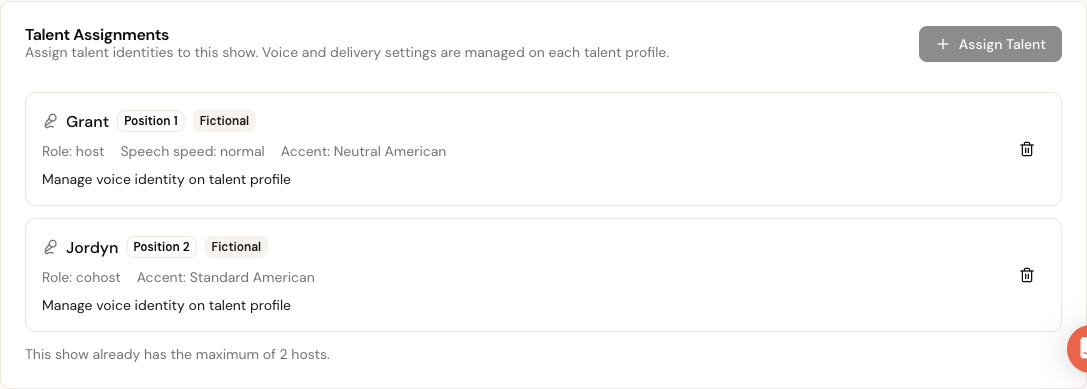
A podcast can have one or two hosts. If both slots are filled, the Assign Talent button is disabled and a note confirms the show is at capacity.
Swap a host
To replace a host, remove the current one first. Click the trash icon on the assignment you want to remove. Then click Assign Talent to open the selection dialog, pick a different host from the dropdown, and confirm.
The dropdown lists every talent profile in your workspace. If none of the existing profiles fit, you have two options:
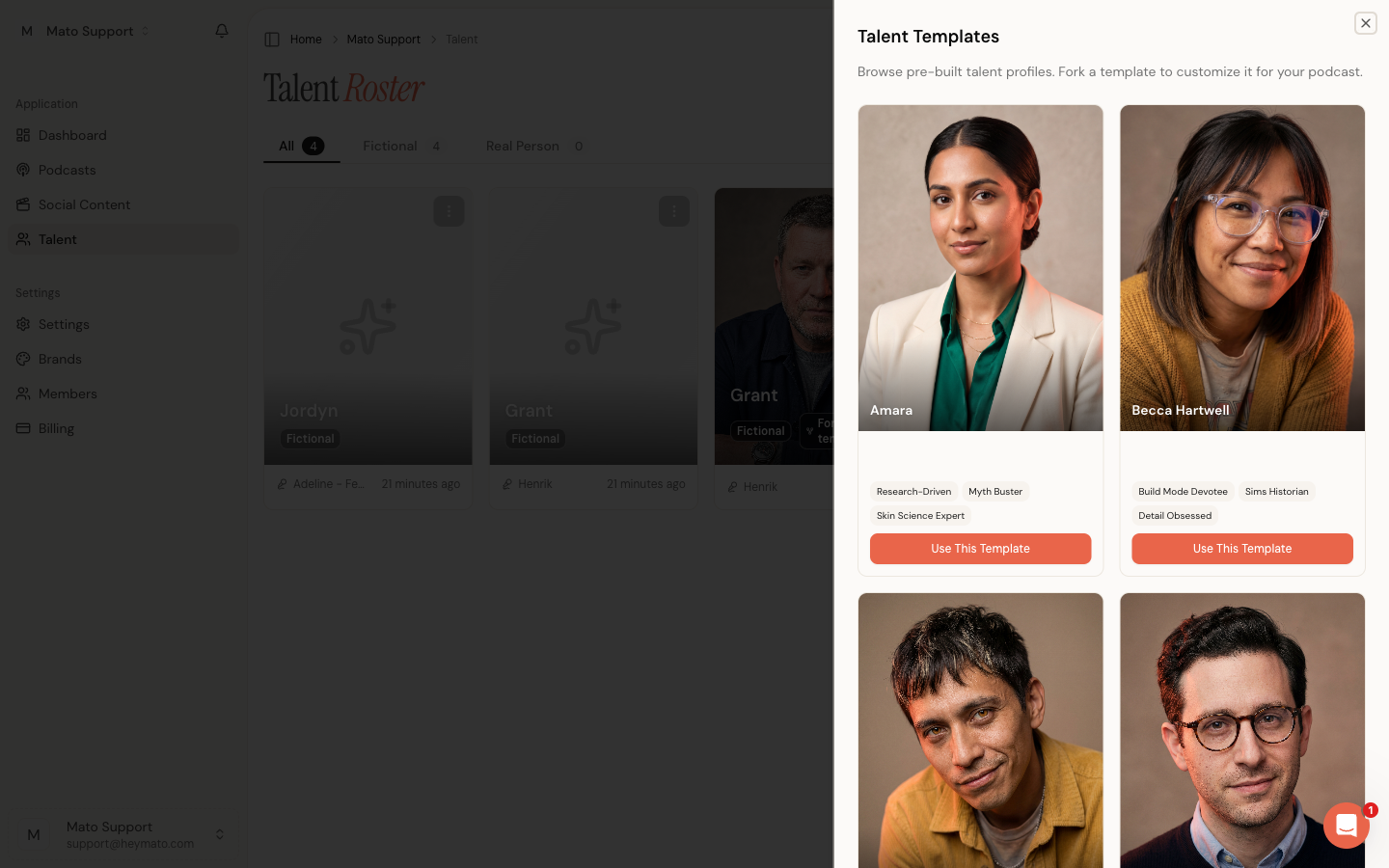
- Browse Templates on the Talent page opens a catalog of pre-built host profiles. Each template shows a portrait, personality tags, and a Use This Template button that forks the profile into your workspace so you can customize it.
- Create Talent on the Talent page starts a blank profile from scratch.
Both options are available from Talent in the sidebar.
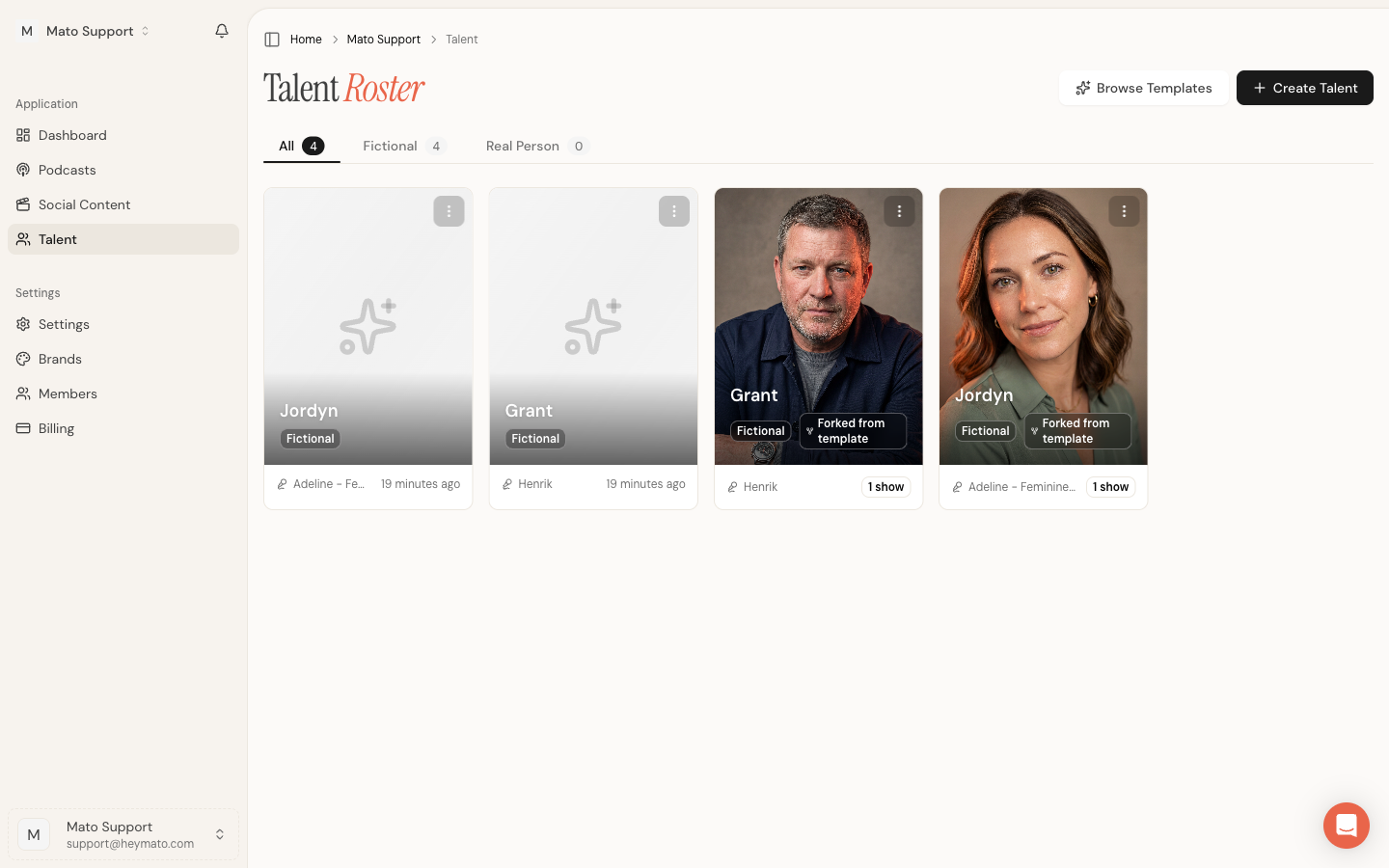
After forking a template or creating a new profile, return to your podcast settings, open the Talent tab, and assign the new host.
Customize voice and delivery
Each host's voice settings live on its talent profile, not on the podcast settings page. Click the Manage voice identity on talent profile link on any assignment card to open the host's detail page.
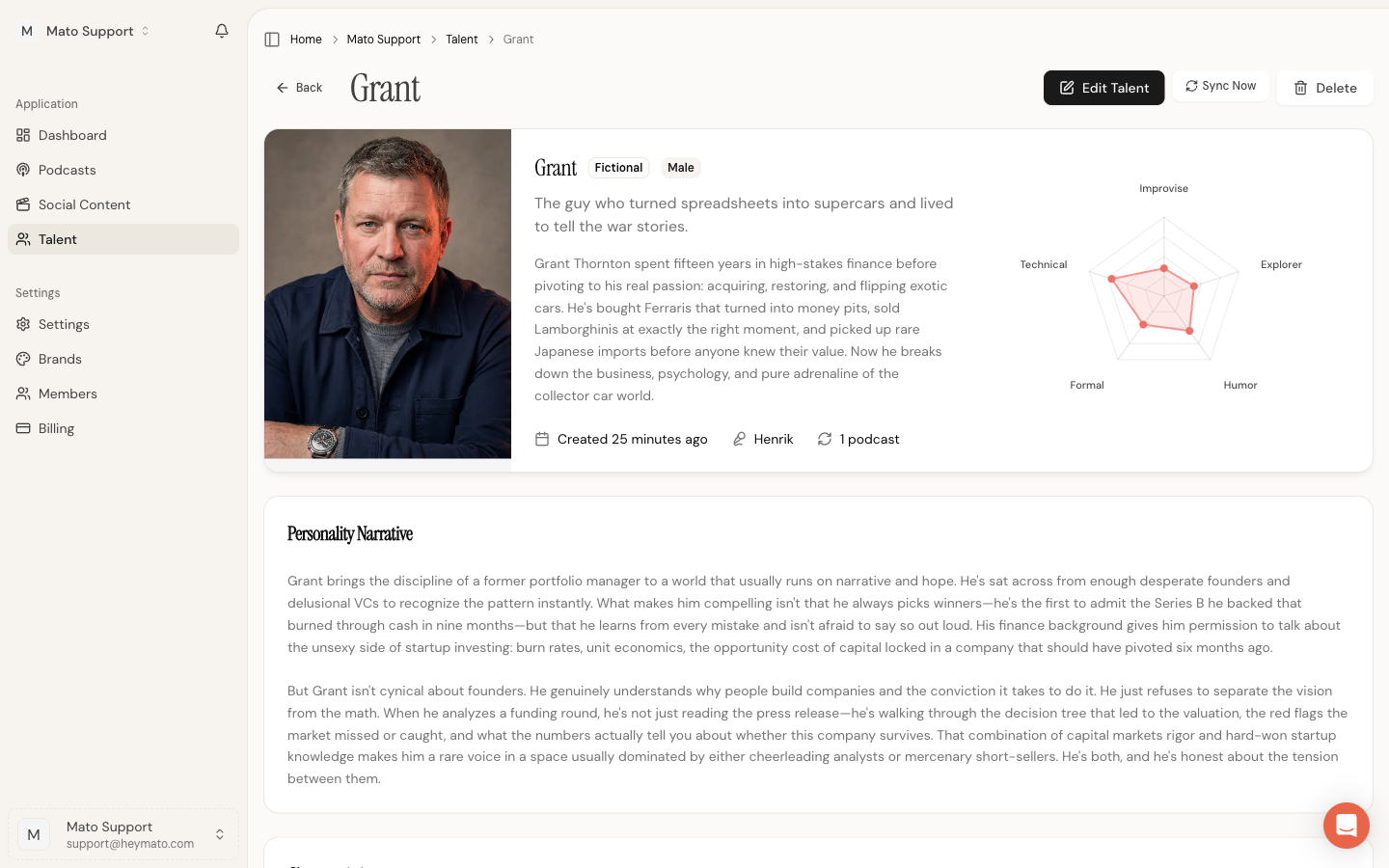
Scroll down to the Voice Identity card on the right side of the profile.
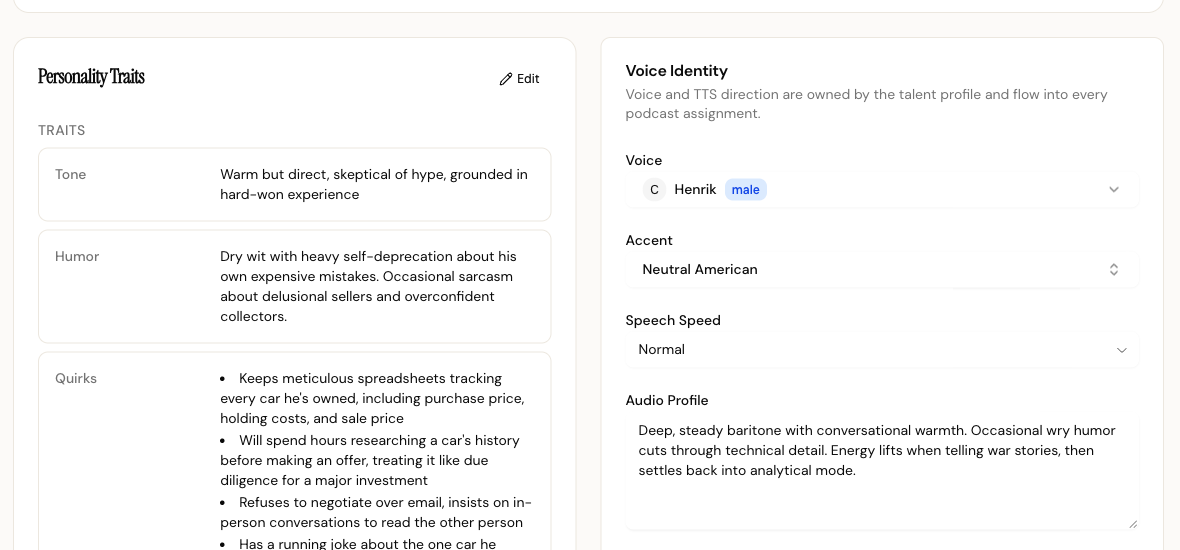
The card has four fields:
- Voice selects the ElevenLabs voice used for text-to-speech. The dropdown shows the voice name and a gender label. Changing this changes how the host sounds in every future episode.
- Accent sets the regional accent (Neutral American, Standard American, British, Australian, and others). This adjusts pronunciation patterns in the generated audio.
- Speech Speed controls pacing. Options are Slow, Normal, and Fast. Normal is the default.
- Audio Profile is a free-text field that describes the host's delivery style in plain language. The AI uses this description when generating speech. For example: "Deep, steady baritone with conversational warmth. Occasional wry humor cuts through technical detail."
Click Save Voice Settings at the bottom of the card after making changes. These settings apply to every podcast the host is assigned to.
To hear how a host sounds, check the Audio Samples section further down the profile page. If no samples exist yet, click Edit Talent and generate them from the edit page.
Edit host personality
The talent detail page also shows the host's personality, which affects how the AI writes dialogue for that host.
Key sections on the profile:
- Personality Narrative is a written description of who the host is, their background, and their on-air persona.
- Characteristics are structured traits like Tone, Humor, Expertise, and Pet Peeves. Each trait has a label and a description.
- Radar Chart visualizes five personality axes: Improvise, Explorer, Technical, Formal, and Humor.
To change any of these, click Edit Talent in the top-right corner of the profile page. The edit form lets you update the narrative, characteristics, tags, and other profile fields. Save when done.
Changes to personality affect future episode scripts. Existing episodes keep the dialogue they were generated with.
What to do next
Your hosts are configured. The next steps:
- Add content sources. Connect RSS feeds, paste article URLs, or upload documents from the podcast settings page.
- Generate your first episode. Open the podcast, click generate, review the script, and render audio.
Both steps have their own guides in the Help Center.