
Before you can publish social clips, Mato needs permission to post on your behalf. This guide covers connecting platforms, linking accounts to specific podcasts or brands, and disconnecting accounts you no longer need.
What you need
- A Mato workspace on the Business or Network plan for video clips. Static social images can be created on Launch, but publishing still requires a connected platform account.
- An active account on at least one supported platform: YouTube, TikTok, Instagram, or LinkedIn.
Open the social content settings page
In the left sidebar, click Social Content. Then click the Settings tab at the top of the page.
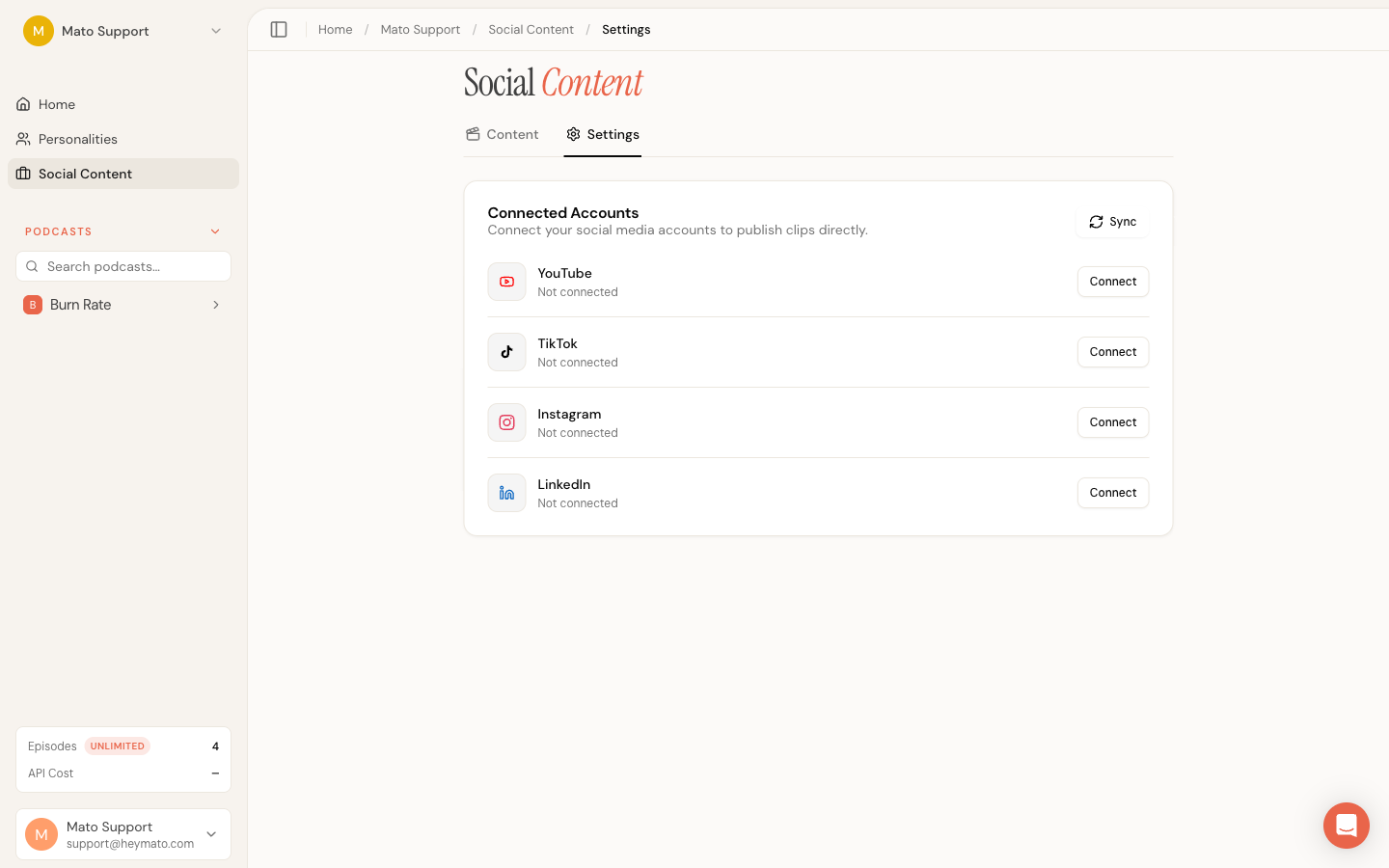
The settings page has three sections:
- Connected Accounts (at the top)
- Podcast Linking (visible after you connect at least one account)
- Brand Linking (visible after you connect at least one account and have at least one brand)
Connect a platform
Each supported platform appears as a row in the Connected Accounts card. Platforms you have not connected yet show a Connect button on the right.
- Click Connect next to the platform you want to add.
- A new browser tab opens with a branded authorization screen. This screen is powered by Upload-Post, the service Mato uses to handle social media tokens securely. You will see the Mato logo and a prompt to grant access.
- Sign in to the platform (YouTube, TikTok, Instagram, or LinkedIn) and approve the permissions Mato requests.
- After authorization, the tab redirects back to your Social Content settings page.
When the settings page loads after the redirect, Mato syncs your new connection automatically. The platform row updates to show your account name and avatar.
If the connection does not appear right away, click the Sync button in the top-right corner of the Connected Accounts card. This pulls the latest state from Upload-Post and updates the list.
Platform-specific notes
YouTube requires a YouTube channel linked to your Google account. If your Google account manages multiple channels, the channel you are signed into at authorization time is the one Mato will post to.
TikTok requires a TikTok business or creator account. Personal accounts cannot receive posts through the API.
Instagram posts go through a connected Facebook Page. During authorization, you will pick the Facebook Page that is linked to your Instagram Professional account.
LinkedIn supports two targets: your personal profile and any LinkedIn Pages you administer. After connecting your LinkedIn account, Mato automatically detects the Pages you manage and lists them below the main account entry. Each Page shows a "Page" badge. When you publish a clip, you choose whether to post as yourself or as one of those Pages.
Multiple accounts and pages
A workspace can store multiple connected accounts for the same platform. LinkedIn can also expose your personal profile and the Pages you administer as separate publishing targets.
To switch to a different account on the same platform, click Manage connection next to the existing entry. This re-opens the authorization flow so you can sign in with different credentials.
Link accounts to podcasts
Once you have at least one connected account and one podcast, the Podcast Linking card appears below Connected Accounts. Linking tells Mato which social accounts to pre-select when you publish clips from a given podcast.
- Find the podcast in the list and click the Edit (pencil icon) button on its row.
- A dialog opens with checkboxes for every connected account.
- Check the accounts you want associated with this podcast.
- Click Save.
After saving, small platform badges appear next to the podcast name, showing which accounts are linked.
Linking is optional. If you skip it, you can still choose accounts manually each time you publish.
Link accounts to brands
If your workspace uses brands, a Brand Linking card appears below Podcast Linking. It works the same way: click the pencil icon next to a brand, check the accounts you want linked, and save.
Brand links serve the same purpose as podcast links. They pre-select accounts in the publish dialog when a clip belongs to that brand.
Manage an existing connection
Each connected account shows a Manage connection button. Clicking it opens the authorization flow again in a new tab. You can use this to:
- Re-authorize the account if the token has expired or been revoked on the platform side.
- Switch to a different account on the same platform by signing in with new credentials.
After completing the flow, return to the settings page. Mato syncs the updated connection automatically.
Disconnect an account
The current settings page does not expose a disconnect control. To stop access, revoke Mato or Upload-Post from the social platform's connected-app settings, then return to Mato and click Sync. If the connection remains active, contact Mato support.
Troubleshooting
The platform row still says "Not connected" after authorizing. Click Sync in the Connected Accounts card. If the connection still does not appear, try clicking Connect again. The authorization may have been interrupted before the redirect completed.
LinkedIn Pages do not appear. Pages only show up if you connected a LinkedIn account first. Mato fetches Pages from the LinkedIn account it has on file. If you recently gained admin access to a new Page, click Sync to refresh the list.
Authorization fails with a permissions error. Some platforms (TikTok, Instagram) require a business or creator account. Personal accounts do not support API posting. Switch to the correct account type on the platform, then try connecting again.