
Every episode in Mato comes with AI-generated metadata: a title, description, show notes, highlights, chapters, FAQ pairs, and tags. You can edit any of these fields, regenerate individual sections with AI, or regenerate everything at once.
All of this happens on the Content & SEO tab inside the episode detail page.
Open the Content & SEO tab
Navigate to your podcast, then click into any episode. The episode detail page shows a tab bar with five tabs: Overview, Analytics, Content & SEO, Script, and Transcript.
Click Content & SEO.
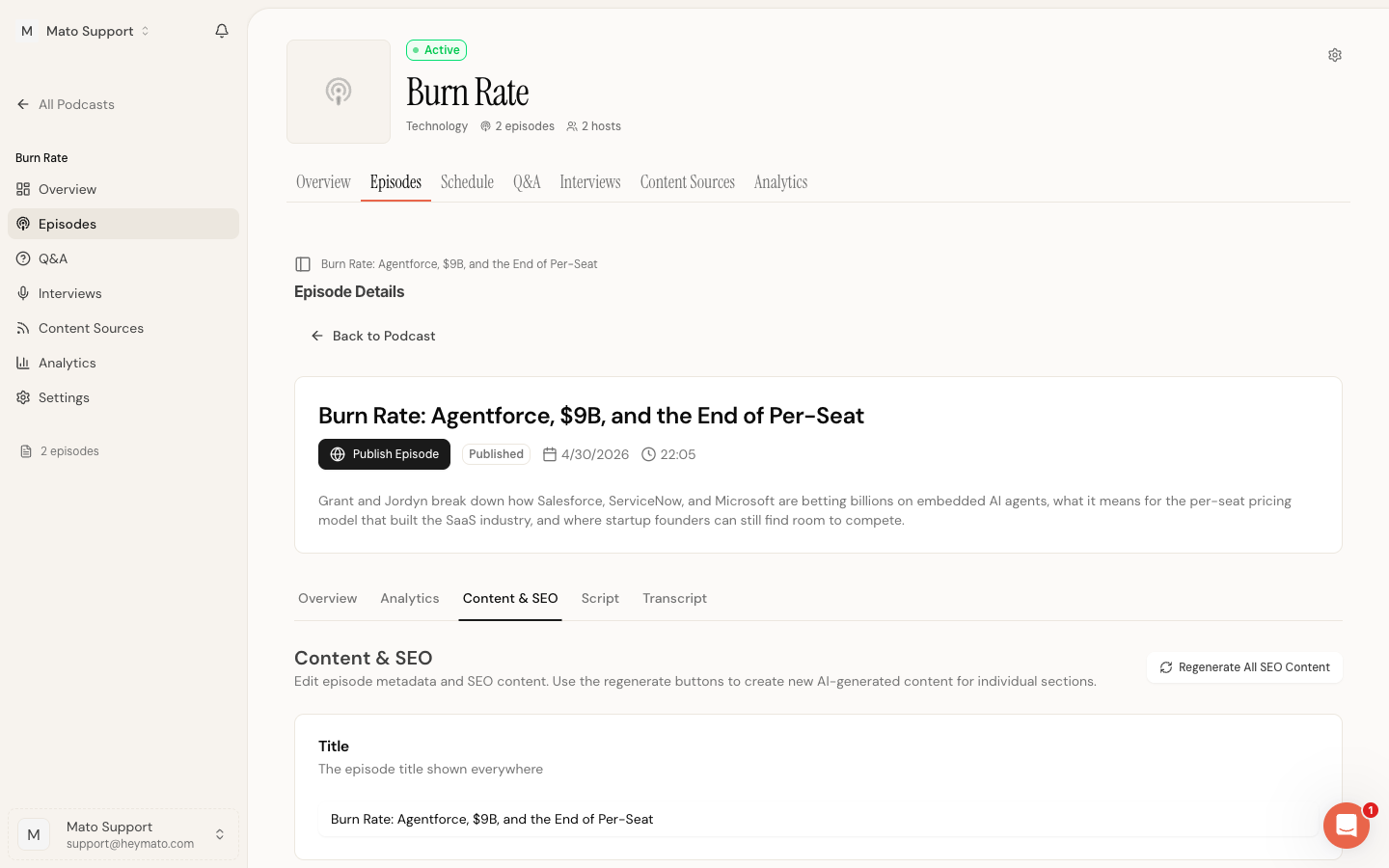
The page displays each metadata section as a separate card. At the top, you will see the heading "Content & SEO" alongside a Regenerate All SEO Content button.
Edit the title
The Title card holds the episode name. This value appears in podcast directories, RSS feeds, and on your show page.
Type directly into the input field to change it. The title is required, so you cannot save with an empty field.
Write a description
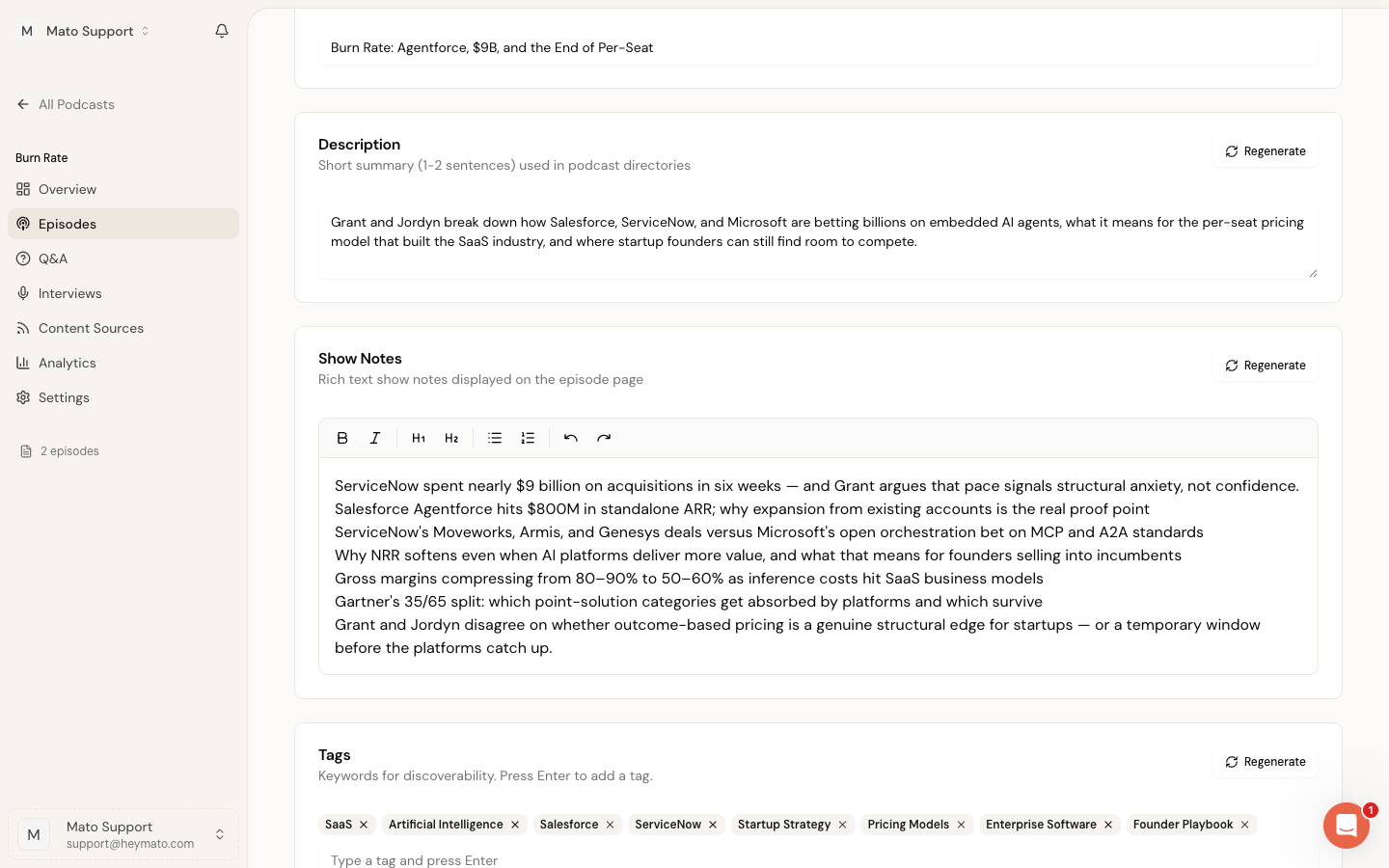
The Description card is for a short summary (one to two sentences). Podcast directories like Apple Podcasts and Spotify display this text below the episode title in their listings.
A Regenerate button sits in the top-right corner of the card. Click it to have Mato generate a new description from the episode content. A confirmation dialog appears first because regeneration replaces whatever you have in the field.
Keep descriptions under 250 characters when possible. Most directories truncate longer text.
Edit show notes
Show Notes is a rich text editor powered by TipTap. Unlike the plain-text description, show notes support formatting:
- Bold and italic text
- Headings (H2 and H3)
- Bullet lists and numbered lists
- Undo and redo
The toolbar at the top of the editor provides buttons for each of these. Click into the editor body to type, or highlight existing text to apply formatting.
Show notes appear on the episode's public page. They typically contain a summary of the topics covered, links to sources, and any resources mentioned during the episode.
This section also has its own Regenerate button. Clicking it replaces the current show notes with a fresh AI-generated version.
Add highlights
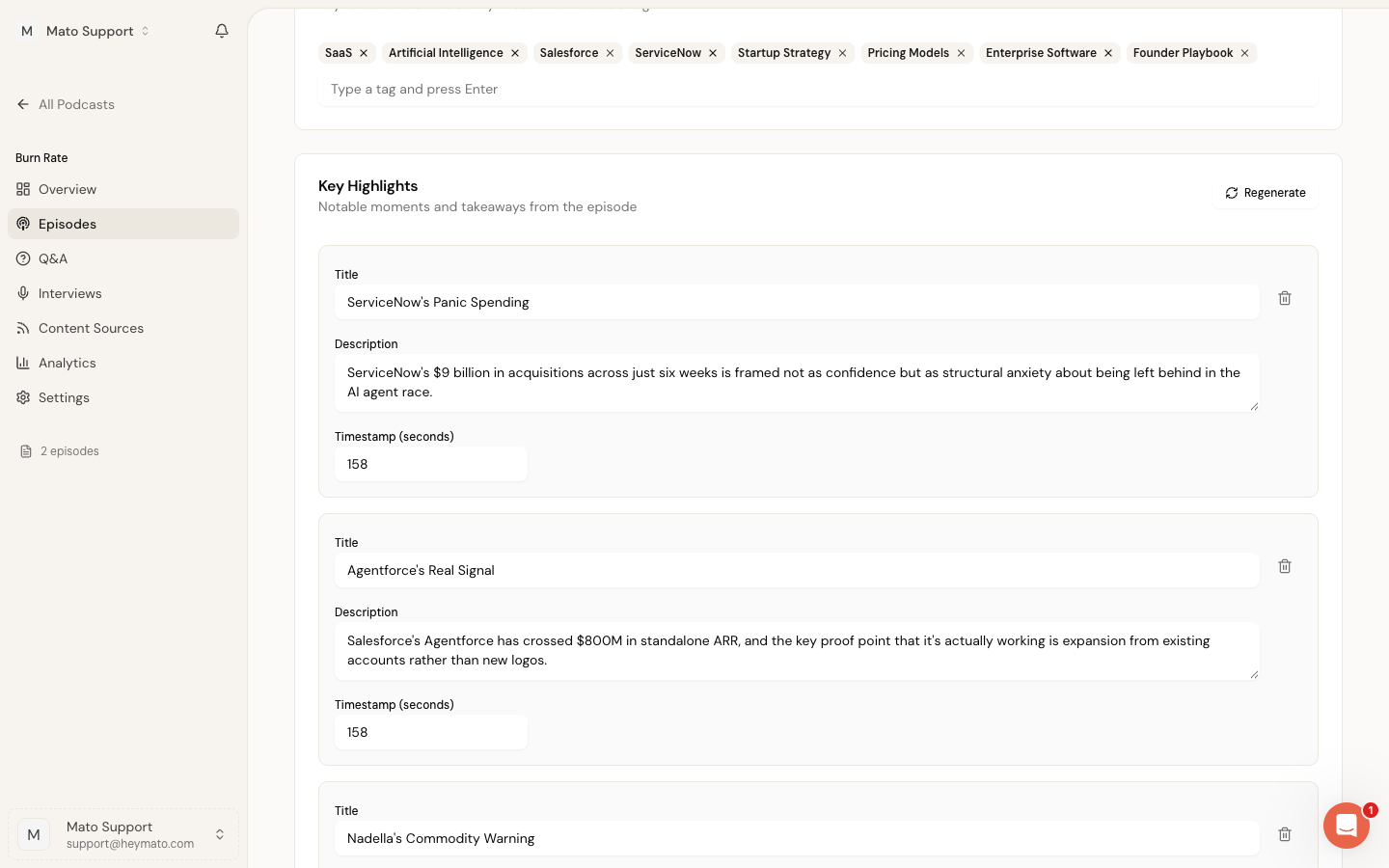
The Key Highlights section captures notable moments from the episode. Each highlight has three fields:
- Title: A short label for the moment (optional).
- Description: What happened or why it matters.
- Timestamp (seconds): When in the episode this moment occurs. Enter the value in seconds (for example, 120 for the two-minute mark).
Click Add Highlight to create a new entry. Click the trash icon next to any highlight to remove it.
Highlights are useful for listeners who want to skip to specific topics. They also provide structured data that can improve search visibility.
Like the other sections, highlights have a Regenerate button that replaces all current entries with AI-generated ones.
Set up chapters
Chapters are navigation markers that podcast players display as a table of contents. Each chapter has two fields:
- Title: The chapter name shown in the player.
- Start (seconds): When the chapter begins. Enter the value in seconds. The editor shows the formatted time (for example, "2:30") next to the input as a reference.
Click Add Chapter to create a new entry. Click the trash icon to remove one.
A warning banner at the top of the Chapters card reminds you that editing chapters changes metadata only. It does not alter the audio file itself.
Chapters are not regenerated by AI individually. If you click Regenerate All SEO Content at the top of the page, other sections update, but chapters stay as they are.
Add FAQ pairs
The Quick Answers (FAQ) section holds question-and-answer pairs generated from your episode content. Each entry has two fields:
- Question: A question a listener might ask about the episode.
- Answer: A concise response.
Click Add Question to create a new pair. Click the trash icon to remove one.
FAQ pairs serve two purposes. On your public episode page, they help visitors quickly understand what the episode covers. For search engines, structured Q&A data can appear as rich results in search listings.
This section has its own Regenerate button.
Manage tags
The Tags card holds keywords associated with the episode. Tags help with search and categorization across your podcast.
To add a tag, type a keyword into the input field and press Enter. The tag appears as a badge above the input. To remove a tag, click the X icon on its badge. You can also press Backspace with an empty input to remove the last tag.
Tags are deduplicated automatically. If you type a tag that already exists (case-insensitive), it will not be added a second time.
This section has its own Regenerate button that replaces all tags with a fresh AI-generated set.
Regenerate content with AI
Each metadata section (except Title and Chapters) has a Regenerate button in its top-right corner. Clicking any of these opens a confirmation dialog explaining that the current content will be replaced. After you confirm, Mato generates new content for that section using the episode's script and source material.
To regenerate everything at once, click Regenerate All SEO Content at the top of the page. This refreshes the description, show notes, tags, highlights, and FAQ in a single operation.
A few things to keep in mind:
- Regenerated content appears in the form immediately but is not saved to the database until you click Save Changes.
- You can edit the regenerated content before saving.
- Only one regeneration can run at a time. While a section is regenerating, the other Regenerate buttons are disabled.
- The Title and Chapters sections do not have individual Regenerate buttons. You can only edit these manually.
Save your changes
After editing any fields, click Save Changes at the bottom of the page. A success notification confirms that the update went through.
If you have unsaved edits, a "You have unsaved changes" message appears next to the Save button. The page also warns you if you try to navigate away or close the browser tab while changes are pending. This is a standard browser prompt that gives you the option to stay on the page or leave without saving.