
The Mato player is an embeddable audio player you can drop into any website. It supports four size variants, light and dark themes, accent color overrides, start-time deep links, chapter markers, and synchronized transcript highlighting.
This guide covers how to get the embed code, customize the player, and use URL parameters for advanced control.
Open the embed dialog
You can reach the embed configurator from two places:
- Dashboard episode page. Open a published episode inside your workspace. Click the three-dot menu on the player and select Embed. A dialog opens with the configurator.
- Public episode page. On the public page at
heymato.com/shows/[your-show]/episodes/[episode-slug], click the three-dot menu on the player and select Embed.
The embed dialog shows a live preview of the player alongside the generated code snippet. Use Player size, Theme, and Start at to configure the output, then click Copy code. If you need auto-sizing or a custom accent color, edit the copied snippet with the attributes in the sections below.
Choose a player variant
The configurator has a Player size dropdown with four options:
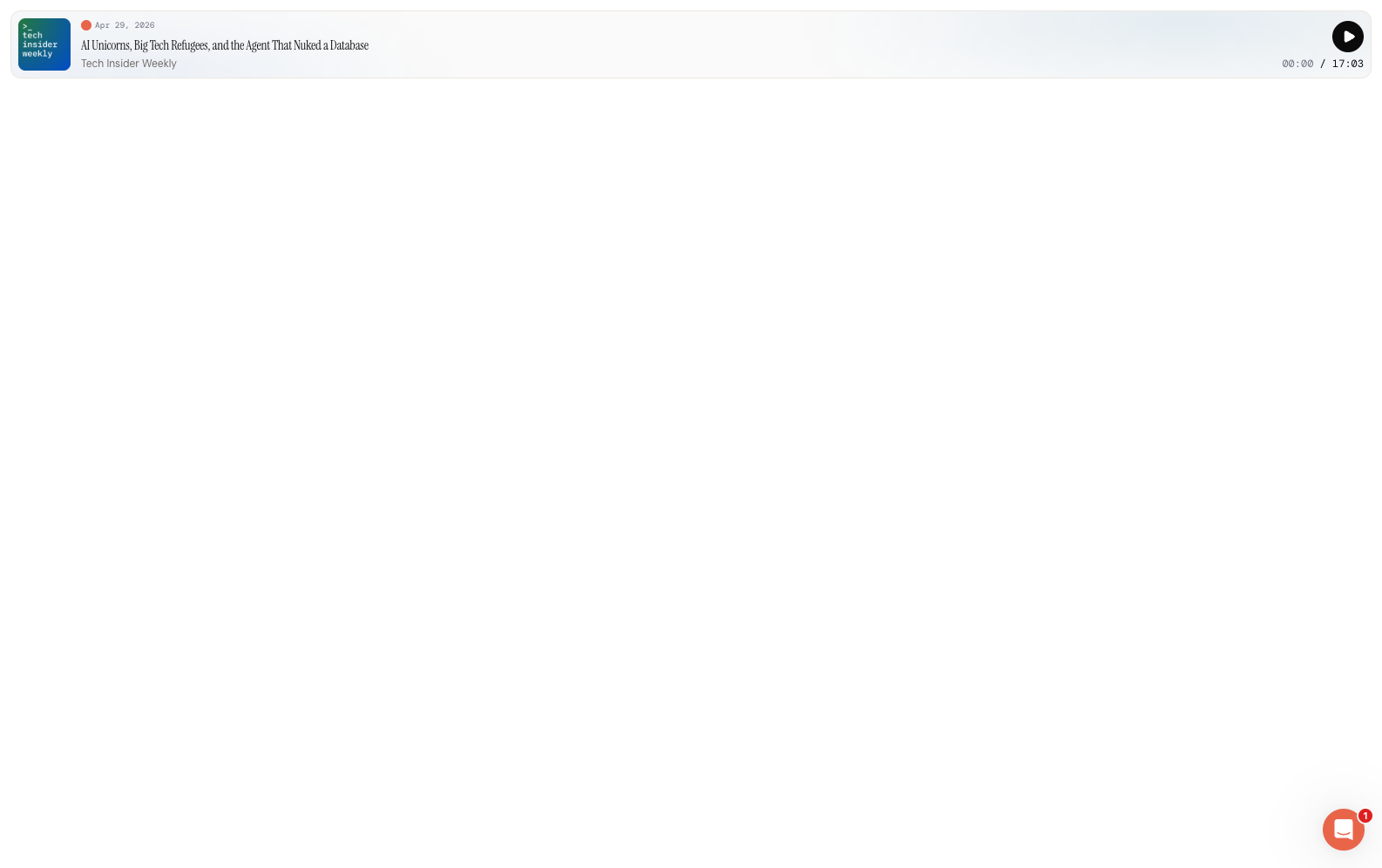
- Small (approx. 96px tall). Cover art, title, show name, play button, and a time counter. No waveform or transport controls. Good for sidebars, cards, or tight spaces.
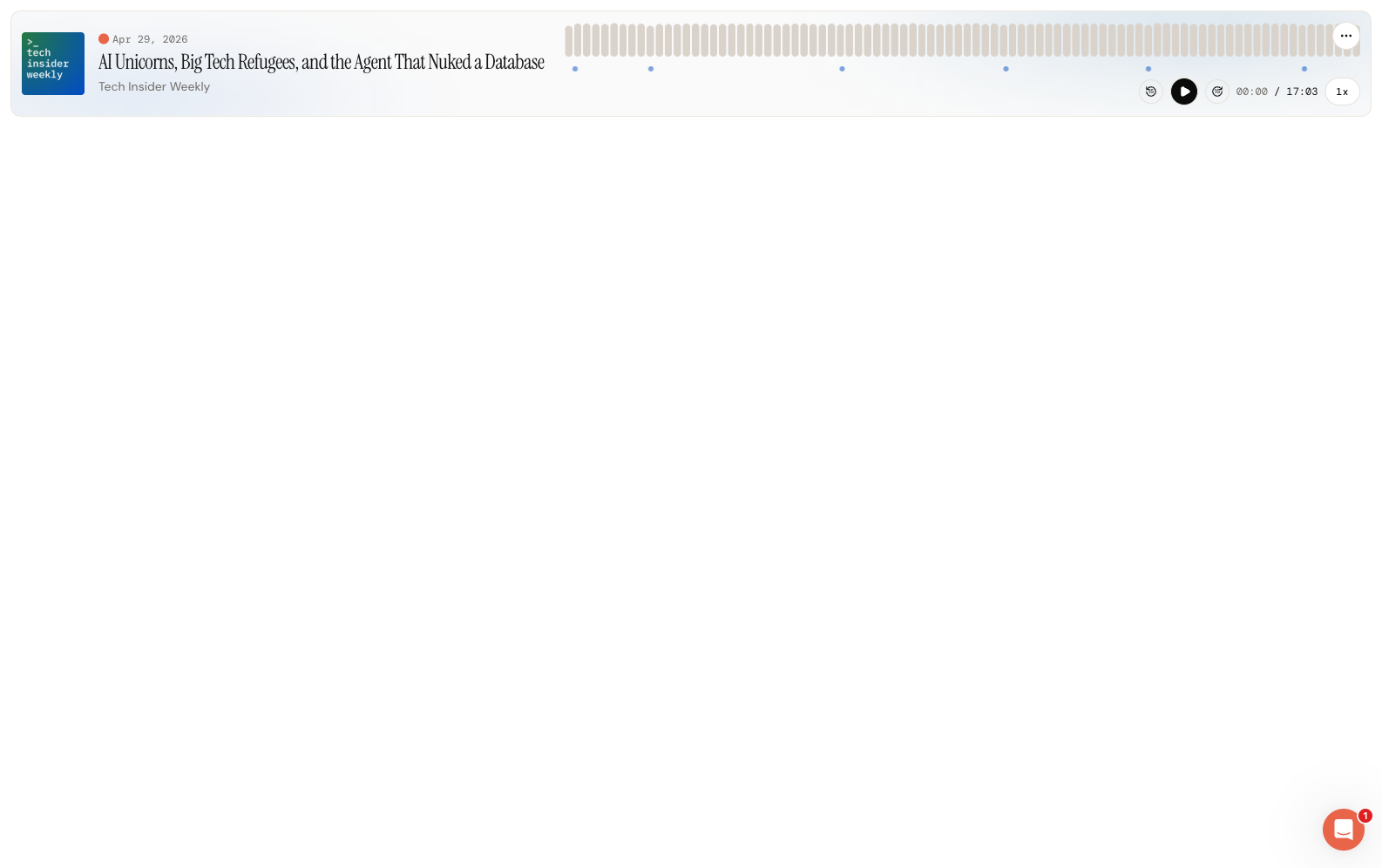
- Compact (approx. 170px tall). Cover art and metadata on the left, waveform and transport controls on the right. Works well in blog post headers or narrow content columns.
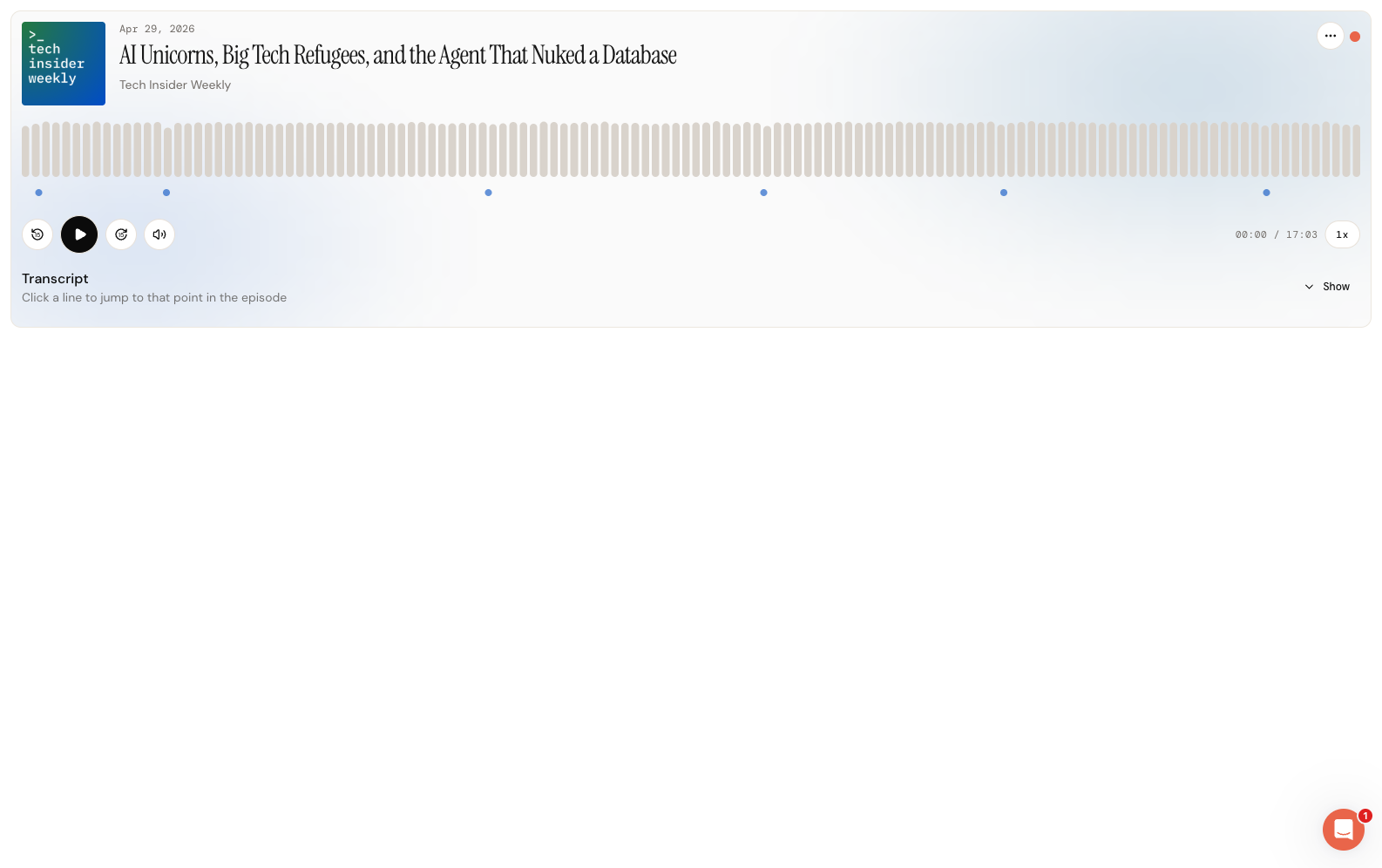
- Standard (approx. 300px tall). Full-width layout with cover art, metadata, waveform, and playback controls stacked vertically. Includes a collapsible transcript panel. Best for dedicated episode pages.
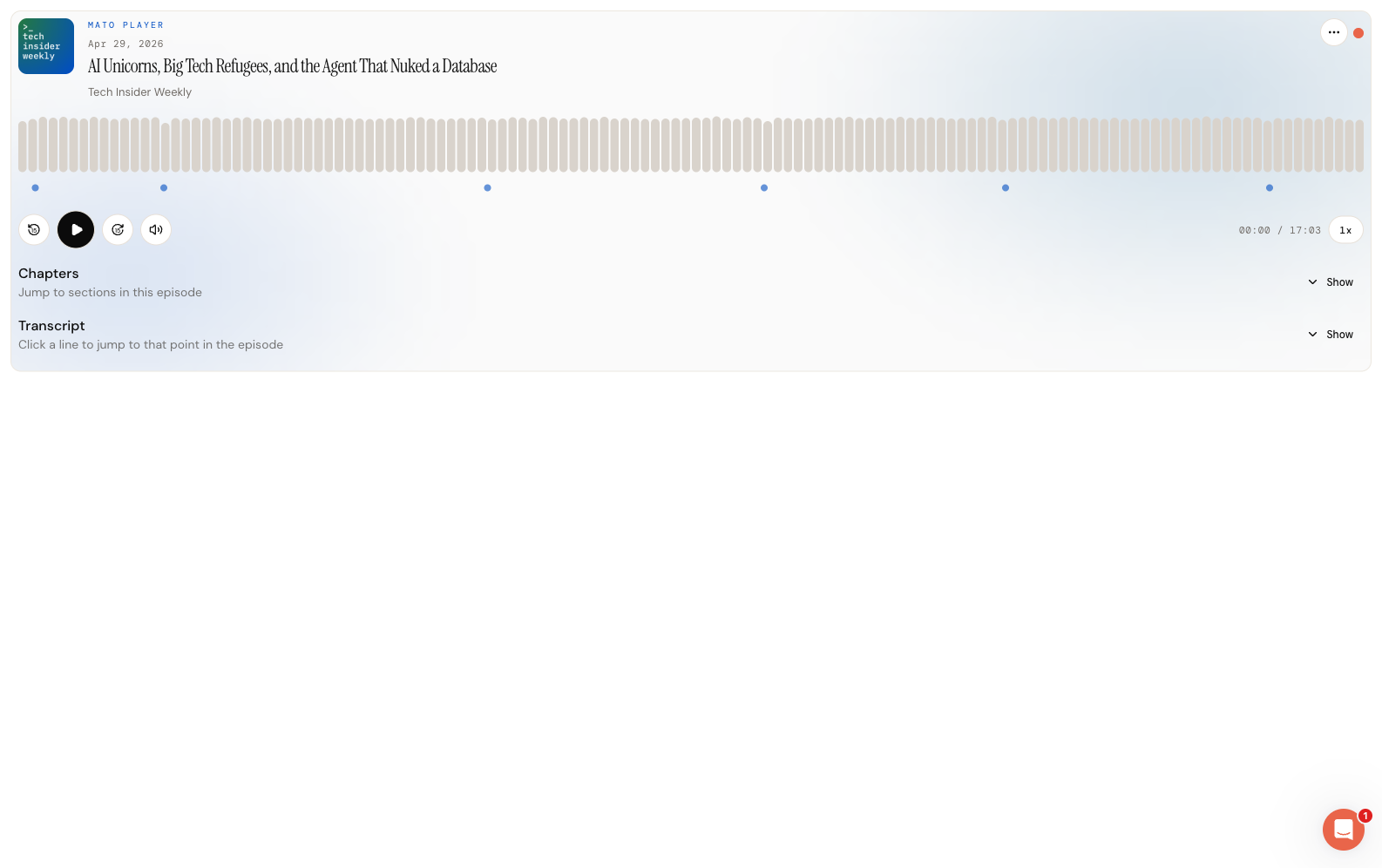
- Medium (approx. 520px tall). Same as Standard, plus a chapter markers section with a visual timeline and a clickable chapter list. Also includes the transcript panel. Best when the episode has chapter data.
When you set data-variant="auto" or use ?variant=auto, the player measures its container width and picks the best layout automatically. Below 300px it uses Small, below 500px Compact, below 700px Standard, and above 700px Medium.
Pick a theme
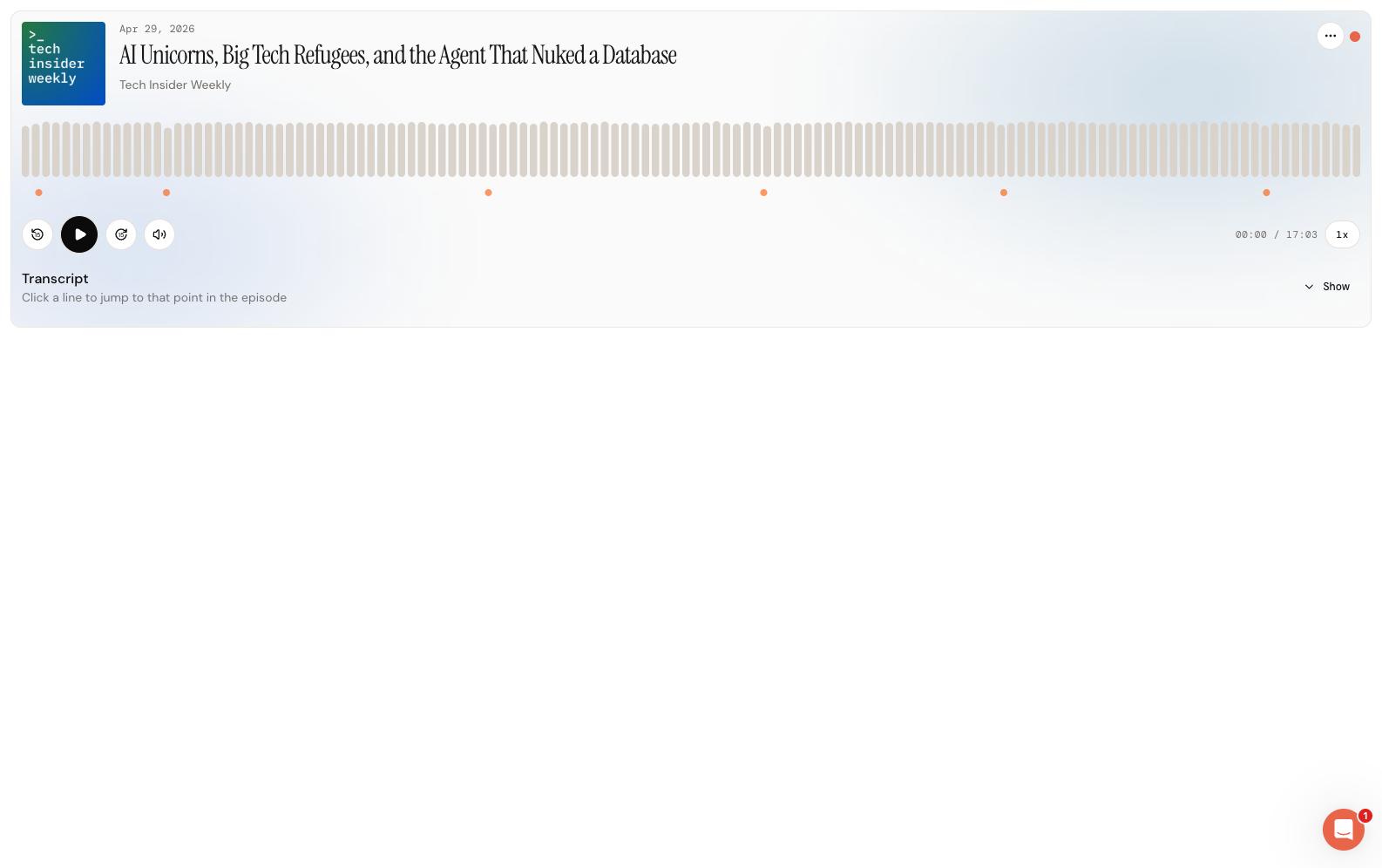
The Theme dropdown has two options: Light and Dark. Light renders a warm off-white background with dark text. Dark renders a near-black background with light text.
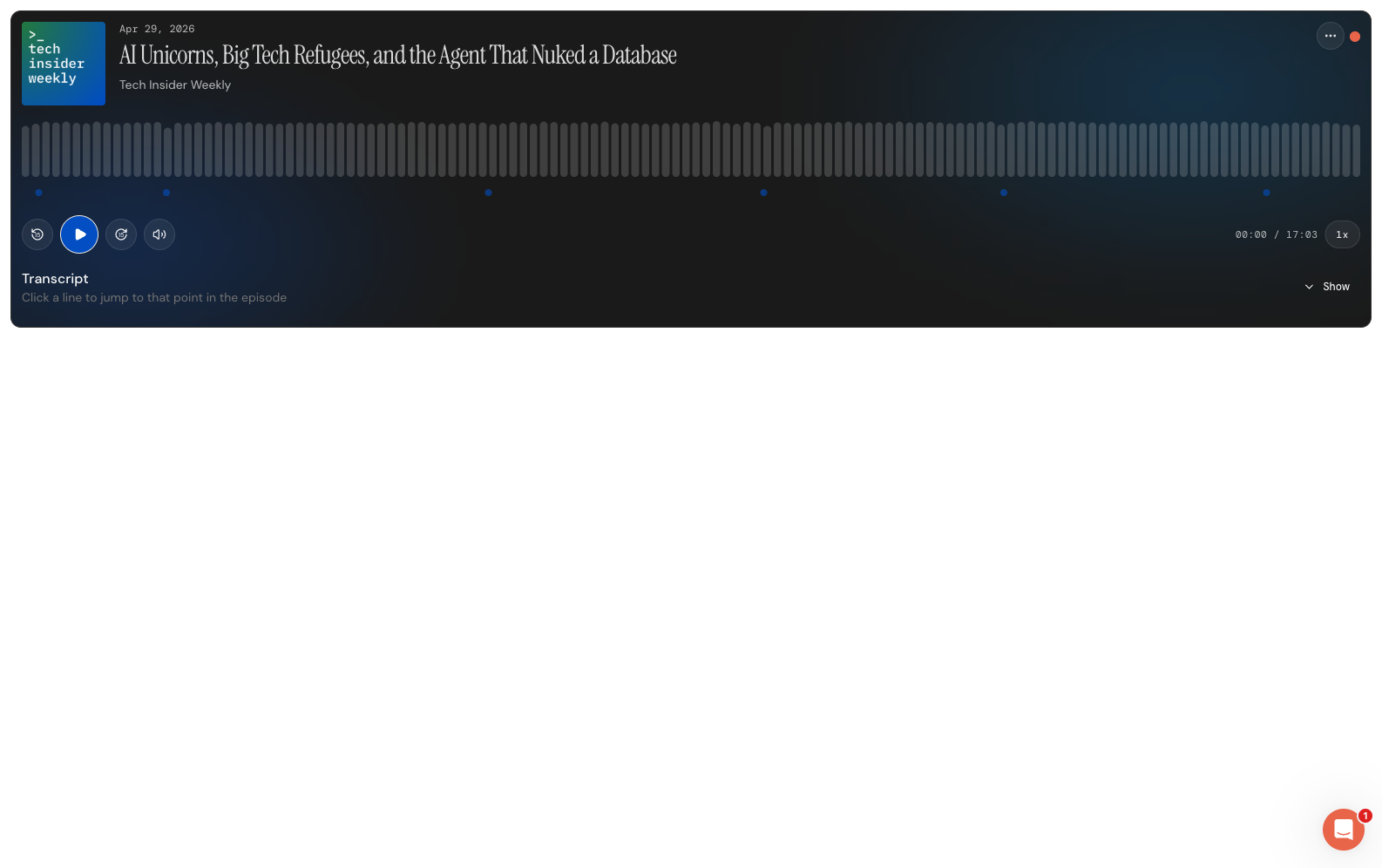
If you set data-theme="auto" or use ?theme=auto, the player follows the listener's preferred color scheme.
Copy the embed code
After selecting your variant and theme, copy the generated snippet and paste it into your website's HTML. The output is a script-tag embed, not a raw iframe. It looks like this:
<div data-mato-player="EPISODE_IDENTIFIER" data-theme="light" data-variant="compact" data-start="600"></div>
<script src="https://heymato.com/embed/player.js" async></script>
EPISODE_IDENTIFIER can be the episode ID from Mato's embed dialog or the episode <guid> exposed in the show's RSS feed.
The script discovers the data-mato-player div, creates an iframe, and manages auto-resizing so the player fits its content without scrollbars.
Customize with URL parameters
The embed iframe URL supports several query parameters for fine-grained control. These are appended to the player URL (/embed/player/EPISODE_IDENTIFIER). If you are using the script-tag embed, add the equivalent data-* attributes to the div.
Start time (?t=)
Jump to a specific timestamp when the player loads. The value can be seconds, mm:ss, or hh:mm:ss.
/embed/player/EPISODE_IDENTIFIER?t=10:00
This starts playback at the 10-minute mark. In a script-tag embed, add the same value as data-start="600" or data-start="10:00". Existing embeds that use data-t continue to work. Values above 86400 (24 hours) are capped.
Accent color (?accent=)
Override the default accent color with a six-character hex code (no # prefix).
/embed/player/EPISODE_IDENTIFIER?accent=FF5500
In a script-tag embed, add the same value as data-accent="FF5500". The player uses this color for the play button highlight, active chapter indicator, active transcript line, and waveform progress. It also calculates a readable foreground color automatically so text on accent-colored surfaces stays legible.
Variant (?variant=)
Set the layout directly in the URL or with data-variant: small, compact, standard, medium, or auto.
/embed/player/EPISODE_IDENTIFIER?variant=standard&theme=dark
Theme (?theme=)
Set light, dark, or auto with either ?theme= or data-theme.
Chapter markers
If the episode has chapter data, the Medium variant displays a chapter section below the waveform. It includes:
- A visual timeline bar with dots at each chapter boundary. Hover a dot to see the chapter title and timestamp.
- A scrollable chapter list. Each row shows the chapter title, timestamp, and a "Now" or "Go" label. Click any row to jump to that point.
The active chapter highlights as playback progresses.
Chapters are only visible in the Medium variant. The Small, Compact, and Standard variants skip the chapter section.
Transcript highlighting
When the episode has a transcript (SRT file), the Standard and Medium variants include a collapsible Transcript panel. It works like this:
- Each transcript cue shows a timestamp on the left and the spoken text on the right.
- The currently active cue highlights and the panel auto-scrolls to keep it visible.
- Click any cue to jump playback to that point.
- If word-level timing data is available, individual words highlight as they are spoken. Click a specific word to seek to that exact moment.
Speaker labels appear as small badges above the cue text when the SRT file includes speaker metadata.
The transcript panel starts collapsed by default and opens when the listener clicks Show.
Show-level player
In addition to the single-episode player, Mato offers a show-level embed at /embed/show/[show-slug]. This renders a playlist of the most recent published or distributed episodes (up to 20) with the same light or dark theme and accent-color parameters. The show embed uses a separate script tag:
<div data-mato-show="your-show-slug" data-theme="light" data-limit="10" data-accent="FF5500"></div>
<script src="https://heymato.com/embed/show.js" async></script>
The data-limit attribute controls how many episodes appear (default 10, max 20).
Visibility rules
Only episodes with a published or distributed status appear in the embed player. The episode's parent show must also be active and publicly listed (either listed in the directory or featured on the homepage). If these conditions are not met, the embed returns a 404.
Unpublished episodes show a disabled Embed option in the three-dot menu with a tooltip explaining why.
Troubleshooting
The player shows "Audio is unavailable for this episode." The episode does not have a processed audio file. Check that audio rendering completed in the episode dashboard.
The iframe does not resize. Make sure you are using the script-tag embed, not a raw iframe. The script handles postMessage-based resizing automatically.
The embed returns a 404. Verify the episode is published and the show is publicly listed. Private or draft episodes are not accessible through embed URLs.