
Apple Podcasts accepts shows through Apple Podcasts Connect. You submit the RSS feed from Mato, review the show information Apple reads from the feed, choose availability settings, and send the show for review.
Before you start
Prepare these items before opening Apple Podcasts Connect:
- An active Apple Account with two-factor authentication. Managed Apple Accounts cannot use Apple Podcasts Connect.
- A valid payment method on the Apple Account and acceptance of the Apple Media Services Terms. Apple says the payment method is needed to finish activation but is not charged unless you make a purchase.
- Access to Apple Podcasts Connect.
- Your public Mato RSS Feed URL.
- At least one published episode in the feed.
- Square show artwork from 1400 by 1400 through 3000 by 3000 pixels, saved as PNG or JPG without transparency.
- A show title, description, language, and category in the RSS feed.
- Contact information for the person Apple should reach if there is a problem with the show.
- The rights to publish the show, its audio, artwork, music, and other included material.
In Mato, open Settings > Distribution, click Sync now in the Mato hosting section, and copy the RSS feed URL. If Apple reports a feed problem later, fix the show details in Mato and sync again before trying.
Test the feed before submitting
Testing the feed in the Apple Podcasts app lets you check the cover, episode titles, descriptions, and audio without publishing the show in Apple's directory.
On iPhone or iPad:
- Open Apple Podcasts.
- Go to Library and select Edit.
- Select Add a Show by URL.
- Paste the RSS Feed URL and select Follow.
On Mac, open Apple Podcasts and choose File > Add a Show by URL.
If the artwork or audio does not load in this private test, correct the feed before submitting it for review.
Submit the RSS feed
- Sign in to Apple Podcasts Connect.
- Click the Add button, shown as a plus sign.
- Select New Show.
- Select Add a show with an RSS feed.
- Paste the Mato RSS Feed URL.
- Choose whether access to the show should be restricted to selected people in your Podcasts Connect organization.
- Click Add.
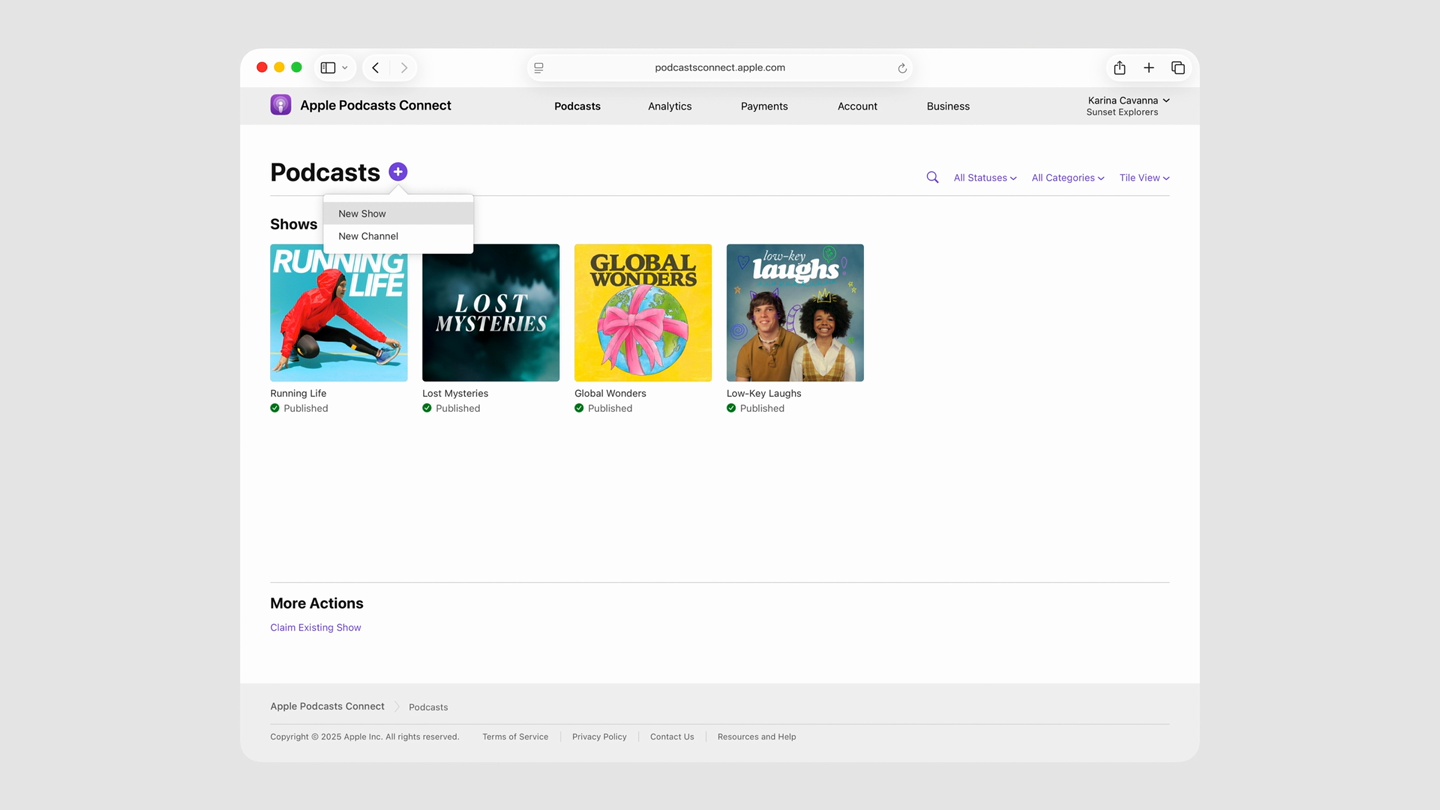
Source: frame from Apple's official Create a new show video, accessed September 1, 2026. The interface may change.
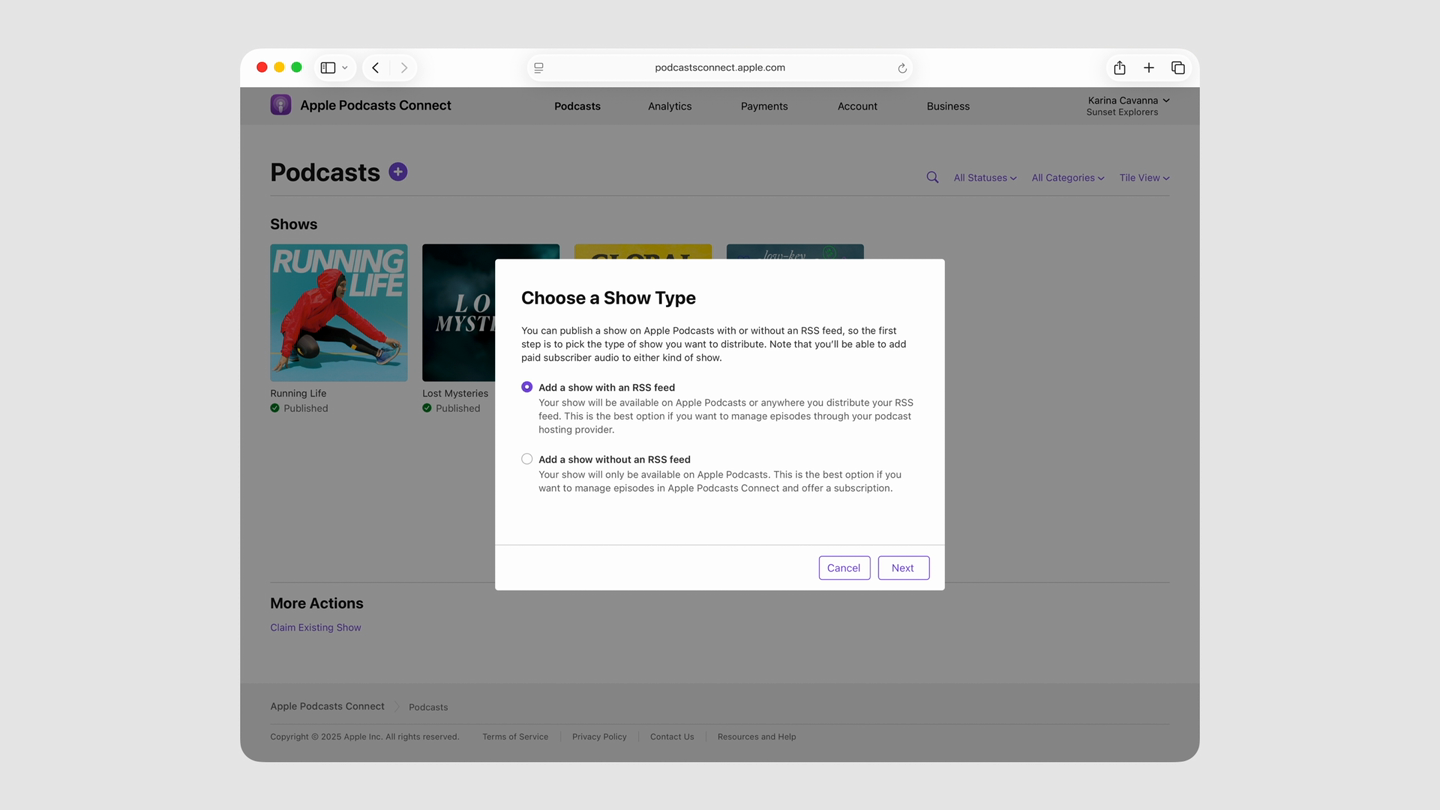
Source: frame from Apple's official Create a new show video, accessed September 1, 2026. The interface may change.
Apple validates the feed and opens the show record. Metadata supplied by the RSS feed remains the main source for the show and its episodes.
Complete the show information
Review the information Apple has loaded, then complete the fields that are managed in Podcasts Connect:
- In Show Information, confirm the show details Apple read from the feed.
- Set Content Rights and confirm that you have the right to use any third-party material.
- Enter the show contact information so Apple can reach someone if there is a problem with the submission.
- Open Availability in the left navigation.
- Choose the countries and regions where the show should be available.
- Review the distribution, transcript, release, and show-claiming settings.
- Choose whether the show should release immediately after approval or at a scheduled date and time.
- Click Save.
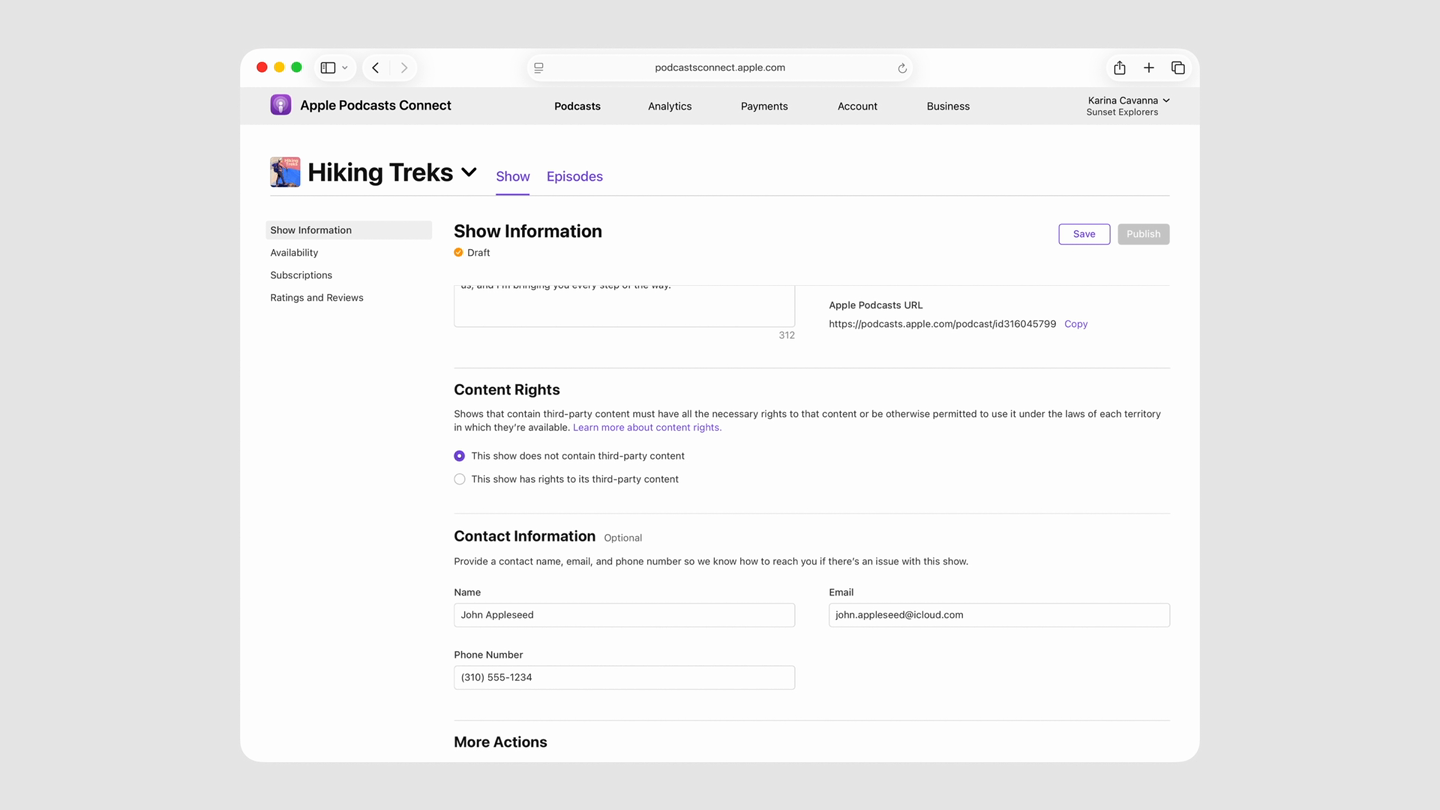
Source: frame from Apple's official Create a new show video, accessed September 1, 2026. The example show and account belong to Apple's tutorial.
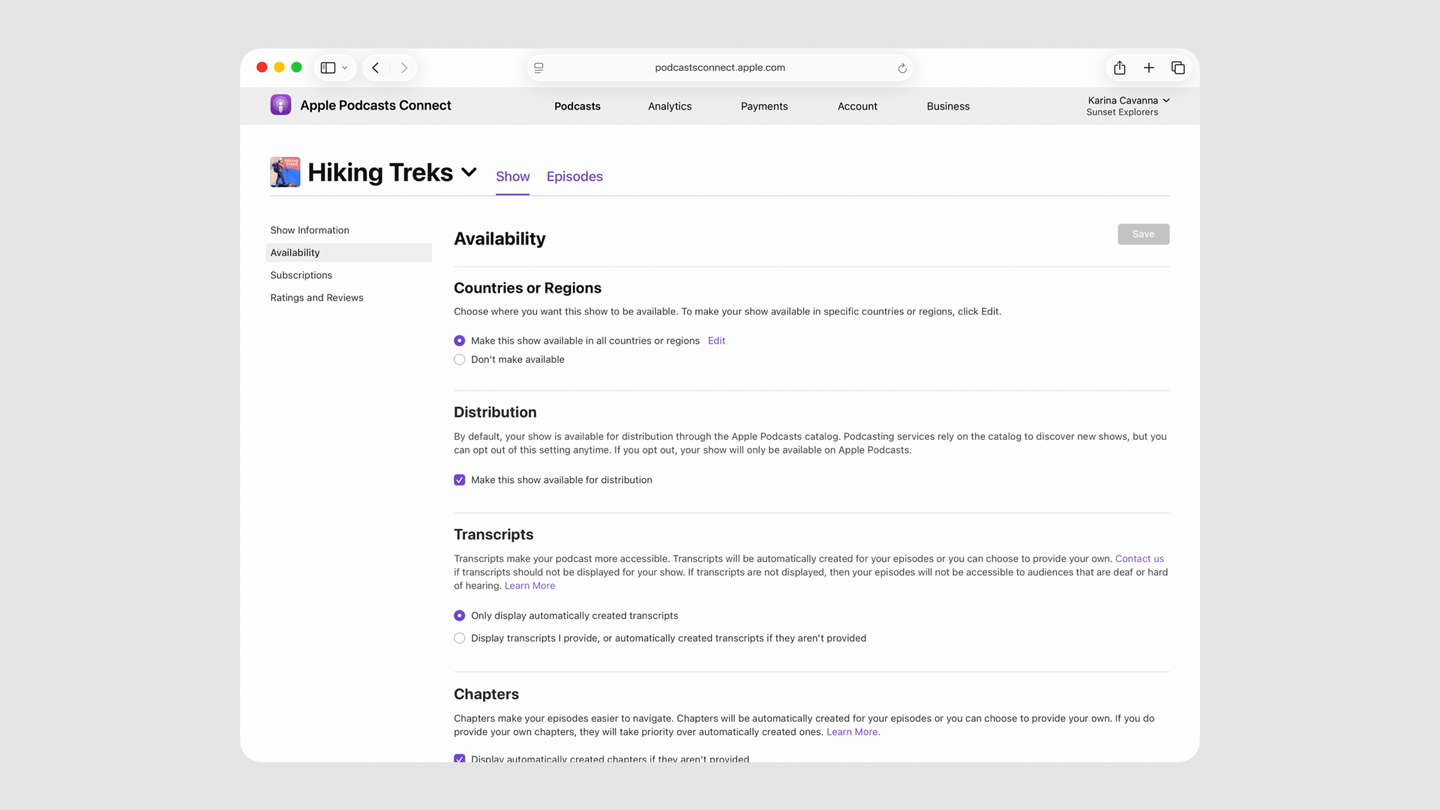
Source: frame from Apple's official Create a new show video, accessed September 1, 2026. The interface may change.
If Apple shows a warning or validation error, do not publish yet. Correct feed-owned data in Mato, re-sync, and return to Podcasts Connect after Apple can read the updated feed.
Send the show for review
Click Publish after the show information and availability settings are complete. Apple performs both technical validation and a content review. Passing feed validation does not guarantee approval.
You can follow the status in Podcasts Connect. Apple also sends an email when the status changes. Apple's cited review-process guide does not promise a review ETA, so check the show record rather than relying on a specific number of days.
Common status labels include:
- Draft: the show has not been submitted.
- Ready for Release: Apple approved the show, but the selected release date has not arrived.
- Published: the show is approved and has at least one published episode.
- Issue Found or Removed: Apple needs a correction before the show can be available.
If Apple rejects the submission, correct the reported problem at the source, return to the show in Podcasts Connect, and click Publish again to resubmit.
If the show is already listed on Apple Podcasts
Do not submit a duplicate feed. Use Apple's claim flow instead:
- Sign in to Apple Podcasts Connect.
- Open More Actions and select Claim Existing Show.
- Find the existing show and generate the claim token.
- Add the token through the hosting provider so it appears in the RSS feed.
- Wait for Apple to verify the matching token.
Apple says claim tokens remain valid for seven days and verification can take up to 24 hours. The host must support adding the claim token to the feed.
Common problems
Apple cannot read the feed. Confirm that the RSS URL is public, not password-protected, and returns valid RSS XML. Re-sync the show in Mato and retry.
Apple cannot download an episode. Check that the episode is published, the audio URL is reachable, and the feed, artwork, and episode servers support HTTP HEAD and byte-range requests.
The artwork is rejected. Use a square PNG or JPG from 1400 by 1400 through 3000 by 3000 pixels. Remove transparency and avoid Apple logos or artwork that implies Apple endorsement.
The feed has no episodes. Publish at least one episode to Mato Distribution before submitting the feed.
Metadata is missing or incorrect. Update it in Mato, re-sync, and allow Apple time to read the new feed. RSS metadata can replace values entered directly in Podcasts Connect.
Want help with the submission?
Contact Mato support if you want us to check the RSS feed or walk through Apple Podcasts Connect with you. Keep your Apple Account password, two-factor authentication code, and any claim token private.