
YouTube can turn each RSS episode into a static-image video using the show artwork. The podcast becomes available on YouTube and YouTube Music after the feed finishes importing and you publish it from YouTube Studio.
We recommend that you complete this submission yourself in your own YouTube Studio account. That keeps channel ownership, identity verification, and publishing control with you.
Before you start
Prepare the following:
- A channel whose owner is in a country or region where RSS podcast delivery is available.
- Permission to manage the channel in YouTube Studio.
- Advanced feature access for RSS Upload. Check Settings > Channel > Feature eligibility in YouTube Studio.
- The public Mato RSS Feed URL.
- Access to the owner email address in the RSS feed.
- Full-length episodes that you have the right to publish.
If YouTube asks for identity verification, the primary owner of a Brand Account, or the owner of a non-Brand channel, must complete it. Mato cannot complete that step for you.
In Mato, open Settings > Distribution, click Sync now in the Mato hosting section, and copy the RSS feed URL.
Start the RSS submission
- Sign in to YouTube Studio.
- Click Create in the top-right corner.
- Select New podcast.
- Select Submit RSS feed.
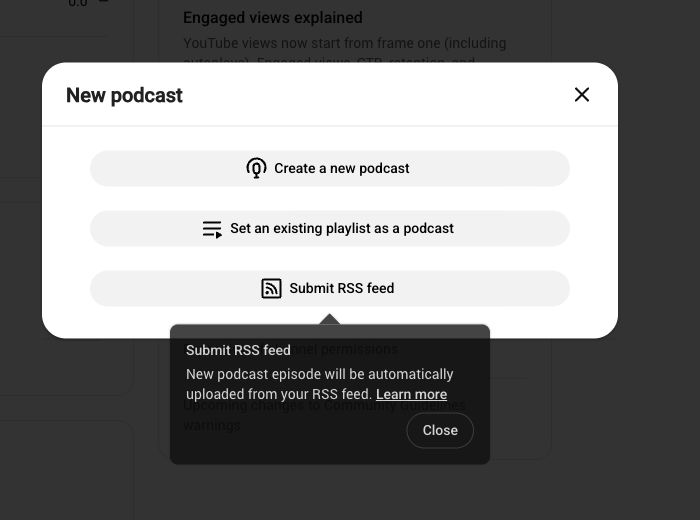
Screenshot captured in YouTube Studio on August 31, 2026. The interface may change. YouTube is a trademark of Google LLC, and this guide is not endorsed by YouTube.
If the channel does not have advanced feature access, YouTube asks you to complete identity verification before continuing.
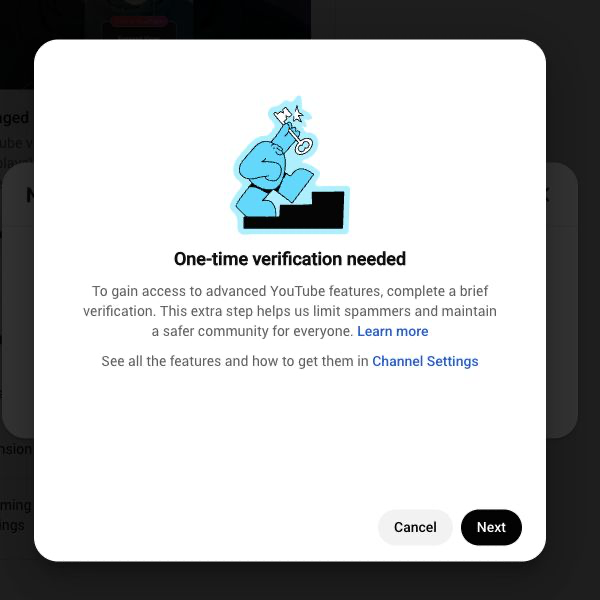
Complete the verification from the eligible owner account, then return to Create > New podcast > Submit RSS feed.
Connect and verify the feed
- Read and accept the RSS Ingestion Tool Terms of Service.
- Read the on-screen instructions and click Next.
- Paste the Mato RSS Feed URL and click Next.
- Click Send code.
- Open the inbox for the owner email in the RSS feed.
- Enter the code and click Verify.
Keep the verification code private. If you do not know which email address is in the feed, check the owner email in Mato or contact Mato support before requesting another code.
Choose which episodes to import
YouTube lets you select one of three import ranges:
- All existing episodes.
- Episodes published since a date you choose.
- Future episodes only.
Choose the range that avoids duplicating episodes already uploaded to the channel. If most episodes contain paid promotion, select YouTube's paid-promotion option.
YouTube says RSS-uploaded podcast content cannot contain advertisements. Paid product placements, sponsorships, and endorsements must be declared and follow YouTube's paid-promotion policy. Review the current policy before importing episodes with dynamic ads or commercial breaks.
Review the initial visibility setting and click Save. YouTube imports the selected episodes as private videos. The import can take a few days, and YouTube emails you when the podcast is ready for the separate publishing step.
Publish the imported podcast
The feed is not public immediately after import.
- In YouTube Studio, open Content.
- Select Podcasts.
- Find the imported RSS podcast.
- Under Video count, click Publish.
The Publish button appears after the selected episodes finish uploading. Review the Videos tab for copyright and monetization warnings before publishing.
After publishing, the podcast becomes available on YouTube and YouTube Music. New RSS episodes follow the Default RSS video visibility setting, which can be Public, Unlisted, or Private.
How future episodes work
YouTube checks the connected RSS feed and uploads new episodes automatically. Each episode becomes a video that uses the show artwork as its static visual.
Keep these limits in mind:
- RSS delivery sends the show to YouTube and YouTube Music only. It does not submit the feed to Apple Podcasts, Spotify, or other directories.
- Adding older episodes to the back catalog does not notify subscribers.
- Show-level title and description changes from RSS do not automatically replace the values in YouTube Studio.
- Episode metadata normally follows the RSS feed. If you edit an episode directly in Studio, YouTube can stop applying later RSS metadata edits to that episode.
- Replacing an audio file in the RSS feed does not automatically replace the YouTube video.
To replace changed audio, open Content > Podcasts, open the podcast's videos, use the episode menu, and select Re-upload from RSS feed. YouTube creates a replacement video and makes the old version private while retaining its views and comments.
Connect an existing YouTube podcast
If you already created the podcast manually in YouTube Studio:
- Open Content > Podcasts.
- Hover over the podcast and open Details.
- Open RSS settings.
- Select Connect to RSS feed.
- Choose an import date after the newest episode already on YouTube to prevent duplicates.
Disconnect the feed
Open Content > Podcasts, select the podcast's Details, find the RSS feed setting, and click Disconnect. Disconnecting stops future RSS episodes from uploading. It does not remove videos that are already on the channel.
Want help with YouTube?
You should submit and publish the feed from your own YouTube Studio account. Contact Mato support if you want us to check the feed, owner email, artwork, or metadata before you begin, or to guide you while you work through the screens. Never share your YouTube password, identity documents, or verification code.