
Use Spotify for Creators to submit a podcast hosted by Mato or to claim a show that Spotify has already found. Spotify verifies ownership by sending a code to the email address in the RSS feed.
Before you start
You need:
- A Spotify account.
- The public Mato RSS Feed URL.
- Access to the owner email address published in the RSS feed.
- A complete show title, description, and cover image in the feed.
In Mato, open Settings > Distribution, save the owner email in the Mato hosting section, click Sync now, and copy the RSS feed URL.
The owner email can be visible to anyone who reads the RSS feed. Use a monitored business address rather than a personal address when possible. Do not use an address that masks or discards incoming mail because Spotify sends the verification code there.
Add the show from a desktop browser
- Go to Spotify for Creators and log in.
- Open the account menu in the top-right corner.
- Select Add a new show.
- Select Find an existing show.
- Choose Somewhere else because Mato hosts the RSS feed.
- Paste the RSS Feed URL. If the show is already listed on Spotify, Spotify may also let you find it by show URL, name, or email.
- Continue until Spotify sends the verification code.
- Open the inbox for the owner email in the RSS feed. The message comes from
noreply@hello.creators.spotify.comand contains an eight-digit code. - Enter the code in Spotify for Creators to finish the claim or submission.
The wording Find an existing show covers both cases: claiming a show that Spotify already lists and submitting an externally hosted RSS feed that is not listed yet.
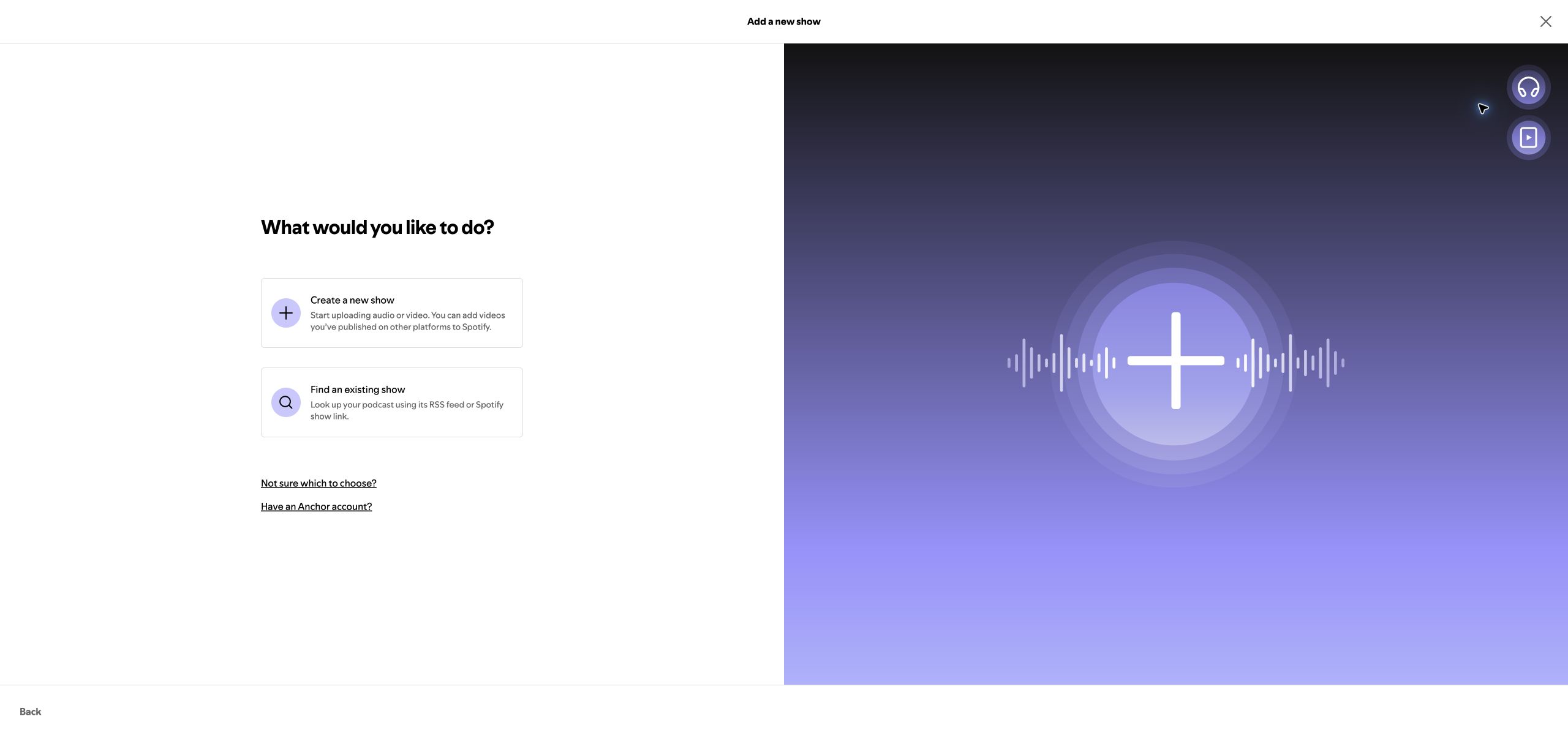
Screenshot captured in Spotify for Creators on September 1, 2026. Choose Find an existing show for a podcast hosted by Mato.
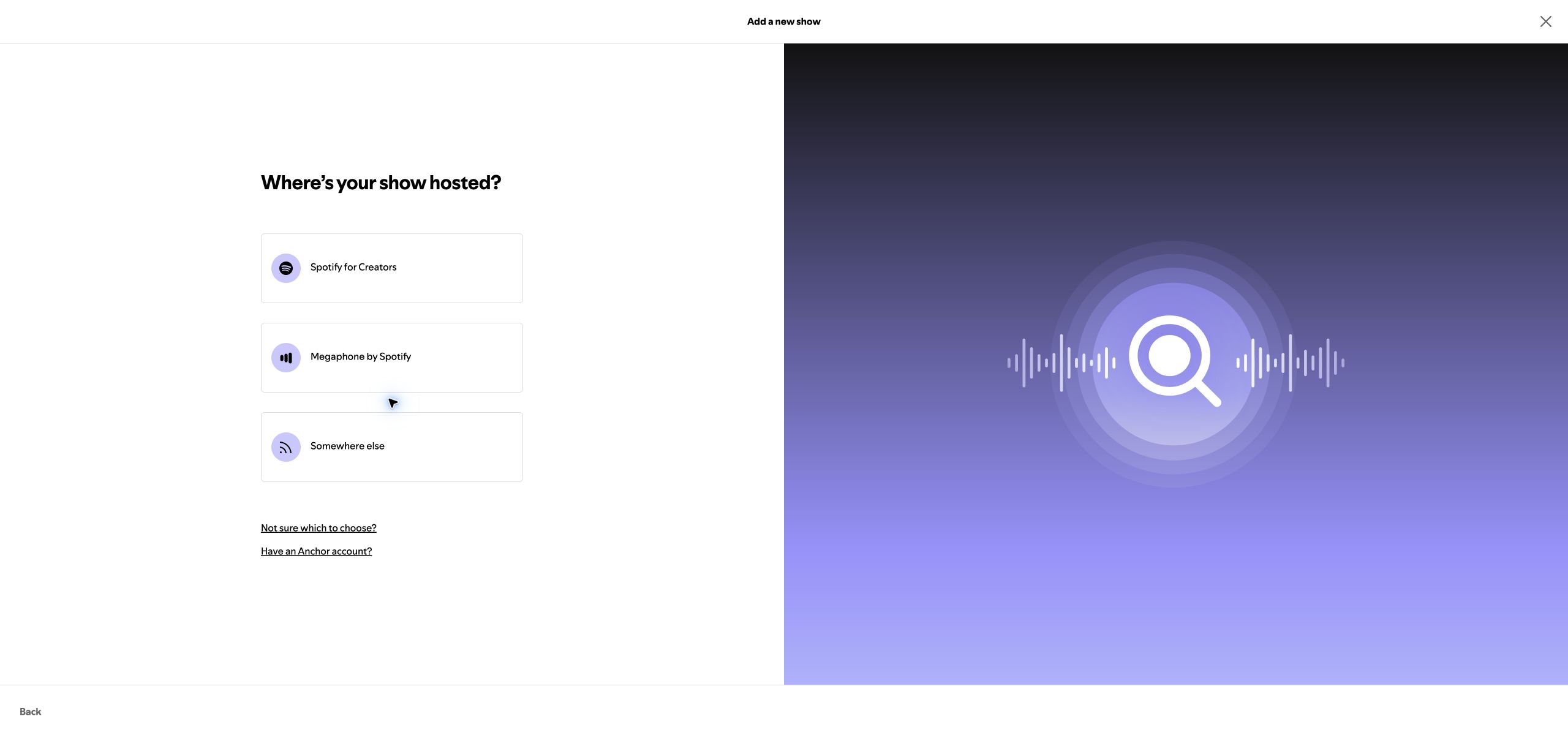
Screenshot captured in Spotify for Creators on September 1, 2026. Choose Somewhere else because Mato remains the RSS host.
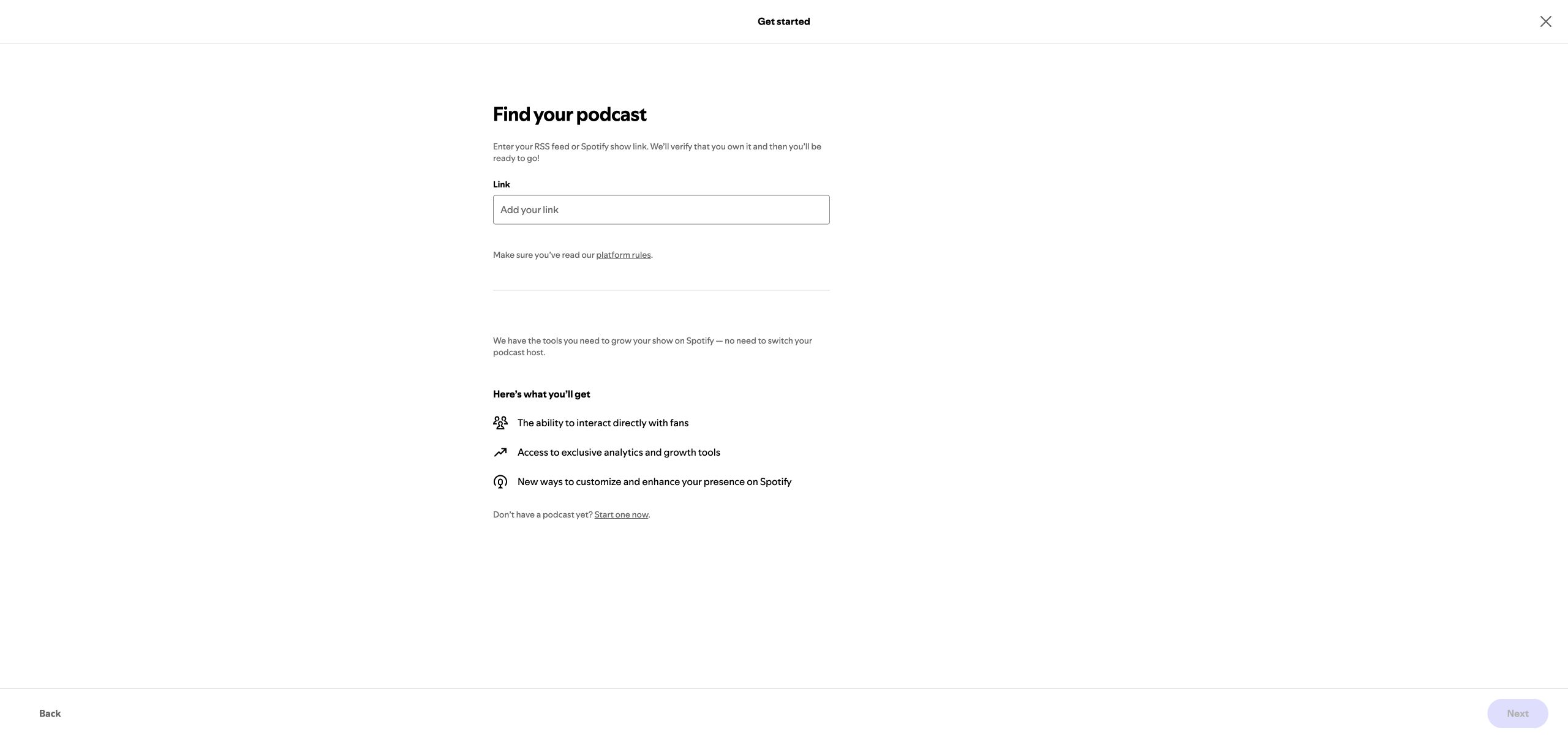
Screenshot captured in Spotify for Creators on September 1, 2026. Paste the Mato RSS Feed URL into Link. No account details or RSS URL are shown in this image. The interface may change. Spotify is a trademark of Spotify AB, and this guide is not endorsed by Spotify.
Add the show from the mobile app
- Open Spotify for Creators and tap the show cover in the top-right corner.
- Tap Add a show.
- Select I already have a show.
- Select Somewhere else.
- Find the show by RSS Feed URL, name, or email.
- Enter the verification code Spotify sends to the RSS owner email.
What happens after verification
Spotify does not document a separate manual approval form in the current claim flow. New shows usually appear in Spotify search after a few hours. A show with few plays may rank below similarly named shows, so open the direct show page if search does not place it near the top.
Spotify reads the show and episode information from the RSS feed. Make title, description, artwork, category, and episode corrections in Mato, then re-sync the feed. Spotify says new episodes and feed updates can take up to 24 hours to appear.
If the show has already been claimed
A show can only be claimed once. If Spotify says another account manages the show, ask the current owner or admin to add you. Contact Spotify support if the original manager is no longer available.
Common problems
The verification email never arrives. Check spam and confirm the owner email in the RSS feed is correct. If the host masks the address, expose a monitored address temporarily and re-sync. Spotify recommends waiting for the feed update and contacting support if the new address is still not recognized after four hours.
Spotify reports missing feed elements. Confirm the feed has a show title, description, cover image, and reachable episodes. Fix missing data in Mato and re-sync before trying again.
The RSS URL does not work. Use the actual RSS Feed URL from Mato, not the public show-page URL. A feed that returns an error or malformed XML cannot be submitted.
The show does not appear in search. Wait a few hours, then search by the exact show title. If it remains missing, open Spotify support from Spotify for Creators.
The wrong category appears. Spotify reads categories from the RSS <itunes:categories> values and may also apply editorial categorization. For a show hosted by Mato, update the podcast category in Mato and re-sync the feed.
Want help with Spotify?
Contact Mato support if you want us to review the RSS feed or guide you through Spotify for Creators. Do not send us your Spotify password or the eight-digit verification code.