
Listener Q&A lets your audience submit questions through your podcast's web form, SMS, or voice call. Questions land in a moderation queue where you can review, approve, reject, or feature them for upcoming episodes. This guide covers the full question management workflow, from first submission to episode inclusion.
Before you can receive questions, Q&A must be enabled in your podcast settings. If you open the Q&A tab and see a prompt to enable it, go to Settings > Listener Loop and turn Q&A on.
Open the Q&A page
From your podcast's tab navigation, click Q&A. The page loads a dashboard with four stat cards at the top, followed by the question management area below.
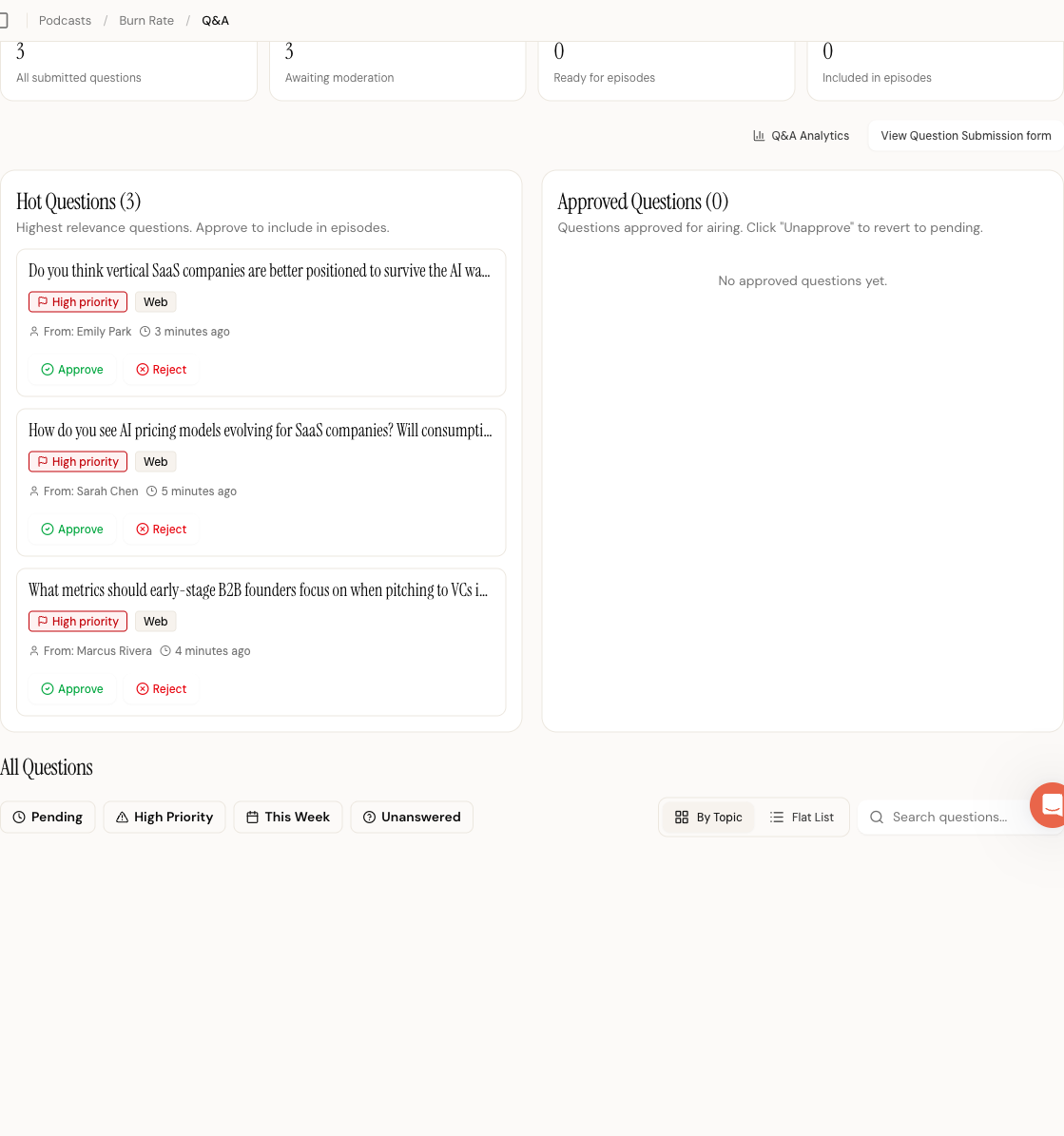
The stat cards show:
- Total Questions (all non-archived submissions)
- Pending Review (questions waiting for your decision)
- Approved (cleared for episode use)
- Featured (already included in a published episode)
Below the stats, action links on the right side give you quick access to the archive (if archived questions exist), the analytics page, and the public submission form.
Understand question statuses
Every question moves through a lifecycle. The status determines what you can do with it and where it appears on the page.
| Status | Meaning |
|---|---|
| Pending | Just submitted, waiting for review |
| Classified | AI has scored and categorized it, still waiting for your review |
| Approved | You cleared it for episode inclusion |
| Rejected | You decided not to use it |
| Answered | An AI response was generated and sent to the listener |
| Featured | Included in a published episode |
Pending and Classified questions both show approve and reject buttons. The difference is only whether AI classification has run yet.
Review questions
The main Q&A content area is split into two panels at the top and a full question list below.
Hot questions
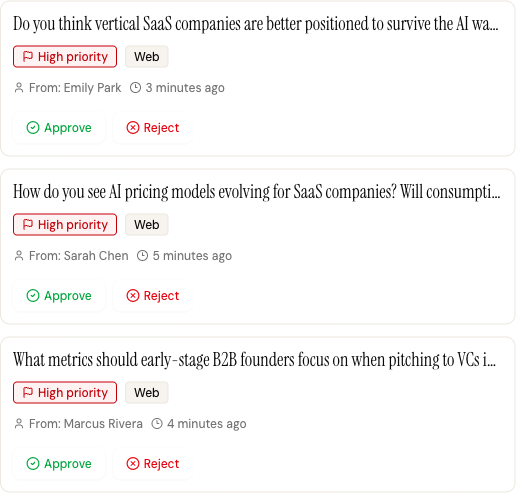
The left panel shows "hot" questions, ranked by a composite score that factors in relevance, recency, and priority. These are the questions most worth your attention right now. Each card shows the question text, priority level, channel badge, listener name (if provided), and timestamp.
Pending and classified questions in this panel have Approve and Reject buttons directly on the card.
Approved questions
The right panel lists all approved questions. Each card includes an Unapprove button that reverts the question back to Pending if you change your mind.
All questions
Below the two panels, the "All Questions" section shows every non-archived question. You have two view modes, toggled by the view switcher in the toolbar.
By Topic groups questions under their AI-detected topic classifications. Each topic is collapsible. Click the topic name to expand or collapse it. The first topic group is expanded by default. Within each topic, questions display in a card grid with the same approve/reject controls as elsewhere.
Flat List shows all questions in a single chronological list using a virtualized scroll container. This view is faster to scan when you have hundreds of questions.

Filter and search
Quick filter chips
Above the question list, four filter chips let you narrow the view:
- Pending shows only questions awaiting review
- High Priority shows questions the AI scored as high priority
- This Week shows questions submitted in the last seven days
- Unanswered shows questions without an AI response
Chips are toggleable and combinable. Active chips appear highlighted. Click Clear all to reset.
Semantic search
The search input in the toolbar supports both text matching and semantic search. Type a phrase or question, and Mato finds matching questions based on meaning, not just keywords. Results replace the main question list while the search is active. Clear the search input to return to the normal view.
Approve and reject questions
Pending and classified questions show two action buttons.
Click Approve to mark a question as ready for episode inclusion. The question moves to the Approved panel and becomes available when generating episode scripts.
Click Reject to remove the question from active consideration. Rejected questions stay in your question list (filtered by status) but do not appear in the hot or approved sections.
Both actions are immediate. A toast notification confirms the result.
Undo an approval
Approved questions show an Unapprove button. Clicking it reverts the question to Pending status so you can reconsider.
Feature questions for episodes
Featured status means a question was included in a published episode. When you generate an episode that incorporates a Q&A segment, Mato marks the selected questions as Featured and links them to that episode.
On the Q&A page, featured questions display a purple "Featured" badge with a star icon. If the question is linked to a specific episode, a "Featured in [Episode Title]" badge appears with a link to the episode detail page.
Featured questions also appear in the episode's side panel under the Questions section, showing the question text, listener name, and the timestamp in the episode where the Q&A segment plays.
Archive and restore questions
Archiving removes a question from the active Q&A page without deleting it. Use archiving for questions you have already dealt with or no longer need in your active queue.
Questions can be archived from the Q&A page. The question disappears from the main view once archived.
To view archived questions, click the Archived (N) link at the top right of the Q&A page. The archive page shows a count of archived questions, the age of the oldest archived item, and a list of all archived questions with their original status, channel, and priority.
Each archived question has a Restore button. Clicking it moves the question back to the main Q&A page.
How moderation works
Behind the scenes, Mato runs an automated moderation process on incoming questions. When a question arrives, the system scores it for relevance, assigns a priority level (High, Medium, or Low), and classifies it by topic. This happens automatically and typically completes within a few seconds of submission.
If you enabled Auto-Approve High Priority in your Q&A settings, high-priority questions skip the pending state entirely and land directly in the approved list. If Auto-Respond to Low Priority is on, low-priority questions receive an automated reply and are marked as answered.
Everything else lands in the pending queue for your manual review using the approve and reject buttons described above.
View Q&A analytics
Click the Analytics link at the top of the Q&A page to open the analytics dashboard.
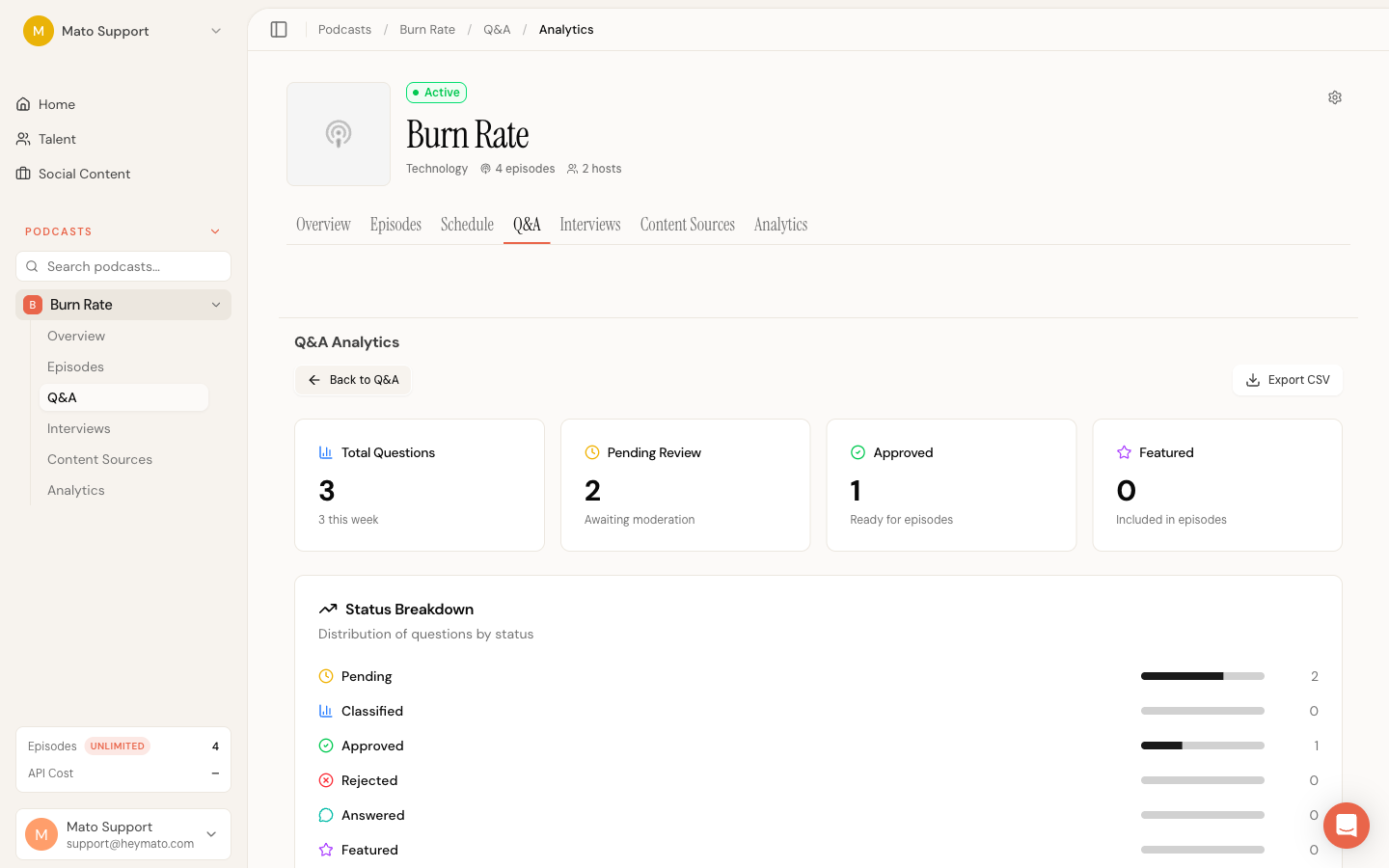
This page breaks down your Q&A performance across four areas.
Summary stats
Four cards at the top show total questions, pending review count, approved count, and featured count, each with a sub-label showing context (like "X this week" for total questions).
Status breakdown
A progress bar chart shows the distribution of questions across all six statuses. This helps you see if questions are piling up in Pending or if most are being processed.
Priority and channel distribution
Two side-by-side cards show how questions split across priority levels (High, Medium, Low) and submission channels (Web Form, SMS, Voice). Use the channel breakdown to understand where your listeners prefer to engage.
Key metrics
Three headline numbers summarize Q&A health:
- Approval Rate is the percentage of questions that are approved, featured, or answered out of the total.
- Avg. Relevance Score is the mean AI-calculated relevance across all scored questions. Higher is better.
- Featured Rate is the percentage of questions that made it into an episode.
Export data
On the analytics page, click Export CSV to download question data. The dropdown lets you export all questions or filter by status (Pending, Classified, Approved, Rejected, Answered, or Featured).
Question card details
Each question card in the Q&A page shows several pieces of information worth knowing about.
Channel badge indicates how the question was submitted: Web, SMS, or Voice.
Priority flag appears for high-priority (red) and medium-priority (amber) questions. Low-priority questions have no flag.
Consent to air badge (green) appears when the listener gave explicit permission to have their question read on the show.
Listener name and timestamp appear at the bottom of each card when available. Timestamps show relative time ("3 hours ago", "2 days ago").
Relevance score shows the AI-calculated relevance as a percentage when available.
AI response section appears as a gray inset block below the question text if the AI has generated a response for that question.
What to do next
- Set up submission channels (web form, SMS, phone number) in Settings > Listener Loop
- Generate an episode with a Q&A segment to feature approved questions
- Check the analytics page weekly to track submission volume and response rates