
Every talent in Mato carries its own voice configuration. The settings you choose here control how the talent sounds during episode audio rendering, and they apply to every podcast the talent is assigned to (unless overridden at the podcast level).
Open the voice identity card
Go to Talent in the sidebar, then click the talent you want to configure. Scroll down past the personality section until you see the Voice Identity card on the right column.
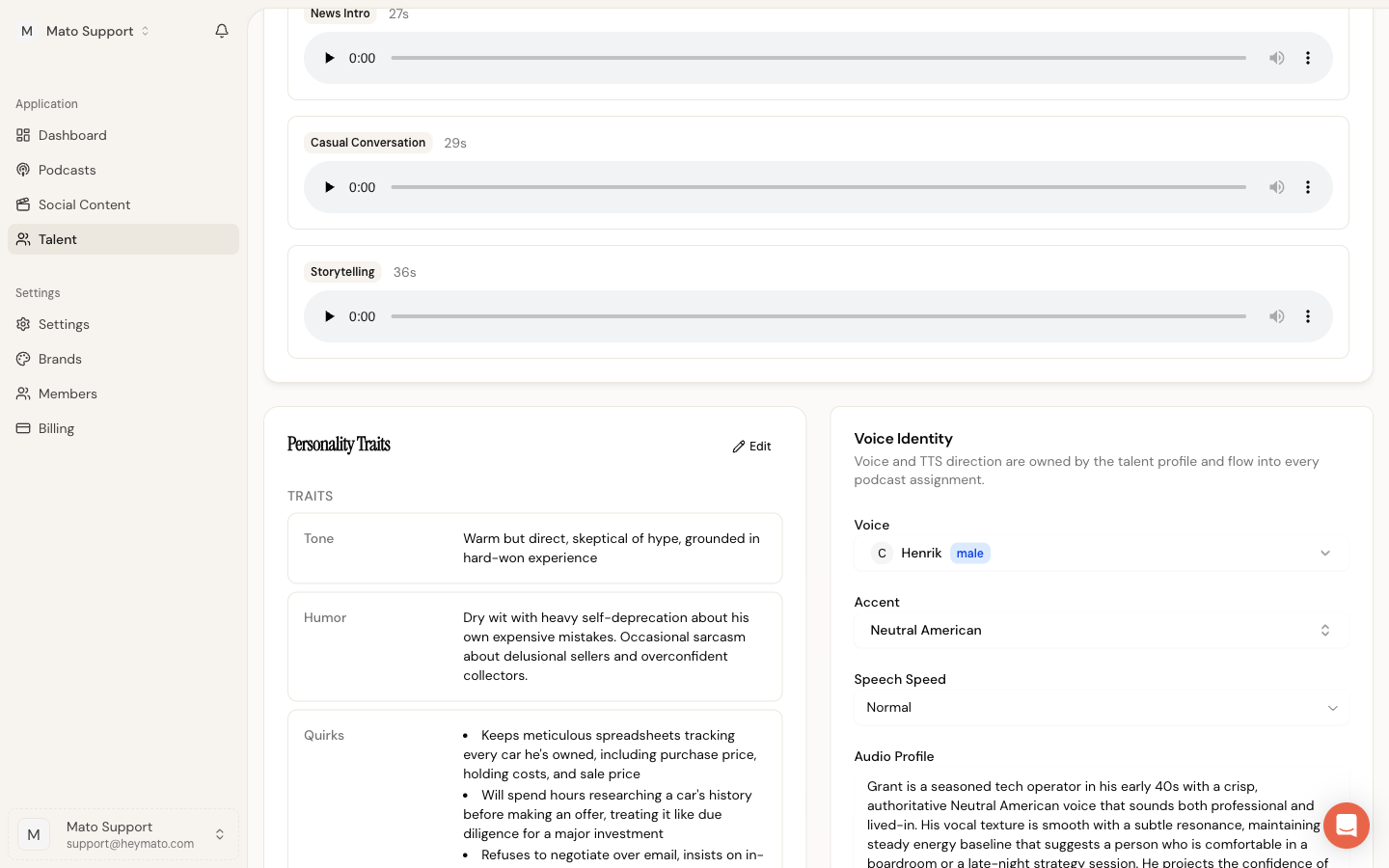
This card holds all voice and delivery settings for the talent. Changes here are saved independently from the personality editor, so you can update voice settings without touching the profile content.
Choose a voice
Mato supports two voice providers. The one you pick determines which voice library appears.
Gemini voices
The Gemini voice selector is the primary voice picker. Open the dropdown, search by name, gender, or style, and select a voice. Each entry shows the voice name, gender, and descriptive tags.
Click the speaker icon next to any voice to hear a short preview before committing. The preview generates a sample clip on the fly, so it may take a second to load.
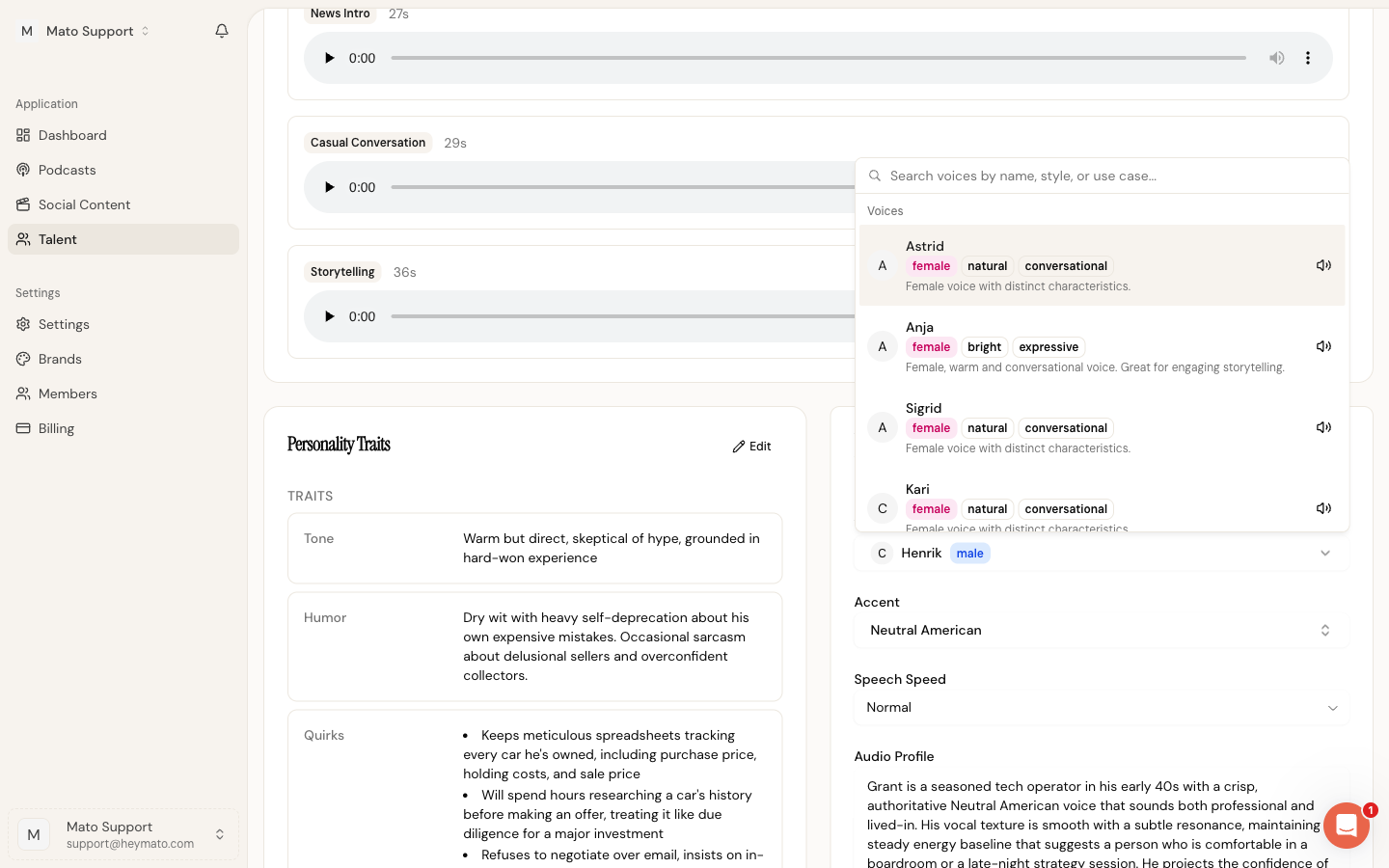
Mato includes 29 Gemini voices (14 female, 15 male), each with a display name and style tags such as "warm", "expressive", or "conversational".
ElevenLabs voices (admin only)
The ElevenLabs voice selector appears only for super admins. It pulls voices from your connected ElevenLabs account. If you see only the Gemini selector, your account does not have ElevenLabs access enabled.
When both are configured, Mato uses the ElevenLabs voice if a voice ID is set, and falls back to the Gemini voice otherwise.
Set the accent
The accent selector offers common English accent presets: American, British, Australian, Canadian, Indian, Irish, Scottish, South African, and New Zealand.
Pick one of the available accent presets from the dropdown. Custom accent text is not supported in this selector.
Adjust speech speed
The speech speed dropdown controls pacing during audio rendering. Four presets are available:
- Slow sets a deliberate, measured pace with extra time between phrases.
- Normal keeps the default conversational tempo.
- Fast adds forward momentum with brisk delivery.
- Very Fast creates rapid, high-energy output with minimal pauses.
Speed presets inject pacing directives into the TTS prompt that override other pacing guidance, so what you select here always takes priority.
Write an audio profile
The audio profile is a free-text field where you describe how the talent should sound in the final mix. Think of it as a note to the audio engine about the talent's overall sonic character.
Example: "Warm and intimate, as if speaking to a friend across a coffee table. Slight vocal fry on lower register."
Add director notes
Director notes guide tone, pacing, and delivery in more specific terms than the audio profile. These notes are included in the TTS prompt that controls how the voice renders each line.
Example: "Lead with curiosity, not authority. Pause briefly before key statistics. Avoid sounding rushed during transitions between segments."
Director notes and speech speed work together. If your notes mention pacing and you also set a speed preset, the speed preset takes priority for tempo, while the director notes still influence other aspects of delivery like emotion and emphasis.
Save your changes
After adjusting any voice settings, click Save at the bottom of the Voice Identity card. A confirmation toast appears on success. The page refreshes to reflect your saved values.
The save button stays disabled until you select at least one voice (Gemini or ElevenLabs).
Talent also needs a saved voice before it can be assigned to a podcast. If you try to add an unvoiced talent from a podcast's Talent tab, Mato shows a warning and keeps the assign action disabled.
Preview with audio samples
Audio samples let you hear how a talent sounds before using it in a real episode. You generate samples from the talent edit page, not from the Voice Identity card directly.
- Click Edit on the talent profile.
- Scroll to the Audio Samples section.
- Click Generate Audio Samples (requires a Gemini voice to be assigned first).
- Wait for the samples to appear. Each clip shows its label and duration, with a built-in audio player.
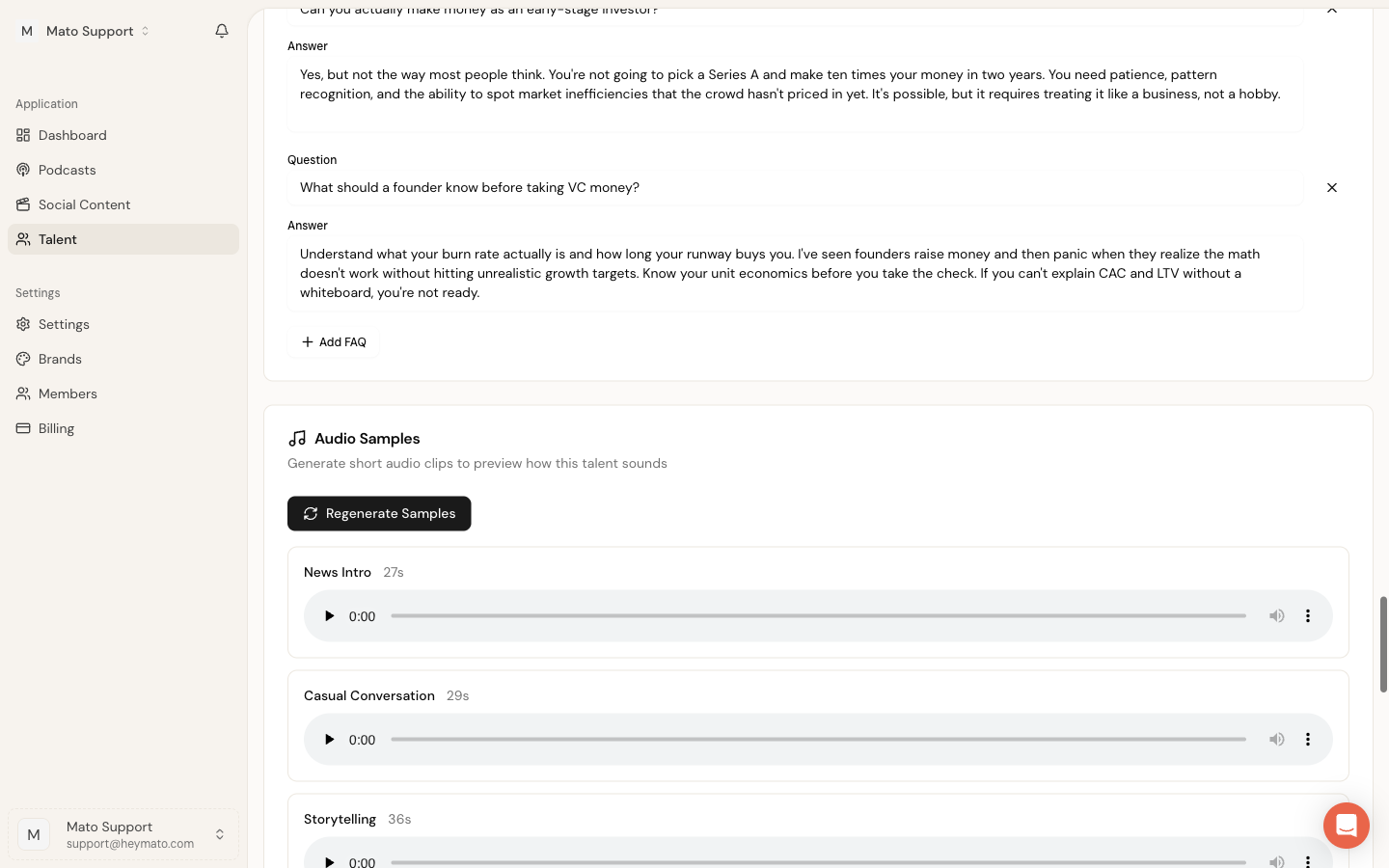
If samples already exist, the button changes to Regenerate Audio Samples. Regenerating replaces the previous set.
Back on the talent detail page, the Audio Samples card shows the generated clips so you can listen without entering the editor.
Per-podcast talent settings
When you assign a talent to a podcast, the podcast uses the talent's default voice settings. You can review the current assignment from the podcast settings page.
Go to Podcasts, open your podcast, click Settings, then select the Talent tab. This tab shows each assigned talent with their role, position, accent, and speech speed.
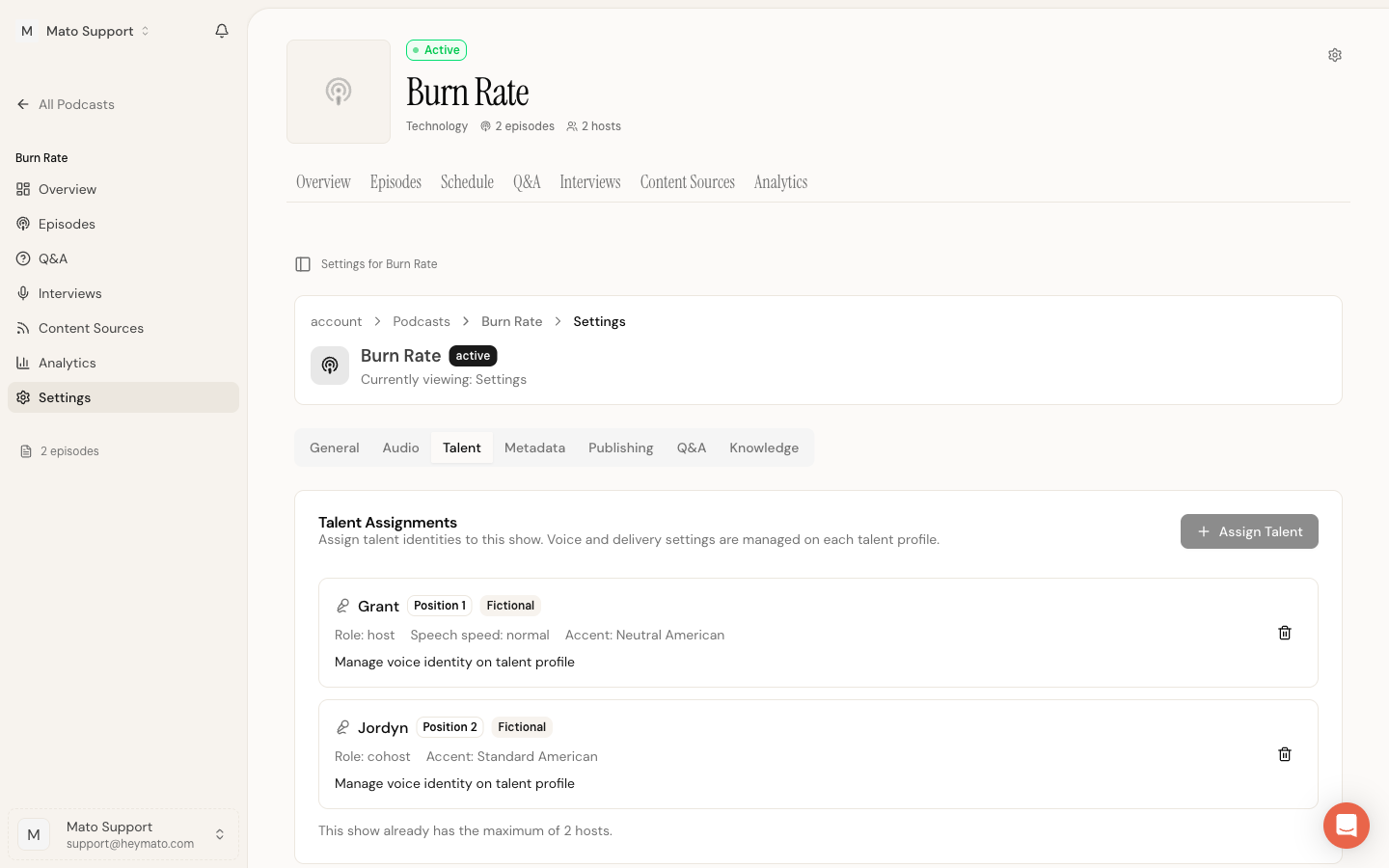
The assignment row shows the effective accent and speech speed for that podcast. In the normal UI, those values come from the talent's voice settings unless your workspace has assignment-specific values stored from an admin or migration workflow.
Click Manage voice on the assignment row to return to the talent profile and edit the talent's base voice settings. Changes saved on the Voice Identity card are applied to that talent and its linked podcast host records.
Quick reference
| Setting | Where to find it | What it controls |
|---|---|---|
| Gemini voice | Voice Identity card | Which Gemini TTS voice renders audio |
| ElevenLabs voice | Voice Identity card (admin only) | Which ElevenLabs voice renders audio |
| Accent | Voice Identity card | English accent variant |
| Speech speed | Voice Identity card | Pacing tempo (slow, normal, fast, very fast) |
| Audio profile | Voice Identity card | Free-text sonic character description |
| Director notes | Voice Identity card | Free-text delivery and tone guidance |
| Audio samples | Talent edit page | Preview clips to test voice configuration |
| Assignment review | Podcast settings, Talent tab | Assigned talent, role, position, and effective accent or speed |