
When manual review mode is enabled on your podcast, Mato pauses after generating a script and waits for you to review it before producing audio. This guide covers what to check during review, how to approve a script, and what happens after approval.
If manual review mode is off, Mato generates audio automatically after the script is created. You can still edit and regenerate audio afterward, but the approval step described here will not appear.
Enable manual review mode
Manual review mode is a per-podcast setting. Open your podcast's Settings page, go to the General tab, then click the Workflow sub-tab. Toggle Enable Manual Review on in the Manual Review Mode card.
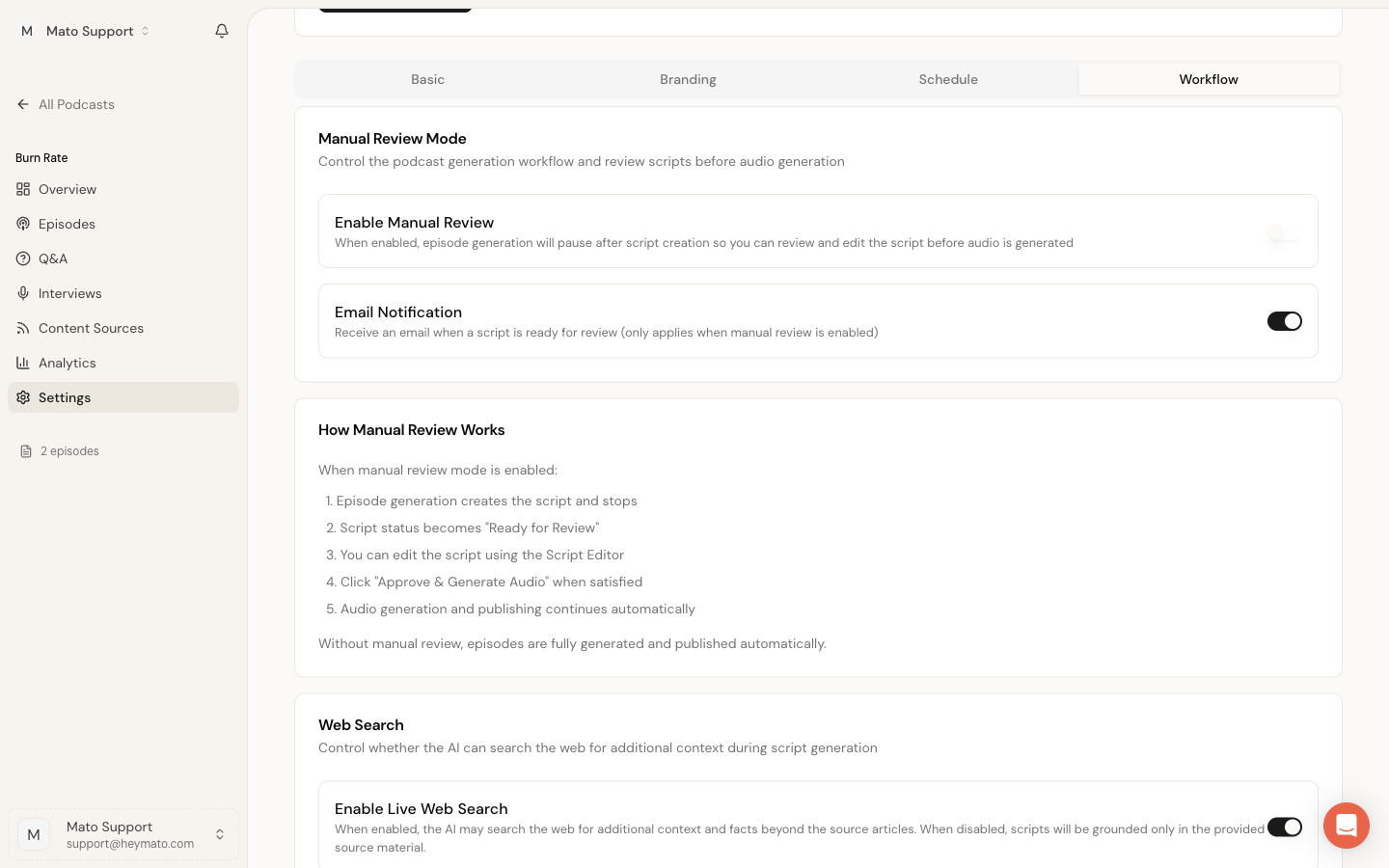
You can also enable Email Notification below the toggle. When turned on, Mato sends you an email each time a script is ready for review.
Recognize when a script needs review
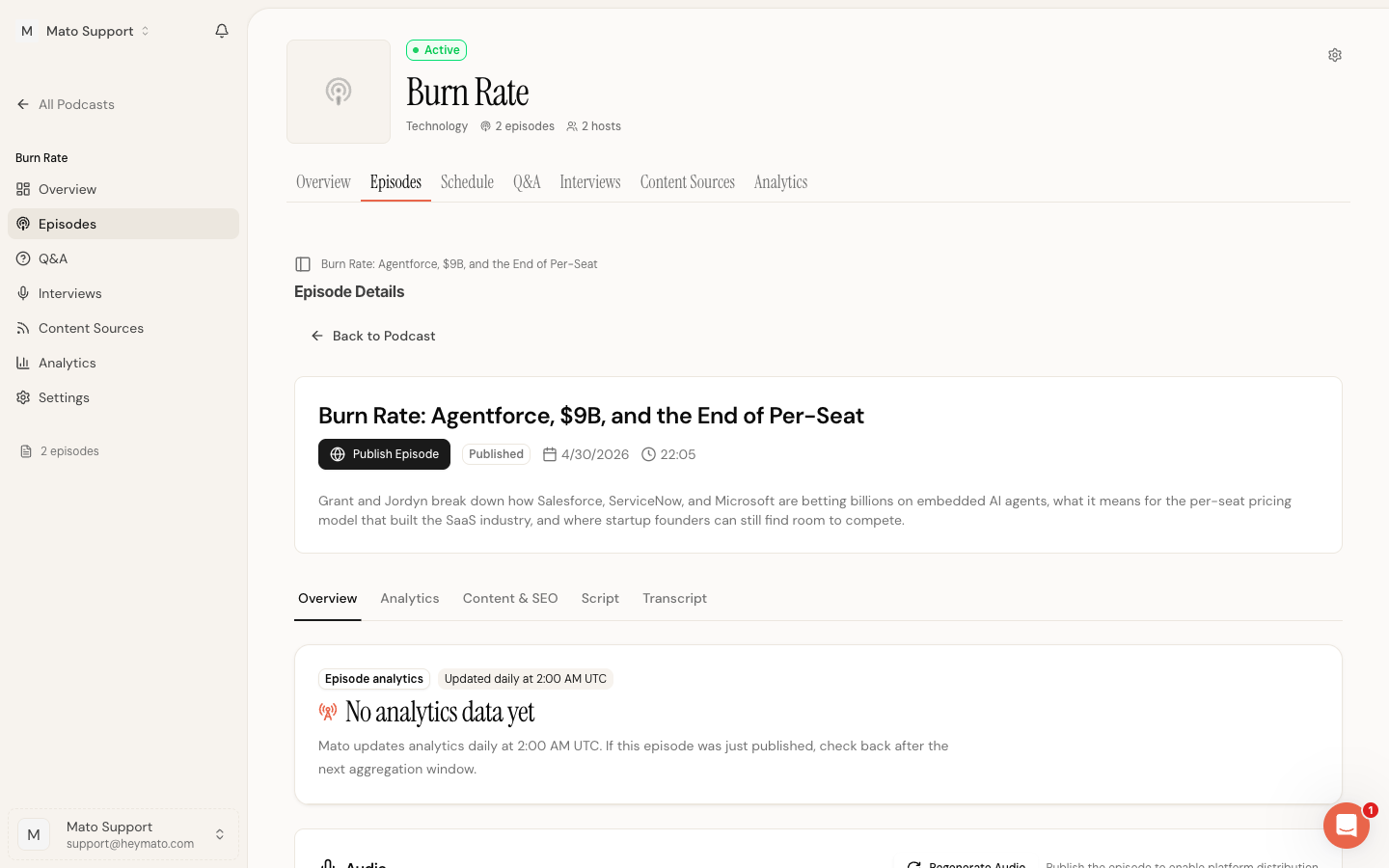
After Mato generates a script with manual review enabled, the episode's script status changes to "Ready for Review." Two things happen on the episode overview page:
An amber banner appears at the top with the heading "Approval needed." The banner explains that manual review is enabled and includes a Review Script button that takes you directly to the script editor.
The Script card in the overview also updates. Instead of showing just a word count, it reads "Awaiting approval" followed by the word count. The button on the card changes from "Edit Script" to "Review Script."
Open the script editor
Click Review Script from either the approval banner or the Script card. This opens the script editor with the full generated script loaded.
The editor toolbar shows the current script status as "Ready for Review" in the top area. You have the same editing tools available as during normal script editing: bold, italic, emotion tags, background sound cues, segment reordering, and AI-powered rewriting.
What to check during review
Focus your review on these areas:
- Read the intro and outro. Confirm they set up the topic clearly and wrap up without repeating the same points.
- Check factual accuracy. If source highlights are available (the "Highlight sources" toggle in the toolbar), turn them on. Green highlights indicate claims grounded in your source articles. Amber highlights come from web search. Blue highlights come from URLs you included in the prompt. Click any highlight to see which source article backs the claim.
- Listen for natural dialogue. Read the host lines out loud. Flag anything that sounds stilted or repetitive. Pay attention to transitions between hosts.
- Review segment order. Use the segment sidebar on the left to see the episode structure at a glance. Drag segments to reorder them if the flow feels off.
- Check the speaking balance. The segment sidebar shows a percentage breakdown of how much each host speaks. Adjust if one host dominates.
You can edit the script directly during review. Changes are saved when you click Save draft. Saving a draft does not trigger audio generation.
Approve the script
When you are satisfied with the script, click the Approve & generate audio button in the bottom-right area of the editor toolbar.
Mato performs several checks before proceeding:
- If the script has validation errors (such as empty segments), the editor asks you to fix them before approving.
- If a script enhancement (AI rewrite) is currently running, the approval is blocked until it finishes.
- If your account has reached its usage limit, the approval returns an error with a message about the limit.
- If audio generation is already running for this episode, the approval is blocked to prevent duplicates.
When all checks pass, Mato does the following:
- Saves the current script content as a new revision with the summary "Approved for audio generation."
- Sets the script status to "approved" and records who approved the script and when.
- Creates an audio generation job and queues it with your background job system.
- Updates the script status to "generating audio."
- Redirects you back to the episode overview page.
After the redirect, a green confirmation banner appears at the top of the episode overview: "Script approved. Audio generation has started for this episode."
Track audio generation progress
Once approved, the script editor becomes read-only. A message at the top of the editor reads: "Script editing is disabled while audio is being generated."
Audio generation runs in the background. You can monitor progress from the episode overview page. When generation completes, the audio player appears in the Audio section with playback controls, chapter markers, and a waveform visualization.
After audio completes
When audio generation finishes, the editor displays: "This episode has been completed. The script is now read-only."
At this point, the episode is ready to publish. You can listen through the audio, check the transcript, and publish from the episode overview.
If you need to make changes after audio has been generated, use the Regenerate Audio button on the episode overview page. This re-renders the audio using the current script. Mato only re-renders segments that changed, so incremental edits are fast.
Script status reference
Each episode script moves through these statuses:
- Draft is the default state. The script can be edited freely. If manual review mode is off, Mato skips directly from script generation to audio generation without pausing here.
- Ready for Review appears when manual review mode is on and the script has been generated. The episode waits for your approval before proceeding.
- Approved is a brief transitional state. Mato sets this status when you click approve, then immediately begins queueing audio generation.
- Generating Audio means audio rendering is in progress. The script is locked and cannot be edited until generation completes or fails.
Tips for an efficient review
Keep your review focused. The script editor has AI tools that handle most of the heavy lifting, so your review should catch the issues AI cannot.
Read the first and last segments carefully. Listeners form their impression in the first minute and remember the ending. The middle segments matter less for overall impact.
Use the "Ask AI" prompt at the bottom of the editor to make targeted changes. Instead of rewriting lines manually, describe what you want changed and let Mato handle the phrasing.
If you find yourself rewriting large portions of every script, consider adjusting your podcast settings. The tone, style, and target length controls in your podcast's general settings shape how Mato generates scripts in the first place.