
Once your interview segments are scored and reviewed, you can turn the best ones into a finished podcast episode. Mato wraps your selected segments with an AI-generated intro, afterthoughts, and outro, then assembles everything into a single audio file with chapter markers.
This guide covers the full flow: selecting an interview, picking segments, generating the episode, and reviewing the result.
Open the generate page
Navigate to your podcast and click the Episodes tab. Click Generate episode to open the generation page. Two tabs appear at the top: AI Generated and From Interview.
Click From Interview.
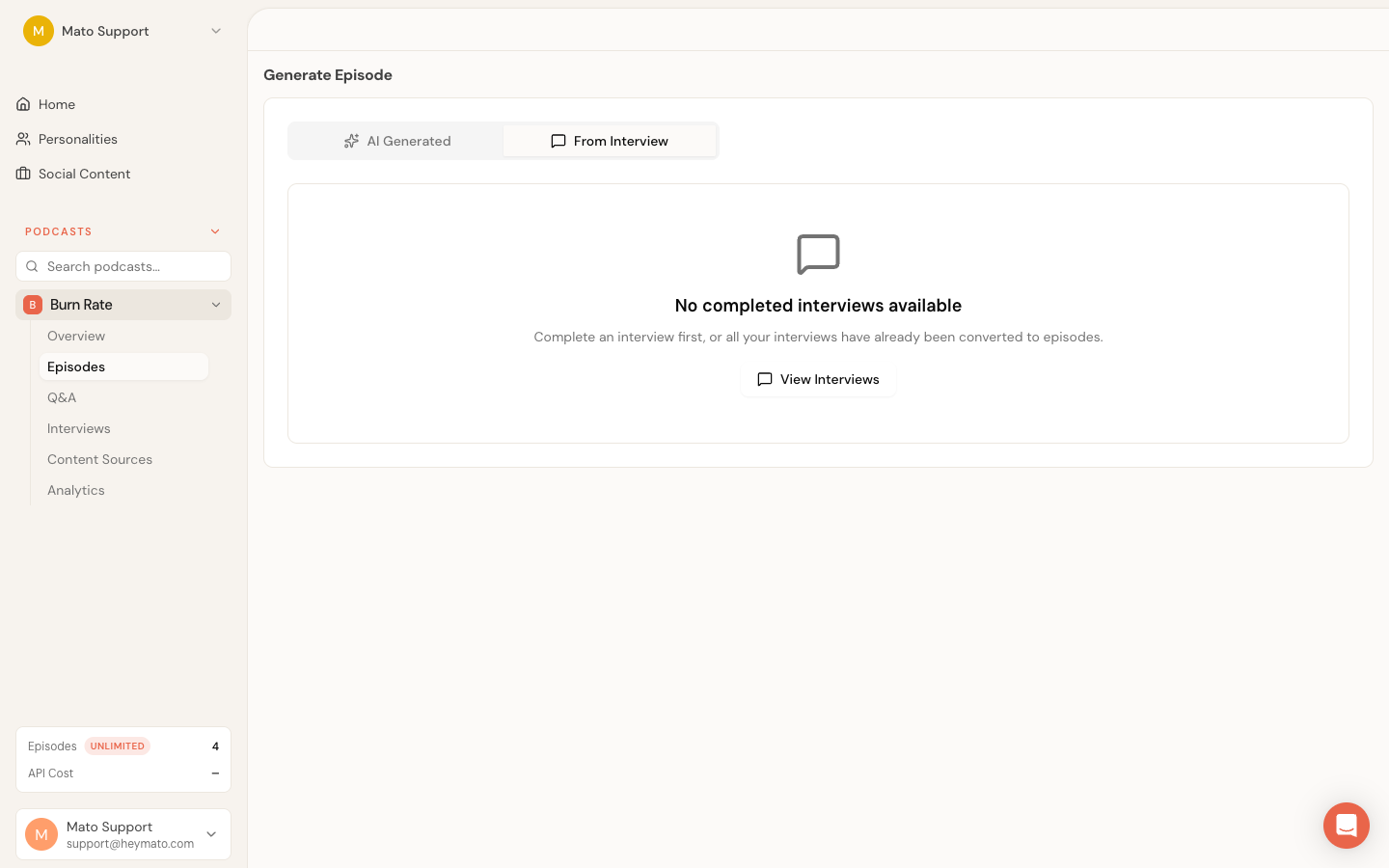
If you arrived here from an interview detail page (by clicking Create Episode on a completed interview), the From Interview tab opens automatically.
Pick an interview
The tab lists all completed interviews for this podcast. Each card shows:
- Guest name and interview topic
- Completion date
- A Completed badge
- A Has Episode badge if an episode was already generated from this interview
Click Create Episode on any interview card to start the generation wizard. If the interview already has an episode, the button reads Regenerate instead, and you can create a new episode from the same source material.
Segment processing status
Before you can generate an episode, Mato needs to finish analyzing the interview recording. If processing is still running, a status indicator shows on the card. Once processing completes, the Create Episode button becomes active.
If the interview is still processing, wait a couple of minutes and refresh. Processing typically takes 1 to 2 minutes. See Review interview segments for more on how scoring works.
Step 1: Review the interview
The wizard opens on a summary screen. It shows the guest name, the interview topic, the stated purpose (if one was set during setup), and three stats:
- Segments analyzed: total number of segments the AI identified
- Recommended: how many scored 60 or above
- Average score: the mean combined score across all segments
Review the details and click Next to move to segment selection.
Step 2: Select segments
The segment picker shows every segment from the interview. Each segment card displays:
- A time range (e.g. 2:15 - 4:30)
- Topic tags extracted by the AI
- A combined relevance score
- A text preview of the conversation
Segments are color-coded by score:
- Green (80+): strong match for your podcast
- Yellow (60-79): decent but not essential
- Red (below 60): weak fit
Click any segment card to toggle it between included and excluded. A filled green circle means the segment is included. An empty circle means it is excluded.
Quick selection buttons
Three buttons at the top of the segment list speed up selection:
- Select Recommended pre-selects all segments with a combined score of 60 or higher. This is the default when the wizard opens.
- Select All includes every segment.
- Clear All deselects everything.
A counter at the top right shows how many segments are currently selected out of the total (e.g. "5 / 8 selected").
You need at least one segment selected to proceed.
Start generation
Click Generate Episode at the bottom of the segment picker. The wizard moves to step 3 and a progress tracker appears. Generation runs in the background and typically takes a few minutes depending on episode length.
When the job finishes, the wizard shows a success message and redirects you to the new episode's detail page.
How interview content mixes with AI material
The generated episode is not just your raw interview recording. Mato builds a structured episode around your selected segments:
- Custom intro music (if configured in your podcast settings)
- AI-generated host introduction: your AI hosts introduce the guest and preview the interview topic. The intro references the guest by name and mentions the subject matter, but it does not quote anything from the interview itself.
- Q&A call-to-action (if listener Q&A is enabled for your podcast)
- Your selected interview segments: the actual recorded conversation, assembled in the order they appeared in the original interview. Mato extracts just the selected portions of audio and joins them with short transition gaps.
- AI-generated afterthoughts: your hosts discuss key takeaways from the interview. The AI reads the top-scoring segments and generates a brief, natural discussion about 2-3 standout insights. This section runs about 15% of your content budget.
- AI-generated outro: a closing segment with your standard sign-off and any call-to-action you have configured.
- Custom outro music (if configured)
The AI-generated sections (intro, afterthoughts, outro) are produced as new audio using your podcast's assigned voices and host talent profiles. The interview segments keep the original recorded audio from the live session.
Metadata and chapter markers
Mato auto-populates metadata for interview episodes:
Title: initially set to "Interview: [Guest Name] on [Topic]". An AI-generated title replaces this during the metadata step, following any custom title prompt you have configured in your podcast settings.
Description: a summary of the episode built from segment topics, host names, and interview context. If you have custom description generation prompts, those apply here too.
Tags: generated from the topic labels extracted during segment analysis.
SEO highlights and FAQ: the same SEO asset generation that runs for regular episodes also runs for interview episodes, producing timestamped highlights and a FAQ section.
Chapter markers
Every interview episode gets automatic chapter markers:
- Introduction: covers the AI-generated host intro
- One chapter per interview segment: titled with the segment's primary topic (e.g. "AI in Healthcare" or "Founding the Company"). If the segment has no topic label, it falls back to "Interview Segment 1", "Interview Segment 2", and so on.
- Afterthoughts: covers the host discussion section (if enabled)
- Outro: the closing segment
Chapter timestamps are calculated from actual audio durations, so they line up accurately in podcast players that support chapters.
Review and publish
After generation finishes, you land on the episode detail page. From here, the workflow is the same as any other episode in Mato:
Review the script: click the Script tab to open the script editor. The script contains labeled sections:
[INTRO],[INTERVIEW SEGMENT 1],[INTERVIEW SEGMENT 2], etc.,[AFTERTHOUGHTS], and[OUTRO]. You can edit the intro, afterthoughts, and outro text. The interview segments show the transcript text from the original recording. See Edit your episode script for the full editor walkthrough.Check metadata: review the generated title, description, and tags on the episode overview. Edit them if needed. See Manage episode metadata and SEO for details.
Listen to the audio: use the built-in player on the episode page to listen through the assembled episode. Chapter markers appear in the player timeline.
Regenerate audio (optional): if you made script changes to the intro, afterthoughts, or outro, click Generate audio in the script editor to re-render just the changed sections.
Publish: when everything sounds right, publish the episode to your connected platforms. See Publish an episode for the publishing workflow.
Interview episodes land as drafts, just like regular episodes. You decide when to publish. They support the same distribution channels: Mato's built-in feed and direct platform distribution.
Tips
- Start with the recommended segments (score 60+). You can always add lower-scored segments later if you need more material.
- If an interview already has an episode and you want a different cut, click Regenerate on the interview card. This creates a new episode without affecting the original.
- Short interviews produce short episodes. If you need more content, include afterthoughts (enabled by default) to give your hosts room to expand on the conversation.
- The afterthoughts section works best when you include segments with clear, interesting insights. Low-quality segments give the AI less to work with.