
Ideas are suggestions for what to make next. Mato reads your company website, combines what it learns with the goal you set for your workspace, and proposes specific pieces: an episode, an article, an interview, social clips, or something made from one of your recordings. Each idea says why it fits and what the first step would be.
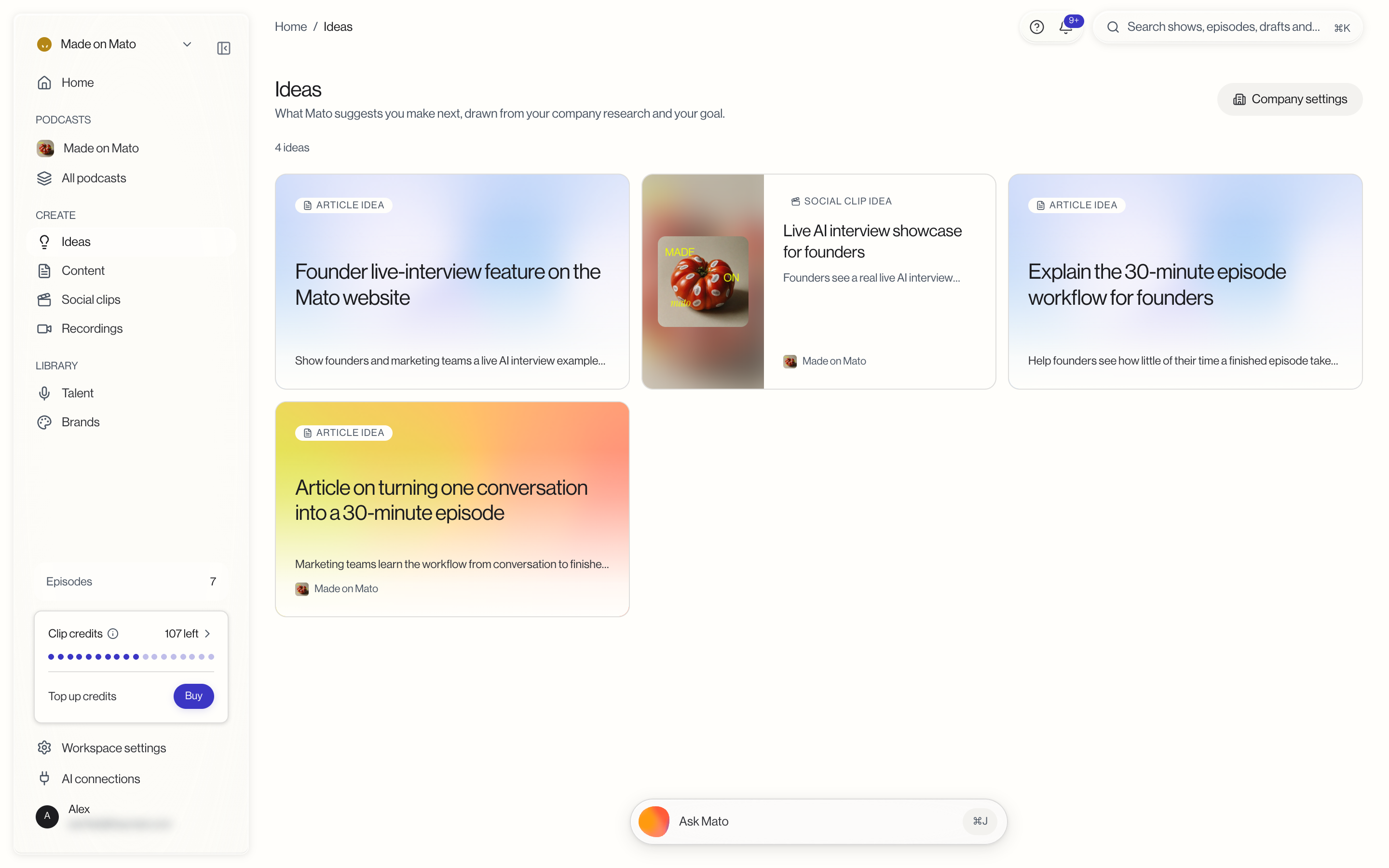
You find them under Ideas in the Create section of the sidebar.
Start with your company website
Mato can only suggest ideas once it knows what your company does, and your website is where it learns that. When you save the address, Mato reads your public site and pulls out facts, the pages it found them on, and open questions it could not answer. Those show up on the Company tab of workspace settings under What Mato found, each fact linked to its source. Mato reads only your public website and publishes nothing.
Your goal does the other half of the work. Under What you are working toward on the same tab, write what you want your content to achieve, in your own words. An idea like "Article on turning one conversation into a 30-minute episode" comes from a fact on the website meeting a goal like "get more marketing teams to start a show." When you change your goal, Mato rethinks its ideas around the new one without reading your website again, and ideas made for the old goal are marked Out of date.
If your workspace has no website on file yet, the Ideas page asks for one in place. When you signed up with a work email, the field comes pre-filled with your email's domain, so check it before you click Read my website. The page then shows "Mato is reading your website" and refreshes on its own while it works. You can leave and come back; your first ideas will be waiting.
Saving a website on a different domain later adds it as a second company rather than replacing the first. If you saved the wrong site, click Make default next to the right company under Your companies on the Company tab; the Ideas page shows the default company. See Workspace settings for the company cards.
Where ideas show up
The Ideas page is the main place. Every current idea is a card with a tag for its format (for example Article idea or Social clip idea), a title, and the outcome it is meant to get you. A card built around one of your shows carries that show's cover and name. Company settings in the top right corner takes you to the website and goal behind the ideas.
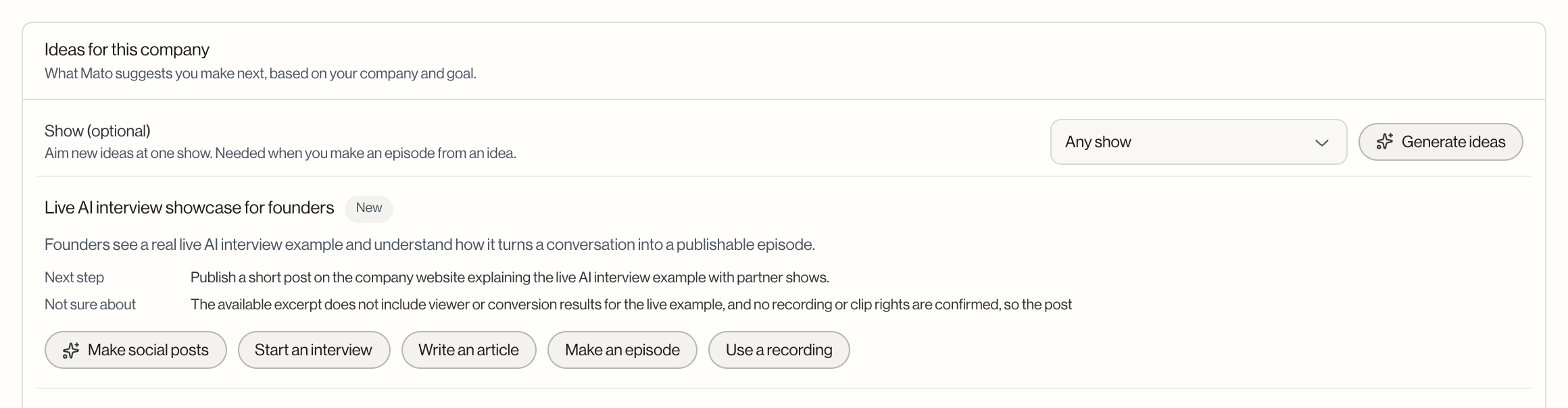
The same ideas are listed in Workspace settings on the Company tab, in the Ideas for this company card. This is also where you ask for new ideas (see below).
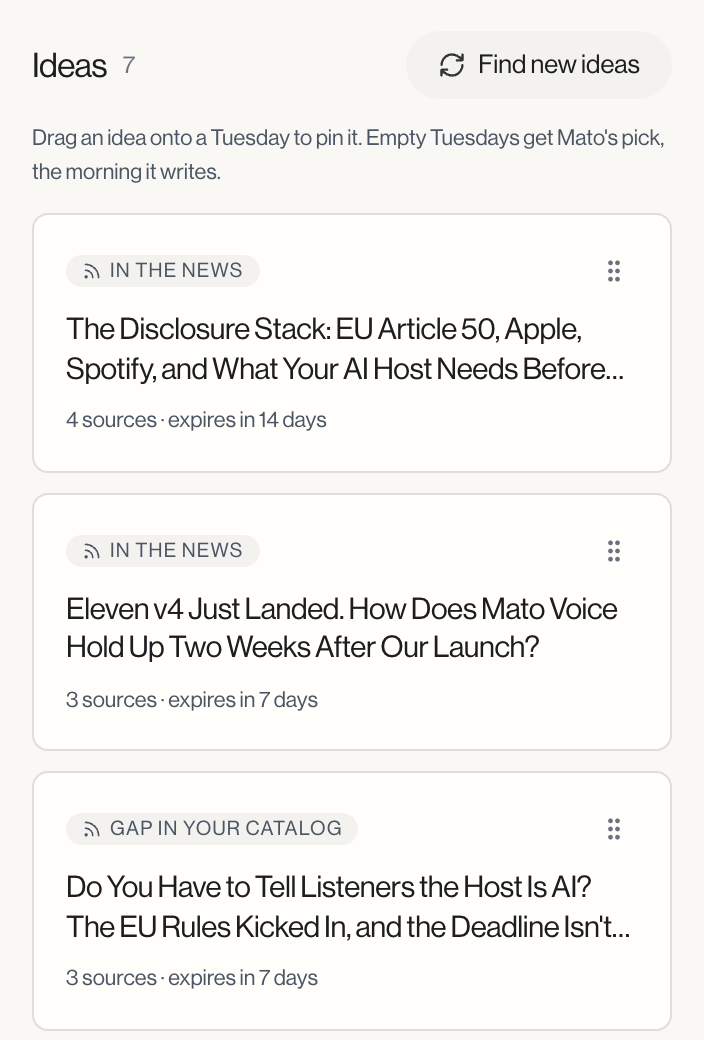
Each show also has its own Ideas page, under Plan in the show's sidebar next to Calendar and Sources. It lists two kinds of ideas: Episode ideas for that one show, drawn from its content sources and the news, and Company ideas for this show, the company ideas above that are aimed at it. Episode ideas also draw on the files under Company knowledge on the Company tab and on the show's own knowledge files; company ideas come from your website and goal. The episode ideas also sit in a rail beside the Calendar, where you can drag them onto publishing days. Plan calendar covers that rail.
Open an idea
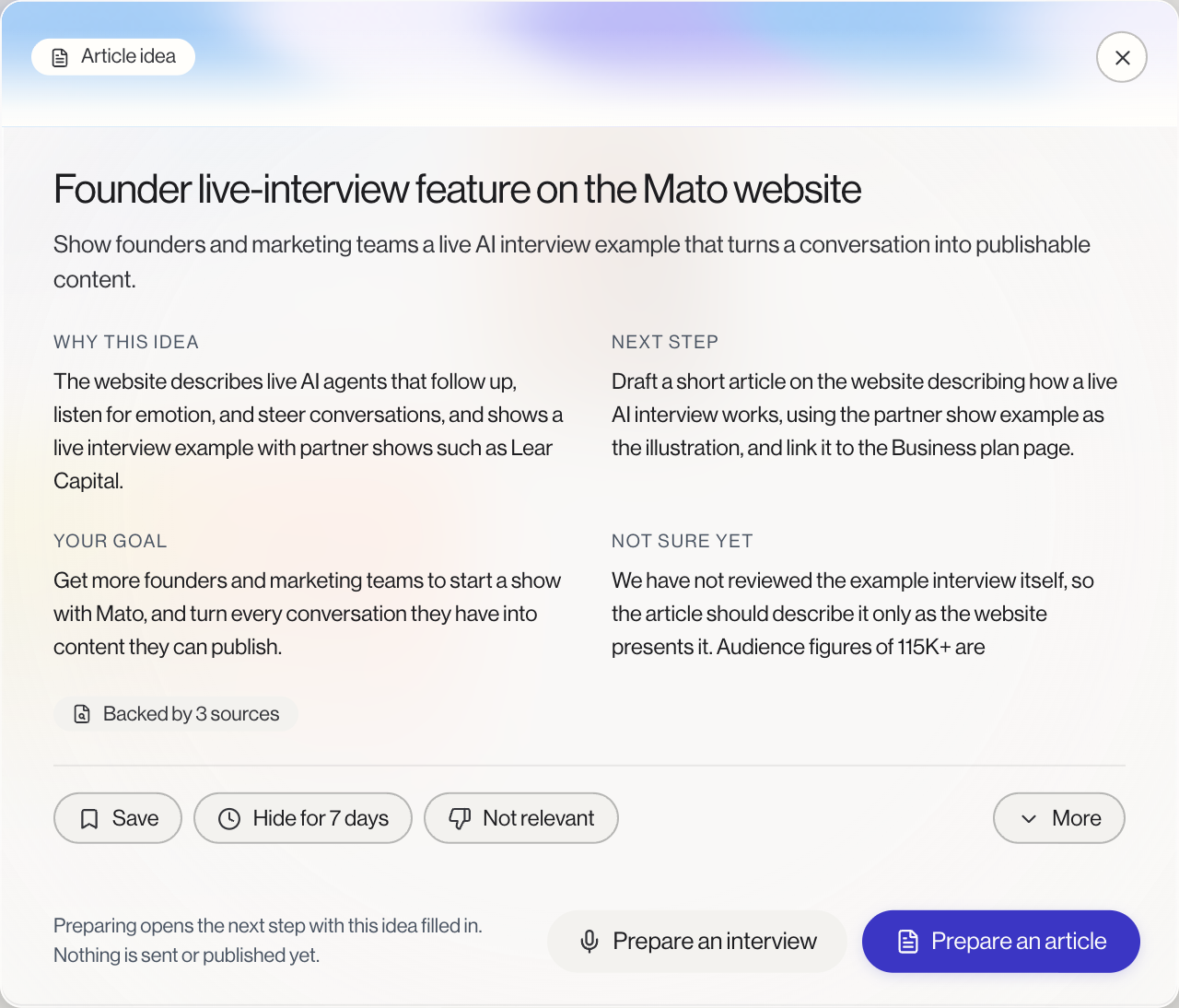
Click a card's title to open the idea. The detail view shows:
- Why this idea, the reasoning behind it
- Next step, what Mato would do first
- Your goal, the goal the idea serves
- Not sure yet, anything Mato could not confirm, so you know what to check before you publish
- Backed by N sources, how many pages of your research support it
Turn an idea into an episode, article, or interview
The buttons at the bottom of an open idea start the work. The blue one is the format Mato recommends. Lighter buttons beside it offer other formats the idea also fits, such as Prepare an interview next to Prepare an article.
Each button opens the right place with the idea already filled in:
| Button | Where it takes you |
|---|---|
| Prepare an episode | The Make an episode wizard for the idea's show |
| Prepare an article | A new article in Content |
| Prepare an interview | Interviews for the idea's show, or your show list so you can pick one |
| Prepare social clips | A new set of social clips |
| Prepare a recording | The recording the idea uses, or your recordings library |
Preparing sends, publishes, and generates nothing. You land on the next step and decide from there.
An episode needs a show. If the idea is not tied to one, Mato will not prepare it. Pick the show under Show (optional) in the Ideas for this company card, click Generate ideas, and prepare an episode from the new round. If you have no show yet, create one first.
The Ideas for this company card in workspace settings has the same buttons under each idea, with different labels: Make an episode, Write an article, Start an interview, Make social posts, and Use a recording. The one marked with a sparkle is the recommended format.
Tell Mato what you think
Hover over a card and four small buttons appear in its corner. The same choices sit in a row inside an open idea.
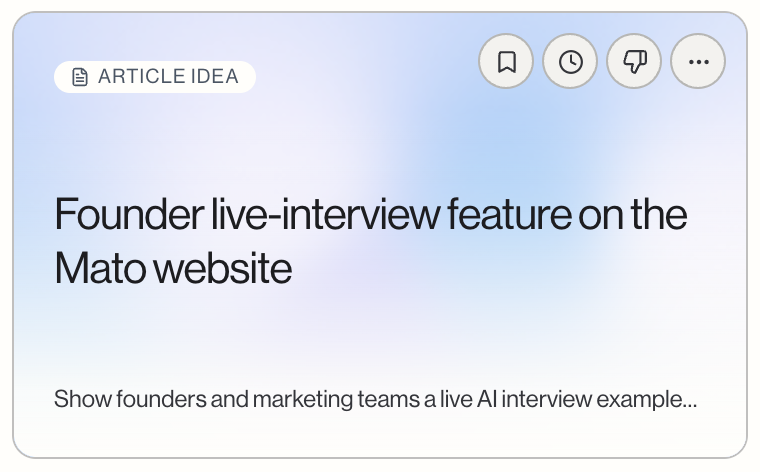
- Save bookmarks the idea.
- Hide for 7 days takes it off your list for a week.
- Not relevant removes it and steers Mato away from it.
- More opens extra choices: More like this, More relevant, and Something wrong, where you write a short correction.
Under More you can also say what your feedback is about (the topic, a person, or the format) and who it applies to. Just me changes only your list. Everyone in this company shapes the ideas your whole team sees, if your role allows it.
To fix something Mato got wrong about the company itself, such as a fact or a person who is not connected to you, use Correct something under More tools on the Company tab of workspace settings.
Get new ideas
Open Workspace settings, go to the Company tab, and click Generate ideas in the Ideas for this company card. Mato shows "Preparing" while it works, and the new ideas appear in the card and on the Ideas page when they are ready. Ideas you already have stay in place until the new round finishes.
Mato also adds ideas on its own, at most once a week, when only a few are left and you have worked with ideas recently (prepared one, given feedback, or changed your goal).
When your website or goal changes, older ideas in the Ideas for this company card are marked Out of date. If no new round has arrived yet, click Generate ideas to get one that matches the new details.
For a show's episode ideas, use Find new ideas above the rail on the show's Calendar instead. That button only refreshes that show's episode ideas.
Ideas follow your plan
Mato only suggests formats your plan includes. If your plan does not include interviews, for example, you will not get interview ideas. Plans and pricing lists what each plan includes.
When the Ideas page is empty
An empty page tells you why:
- What is your company's website? Mato has nothing to read yet. Enter your website on the page.
- Mato is reading your website. Your first ideas are on their way. The page refreshes by itself.
- No ideas yet. Mato has no current ideas for this company. Click Get new ideas to open workspace settings, review what it found, and click Generate ideas.
- Get episode ideas for your shows. Your plan includes episode ideas but not articles or interviews, so company-wide ideas have nothing to suggest. Click Pick a show to aim new ideas at one of your shows, or See plans to compare plans. After you upgrade, click Generate ideas to get ideas in the new formats.
If ideas still do not appear after Mato reads your website, check the What Mato found card on the Company tab of workspace settings. "Research is on hold" means Mato could not read the site, either because it blocks visitors or because your plan's research limit is reached. Clicking Try again does not lift a limit.