
The plan calendar shows every episode your show has published, is making, or has coming up, alongside a rail of ideas you can drag straight onto a date. It is the day-to-day view for a show that publishes on a rhythm.
This guide covers the calendar views, the ideas rail, the slot popover you get from clicking a day, and what each colored chip means.
Open the calendar
From your podcast, click Calendar under Plan in the sidebar. The page has four tabs: Calendar, Sources, Seasons, and Settings. The Calendar tab is selected by default.
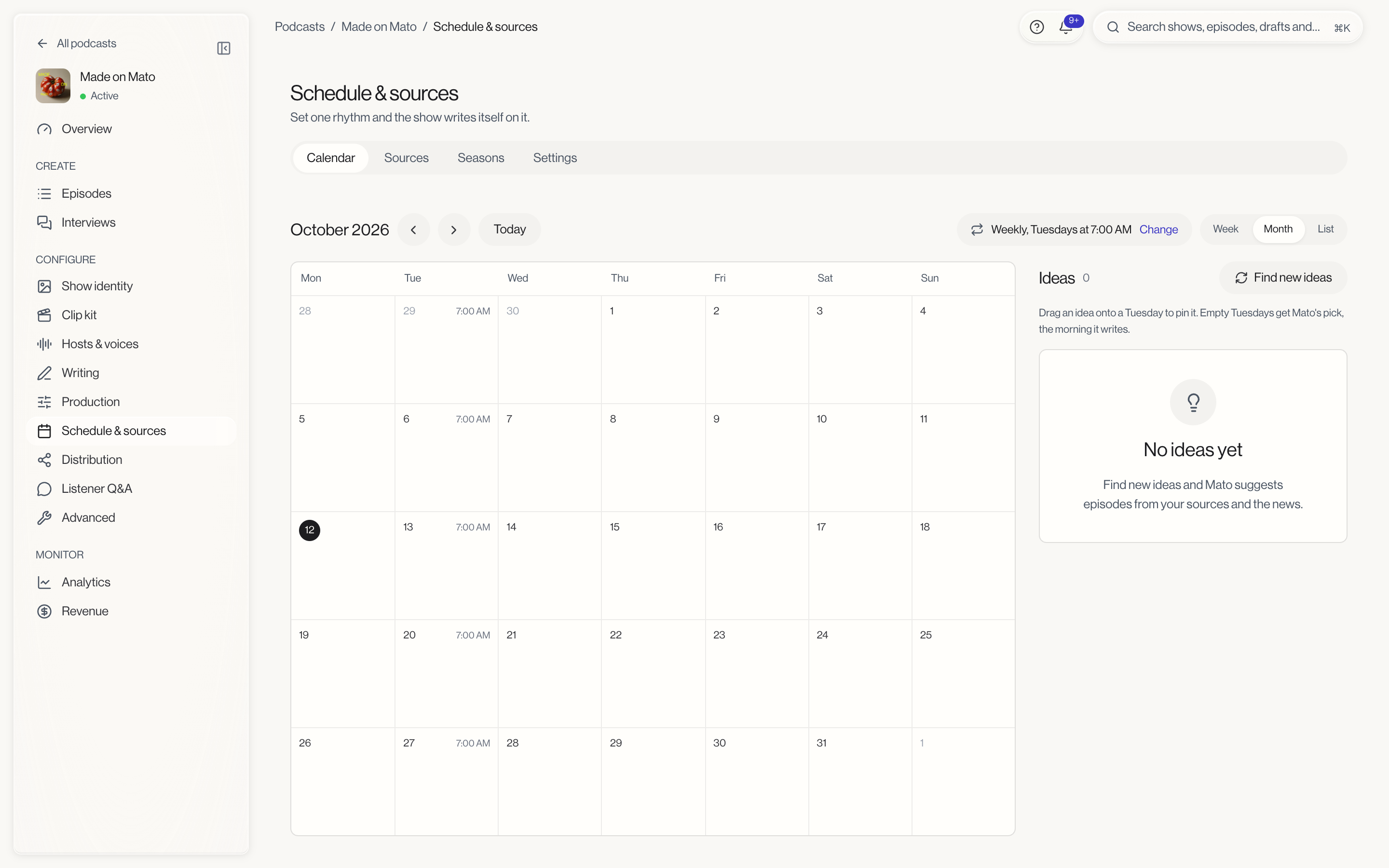
If your show has no rhythm yet, the calendar shows an empty-state message instead, with a Set a rhythm button that opens Plan your schedule.
Switch views
The toolbar at the top offers three views: Week, Month, and List. Month is the default. Use the arrows next to the period label to move forward or back, and click Today to jump back to the current date.
If your rhythm is active, a chip in the toolbar reads it back to you in plain language, for example "Weekly, Tuesdays at 7:00 AM." Click Change on that chip to jump straight to schedule settings.
Read the calendar
Each day that has something scheduled shows a small chip:
- A chip for an actual episode, with a colored dot, the episode code and its status (Published, In review, Being made, or Draft), followed by the title.
- An outlined Scheduled idea chip for an idea pinned to that day but not yet turned into an episode.
Click any day that is a publishing day (and not in the past), or any day with a pinned idea, to open its slot popover. Past days without a pin are not clickable. List view shows the same information as rows, one per day, and is a faster way to scan a stretch with sparse activity.
Use the ideas rail
The Ideas rail on the right lists ideas Mato has generated for this show, newest and most relevant first, with a count next to the heading. Each card shows where the idea came from (for example In the news, Gap in your catalog, Trending, or From an interview), how many sources support it, and when it expires. A note above the cards tells you which days take a drop, for example "Drag an idea onto a Tuesday to pin it. Empty Tuesdays get Mato's pick, the morning it writes."
Click Find new ideas to request a fresh batch. The button reads "Finding ideas…" while Mato works, and the rail updates itself once new ideas land, no refresh needed.
If the rail is showing only some of your ideas, a link at the bottom tells you how many more there are. Click it to expand the full list, or click Show fewer to collapse it back down.
Pin an idea to a day
Every idea card has a drag handle. Drag it onto any future publishing day to pin it there. The day highlights while you drag over it, and dropping shows a confirmation with an Undo option.
A few rules govern where a drop lands:
- You cannot drop onto a day that has already passed.
- Dropping onto a day that already has a pinned idea offers a swap instead of a plain pin.
- Dropping is only available on days your rhythm actually publishes on. Other days will not accept the drag.
You can also click an empty publishing day to open its popover directly, then click Put it here next to any of the ideas listed inside, or Let Mato pick to leave that slot for Mato's own choice at write time.
Manage a pinned slot
Click a day with a pinned idea to see three actions in its popover:
- Remove takes the idea off that day and returns it to the rail.
- Swap idea reopens the idea list for that day so you can put a different one in its place.
- Make it now sends you straight to the episode wizard with that idea pre-filled, instead of waiting for the scheduled run.
If you leave a publishing day empty, Mato picks the strongest available idea itself, the morning it writes.
What the colors mean
| Color | Meaning |
|---|---|
| Cobalt (the app's accent color) | Published. The episode is live. |
| Amber | In review, waiting on you before it goes any further. |
| Gray | Being made or sitting as a draft; a darker gray means it is still generating, a lighter gray means it is a draft. |
| Cobalt outline | A pinned idea, labeled "Scheduled idea." Not an episode yet. |
What to do next
- Set or adjust your rhythm in Plan your schedule if the calendar looks emptier than you expect.
- Check Content sources if the ideas rail feels thin. More active feeds usually means more ideas.
- Group finished episodes into chapters with Seasons.