
Seasons group your episodes into chapters, the same way a TV show numbers its runs. They are optional. A show with no seasons still works exactly the same; seasons just give you a way to organize a large episode library.
This guide covers creating, editing, and deleting seasons, and what happens to episodes when you do.
Open Seasons
From your podcast, click Calendar under Plan in the sidebar, then click the Seasons tab.
If you have not created a season yet, the tab reads "No seasons yet" with a New season button.
Create a season
Click New season in the top bar. A dialog opens with three fields:
- Season number, required. Mato prefills this with the next free number based on your existing seasons.
- Title, optional, up to 255 characters (for example, "2026 Recap").
- Description, optional.
Click Create season to save it immediately. If you enter a number that already exists on this show, Mato tells you the season already exists and asks for a different number.
If any of your episodes already carry that season number from before seasons existed as their own records, creating the matching season automatically pulls those episodes into it. You do not need to reassign them by hand.
Read the seasons table
Each row shows:
- Season, a numbered badge (S1, S2, and so on), the season's name or "Season N" if it has no title, and its description underneath if you gave it one. A season is marked Current when it is the highest-numbered season and has at least one episode, or is your only season.
- Episodes, the number of episodes assigned to it.
- Runs, the date range of its published episodes: a start and end date for a finished season, a start date "to now" for the current one, or "No episodes yet" for an empty season.
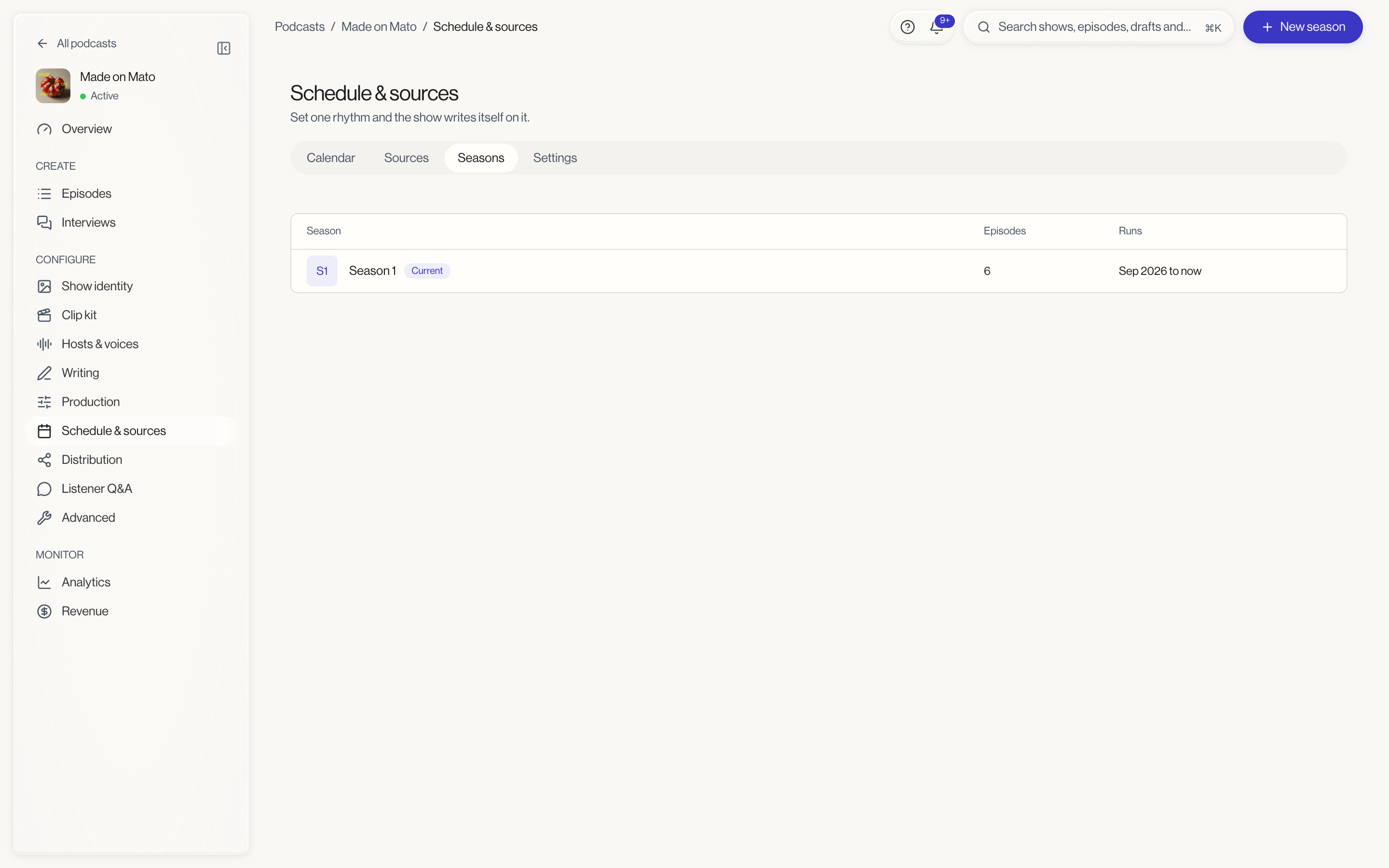
Click a season's name to open the episode list filtered to that season.
Edit a season
Open the row's context menu and click Edit. You can change the title and description here, but not the season number. Save applies immediately.
Delete a season
Open the row's context menu. Delete only appears for seasons with zero episodes; a season that has any episodes in it cannot be deleted, and the option is not shown for it at all. This keeps you from accidentally orphaning published episodes from their season.
Deleting a season removes it after a short delay, during which a toast lets you Undo the action.
What to do next
- Assign episodes to a season as you create them, or leave a show unseasoned if chapters do not fit how you publish.
- Use the plan calendar to see upcoming episodes regardless of which season they will land in; season assignment happens after an episode is generated.