
Every content source keeps a list of the articles it has pulled in. This is where you see what Mato found, why it kept or skipped each one, and which articles are lined up to be used first.
Open a source's articles
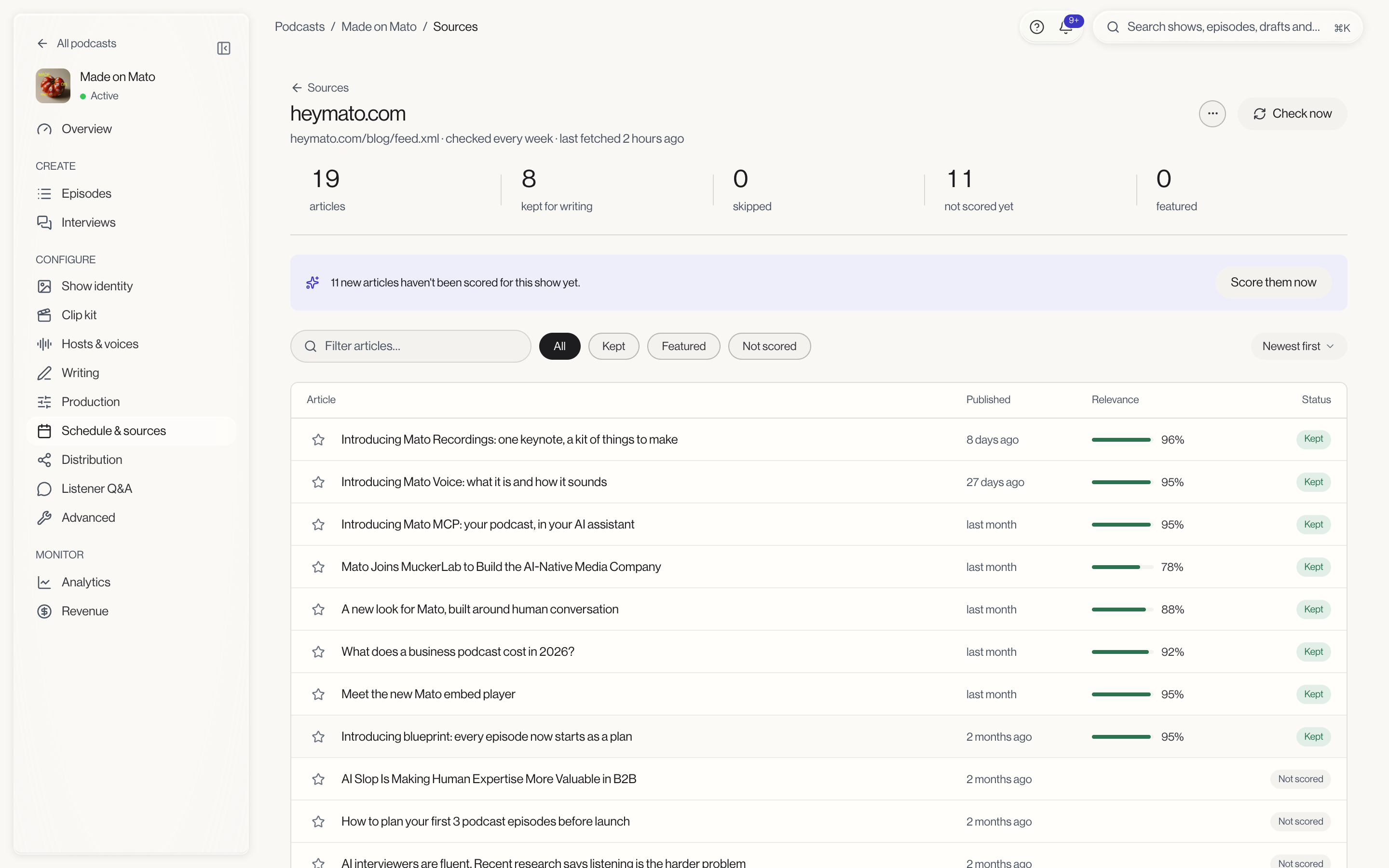
From Content sources, click a source's name. The page header shows the source's address, check frequency, and when it was last fetched, along with a Sources link back to the table.
Read the stat strip
At the top, five numbers summarize the source: total articles, how many are kept for writing, how many were skipped, how many have not been scored yet, and how many are featured.
If any articles have not been scored yet, a banner appears with a Score them now button. Clicking it runs Mato's relevance scoring immediately instead of waiting for the next scheduled pass.
Filter and sort
Filter chips narrow the list to All, Kept, Featured, or Not scored. A search box filters by title, and the sort control currently offers Newest first.
Read the article table
Each row shows a star toggle (click to feature or unfeature the article), the title, when it was published, a relevance score with a small progress bar, and a status badge: Kept, Skipped, or Not scored. Kept articles score above the relevance threshold Mato uses to decide what is worth writing about; skipped articles fall below it.
Click a title to open the detail panel beside the table.
Read the article detail panel
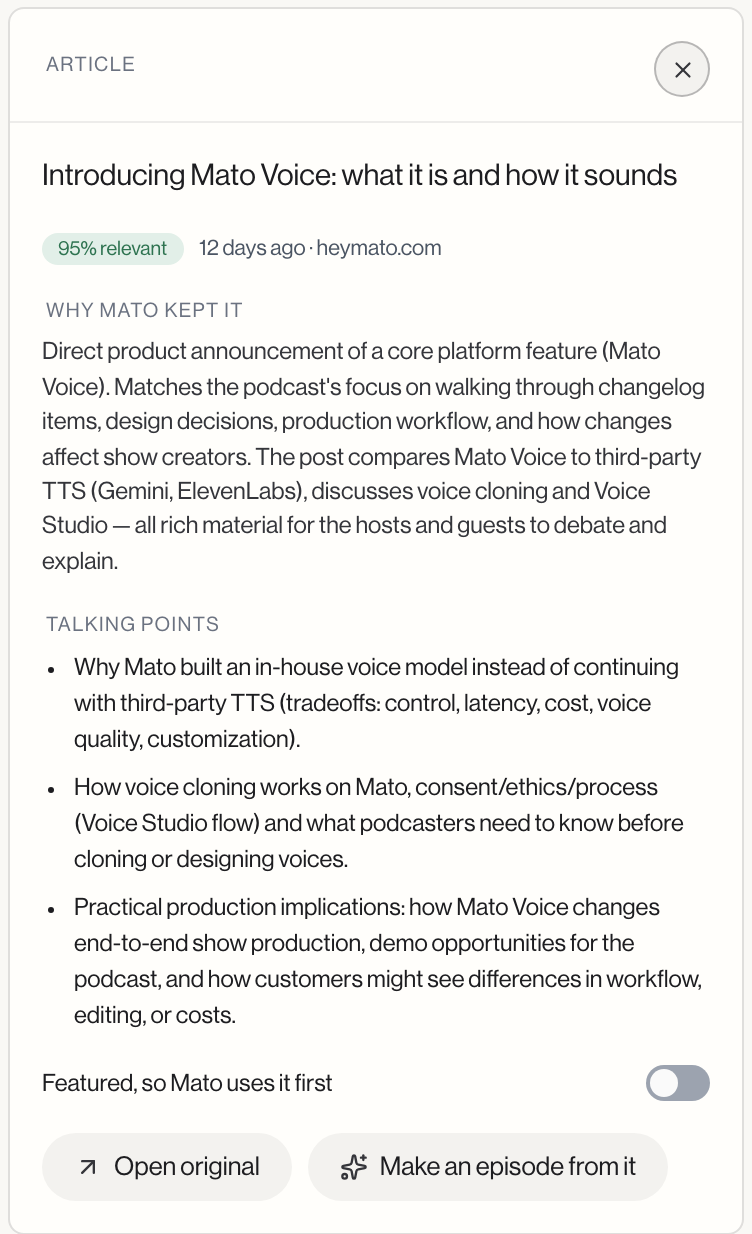
The panel shows the article's relevance score as a badge (for example "95% relevant", or "Not scored yet"), when it was published and which source it came from, and a Why Mato kept it or Why Mato skipped it section. When Mato has talking points for the article, they appear as a Talking points list underneath.
The Featured, so Mato uses it first switch in the panel marks the article so Mato uses it first when writing. Open original links to the source article on the web, and Make an episode from it takes you straight to the episode wizard with this article pre-loaded.
Add an article by URL
Click the More actions menu (the three-dot button next to Check now) at the top of the page and choose Add an article by URL. Paste the article's address and submit. Mato scrapes the page and attaches it to this source's article list, the same as if the feed had delivered it.
Check the feed manually
Click Check now at the top of the page to fetch the feed immediately, without waiting for its scheduled check.
What to do next
- Feature the articles you most want covered before your next scheduled or manual generation.
- If a source keeps turning up articles that miss the mark, go back to Content sources and adjust its keyword filters.