
The episode wizard is how you turn a topic, an article, or a finished interview into a generated episode. This guide walks through every step, from choosing how you want to make the episode to watching it get written.
Open a podcast and click Generate episode to start.
Choose how to make it
If your show has a co-host set up for live recording, the wizard first asks how you want to make this one: Generate it, where Mato writes and voices the episode for you, or Record with [your co-host's name], where you talk it through live instead. This guide covers the Generate it path. If you pick Record, the wizard hands you off to the green room; see Record with a co-host.
If your show has no co-host configured, the wizard skips this question and goes straight to the starting point.
Pick a starting point
The wizard shows four tabs: Suggestions, From a prompt, From RSS, and From an interview.
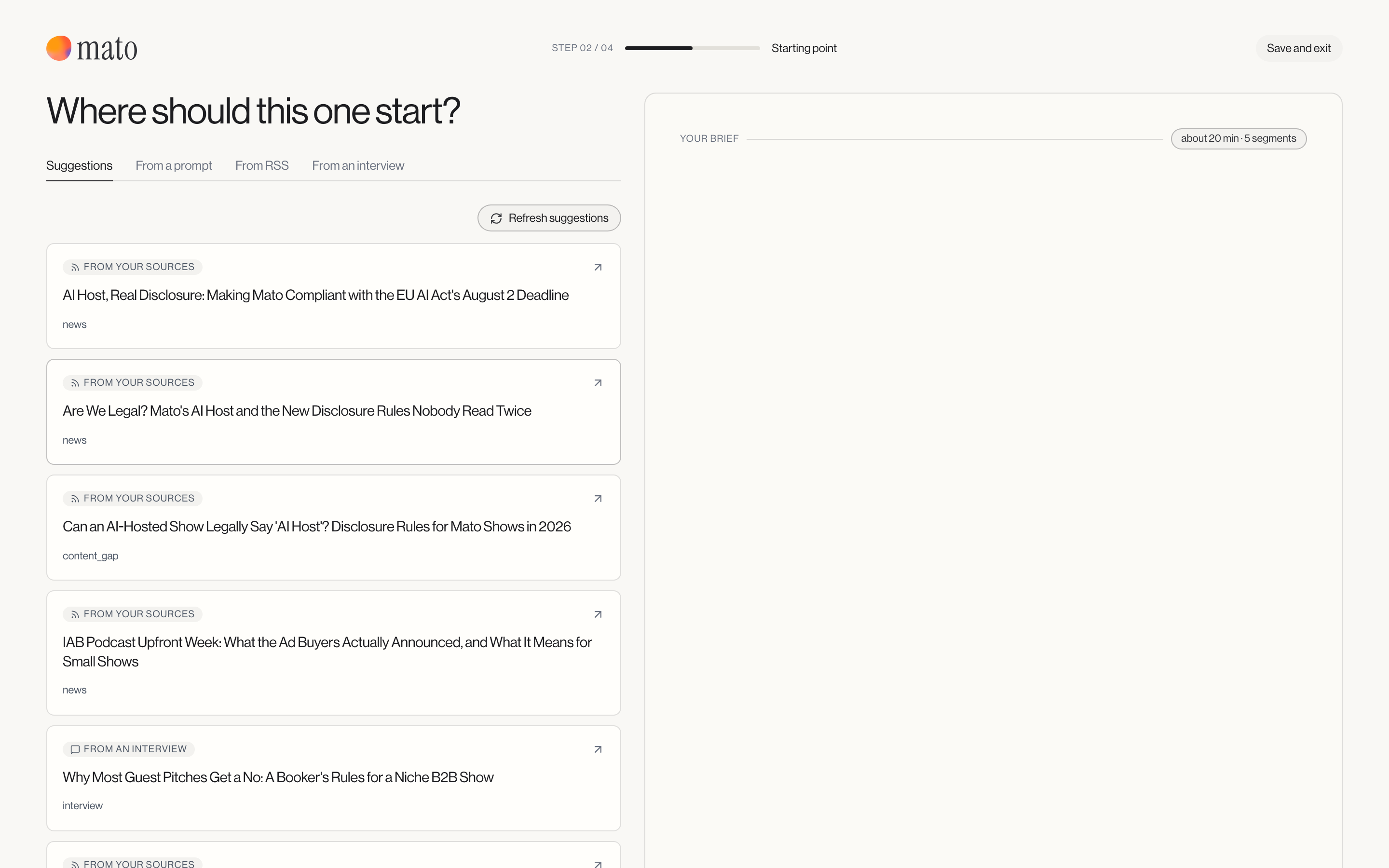
Suggestions shows episode ideas Mato has already put together from your sources or from a finished interview. Click one to use it as the brief.
From a prompt is a free-text box where you describe what the episode should cover. If the show has no host assigned yet, this tab tells you so and links to add one, since Mato needs a host to write for.
From RSS pulls from your connected content sources. If you have not added any sources, or Mato has not read any new articles from them yet, the tab tells you and links to add sources or refresh.
From an interview lists your completed interviews. Only interviews Mato has finished processing are selectable; others show a status like Analysing, Waiting, or Needs recovery. Picking one moves you into a short sub-flow to review the interview and select which segments to include, before continuing to the same review step described below. See Turn an interview into an episode for more on picking moments before you get here.
Refine the brief
If your workspace has the brief chat enabled, a Your brief panel sits alongside the starting-point tabs, with the current length and segment count at the top. Use it to ask Mato to adjust the brief in plain language, or click a suggested request such as Tighten the angle or Make it shorter. As you switch tabs or select something, the panel adds a card summarizing what it is working from (a suggestion, an RSS article, or an interview brief) so you always know what the conversation is grounded in.
Review before you write
The review step summarizes what you are about to generate: the title and angle, how many segments, roughly how long, and which hosts (and guest, for interview-based episodes) will speak.
Below the summary, you can adjust Length, Segments, and the Writer (which AI provider writes the script), and select approved listener questions to weave in if any are waiting. A short explainer tells you exactly what happens next: whether the script needs your approval before audio, or goes straight from draft to voiced.
Click Write it when you are ready.
Watch it get written
The wizard switches to a progress screen with a percentage, an estimate of the time remaining, and a stage list: planning the episode, writing the script, checking the script, voicing it, and finishing. If your podcast has manual review turned on, only the writing stages run automatically and a note reminds you that you will review the script before it is voiced.
You can leave this screen; generation keeps running and picks up in the background job tracker. If you want to stop it instead, use Cancel generation and confirm.
When generation finishes, Mato takes you to the episode.
What to do next
From here, click Edit script to read and adjust what Mato wrote, or open the Content & SEO tab to check the generated title, description, and show notes. If manual review is on, the script is waiting for your approval before audio renders.
Does it go live on its own?
That depends on your show's publish rule under Settings > Distribution. With Publish it right away, the episode goes live on Mato as soon as it finishes generating. With Wait for my review, it stays in Episodes, marked In review, until you publish it yourself.
If something fails
Script writing and audio rendering can fail separately. The episode's Overview tab explains what went wrong and how to retry; Why did generation fail? walks through each case. While generation runs, the progress screen shows an estimate of the time remaining.
Related articles
- Episode detail covers the page you land on after generation.
- Edit your episode script covers reading and adjusting the generated script.
- Review and approve a script covers manual review, if your podcast uses it.