
Opening an episode from the list takes you to its detail page. This guide covers what is on it: the tabs, the player and its tools, and what the side rail shows.
Tabs
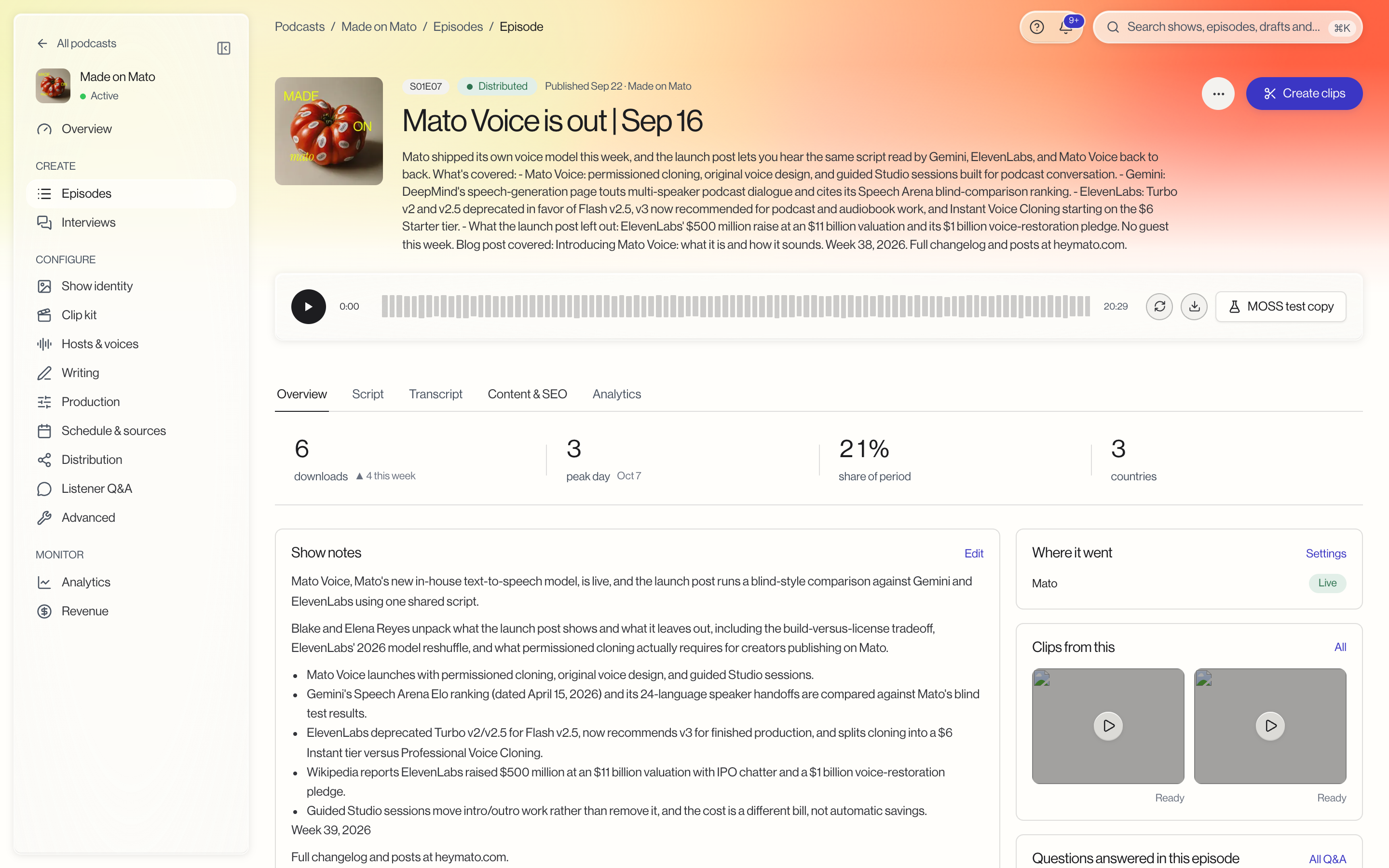
An episode has five tabs: Overview, Script, Transcript, Content & SEO, and Analytics. Script opens the script editor as its own full-width page, with a Back to episode link to return. You can also open it from Edit script in the header's more menu (the three dots). A draft that has no audio yet also shows Edit script as a button next to Generate audio.
Once the episode has audio, the header's main button is Create clips. The more menu holds Edit details, Edit script, Embed player, View public page, Unpublish (only once the episode is published or distributed), and Delete episode.
The player and its tools
The audio player sits above the tabs and stays visible no matter which tab you are on. It shows a seekable waveform, elapsed and total time, and play/pause.
Two tools sit with the player: Regenerate audio re-renders the episode from the current script, and Download audio saves the audio file. Download only appears once audio exists.
The Overview tab
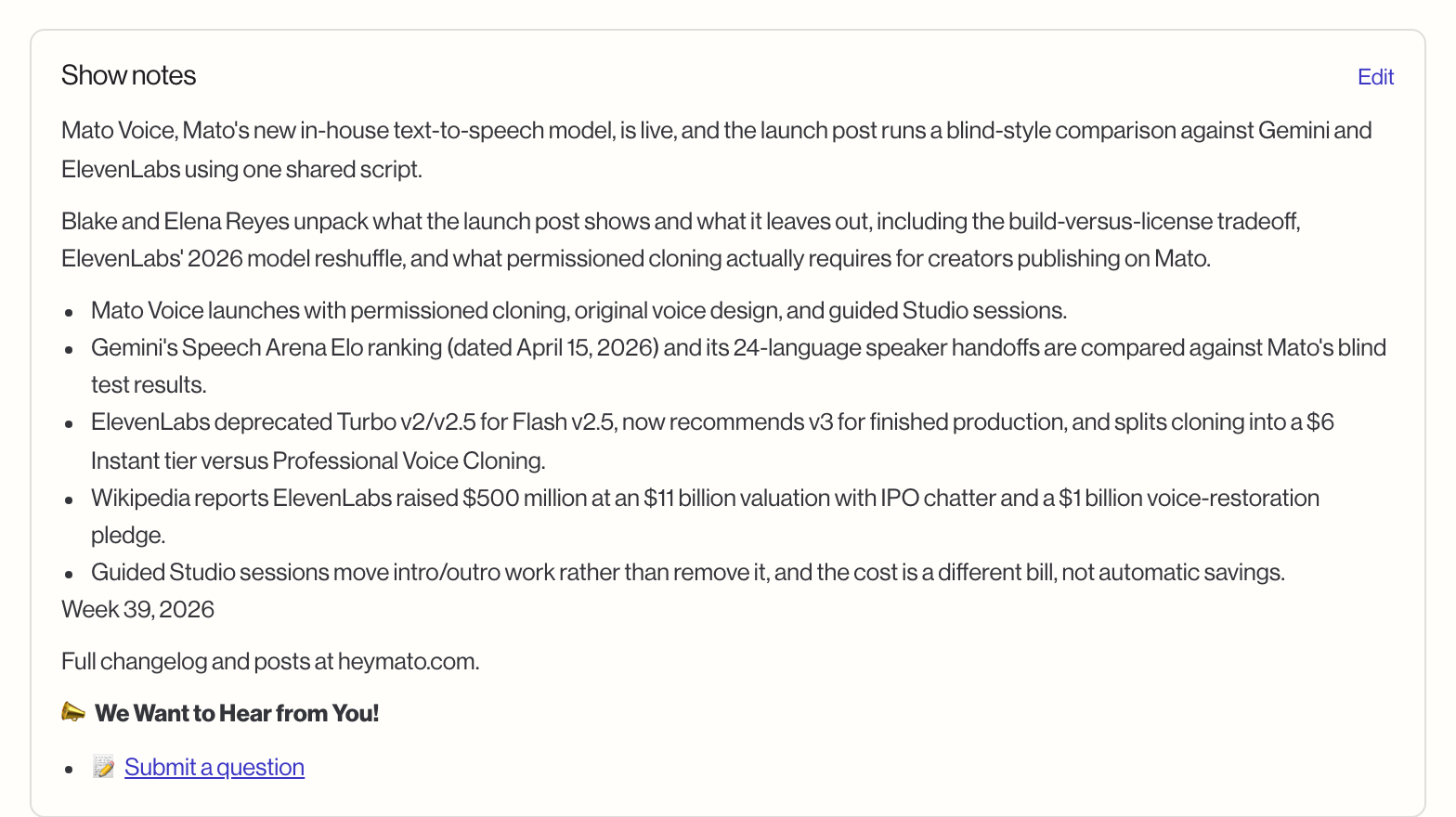
Overview shows a "last 30 days" stat strip (downloads, peak day, share of the period, and how many countries listened), your episode's show notes with a link to edit them, and chapters if you have added any.
Before audio has been generated, the show notes and chapters cards are replaced by a no-audio state (with a Generate audio action) and a preview of the script instead.
The side rail
The rail alongside the main content shows:
- Where it went: the episode's distribution status, starting with Mato, with a Settings link. If the show also has other destinations configured, such as WordPress or a Buzzsprout-linked feed, those show here too.
- Clips from this: a preview of social clips cut from this episode (All opens the full list), or a note that clips come from the finished audio if none exist yet.
- Questions answered in this episode: listener questions answered in this episode, once audio exists, with an All Q&A link and a Pull more questions for next episode button.
- Hosts and Sources: the hosts and source material behind the episode, each with a Manage link. Sources show how many times each one is cited.
Unpublish and Delete episode live in the header's more menu, and each is explained in Publish an episode.
Before audio exists, the rail shows an Episode state checklist instead (script, audio, transcript, cover art, and show notes readiness) so you can see at a glance what is still missing.
Related articles
- Publish an episode covers the publish, unpublish, and delete actions.
- Manage episode metadata and SEO covers the Content & SEO tab.
- Episode analytics covers the Analytics tab.
- Transcript editor covers the Transcript tab.