
Content sources are the feeds that supply your podcast with raw material. Mato checks each one on its own schedule, pulls in new articles, and scores them for relevance before your next episode is written.
This guide covers the sources table, adding a new feed, and what a failing source looks like and how to fix it. For what happens after a feed is added, see Source articles.
Open Content sources
From your podcast, click Sources under Plan in the sidebar.
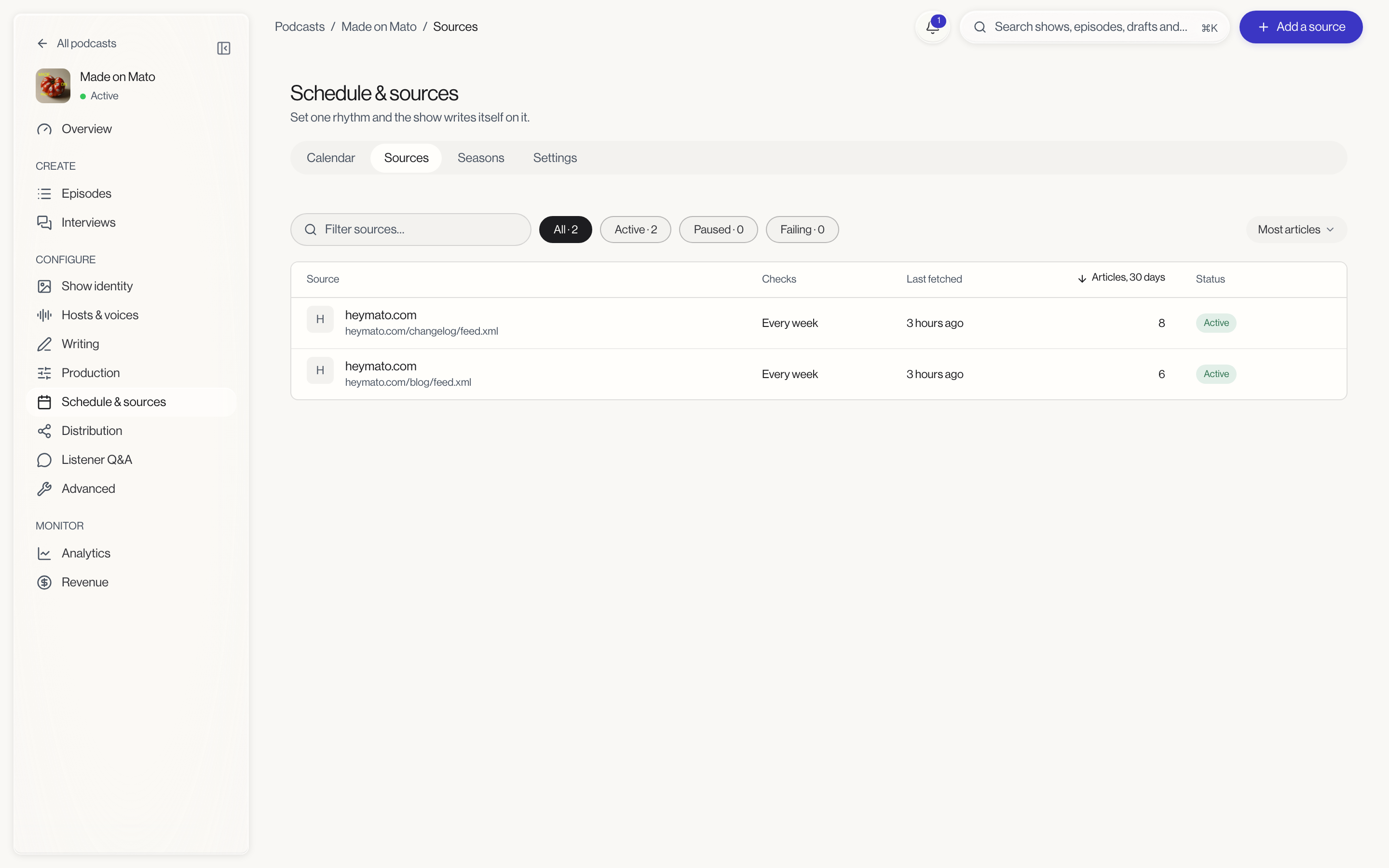
Read the sources table
Each row shows the source's name and address, how often Mato checks it (Every hour, Every day, or Every week), when it was last fetched, how many articles it has pulled in over the last 30 days, and its status.
Status is one of:
- Active, checking on schedule.
- Paused, not checking until you resume it.
- Failing, its last check did not succeed.
- Checking N%, while a fetch is actively running.
Use the filter chips (All, Active, Paused, Failing, each with a count) or the Filter sources search box to narrow the list, and the sort dropdown to order by most articles, newest, or name.
Add a source
Click Add a source in the top bar. Adding a feed is a check-then-add flow, not a plain form:
- Paste the feed's URL into Feed address and click Check feed. Mato validates it and, if it is a real RSS or Atom feed, shows a preview: the feed's title, how many items it has, and a few of its newest ones.
- If the address is not a feed Mato can read, you will see an inline error instead. Fix the URL and check again.
- Choose How often Mato checks it: Every hour, Every day (the default), or Every week.
- Optionally, add words under Only keep articles about. Press Enter or comma after each word to add it as a chip. Leave this empty to keep everything the feed publishes.
- Click More options to reveal Skip articles about, the same kind of word list, for articles you want left out regardless of what else matches.
- Click Add source.
The Add source button stays disabled until the check succeeds and the address has not changed since. If you edit the URL after checking it, check it again before you can submit.
Once added, Mato starts reading the feed right away, in the background. You do not need to wait on this screen for the first fetch to finish.
Manage a source
Open a row's menu for Check now (fetch immediately instead of waiting for the schedule), Edit (change the address or check frequency), and a Pause or Resume toggle. Pausing stops future checks without deleting anything; resume it whenever you want the feed active again.
Delete sits in its own section of the menu. Deleting removes the source and its articles after a short delay, with an Undo option in the toast that follows.
Fix a failing source
A source that has not delivered lately shows Failing with a reason underneath, for example "No new articles since [date]." Two actions appear right in the row:
- Edit address, in case the feed moved or the URL was mistyped.
- Try again, to retry the check without changing anything.
If a source has never successfully fetched at all, the row reads "No articles yet" instead of a since-date.
What to do next
- Add at least one active source before turning on scheduled generation; see Plan your schedule.
- Open a source's article list to review, feature, or manually add an article; see Source articles.