
A rhythm tells Mato when to publish. Once you set one, the show writes an episode for every slot on its own, using your content sources, Mato's ideas, or a mix of both.
This guide covers the rhythm settings, the content source that feeds them, and what happens on your calendar the moment you change either one.
Open schedule settings
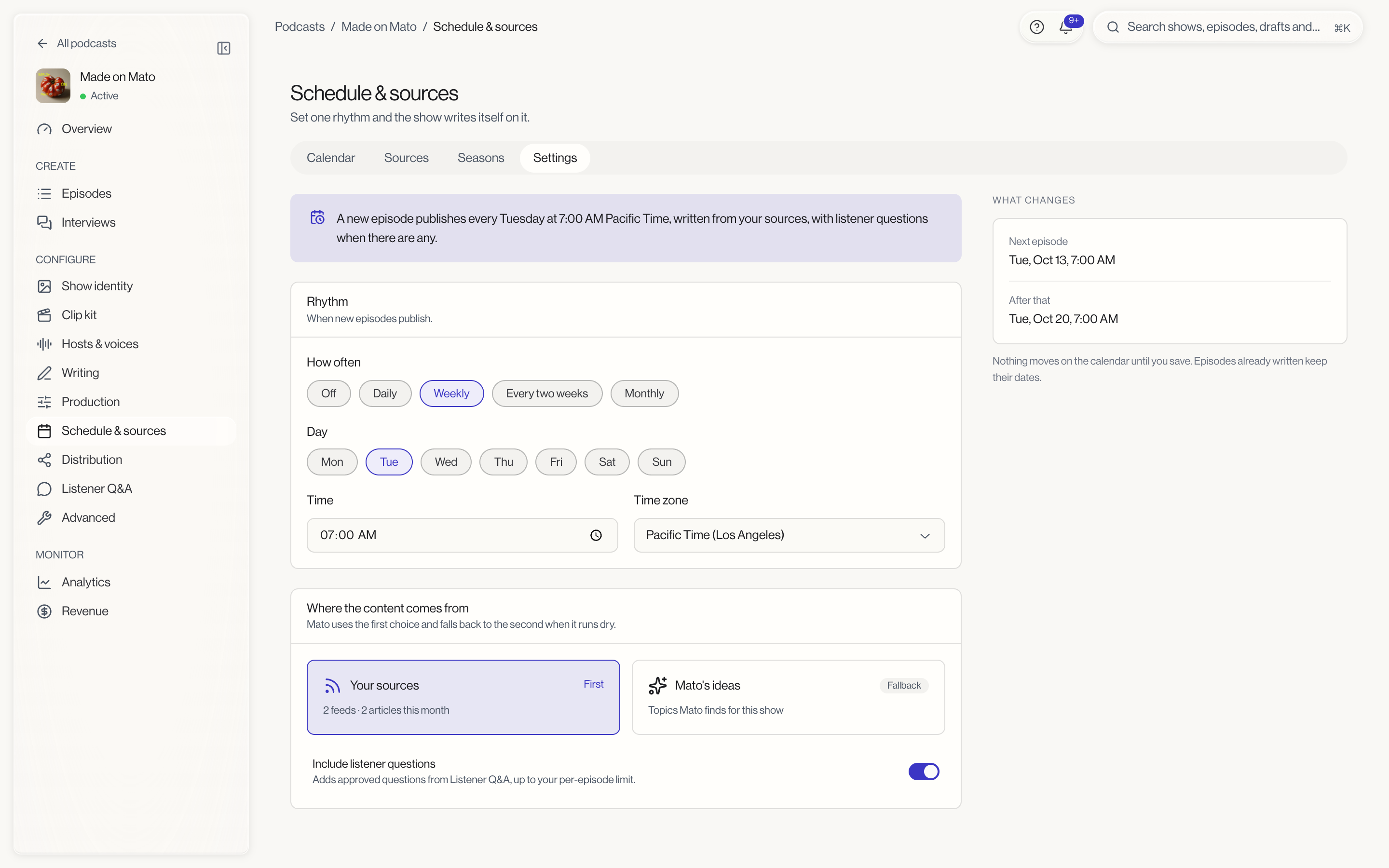
From your podcast, click Calendar under Plan in the sidebar, then click the Settings tab. You can also get there directly by clicking Set a rhythm from an empty calendar, or Change on the rhythm chip in the calendar toolbar.
Choose how often
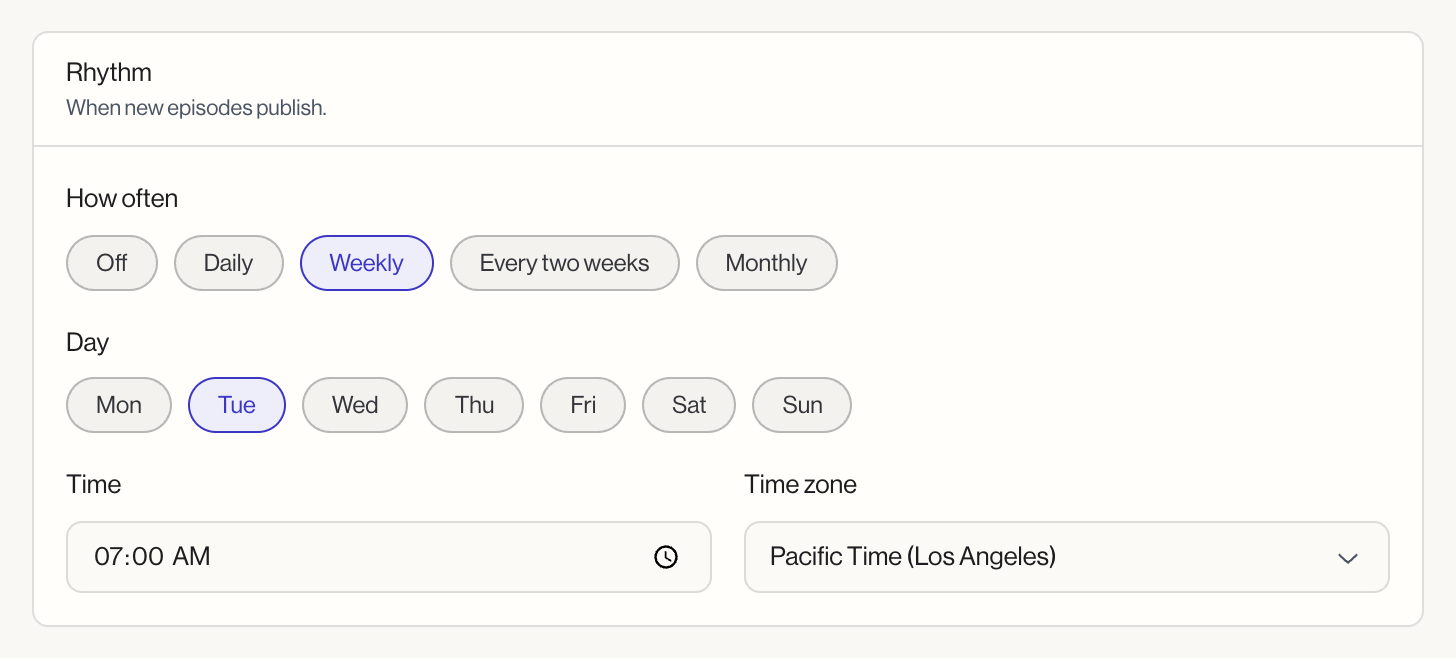
The Rhythm card starts with How often, a row of five options: Off, Daily, Weekly, Every two weeks, and Monthly.
- Off turns scheduled generation off. You can still make episodes by hand from the calendar or the composer.
- Daily publishes on the weekdays you pick below. Leave none picked and Mato publishes every day.
- Weekly publishes once a week on a single day you choose.
- Every two weeks publishes on that same day, every other week.
- Monthly publishes on a day of the month, 1 through 31. A month that does not reach that day is skipped.
Picking anything other than Off reveals the rest of the fields below it.
Pick the day and time
What appears next depends on the frequency:
- Daily shows a Days row of weekday chips (Monday through Sunday). Select any combination, or leave all of them unchecked to publish every day.
- Weekly and Every two weeks show a Day row of the same weekday chips, where you pick one day.
- Monthly shows a Day of the month dropdown, 1 through 31.
Below that, Time and Time zone fields set when Mato triggers the run. Both are hidden when the rhythm is Off. Mato needs a time before it can save a rhythm; leaving it blank blocks the save with a prompt to pick one.
Read the summary line
Above the Rhythm card, a live sentence reflects whatever you have set, before you save it. With a weekly rhythm it reads something like:
A new episode publishes every Tuesday at 7:00 AM Pacific Time, written from your sources, with listener questions when there are any.
With no rhythm set, it reads: "The show has no rhythm yet. Episodes only come when you make them." The sentence updates as you change fields, so you can proofread your schedule before saving it.
Pick where the content comes from
The Where the content comes from card holds two cards of its own: Your sources and Mato's ideas. Click one to put it first; it gets a First badge, and the other one is marked Fallback and picks up when the first runs dry.
- Your sources shows how many feeds are active and how many articles they have pulled in this month. If your podcast has no active sources yet, this card is dimmed with a note to add one first, and an Add a source link straight to Content sources.
- Mato's ideas draws from the same suggestions that appear in the calendar's ideas rail.
Below the two cards, Include listener questions adds approved questions from Listener Q&A into scheduled episodes, up to the per-episode limit set in Set up Listener Q&A. Turn it off if you want scheduled episodes to stick to news and topics only.
See what changes before you save
A panel beside the settings, labeled What changes, shows the next two episodes your rhythm will produce, calculated from whatever is currently in the form, not what is saved yet. If a slot's date or time differs from what is already saved, it shows the previous value struck through so you can see exactly what is moving.
Nothing on the calendar actually moves until you save. Episodes you have already written keep their dates regardless of what you change here.
Save your changes
Schedule settings use the same floating save bar as the rest of the podcast's settings pages. Rhythm and content source save as two separate sections, so a change to one does not require finishing the other. Click Save changes, or press ⌘S (Ctrl+S on Windows), to save everything at once. Discard throws your edits away.
Where the schedule runs
Once a rhythm is active, Mato checks it in the background and, at each due slot, works through sourcing content, writing the script, rendering audio, and publishing, in that order. See Use the plan calendar for how to watch that work happen, pin specific ideas to specific days, and manage what is coming up next.