
Listener Q&A lets your audience send in questions you can feature on upcoming episodes. Questions arrive through whichever channels you turn on, land in a moderation inbox, and can be woven into scripts automatically or by hand.
This guide covers turning the feature on, choosing channels, setting moderation and rate-limit rules, configuring notifications, and sharing your public question form.
Open Listener Q&A settings
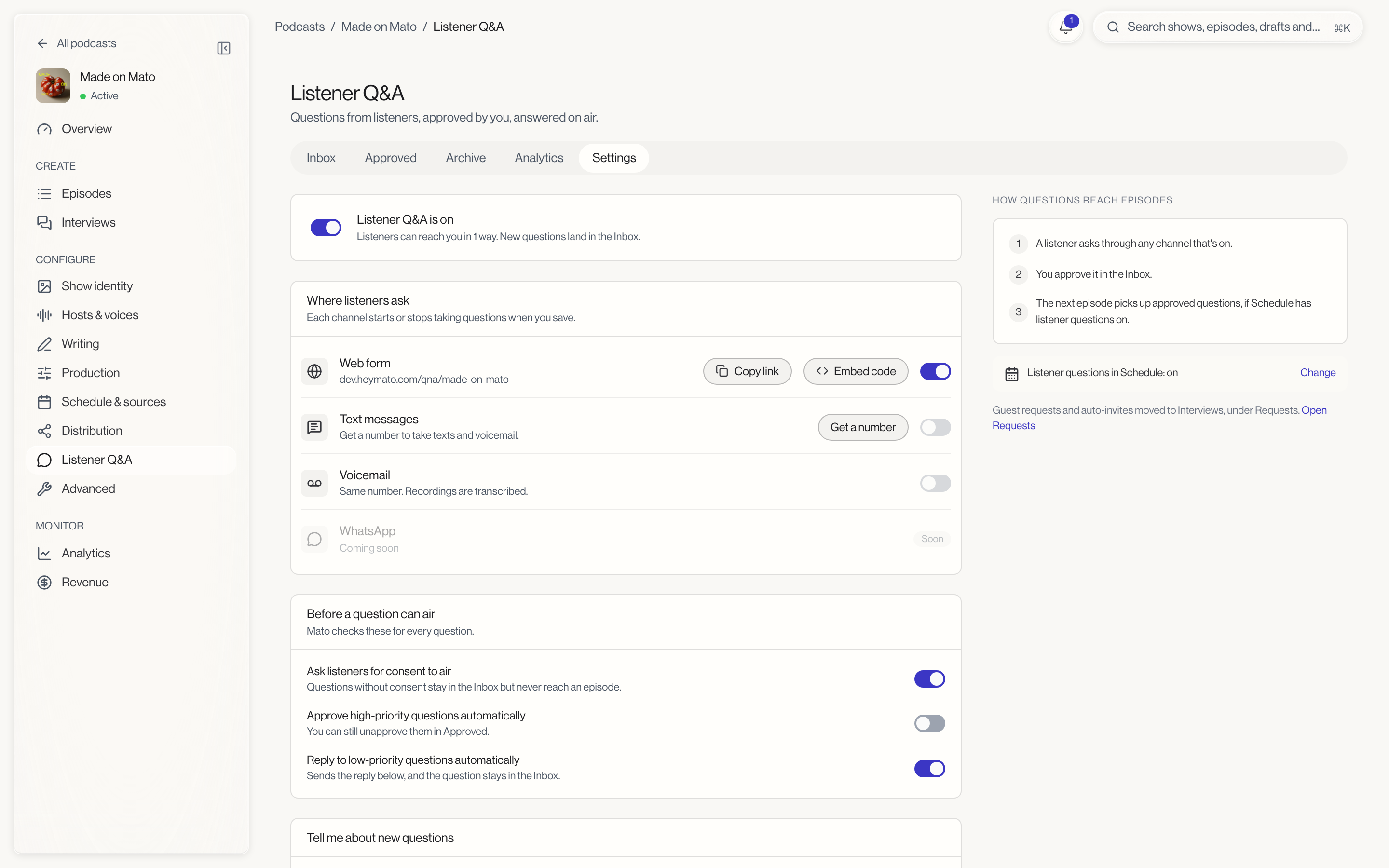
From your podcast, click Listener Q&A under Configure in the left sidebar. It opens on the Settings tab (next to Inbox, Approved, Archive, and Analytics).
If Listener Q&A is off, the Inbox tab shows a Turn on Listener Q&A button instead of questions. Clicking it brings you to this same settings screen with the master switch already flipped on in the form, though nothing is saved until you click Save changes.
Turn on the master switch
At the top of the settings screen, one switch controls the whole feature: Listener Q&A is on or off. Below it, a line of text tells you how many ways listeners can currently reach you, or reminds you to turn on a channel if none are active yet. Turning Q&A off does not delete anything already collected; it just stops new questions from coming in.
Choose your channels
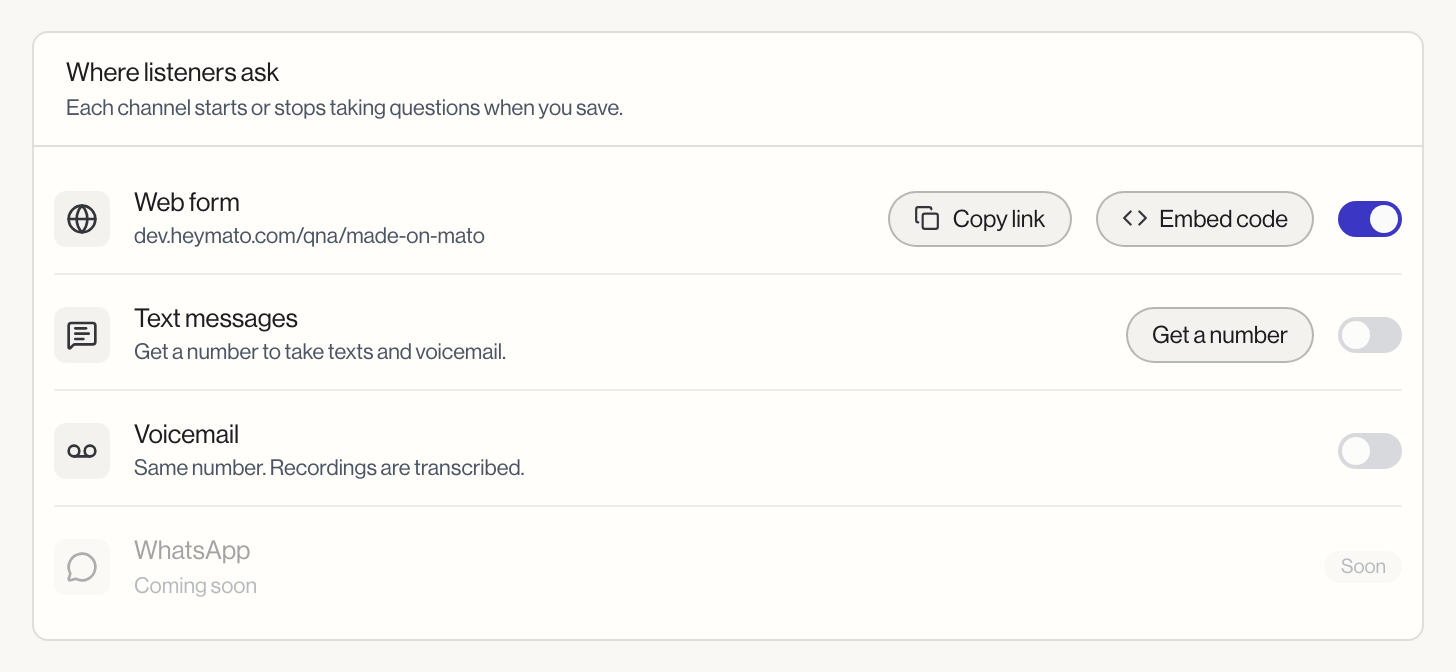
The Where listeners ask card lists four channels. Each one starts or stops taking questions the moment you save.
- Web form is always available. It shows your public form's address, with Copy link and Embed code buttons, plus its own on/off switch.
- Text messages needs a phone number. If you do not have one yet, click Get a number. Once provisioned, the row shows your number and a switch you can turn on.
- Voicemail shares the same number as SMS. Its switch stays disabled until a number exists, same as SMS.
- WhatsApp is listed as "Coming soon" with a "Soon" badge. It is not available to turn on yet.
Once you have a phone number, its row menu offers Release number. Releasing it is permanent: the number goes back to the carrier and cannot be recovered.
Set the rules a question must pass
The Before a question can air card has three toggles:
- Ask listeners for consent to air. When on, a question without explicit consent stays in the Inbox and never reaches an episode.
- Approve high-priority questions automatically. Skips manual review for questions Mato scores as high priority. You can still unapprove them later from the Approved queue.
- Reply to low-priority questions automatically. Sends the reply template below and leaves the question in the Inbox rather than moving it toward an episode.
Configure notifications
The Tell me about new questions card has an email toggle. Turn it on to reveal two more choices: Who gets them (the show owner, workspace admins, or every member) and How often (as they arrive, or in a digest that goes out at most every 15 minutes).
Set limits and the auto-reply
The Limits and replies card caps how often any one listener can send questions:
| Setting | Default | Range |
|---|---|---|
| Per email, per day | 10 | 1 to 50 |
| Per episode | 5 | 1 to 20 |
| Per phone number, per hour | 5 | 1 to 20 |
Below the limits, one Reply by text and email field holds the auto-response Mato sends when a low-priority question is auto-answered. It is capped at 320 characters, since it is also sent by text.
Share your public form
The web channel's row includes Copy link, which copies your form's public address, and Embed code, which copies a snippet you can paste into your own site:
<div data-mato-qna="your-podcast-slug"></div>
<script src="https://heymato.com/embed/qna.js" async></script>
The script loads asynchronously and replaces the div with a resizing iframe containing the same form.
Save your changes
Listener Q&A settings save through the same floating save bar used across the rest of the podcast's settings. Every field shows a small "Changed" marker as you edit it, so you can see exactly what will save before you click Save changes.
What moved elsewhere
A note beside the settings reminds you that guest requests and auto-invites now live under Interviews > Requests, not here, with an Open Requests link. And whether scheduled episodes pull in listener questions is controlled from Plan your schedule, not from this page. The How questions reach episodes panel shows a status line (for example "Listener questions in Schedule: on") and a Change link that points you there directly.
What to do next
- Review incoming questions in Triage questions.
- Check how your channels are performing in Q&A analytics.