
Workspace settings hold the identity of your team account: its name and logo, what Mato knows about your company, and the option to leave or delete it. This is separate from a show's own settings, which live inside that podcast.
Open workspace settings
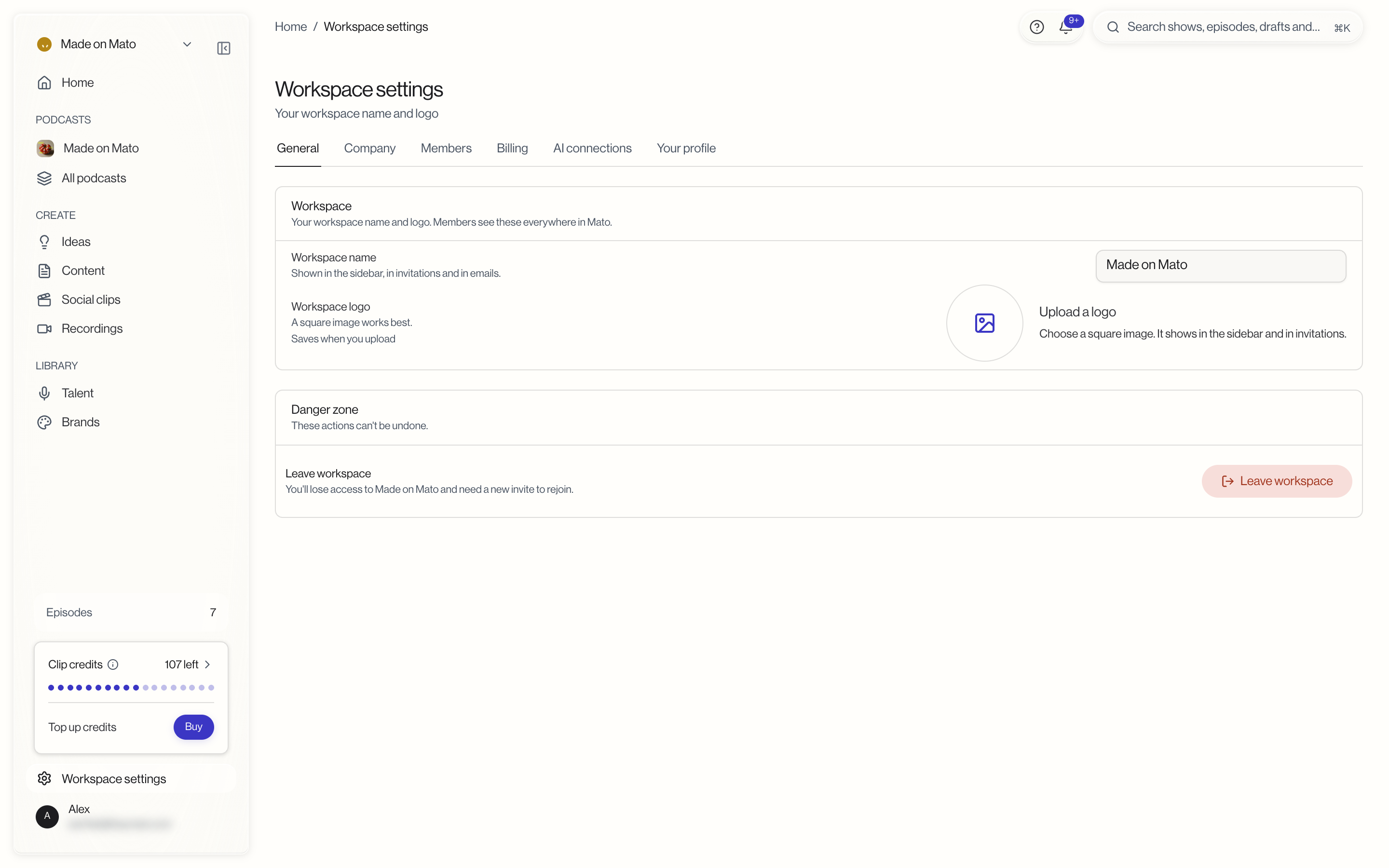
Click Workspace settings at the bottom of the sidebar. The page opens on the General tab, next to the Company, Members, Billing, AI connections, and Your profile tabs (plus Startup Program when it applies to your workspace).
The General tab holds a Workspace card for your workspace name and logo, with a Danger zone card at the bottom. Your company details live on the Company tab.
Update your workspace logo
The Workspace logo field in the Workspace card lets you upload an image that represents your workspace. A square image works best. The logo shows in the sidebar and in invitations.
Click Upload a logo, choose an image file, and Mato saves it when the upload completes.
Update your workspace name
The Workspace name field holds the display name for your workspace. Update the field and save to rename it. The name is shown in the sidebar, in invitations, and in emails; it is separate from your workspace's URL slug.
Tell Mato about your company
The cards on the Company tab shape the ideas Mato suggests. Each one saves on its own.
- Your company holds your Website. Mato reads this site to learn what you do. A site on another domain is added as a new company.
- What you are working toward holds Your goal, in your own words. Changing your goal makes Mato rethink its ideas, but it does not read your website again.
- What Mato found lists the facts, sources, and open questions Mato pulled from your site, each fact linked to its source.
- Company knowledge holds files and web pages about your business: PDF, DOCX, TXT, or MD files up to 50 MB, or a pasted link. Every show of this company uses them when Mato writes episodes and suggests episode ideas, and shows of your other companies never do. Save your website first, so Mato knows which company the files belong to. Files you add in one show's settings stay with that show.
- Ideas for this company lists what Mato suggests you make next. Pick a show under Show (optional) to aim new ideas at it, then click Generate ideas.
Leave or delete a workspace
The Danger zone card at the bottom of the General tab shows a different action depending on your role:
- Primary owner, with team deletion enabled: a Delete team button. Deleting a workspace removes all podcasts, episodes, and data permanently. Mato asks for email verification (a one-time code) before it processes the deletion, so a stray click cannot destroy a workspace.
- Everyone else: a Leave workspace button. Type LEAVE in the confirmation field to proceed. Once you leave, you lose access to the workspace immediately.
The primary owner cannot leave their own workspace. They must either transfer ownership first (see Manage your team) or delete the workspace outright.
If team deletion is turned off for your workspace, the primary owner does not see a delete option at all; only the leave flow (for non-owners) is available.
Where the rest of your workspace lives
Workspace settings covers identity, company details, and account lifecycle only. For other workspace-level pages, use the tabs at the top of Workspace settings or the links below:
- Manage your team for members and roles
- Billing for your subscription and payment method
- Plans and pricing for what each plan includes
- Startup program if your workspace is enrolled
AI connections is a tab here too.