
Your profile holds the settings that belong to you as a person rather than to a workspace: your name, how you sign in, and the emails Mato sends you. These settings follow you across every workspace you belong to.
Open your profile
Click Workspace settings at the bottom of the sidebar, then click the Your profile tab, next to General, Company, Members, Billing and AI connections.
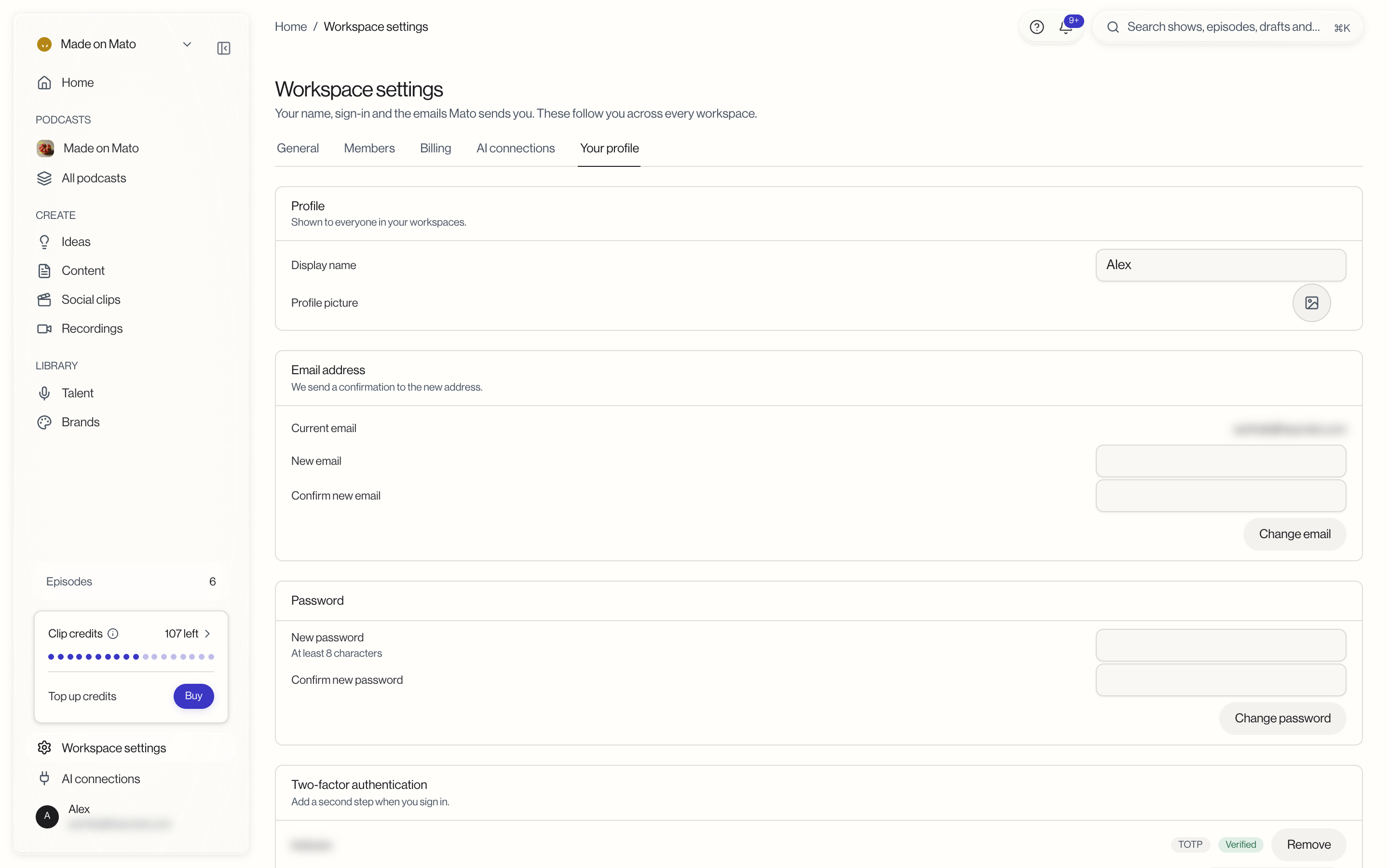
Display name and profile picture
The Profile card holds your Display name and Profile picture. Both are shown to everyone in your workspaces. Type a new name in the field, or click the image button next to Profile picture to upload a photo.
Change your email
The Email address card shows your current email. To change it, enter the new address in New email and again in Confirm new email, then click Change email. Mato sends a confirmation to the new address.
Change your password
In the Password card, enter a new password in New password and repeat it in Confirm new password. The password needs at least 8 characters. Click Change password to save it.
Two-factor authentication
Two-factor authentication adds a second step when you sign in. Click Add authenticator app to set one up with an authenticator app on your phone.
Each authenticator you have added is listed in the card with its name, a TOTP badge and its status (for example Verified). Click Remove next to one to take it off your account.
Linked sign-in methods
Linked sign-in methods lists the ways you can sign in. Your email is marked Connected. If no other methods are offered, the card says No other sign-in methods are available.
Email preferences
The Email preferences section sets which emails Mato sends you and the time zone they follow. Pick your Time zone from the list; emails like weekly stats arrive between 09:00 and 10:00 in that zone.
Below the time zone, Unsubscribe from all emails stops every email except security and billing ones. You can also switch off individual categories: Getting started, Show activity, Milestones, Weekly performance digest, and Tips and reminders. For what each category includes and how unsubscribe links work, see Email preferences.
Delete your account
At the bottom of the page, Delete your account removes your user account. Workspaces you own must be transferred or deleted first. Click Delete account, and Mato emails you a code to confirm. This can't be undone.