
The Billing page holds your workspace's subscription, payment method, invoices, a running cost estimate for the current month, and your clip credit balance. Only Owners can manage billing; Members see a message directing them to a team owner.
Open billing
Click Workspace settings at the bottom of the sidebar, then open the Billing tab.
Start a subscription
If your workspace has no active plan, the billing page shows the same three plan cards as onboarding: Launch, Business, and Network. See Plans and pricing for what each tier includes.
Select Launch or Business to start an embedded Stripe checkout directly on the page. You do not leave Mato to complete payment. Select Network to contact sales instead.
After payment succeeds, Stripe sends a webhook to Mato that activates your subscription. The billing page then shows your subscription status, current plan, and a link to the Stripe billing portal.
While a team has no active plan, Mato blocks podcast creation and episode generation with a non-dismissible Get started with Mato prompt. If you land on the billing page because a plan is required, a banner reads "Choose a plan to open your workspace."
Manage your subscription
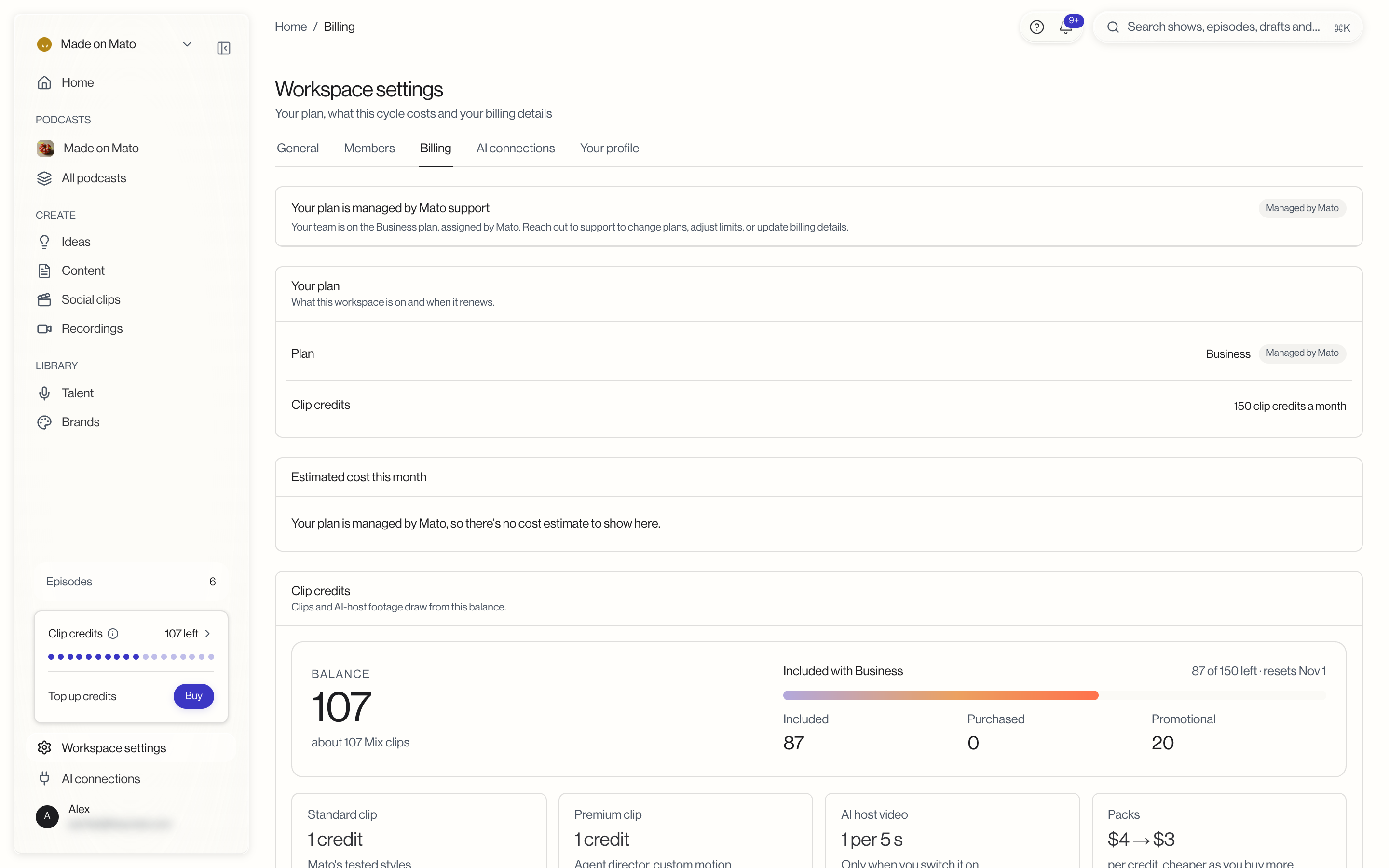
Once you have an active subscription, the billing page shows:
- Your plan. Your plan name, the clip credits it includes each month, and when it renews.
- Estimated cost this month. A breakdown of your base fee, per-episode charges, API costs, and estimated total for the current billing period.
- Clip credits. Your credit balance, what each kind of clip costs, and credit packs. More on these below.
- Manage subscription button. Opens the Stripe billing portal, where you update your payment method, view invoices, or change your plan.
Upgrading
Open the Stripe billing portal and select a new plan. Stripe prorates the difference for the current billing period. New features become available immediately after the upgrade processes.
Downgrading
Open the Stripe billing portal and select the lower plan. The downgrade takes effect at the end of your current billing period; you keep your current plan's features until then. Features that require the higher plan show a locked state once the downgrade lands, with an overlay naming the plan required.
Cancellation
Cancel from the Stripe billing portal. Your plan stays active until the end of the current billing period. Once it expires, the billing gate applies and your team can no longer generate new episodes. Existing episodes, scripts, and audio files remain accessible.
Monthly cost estimate
The Estimated cost this month card breaks down your expected charges for the current month:
- Base fee. Your plan's monthly rate, or a per-show rate for Network plans.
- Episode fees. The per-episode fee multiplied by episodes generated this month.
- API cost. Any usage-based API charges.
- Total. The sum of the above.
The estimate updates as you generate episodes through the month and does not include taxes or revenue-share amounts. A Network plan with no active shows shows the per-show rate and a note to add a show before a total can be calculated.
Clip credits
Social clips and AI-host footage draw from one clip credit balance. The Clip credits card on the Billing tab (the Buy button on the sidebar's Clip credits card opens it too) shows:
- Balance, split into Included credits that come with your plan and reset each month, Purchased credits, and Promotional credits.
- What each item costs: a Standard clip or a Premium clip is 1 credit, and AI host video is 1 credit per 5 seconds, charged only when you switch it on.
- Packs of 25, 100, or 300 credits. The price per credit drops as you buy more, from $4.00 to $3.00. Click Buy 25, Buy 100, or Buy 300.
- Auto-reload, which buys a pack for you when your balance runs low. Set Reload below (credits), the most reloads a month, and the Pack to buy, then click Save auto-reload.
Support-assigned and Startup Program plans
In some cases the Mato team assigns a plan directly to your account, for example during a pilot or a custom arrangement. When this happens, the billing page shows a banner: "Your plan is managed by Mato support," naming your plan and any notes from the team. The Estimated cost this month card then has no estimate to show. This works the same as a Stripe subscription for feature access and usage tracking. To change it, contact Mato support.
If your workspace is on a support-assigned plan with a known end date and you start a Stripe checkout before it ends, Mato lines up the new subscription's trial to begin exactly when the assigned plan ends. Your card is saved and verified at checkout, but you are not charged until the assigned plan's coverage runs out. If your workspace is enrolled in the Startup Program, that program's own activation flow replaces a standard Stripe checkout while it is active.
Feature gates
Some features are restricted to specific plan tiers. Trying to use a gated feature on a plan that does not include it shows one of two treatments:
- Block gate. A card with a lock icon, the feature name, a note on which plan is required, and an Upgrade button linking to this page.
- Inline gate. A dimmed, non-clickable control with a lock icon. Hovering shows a tooltip naming the required plan.
See Plans and pricing for the full list of gated features and their minimum plans.