
The Startup Program gives eligible companies a set number of included episodes per month at no subscription fee, for a limited run, before moving to standard billing. This article covers applying, activating, and what each program state on the page means.
Open the Startup Program page
Click your workspace name near the top of the sidebar to open the workspace switcher, then select Startup Program. It sits at the bottom of that menu, below Billing, since it is an account-level program rather than a daily tool. The page opens inside Workspace settings, with Startup Program as its own tab.
Apply
If your workspace has not applied yet, the page shows an application form: company name, company website, your role, who your audience is, what you plan to use the podcast for, and optional fields for an accelerator or investor affiliation and a partner code.
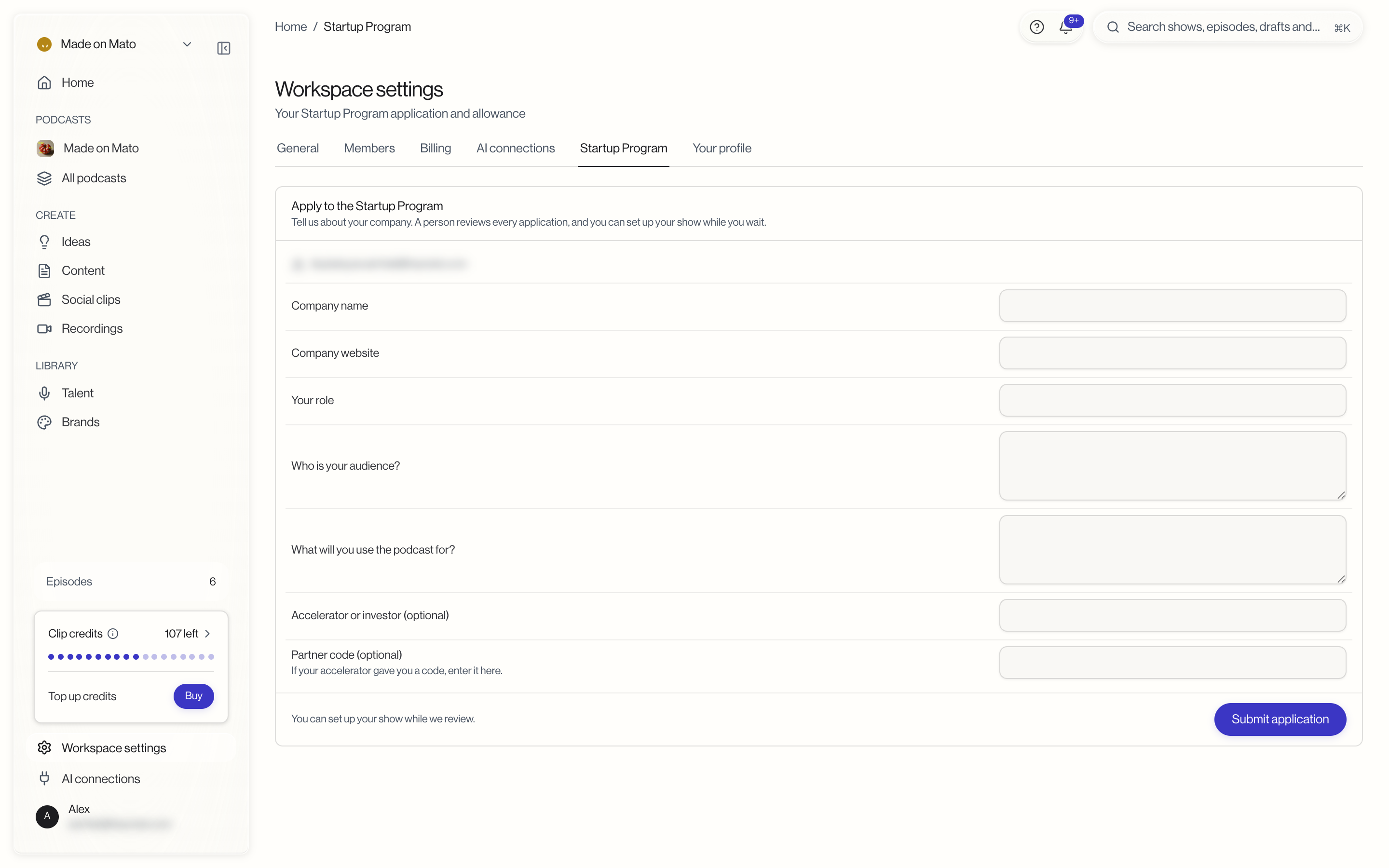
A person reviews every application. You can set up your show, collect ideas, and generate one private preview while you wait; publishing episodes, a public feed, and share links wait for approval.
If your accelerator gave you a partner code, entering it during review can approve your application right away. If your workspace already has a paid subscription when the code is accepted, a person still finishes the review manually and your existing subscription is left untouched in the meantime.
While your application is in review
The page shows what you can already do (set up your show, write drafts, generate one private preview) and what still waits for approval (publishing, a public feed, share links).
If review takes longer than the stated window, the page shows a notice that generation is paused until the review finishes. Nothing is charged, and the delay does not mean your application was rejected.
Activate after approval
Once approved, the page shows an activation screen with the program's terms: how many episodes are included per monthly cycle for the first phase, the fee for each additional published episode, and the exact dates your program would run if you activate that day.
Some approvals include a partner extension: an initial included-episode phase followed by a second phase with no subscription fee, where every published episode is billed at the per-episode rate.
Activating saves a payment card for episode fees; nothing is charged at activation, and no standard paid subscription starts automatically. Review the terms, accept them, and confirm to open a secure checkout that saves your card.
Activation invitations expire. If yours expires before you activate, contact support to have it reissued; your approval and any drafts are kept.
While the program is active
Once active, the program page shows your current cycle's dates, how many included episodes you have used this cycle, how many paid episodes you have published this cycle, and the date the program ends. If you are in a partner extension, it also shows when the fee-waived phase began.
A workspace banner keeps you posted on your allowance: whether your next episode is included, or that you have used your included episodes for the cycle and further episodes cost the per-episode fee. When you publish an episode that would incur a fee, Mato asks you to confirm the charge before publishing.
After the program ends
When the program ends, no subscription starts automatically and nothing is charged. Your show, drafts, and published episodes are all kept. To keep creating and publishing episodes, choose a plan from Billing; see Plans and pricing for what each tier includes.
If an application is not accepted, the same is true: your show and drafts are preserved, and choosing a paid plan afterward is a separate, optional choice.