
A bell in the top bar opens the Activity center: a running list of what Mato is doing for you, what's finished, and what's waiting on you specifically. It's not a modal, so the page underneath stays usable while it's open.
Opening and closing it
Click the bell, or press ⌘. (Mac) or Ctrl+. (Windows and Linux), to slide the panel in from the right. A number badge on the bell adds up anything currently running, unresolved items that need you, and unread updates. Close it with the X, Esc, or a click anywhere outside the panel.
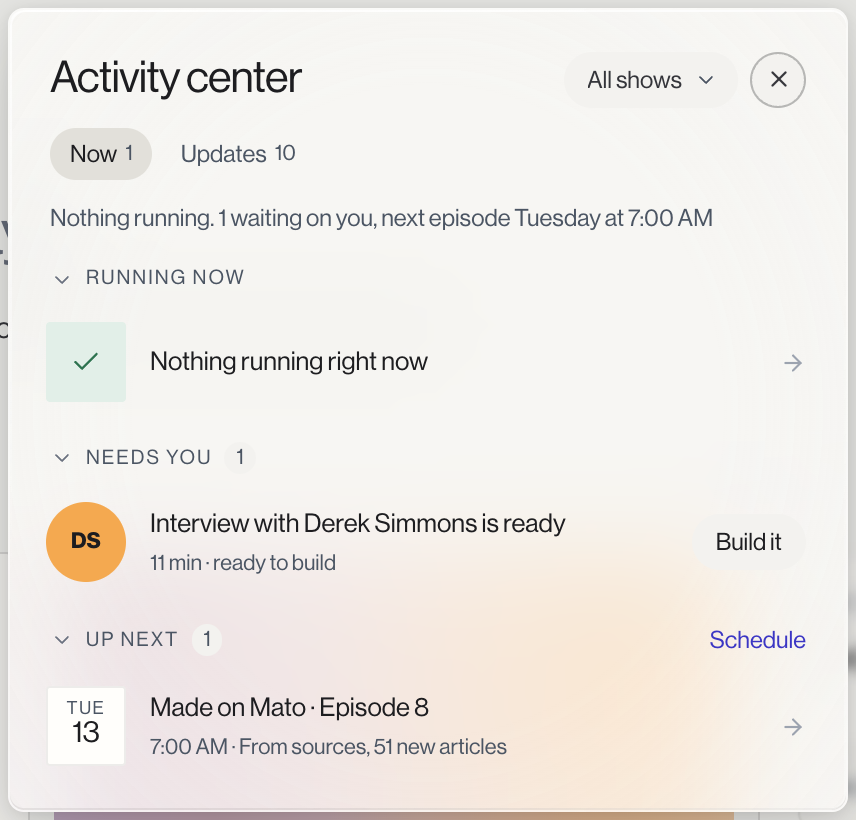
The Now tab
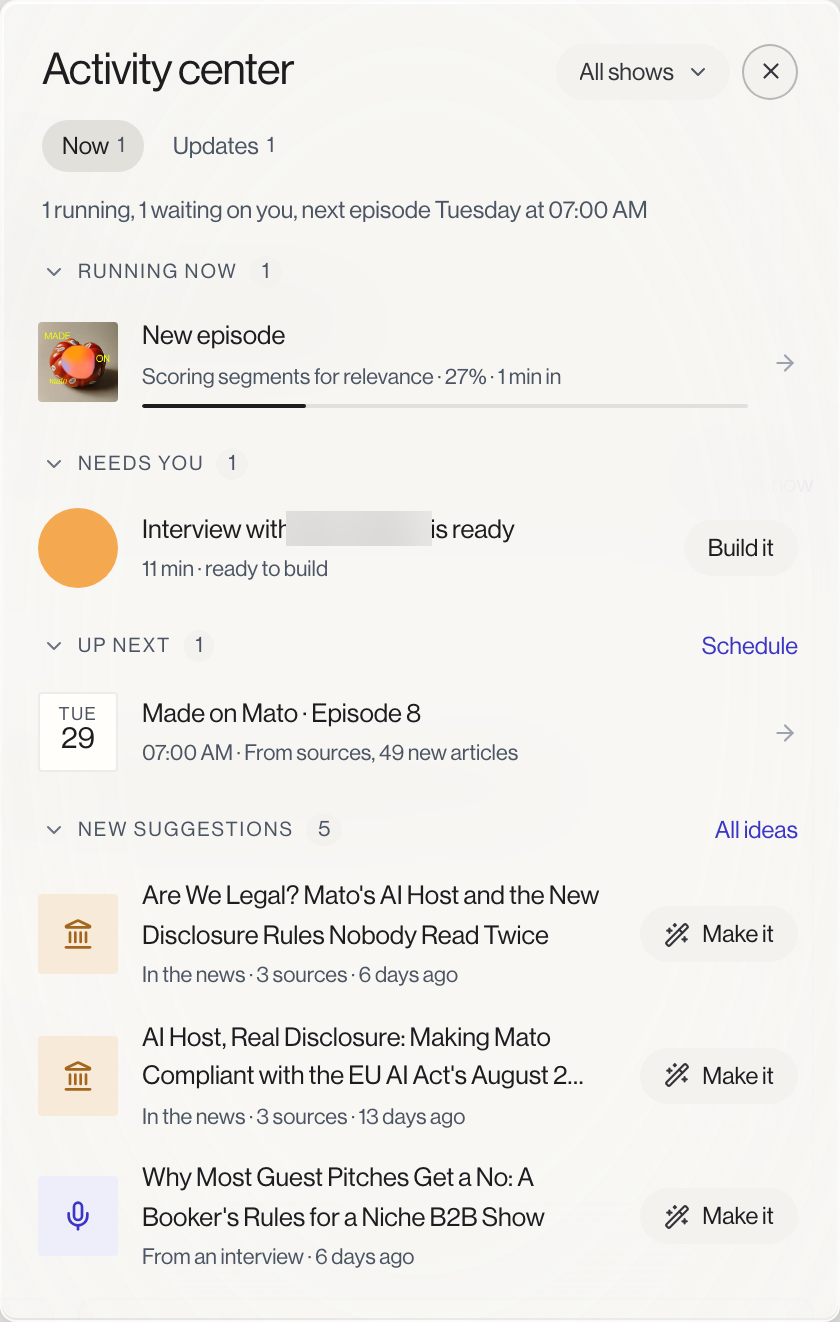
The Now tab groups everything into up to four sections, and a scope chip at the top (All shows by default) lets you filter all of them to one show:
- Running now. Episodes currently being written or having audio rendered, with the step Mato is on, a live progress bar, a percentage, and how long it's been running. A job running longer than usual says so.
- Needs you. Anything genuinely blocked on you: a script that finished and needs review, a finished interview ready to build into an episode, or listener questions waiting for an answer. A finished interview has a Build it button right on its row.
- Up next. Scheduled interviews or your next automatic episode slot, with the day and time, plus a Schedule link.
- New suggestions. Episode ideas Mato has generated for you, each with a Make it button, plus an All ideas link to see the rest.
A one-line summary under the panel's title gives you the gist without opening any section, for example "Nothing running. 1 waiting on you, next episode Tuesday at 7:00 AM."
When something finishes or fails
A running item's progress bar turns into a Listen button once audio exists, or a note that a script is ready for review. A small card also briefly appears near the bell to flag it. If something fails, the row explains why where Mato knows the reason, or shows a generic message with a Start again button that reopens episode generation from where it left off.
Updates
If your workspace has notifications turned on, a second tab, Updates, lists informational messages with a timestamp and, where relevant, a link. There's no read state, only dismiss; any update you haven't dismissed counts toward the bell's badge. This is the same notification system Mato has always had, just shown inside the Activity center instead of its own separate popover.
Related guides
See Episode lifecycle states for what each status in the Running now section means, and Review and approve for what happens when a script needs your review.