
Once you have at least one show, Home gives you a box at the bottom of the screen for starting a new episode. This guide covers its modes, the @ mention search, and what happens after you send your prompt.
The modes
Mode chips below the text box switch how Mato builds the episode. Most shows see three; a fourth, Record live, appears only when the show has a live co-host set up:

- From a prompt. Type what the episode should be about: a topic, a link, or a rough idea.
- Interview. Build the episode from a completed guest interview.
- Record live. Record with your co-host in real time. This mode only appears once your show has a live co-host set up.
- From sources. Tell Mato to look for something specific in your connected content sources.
The show the episode belongs to is named next to the send button. If you manage more than one show, use it to choose a different show.
Typing @ to pull something in
Type @ while writing your prompt to open a search popover for something specific: a suggested topic, a guest interview, a content source, or a past episode.
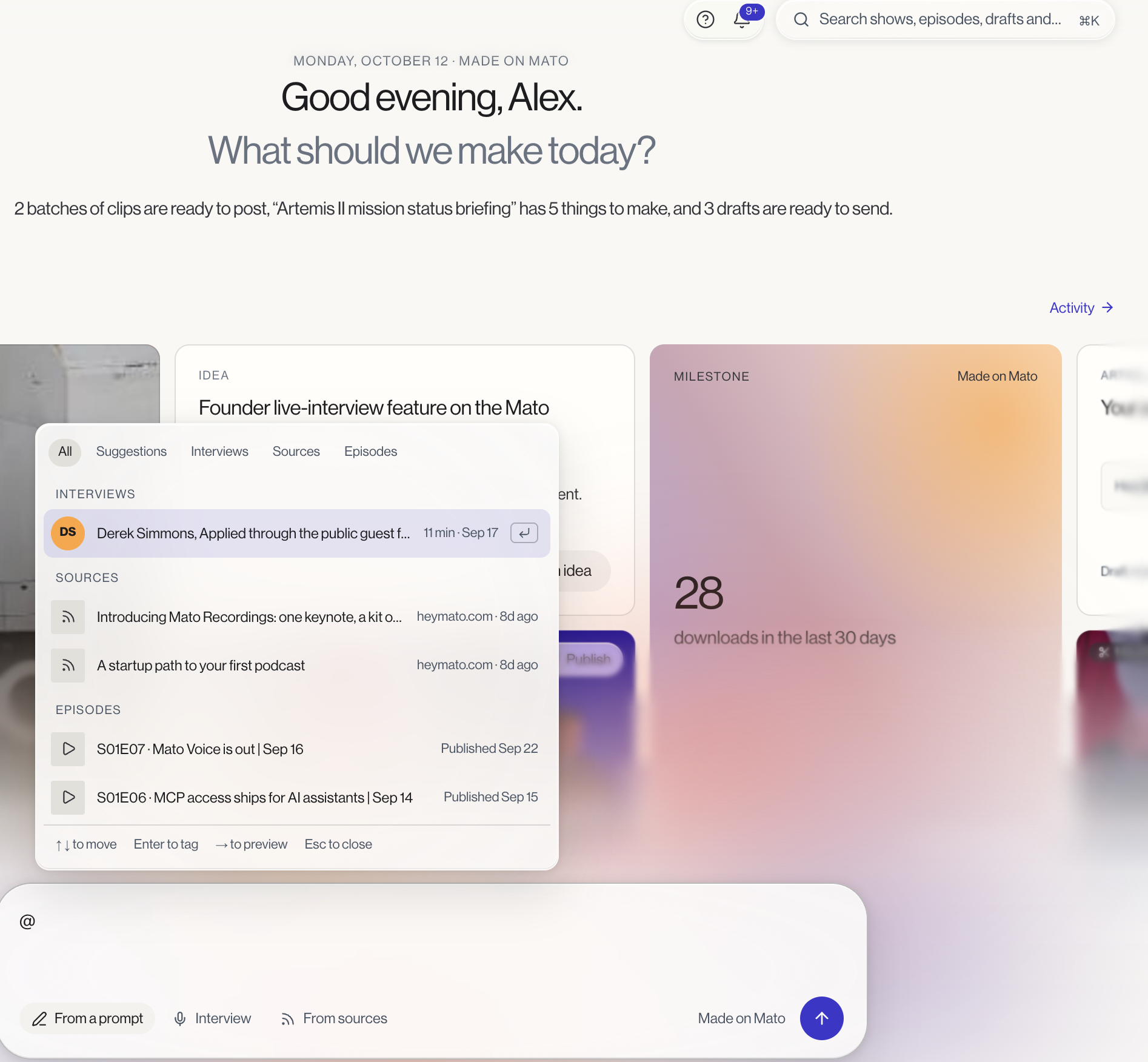
Filter chips narrow it to one kind. Use the arrow keys to move through results, Enter or Tab to tag the highlighted one, the right arrow to preview it first, and Esc to close the popover without losing your draft. You can attach up to five references to one episode this way.
Above the box, Mato also surfaces a row of suggestions, interviews, or sources relevant to whichever mode you've picked. Click one to open a detail card explaining why it was suggested, with two choices: Use for this episode, which attaches it the same way an @ mention would, or Dismiss, which hides it from Home for a week (with an undo option if you change your mind).
What happens after you send it
When you click the arrow button to send your prompt, what happens depends on your account's setup:
- Normally, it opens the full episode-creation wizard with your text and any attached references already filled in.
- If the AI assistant is turned on for your account, every mode except Record live instead hands your message to the assistant, which opens as a chat thread above the composer so you can go back and forth before anything gets built. See Ask Mato.
Record live always goes straight to the wizard, since there's nothing to draft ahead of a live session.
What to do next
Once your episode is started, continue in Generate and edit your first episode, or Invite a guest if you started from an interview.