
Live AI interviews let a guest have a real conversation with one of your AI hosts, on their own time. You send an invite, the guest picks a slot (or joins right away), and the host runs the call by link, phone, or Google Meet. Interviews are part of the Business plan and above. On a lower plan, the invite button is replaced with a link to your plans page.
Open the invite wizard
Open your show, click Interviews under Create in the left sidebar, then click Invite a guest at the top right. The wizard is a full page with five steps: Find, Set up, Questions, Send, and Sent. Nothing is sent until you read the email on step 4, Send.
You can also start a new invite from a guest's profile (Invite again), from the guest wall, or from an approved guest request. Each of these opens the same wizard with the guest's details already filled in.
Step 1: Find
Under Find your guest, paste the guest's profile into LinkedIn URL. Mato reads their public profile (name, photo, role, company, About section) and uses it to pre-fill the rest of the form. A Twitter / X URL is optional and gives the host a bit more conversational context.
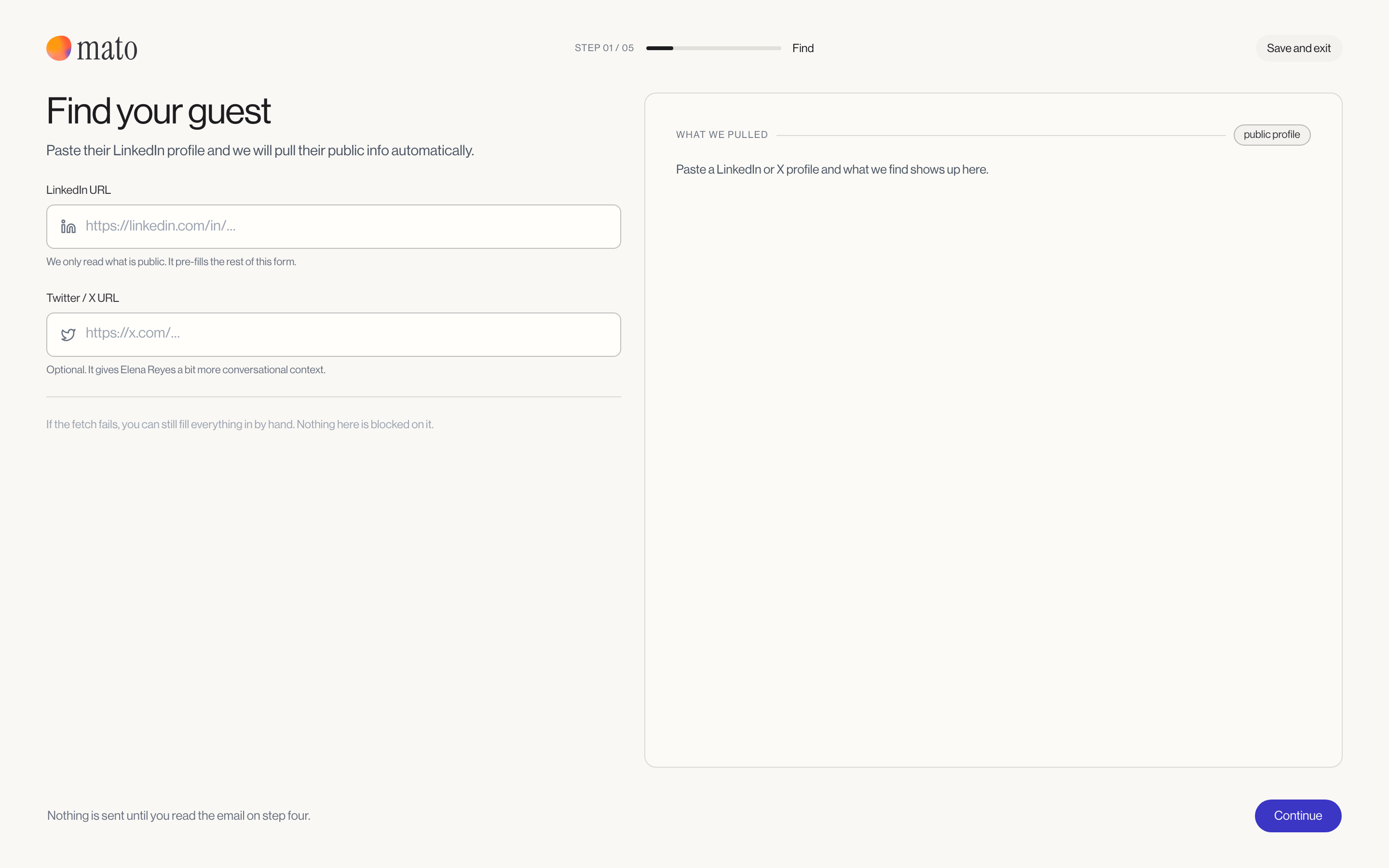
If the fetch fails, you can still fill everything in by hand. Nothing here blocks you from clicking Continue.
If you have people waiting through your public guest form, a card on this step lists how many and lets you start from one of those requests instead. See Review interview requests.
Step 2: Set up
Fill in the guest's email and the interview topic. Pick a host from your podcast's talent (or leave it on "None (use default)"), and set an expected length in minutes (5 to 180).
If your account has the Conversation beta enabled, a Format choice appears:
- Guided Q&A is the standard format: the host works through prepared questions and follows what the guest says.
- Conversation (beta) gives the guest a warm-up session before recording, plus in-session controls like strike that and go off the record. The host adapts naturally instead of following a fixed list.
Additional context (the LinkedIn About text, editable) feeds the host's prep. Click More details to add an interview purpose, override the guest's name, add background notes the host should know (never shown to the guest), or upload a resume PDF up to 20 MB.
A right-hand panel suggests interview themes based on the guest's profile and your show. Click a theme to use it as the topic.
Step 3: Questions
Mato generates a set of suggested questions from the topic, the guest's profile, and the host's personality. Each question is tagged with where it sits in the conversation: Opener, Background, Deep dive, Looking ahead, or Closer.
You can leave out a question, edit its text, add one of your own, or click Ask for different questions to regenerate the whole set. The guest sees these questions before the call so they can prepare, but the host does not read them out in order. It works from them and follows whatever the guest actually says.
Step 4: Send
This step summarizes the guest, topic, host, format, and length, each with an Edit link back to the step that owns it. Choose how the invite goes out:
- Send email from Mato emails the guest directly. The link still shows up after the invite is created.
- Create link only sends nothing. You copy the interview link yourself on the next screen.
If your podcast has phone interviews set up, a checkbox lets this guest call in instead of using a browser. Mato creates a six-digit PIN tied to your podcast's phone number.
The right-hand panel shows the AI-drafted outreach email, written from the guest's profile and your show. Click into the text to edit it, or click Rewrite for a new draft. If a scan of your guest records finds more than one profile that could match this invite, a card appears here letting you confirm it is the same person, mark it as someone different, or cancel.
Step 5: Sent
The confirmation screen shows the magic link with a copy button. If you enabled phone call-in, it also shows the call-in instructions to copy and share. From here you can start another invite or go back to track this one in the Interviews tab.
Track your invites
The Interviews tab lists every invite in one table, with a Guest and a Status column. Filter chips narrow the table:
- Needs you: the interview is recorded and moments are scored, waiting on you to build the episode (status Ready to build), rerun a failed analysis, or review a change the guest asked for.
- Waiting on the guest: invited but not booked yet (Invited · waiting on the guest), plus calls that just ended while Mato finds the best moments (Processing segments). You can leave the page while Mato works; nothing there needs you.
- Live and booked: booked calls, and calls happening right now.
- Done: interviews that already turned into an episode, plus expired or withdrawn invites.
All shows everything. Click a row to open the interview record. It shows a five-step stage track: Invited, Booked, Recorded, Moments scored, Becomes an episode. Open the record's menu (the three dots) for Adjust in the wizard (once moments exist), Restart interview (gives the guest a fresh start on the same link; the earlier attempt is archived), or Delete interview (removes the invite, recording, and transcript for good).
Before the call
Open an invite that has not been recorded yet to see:
- The call shows the scheduled date and time in the guest's time zone, a days-to-go count, and a reminder timeline (invite sent, 24 hours before, 1 hour before, 15 minutes before). Mato sends these automatically; if the guest still has not joined, a follow-up goes out the same day.
- What Mato will ask lists the questions you approved in the wizard.
- How they join shows the interview link, plus the phone PIN and Google Meet options when you have configured them for this podcast.
- What Mato knows lists the facts pulled from the guest's LinkedIn or X profile.
What to do next
Once your guest joins, see Guest recording guide for what they experience, or Record with video if they turn on their camera. After the call ends, Pick moments covers turning the recording into an episode.