
When an interview call ends, Mato scores the conversation and splits it into moments you can pick from. This guide covers what happens right after the call, the Moments page, and the rest of the interview record.
While Mato is listening
As soon as the call ends, the interview's status on your Interviews tab reads Processing segments, and the interview record says "Mato is finding the best moments. You can leave this page." Nothing here needs you. This typically takes one to two minutes.
If Mato cannot split the recording, the interview shows Segments failed and appears under the Needs you filter, with a Rerun analysis button. The audio is always safe even when scoring fails. In rare cases where a dropped-connection recovery did not pass every quality check, the Moments page shows "Interview recovery needs another pass" instead, with its own rerun action; any previously validated recovery stays available.
The interview record
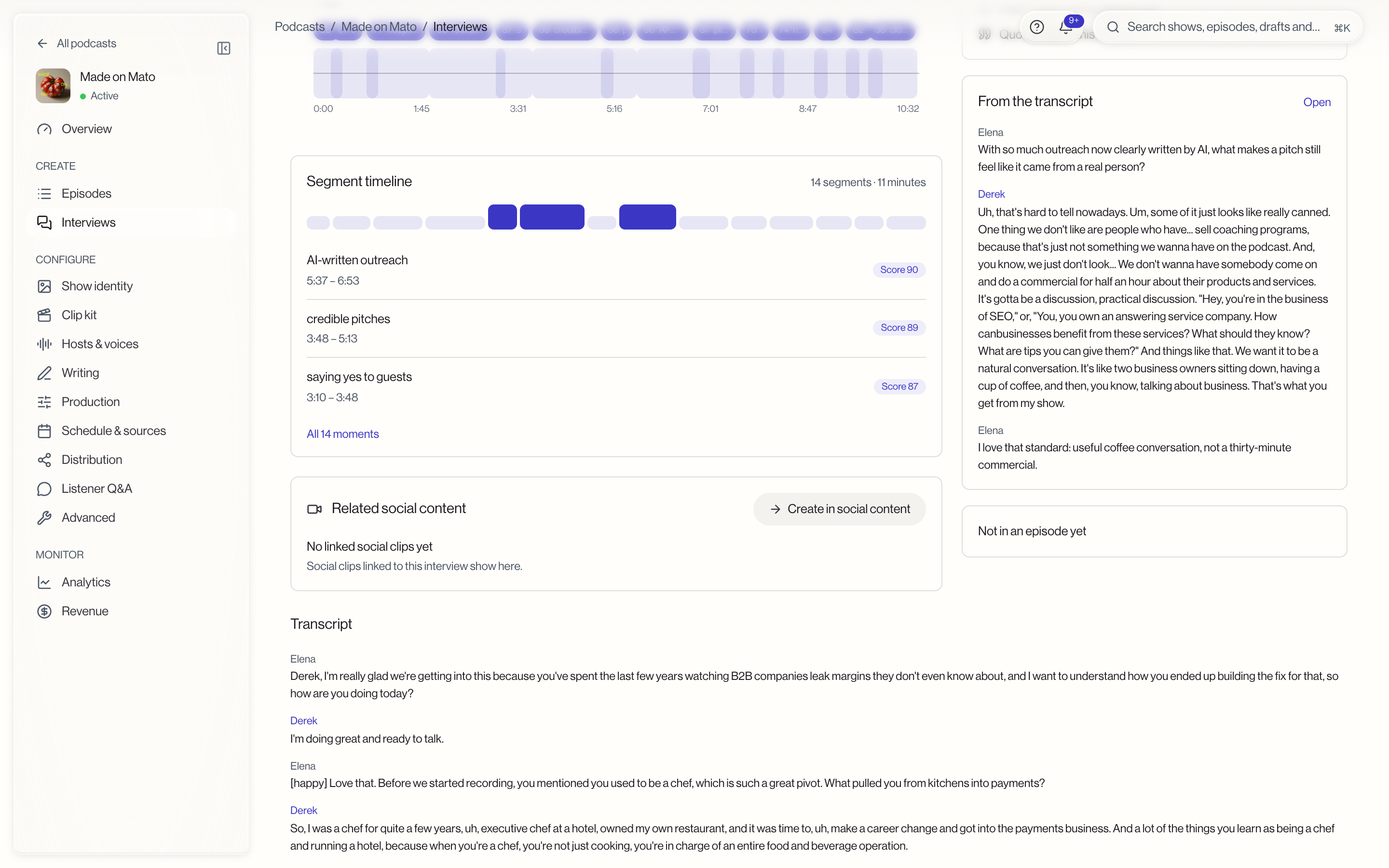
Once the call is recorded, opening the interview shows its status in the header (for example "Ready · pending guest approval"), with Restart interview and a Make episode button that shows how many moments are picked. Below that:
- The conversation is a player with a waveform, moment markers along the timeline, and a switch between the guest's and the host's track (for example Derek and Elena) when more than one track was captured. A Transcript button sits next to it. Click any marker to jump to that moment.
- Segment timeline shows every segment as a strip, with the count and total length (for example "14 segments · 11 minutes"), then the three highest-scoring moments with their title, time range and score, and an All N moments link through to every moment.
- Clip moments, when Mato flagged any, shows up to three moments that would make good vertical clips for social, as tiles over the guest's photo.
- Related social content lists social clips linked to this interview, with a Create in social content button. Until there are any, it reads "No linked social clips yet."
- Guest sign-off shows whether the guest has approved publishing yet, whether their quotes can be reused in later episodes, and any change they asked for before you publish.
- From the transcript shows a few standout exchanges, with Open to jump to the full transcript. A card under it says whether the interview is in an episode yet.
- Transcript shows the full conversation, labelled by speaker.
Open Moments
Click All N moments (for example All 14 moments) in the segment timeline to open the Moments page. It is headed with the guest's name, for example "Derek's best moments", with how many moments Mato found and when it scored them, and lists every moment.
Each moment card shows the guest's quote, its title (or timestamp if it has none), the time range (for example "0:00 to 0:30"), a tone tag (excited, thoughtful, humorous, serious, passionate, or neutral), an energy tag (low, medium, or high energy), a score, and a play button. A switch on the left includes or excludes the moment. Excluded moments dim.
Click a moment to select it and open the host lines beneath it, labelled with your host's name: Elena Reyes leads in is the line your host says right before that moment plays, and Elena Reyes follows up is the line right after it. Only the host's lines are editable; the guest's words stay exactly as they said them. A small dot marks a lead-in you have edited but not yet saved.
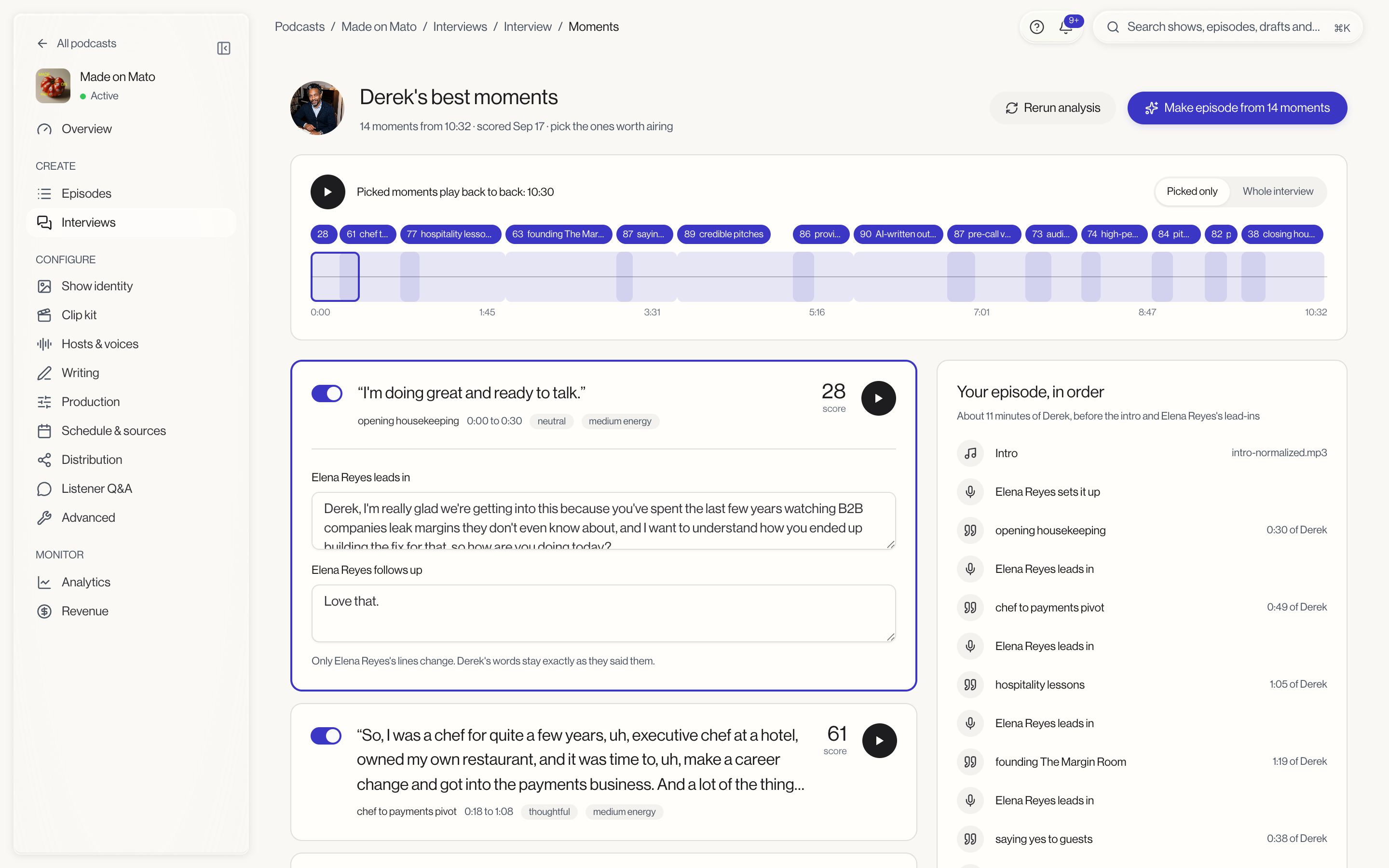
A strip above the moment list plays either your picked moments back to back ("Picked moments play back to back" with their total length) or the whole interview. Switch between them with Picked only and Whole interview. The right-hand Your episode, in order panel previews the running order: the intro file, your host setting things up, then each picked moment with how much of the guest it uses (for example "0:30 of Derek"), ending on the outro where your host signs off.
Picks and lead-ins save separately through the save bar at the bottom. Rerun analysis scores the interview again if you want a second pass; unsaved changes must be saved first.
Make the episode
Once you are happy with your picks, click Make episode from N moments at the top of the Moments page (or Make episode in the interview record's header). This is a one-tap action, not a separate wizard: Mato starts generation from your saved picks with your podcast's usual settings and takes you straight to the episode's writing screen. See Turn an interview into an episode for what happens next.
What to do next
After generation finishes, continue in Edit your episode script and Publish an episode like any other episode.