
Every show has its own home page: the screen you land on when you open it from the Podcasts list. What it shows depends on whether the show has episodes yet.
Before your first episode
With no episodes, the page asks "Ready to create your first episode?" and shows a handful of AI-generated topic suggestions, each tagged Trending, News, Content gap, or Listener request with a one-line reason attached. Click Use this topic on any card to open the episode generator with that topic pre-filled.
While Mato is still drafting suggestions, three placeholder cards show "Generating topic suggestions..." This usually finishes in two to five minutes and the cards fill in on their own; you do not need to refresh.
Below the suggestions, Generate an episode starts from a blank prompt or an RSS feed instead. If your show already has a talent assigned, a Record with [name] button also appears for recording a live episode with that host. See Manage suggestions for how topic suggestions are generated and refreshed.
Once you have episodes
The home page fills in with several cards, in order. Any card with nothing to show collapses, so you will not see empty sections.
Header. Your cover art, category, and a status badge (Active, Paused, or Draft), plus your cadence, show name, and description. A View show page button opens your public show page, and Generate episode starts a new one. An Edit link next to your hosts jumps to the Hosts & voices settings.
Needs you. Anything on this show that is waiting on you, such as an episode that failed before its script was written, with one button to deal with it (for example Try again).
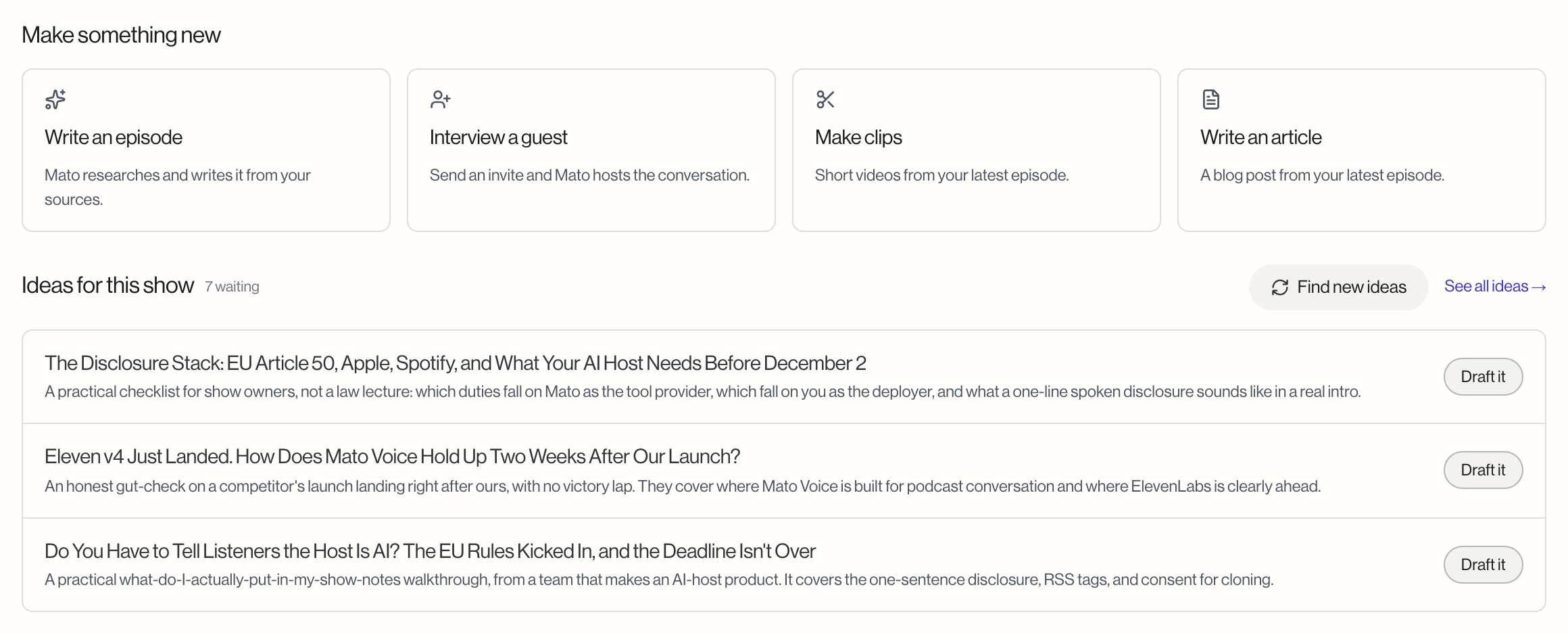
Make something new. One tile for each thing you can start for this show right now. Write an episode opens the episode generator, and Mato researches and writes it from your sources. Record with [name] appears when the show has a live co-host, and opens the episode generator set to record a conversation with them (see Record with a co-host). Interview a guest opens the invite form. Make clips and Write an article both start from your latest published episode, so they appear once you have one. A tile your plan does not include is left out rather than shown and refused.
Ideas for this show. Up to three episode ideas waiting for this show, with a count of how many are waiting in total. Each one has a short line on the angle, and Draft it opens the episode generator with that idea filled in. Find new ideas asks Mato to look through your sources for more, and a message tells you when they are in. See all ideas opens the show's Ideas page, which also lists ideas from your company research that are aimed at this show. If nothing is waiting, the section says so.
Stats strip. Downloads over the last 30 days with the change on the 30 days before, your peak single-day downloads, how many episodes you have, how many days since the last episode, and how many days until the next scheduled one. Download figures need your show synced with Mato Distribution, and a figure with no data yet is left out, so a newer show may see fewer numbers.
Latest episode. Your most recent episode's cover, an inline play button, its status badge, duration, and reach so far. From here you can jump straight to Create clips or Show notes, or click Share to copy the public link.
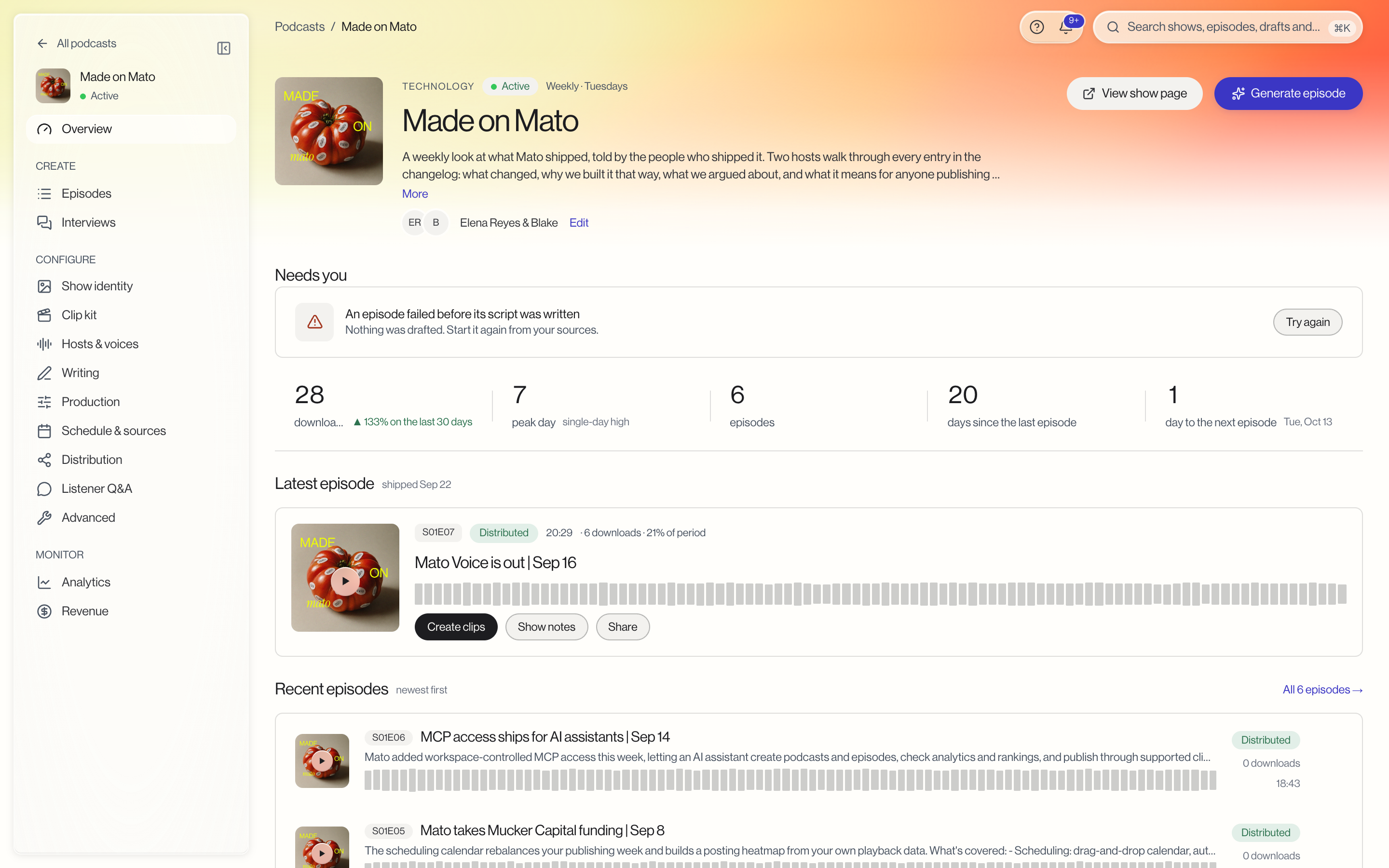
Recent episodes. A short list of your most recent episodes, newest first, with an All N episodes link to see all of them.
Where they're listening. The places your listeners tuned in from over the last 30 days, next to a card for listener questions. If Listener Q&A is off, this card links you straight to turning it on; if it is on with nothing pending, it tells you so instead of showing an empty list.
Where the numbers come from
Every download figure on this page (downloads, peak day, reach) needs your show to be synced with Mato Distribution first. A new show that has not synced yet will show fewer cards than one that has been publishing for a while. See Show analytics for the full breakdown behind these numbers.