
Show identity covers the facts that appear in every directory listing and the cover art that appears everywhere your show does. Open it from your show's Configure sidebar, under Show identity.
The page has two sections: Basics and Cover art. Beside them, a How directories show it preview follows what you type, so you can see the listing before you save.
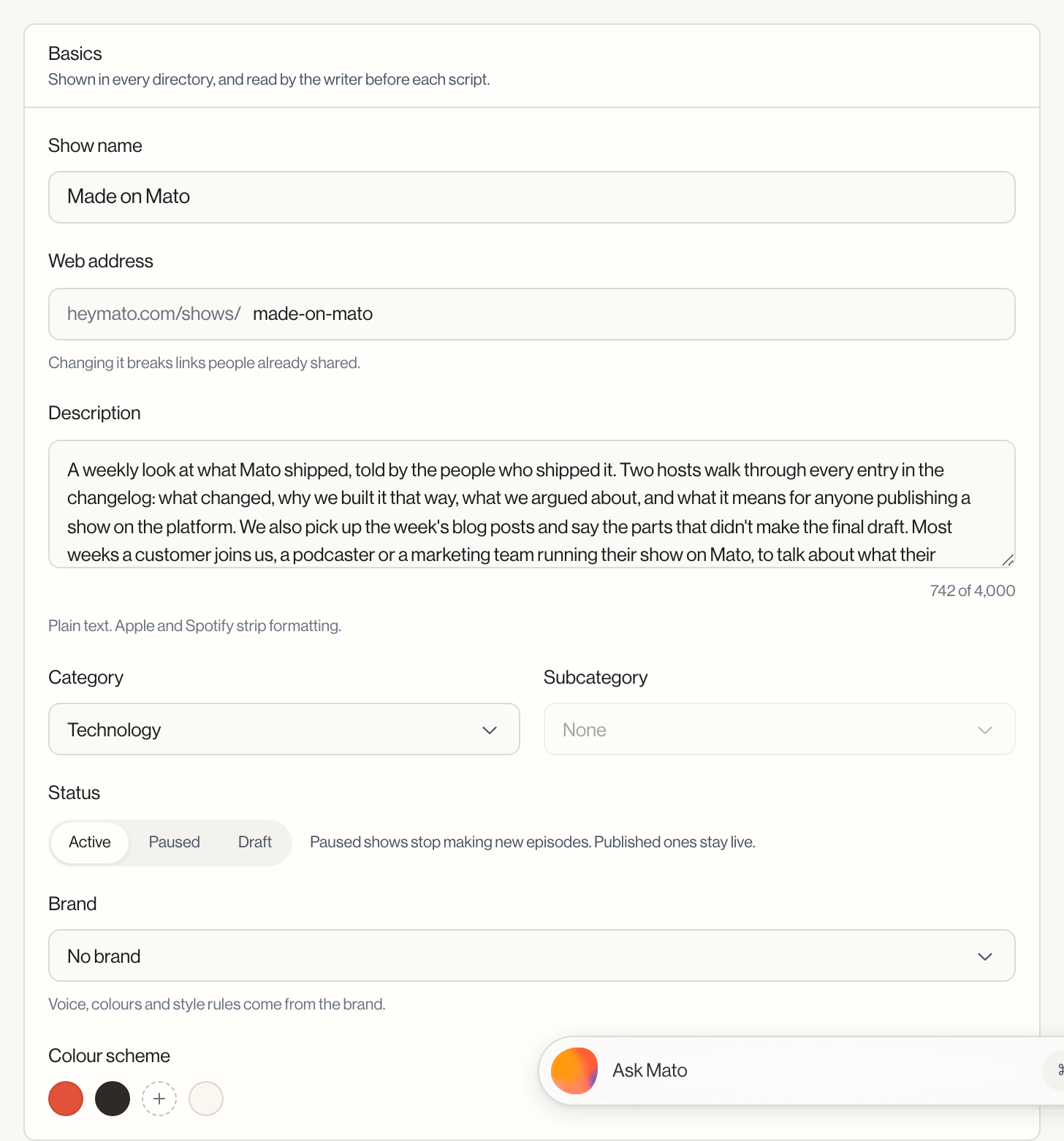
Basics
Show name. At least 3 characters, up to 255. The writer also reads this before every script, so keep it recognizable.
Web address. Your show's page lives at heymato.com/shows/ plus whatever you set here. Changing it breaks any link people already shared, so treat it as a one-time choice once your show is public.
Description. Plain text, 10 to 4,000 characters (or leave it empty). Apple and Spotify strip any formatting you add, so write it as plain sentences. This description also feeds the writer, so it is worth getting right even if you never read it yourself. See Writing settings for what else the writer reads before a script.
Category and subcategory. Pick from Apple's podcast category list. Changing the category clears whatever subcategory you had selected, since subcategories are specific to each category.
Status. A three-way switch: Active, Paused, or Draft. Paused shows stop generating new episodes but keep already-published episodes live. Draft keeps the show private while you set it up.
Brand. If your workspace has brand profiles, link one here. A linked brand supplies voice, colours, and style rules for the show, and an Open brand link appears so you can jump to it. See Brands for how brand profiles work.
Colour scheme. Four colour swatches: Primary, Secondary, Accent, and Background. A colour you have not set yet shows as a + swatch; click it to add one. These drive how AI-generated covers look. Primary and Background are required before you can save; Secondary and Accent are optional.
Cover art
Two modes, chosen with the Cover for each episode control at the top of the section:
A new cover per episode. Mato generates a fresh cover for every episode it produces. Pick a style from the Style dropdown, or leave it on Let Mato choose to let Mato pick based on your show's content. Click Make a new cover now to generate one immediately outside the normal episode flow; up to three recent covers show below the control so you can compare results.
Generation runs through four states: it shows "Making a cover..." while working, then a preview with Use this cover and Discard buttons once ready. If generation fails, you see an error message and a Try again button.
One cover for all. Every episode uses the same cover. Upload a PNG, JPG, or WEBP file up to 5 MB. Once uploaded, Replace and Remove actions appear next to the preview.
Save your changes
Basics and Cover art each save as part of the page's floating save bar, not individually. Edit any field and the bar appears at the bottom of the screen showing how many changes are unsaved, with Save changes and Discard buttons. You can also press Cmd+S (Mac) or Ctrl+S (Windows) to save. Nothing here takes effect until you save, except accepting or discarding a generated cover preview, which applies immediately.