
Production settings control the audio around your hosts: what plays before and after they speak, and the file library those clips come from. Open it from your show's Configure sidebar, under Production.
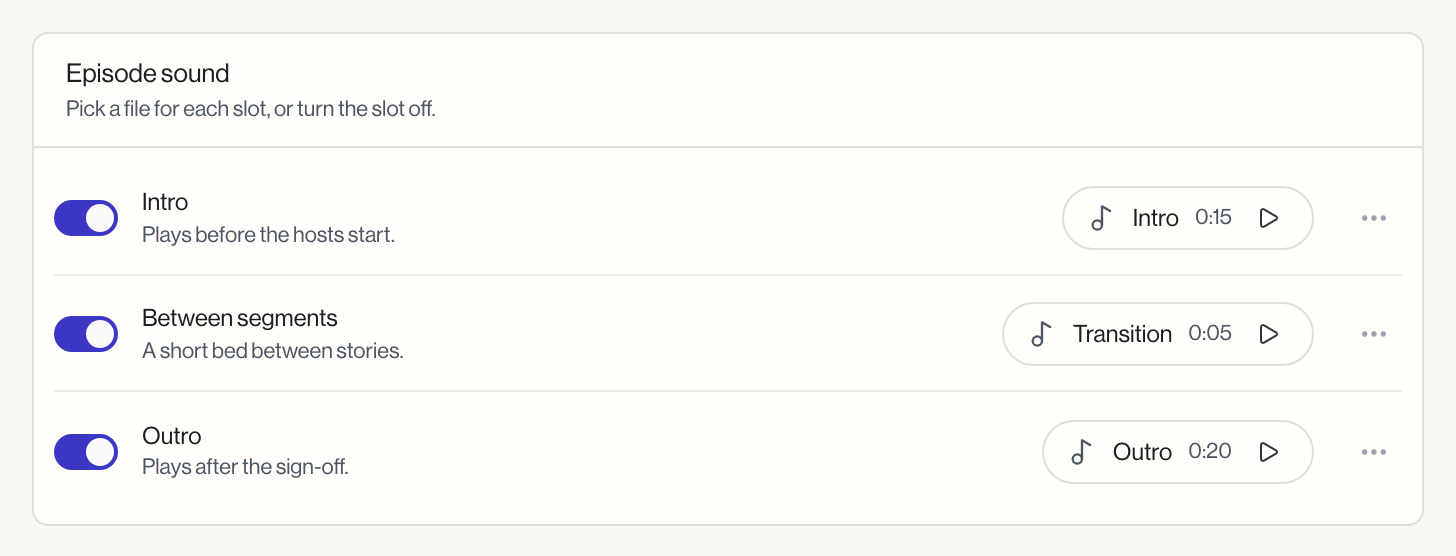
Episode sound
Three switches, one per slot:
- Intro: plays before the hosts start.
- Between segments: a short bed between stories.
- Outro: plays after the sign-off.
Turn a slot on and, if it has no file yet, a picker opens listing every file in your audio library with its duration. Once a slot has a file, you see its name and duration with an inline play button to preview it. Use the More menu on that row to change or clear the file.
Audio library
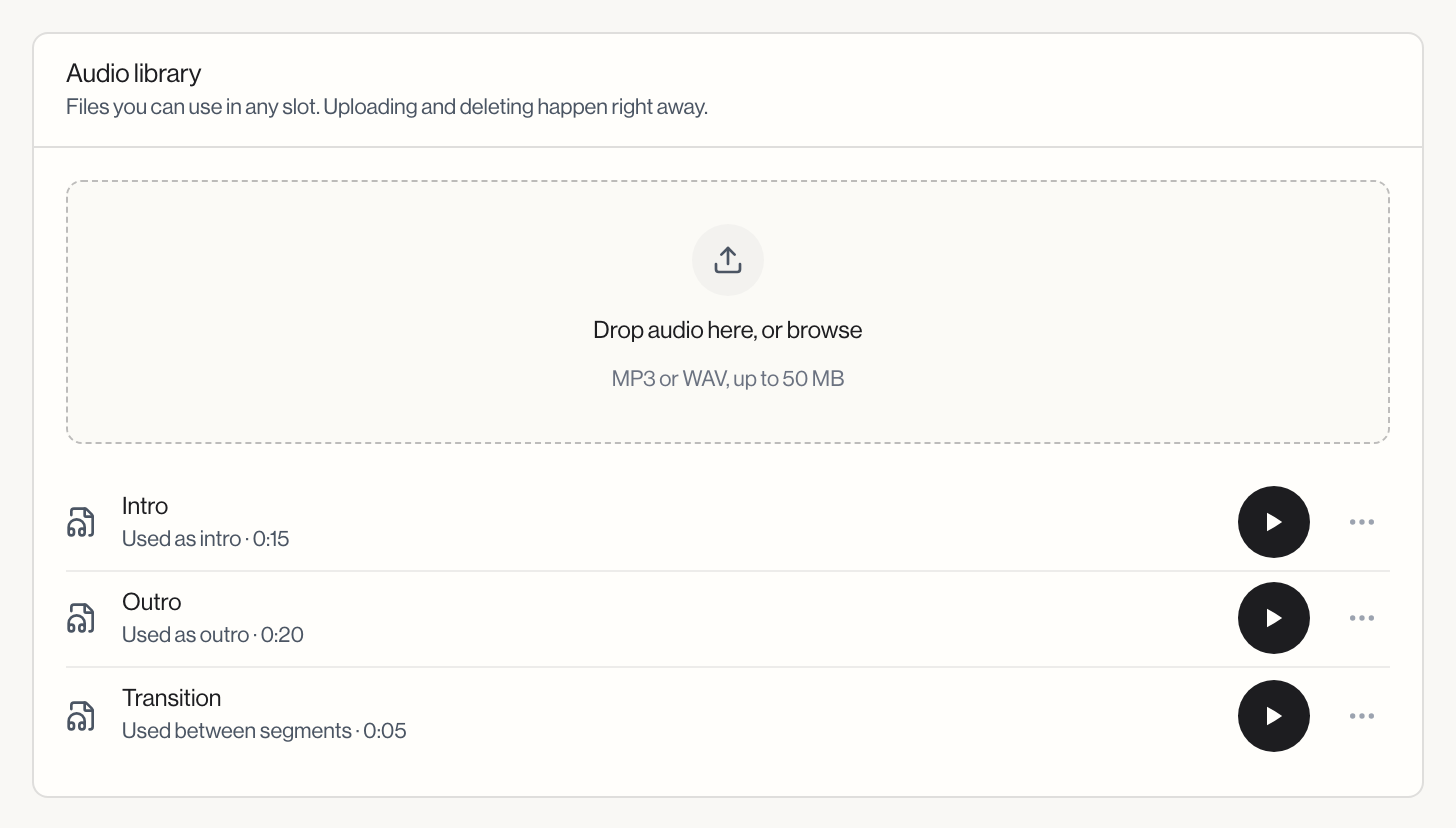
Files you can use in any slot. Upload and delete happen immediately here, separate from the save bar below.
Drop an MP3 or WAV file (up to 50 MB) onto the upload area, or click to browse. Each uploaded file appears in a list showing its duration and where it is currently used ("Used as intro", "Not in a slot", and so on), with a play button and a More menu offering Delete. Deleting shows an undo option briefly afterward.
You cannot delete a file that is currently assigned to a slot, saved or not. Remove it from the slot first.
This library replaced the old standalone Audio Assets page. Any link to that page now redirects here.
Interview episodes
This section only appears once your show has interviews. A dropdown, How Mato frames the guest, controls how the hosts introduce a recorded interview clip: Clips only, Bridge when it helps (a short bridge only where a clip needs one), or Hosts introduce, then clips (a scripted lead-in and a reaction for every clip). An Afterthoughts toggle adds a brief host reaction after the last clip plays.
Video clips
The Make video clips with AI visuals toggle turns on AI-generated visuals, in your brand's style, for the short vertical clips cut from this show's episodes. These clips count toward your plan's clip limit. This can be locked behind your plan; if so, an upsell note links to Billing. Scheduling when clips post is handled separately, in Social content under Automation; the note in this section has an Open link to it.
How an episode runs
The right-hand panel walks through your episode from start to finish using your current sound settings and Writing settings together: intro, first segment, an optional between-segments bed, the next segment, and so on to your sign-off and outro. It follows your unsaved edits on this page as you change slots, and your saved Writing settings.
Save your changes
Sound slot changes, interview framing, and video clips all save through the floating save bar at the bottom of the screen. Library uploads and deletes are immediate and do not need a save.