
Mato has two levels of navigation: your workspace, and each show inside it. This guide covers both, plus the composer on Home where most work starts.
Home
Home is what opens when you sign in and already have a show. At the top it greets you by name and time of day, with today's date and your show's name just above it, and a one-line summary of what's ready below.
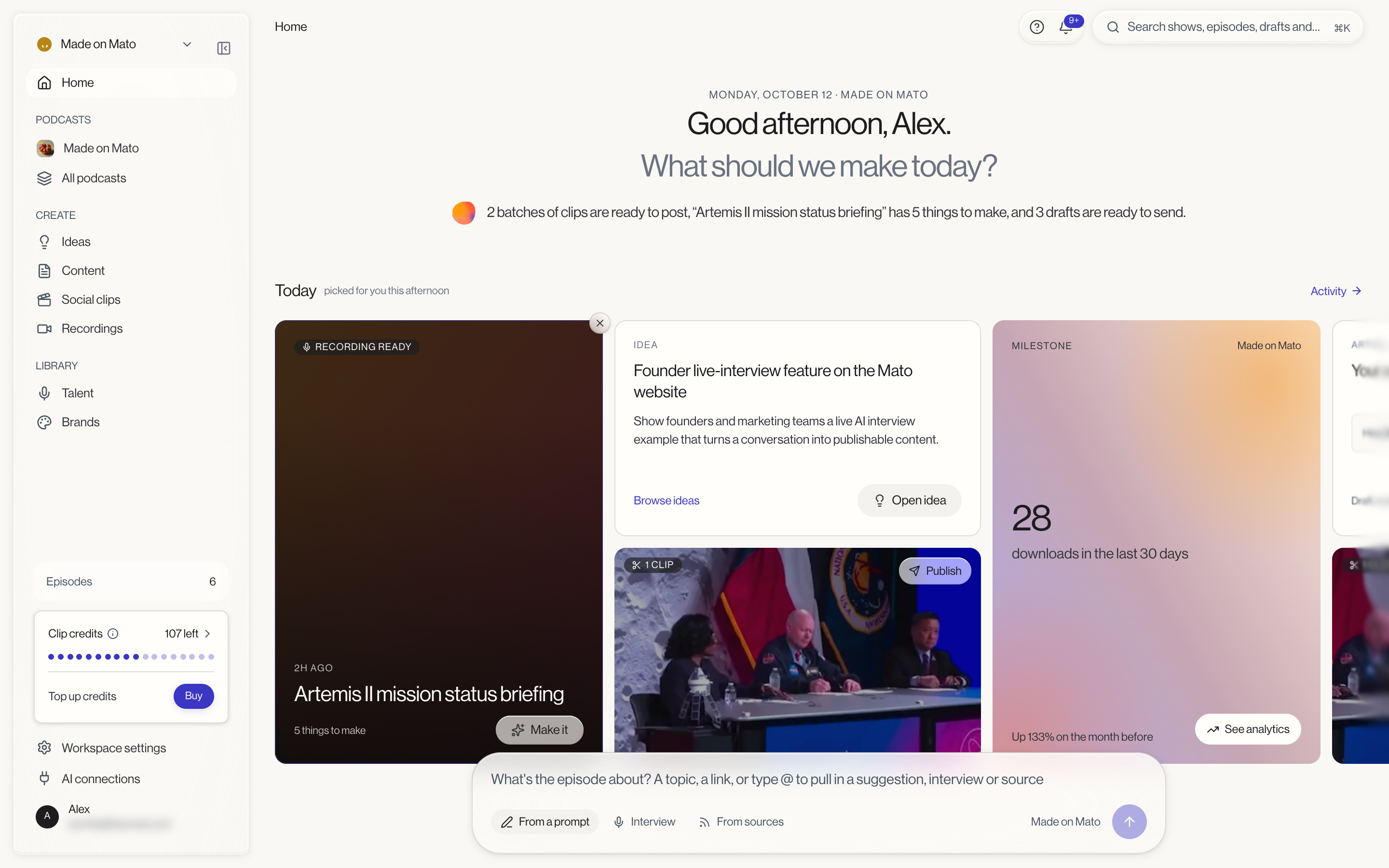
Below the greeting sits a shelf of cards, headed Today, for things across your shows that might need a look: a recording with things to make, an idea, clips ready to post, an analytics milestone, a drafted article, or a finished interview. Each card has a button to jump straight to it, such as Make it, Open idea, Publish, See analytics, Review it, or Build it, and a small close control to hide a card you're not interested in.
At the bottom is the composer, the box where you start a new episode. See Start from Home for how it works. If you haven't created a show yet, you'll see a single Create a podcast button here instead.
The sidebar
At the workspace level, the sidebar on the left holds:
- Home
- Podcasts, listing each show plus an All podcasts link
- Create, with Ideas, Content (articles and newsletters), Social clips, and Recordings
- Library, with Talent and Brands
- Workspace settings, at the bottom, under an Episodes card with your episode count and a Clip credits card showing how many credits are left, with a Buy button to top up
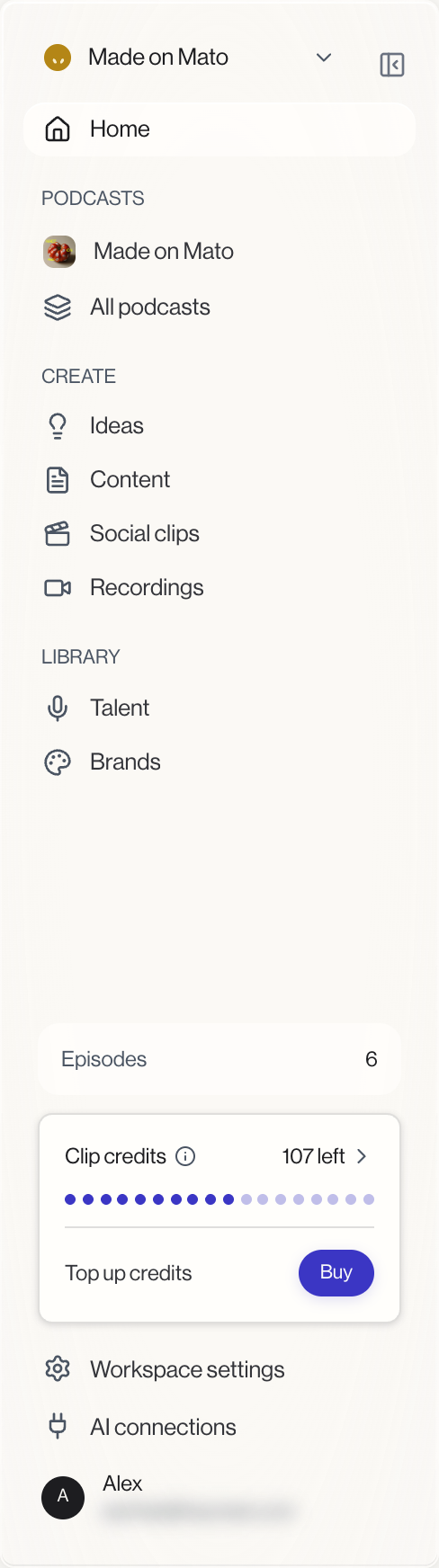
Click the panel icon at the top of the sidebar, or press Cmd+B (Ctrl+B on Windows and Linux), to collapse it to a slim icon rail. Mato remembers your choice the next time you visit.
Your account name at the top opens the workspace switcher: every workspace you belong to, plus links to Settings, Brands, Members, Billing, and the Startup Program for that workspace. Your name at the bottom opens the profile menu, with profile settings, documentation, and sign out.
Inside a show
Click any show and the sidebar swaps to that show's own navigation.
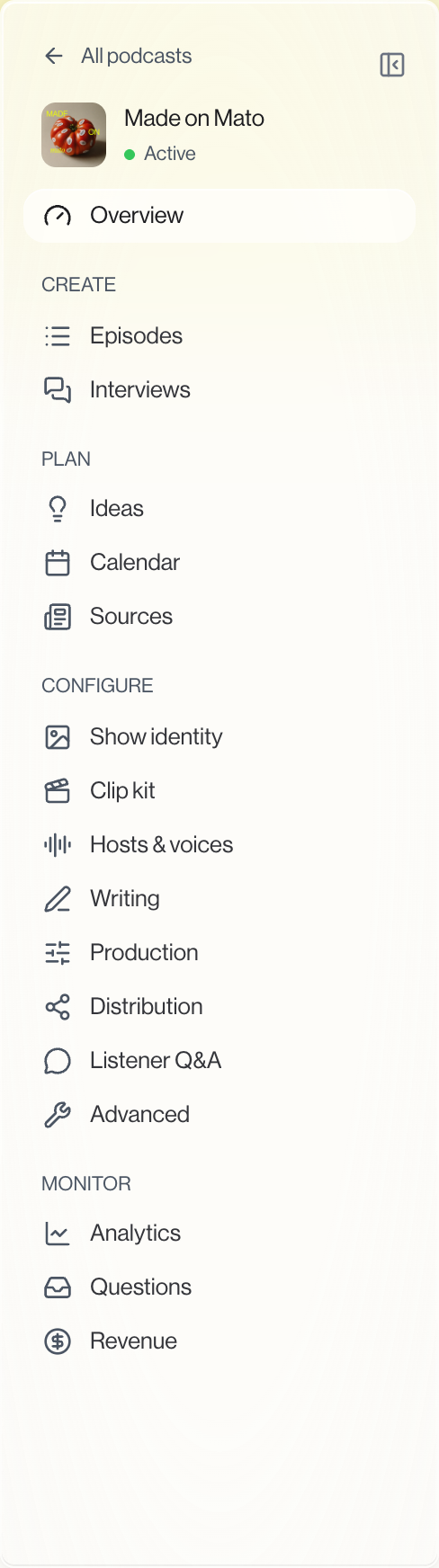
- Overview, the show's own home page
- Create: Episodes, Interviews, and Co-Host (once your show has a live co-host set up)
- Plan: Ideas, Calendar, and Sources
- Configure: Show identity, Clip kit, Hosts & voices, Writing, Production, Distribution, Listener Q&A (its settings), and Advanced
- Monitor: Analytics, Questions (your listener questions), Revenue, and Memory (once your show has a live co-host set up)
A link back to All podcasts sits at the top, above the show's name and status, so you can always retreat to the workspace level.
The top bar
Above every page, breadcrumbs on the left show where you are (Home, Podcasts, a show's name, Episodes, and so on), and the right side holds the Help button, the Activity center bell, search, and, on some pages, one action button relevant to that screen.
Finding things fast
Press Cmd+K or Ctrl+K from anywhere to open search, which covers episodes, shows, articles, clips, interviews, talent, brands, and every page in the app. See Search for the full walkthrough, and Keyboard shortcuts for everything else you can do from the keyboard.
If you're stuck, press ? to open the Help panel from wherever you are. See Get help.