
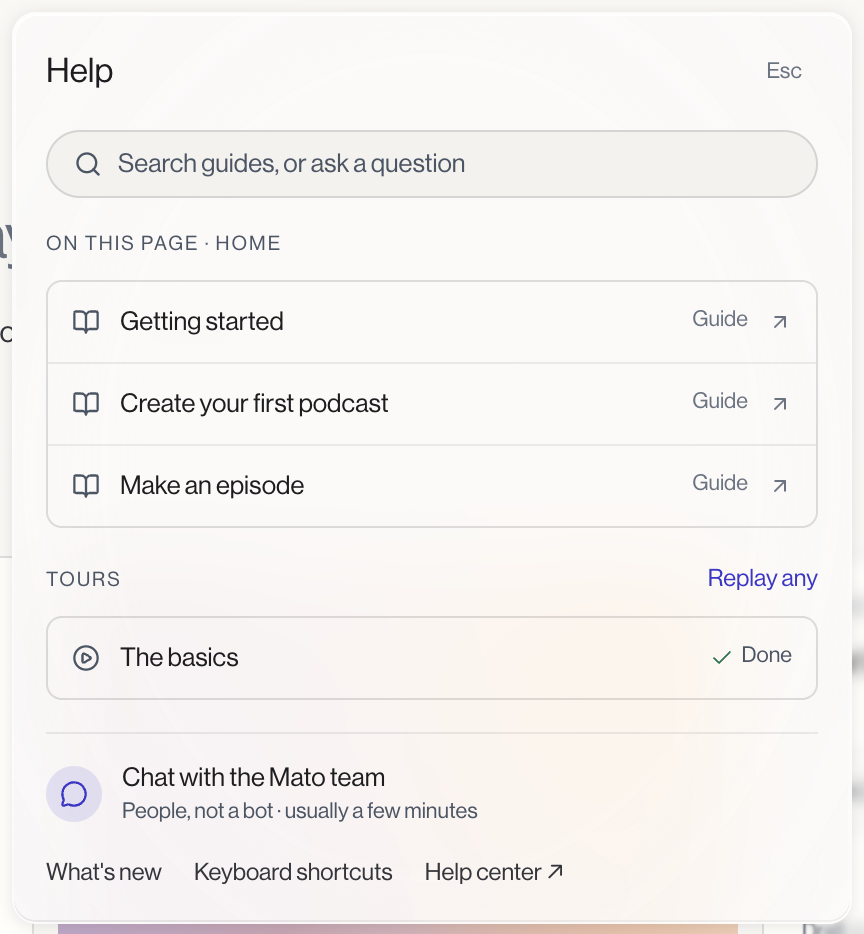
Press ? anywhere in the app, or click the help icon next to the notification bell in the top bar, to open the Help panel. It opens on the right, below the top bar, without blocking the page underneath, and closes with Esc or a click outside it.
Search or ask a question
A search field at the top of the panel, Search guides, or ask a question, finds guides by title. Type a question instead of a keyword and, if nothing matches, an Ask row appears: it hands your question to Mato's assistant if it's turned on for your account, or opens a message to the Mato team if not.
Your first week
If you're in your first 30 days and haven't published a listed episode yet, the panel shows your first-week progress: how many of the six steps are done, and a link to open the full plan on Home. See Your first week.
Guides for this page
Under On this page, followed by the name of the screen, the panel lists a handful of guides picked for whatever screen you're currently on, each opening in a new tab. On the episode list, for instance, you'll see guides on episode statuses and publishing; on a settings page, you'll see the settings reference for that section.
Replay a tour
Under Tours, the panel lists guided tours you can replay. The basics walks through the sidebar, the composer on Home, a show's own page, and the Help button itself: four short steps with a scrim and a highlighted spotlight on each target. Each step shows where you are (1 of 4, and so on), with Next to move on, Done on the last step, and Skip tour to stop. It plays automatically the first time a new workspace opens Home; after that, replay it any time from here.
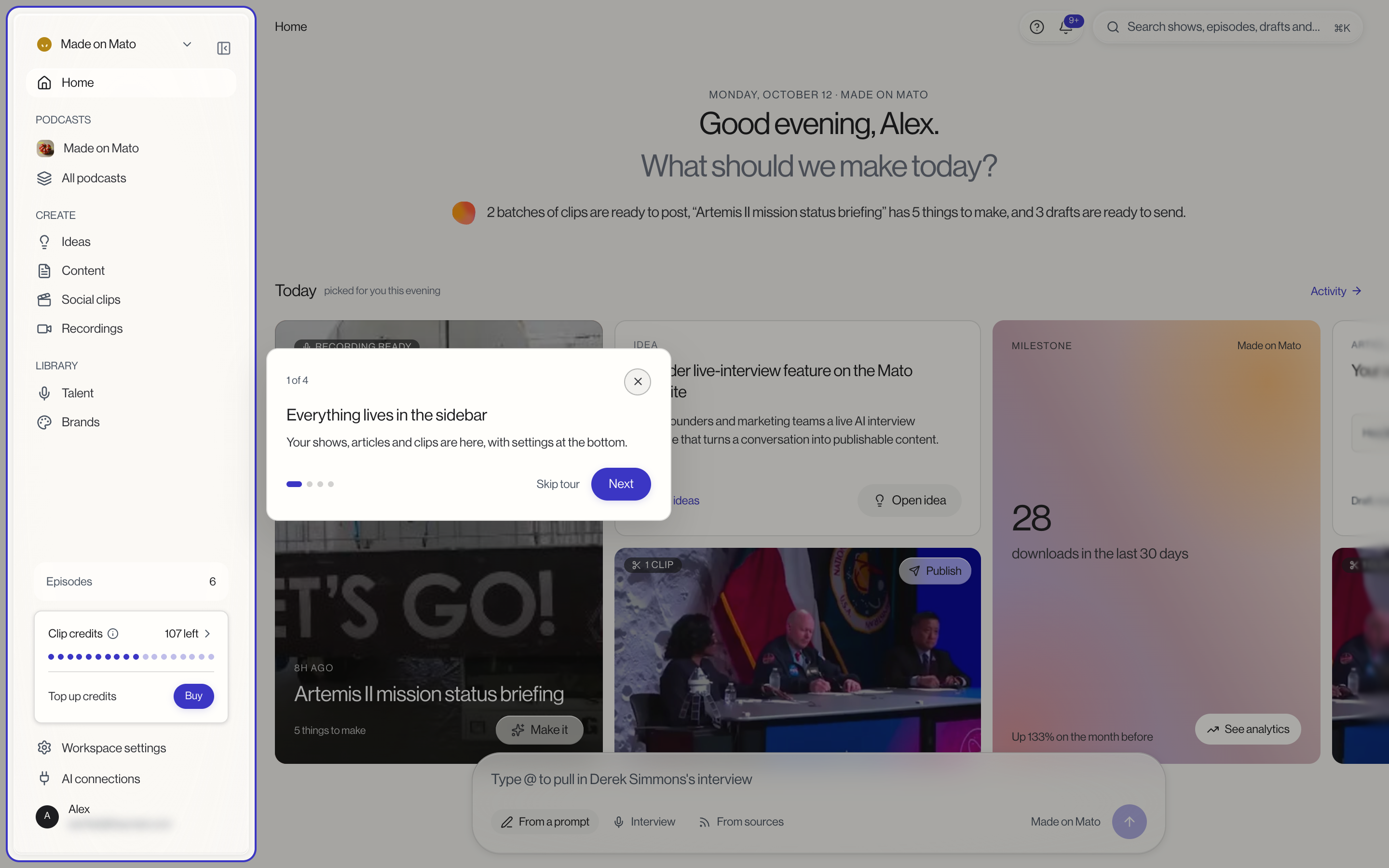
Use the arrow keys to move between steps, Enter to continue, and Esc to skip.
Chat with the Mato team
A Chat with the Mato team row at the bottom opens the in-app messenger, where a real person answers, usually within a few minutes. Below it sit three links: What's new, Keyboard shortcuts (a list of the main shortcuts), and Help center.
See Keyboard shortcuts for the complete list, and Ask Mato if your account has the AI assistant turned on.