Mato MCP connects your podcast workspace to an AI assistant. You can find shows, create podcasts and episodes, check performance, and follow chart rankings in the same conversation. You choose which workspaces the assistant can access and whether it can create content. Generated episodes stay ready for your review in Mato.
An original launch illustration for Mato MCP. The product examples below show actual Mato cards with sample data.
A weekly podcast review usually ends with a decision: which topic deserves another episode? Getting there can mean finding the right show, checking downloads, comparing episodes, and opening a separate brief to work out what to make next.
With Mato MCP, you can start with a question:
In our brand workspace, compare the last three episodes over the past 30 days. Show the available download figures and suggest a follow-up topic. Ask me before creating anything.
Your assistant can retrieve the figures from Mato, explain what it found, and help turn the decision into a production request. The measurements come from Mato. The interpretation comes from your assistant, and you can inspect the evidence before acting on it.
What is Mato MCP?
The Model Context Protocol, or MCP, lets an AI assistant use tools provided by another application. Mato's hosted MCP server gives a compatible assistant access to your podcast library and a defined set of actions.
You connect to https://heymato.com/api/mcp, sign in to Mato, and approve access. There is no Mato API key to copy into a chat and no Mato server to run on your laptop.
| What you want to do | What the assistant can retrieve or request |
|---|---|
| Find a show or episode | Your connected workspaces, podcast library, episode details and links back to Mato |
| Start a podcast | Available talent and creation options, followed by a podcast created from your brief |
| Make an episode | A readiness check, a generation request from a prompt or supported RSS sources, and its progress |
| Review performance | Available podcast and episode statistics, breakdowns and comparisons |
| Follow rankings | Observed positions and history with their platform, country, category and dates |
The assistant uses the podcasts, talent and sources available to your workspace. It does not need you to look up internal identifiers before you can ask a useful question.
How to connect Mato to your assistant
You need a Mato account with access to a team workspace and an assistant that supports remote MCP over Streamable HTTP with OAuth. Start the connection from the assistant you intend to use.
Connect with Codex
If you use the Codex CLI, add the hosted server:
codex mcp add mato --url https://heymato.com/api/mcp
Then start authentication:
codex mcp login mato --scopes mato:read,mato:create
The browser opens Mato's sign-in and consent flow. Requesting both scopes makes creation available as an option; you can leave creation unchecked on the consent screen for a read-only connection. Return to Codex when authentication finishes. OpenAI's MCP configuration documentation covers client configuration and organization restrictions.
Connect with Claude Code
Add Mato as a remote HTTP server:
claude mcp add --transport http mato https://heymato.com/api/mcp
Start Claude Code and enter /mcp. Select Mato and follow the authentication flow. Anthropic's Claude Code MCP guide explains the client-side setup.
Connect with another MCP assistant
In the assistant's custom MCP connection settings, enter:
https://heymato.com/api/mcp
Choose Streamable HTTP and OAuth if the client asks. Menus and availability vary by assistant, version and account policy. A client needs remote MCP and OAuth support to use this endpoint; MCP support alone does not establish compatibility.
Choose your workspaces and permissions
One connection can include several team workspaces. Select the workspaces you want this assistant to use, then choose whether to allow creation as well as reading.
Read access covers your podcast and episode information, available statistics, and rankings. Creation access additionally allows new podcasts and episode generation. If you are connecting an assistant for reporting, read access is enough.
For a team managing several brands, name the workspace in your request:
Show the podcasts in our Acme workspace. Keep this conversation focused on that workspace.
Choosing several workspaces does not combine their libraries or give the assistant access to every workspace in your account. Calls remain tied to an authorized workspace, and Mato checks your current access when a tool runs.
You can remove a connection from AI connections in the relevant workspace's settings. Removing its access to one workspace leaves its other authorized workspaces available.
Try a performance review first
A read-only request is a useful first check because it confirms that the assistant sees the right workspace and show without starting a generation job.
List the podcasts I can access, then show the available performance for [show name] over the last 30 days. Include the reporting period and tell me if any data is missing.
Follow with a specific comparison:
Compare these three episodes over the same 30-day period. Use reported downloads, show their release dates, and explain how their different ages affect the comparison.
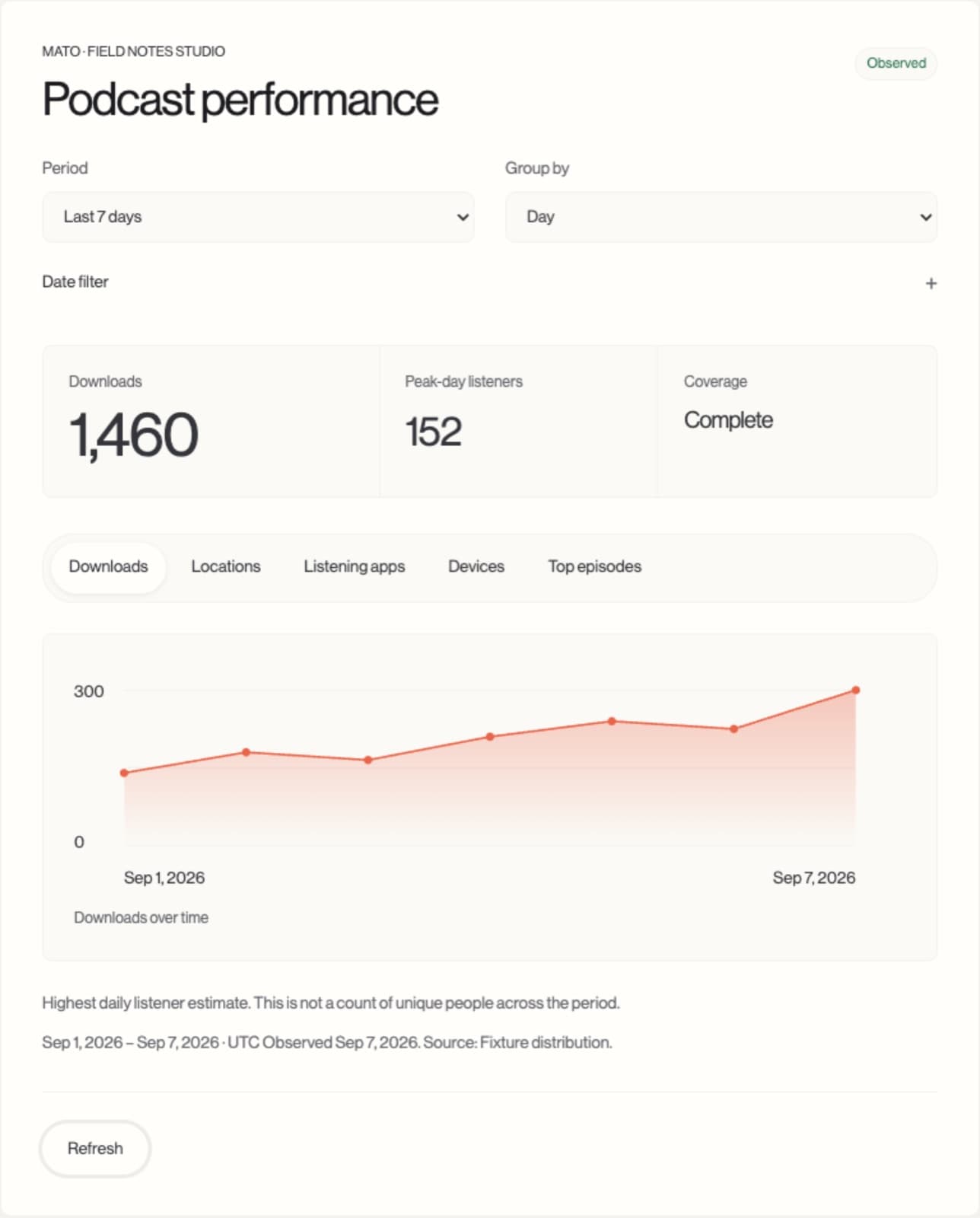
The actual performance card, captured in the local MCP Apps test host on September 9, 2026. All figures are sample data, not customer results.
The reporting period matters. An older episode has had more time to accumulate lifetime downloads; a recent one may have only a few days of observations. Ask the assistant to state the period it used and avoid turning incomplete coverage into a confident verdict.
Available metrics also vary by source. Missing figures are not zero, and daily listener counts should not be added together and presented as unique people across a month. Mato returns the available observations so your assistant can explain those limits alongside the numbers.
Check rankings with their context
A chart position only makes sense with its market, platform, category and observation date. Ask for those together:
Where is [show name] appearing in the available Apple Podcasts charts? Include country, category and when each position was observed. Then show the available history for the strongest position.
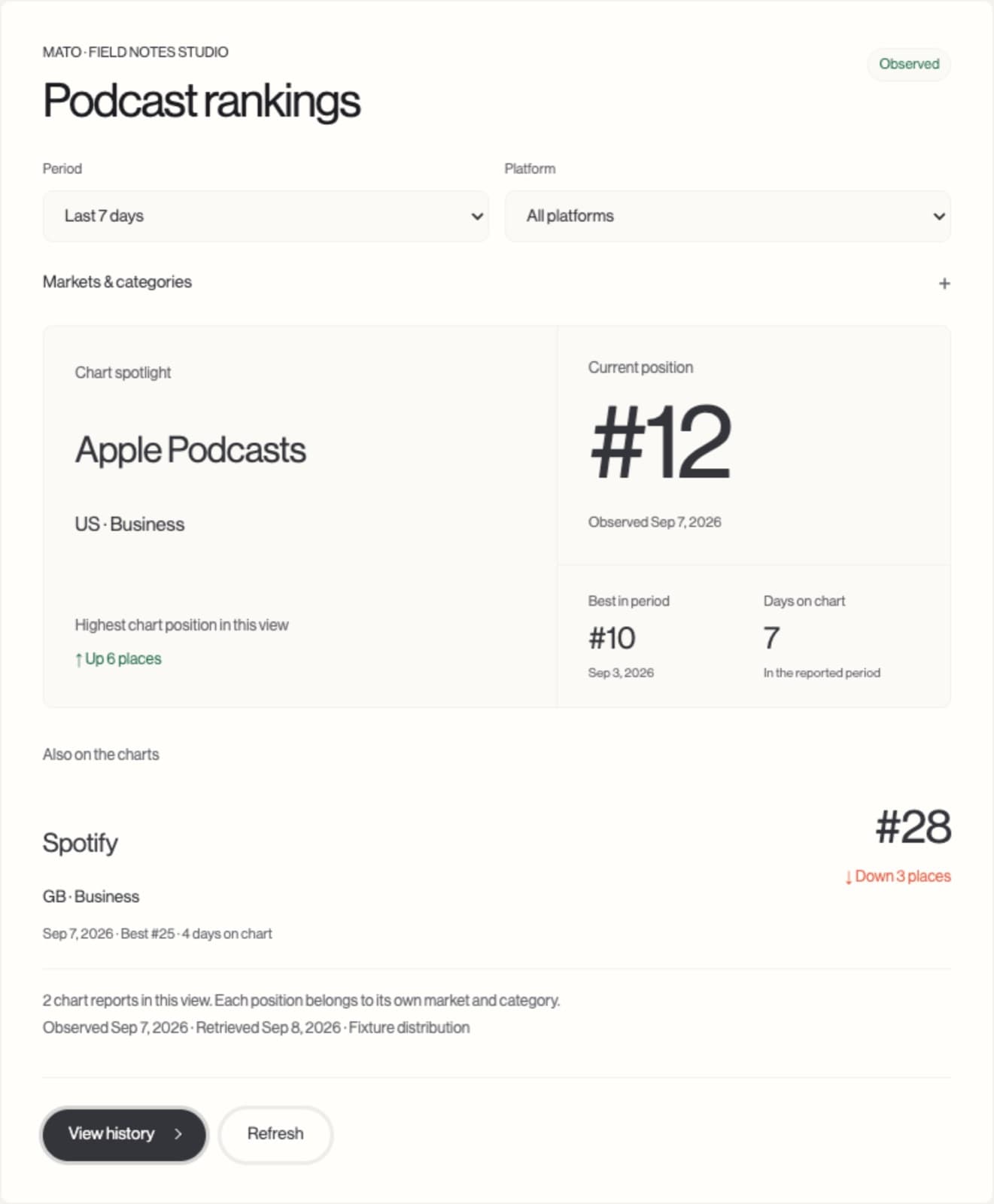
The actual rankings card, captured in the local MCP Apps test host on September 9, 2026. Positions and movement are illustrative sample data.
Rankings describe observed chart placements. They do not measure downloads, revenue or audience size, and a missing observation does not prove that a show has no listeners. Ask for the date and coverage before describing a position as current.
Create a podcast, then an episode
Once the read-only check works, you can use a connection with creation permission to start a show. A useful request gives the assistant an audience, a purpose and a format:
In our Acme workspace, prepare a podcast for operations leaders at small manufacturers. The brief is practical conversations about reducing production delays. Show me the available talent and the proposed setup before creating it.
The assistant can discover the supported choices and create the podcast once you are happy with the brief. It can then check whether the show is ready to generate an episode, including the required talent, source configuration and available allowance.
For the first episode, make the input concrete:
Check whether this podcast is ready. Prepare an episode about the three scheduling mistakes described in the notes below. Confirm the workspace and prompt with me before starting generation.
Mato processes generation as a job. The assistant can check its status and retrieve the resulting episode when it is ready. Generation uses your workspace's existing plan allowance. Ask for progress on the current job if it takes time, rather than requesting another episode as a retry.
Review the result in Mato before publishing. The MCP does not expose publishing, scheduling, deletion or billing changes. More advanced production settings remain in the Mato application.
A player and reports inside the conversation
In assistants that support MCP Apps, Mato can return interactive cards alongside the tool result. The episode card includes the Mato player, with chapters and transcript controls when those are available. Other cards cover your library, workspaces, generation progress, creation forms, analytics, rankings and episode comparisons.
That makes a follow-up more direct: listen to the episode you just requested, change a report's period, or inspect a chart history without losing the conversation.
Interactive rendering depends on the host. A client that supports the tools may still show a text result and a link to Mato rather than an embedded card. The screenshots here show the actual cards in our local test host; they are not a claim that every assistant renders the same interface.
A private episode remains private when shown in an authorized card. Listening in the assistant does not publish it to your public podcast feed.
If authentication does not finish
An expired connection request needs a fresh authentication flow from your assistant. Start there instead of reopening an old sign-in link.
If the browser lands on a 127.0.0.1 address and says it refused the connection, the assistant's local callback listener may have stopped. Keep the assistant or login command running, start authentication again, and complete it in that new browser flow. The localhost address belongs to the client running on your computer.
If the expected workspace is missing, check that you signed in with the right Mato account and have access to that team. If reading works but creation does not, check whether you granted creation permission and whether the show is ready with allowance available.
Mato MCP
Bring your podcast into the conversation.
Choose your assistant, connect the workspaces you need, and start with a question about your show.
Frequently asked questions
Do I need a Mato API key?
No. The hosted MCP endpoint uses OAuth. You sign in to Mato and approve the workspaces and permissions for that connection.
Can one connection access several workspaces?
Yes. Select several team workspaces during authorization. Requests remain tied to an authorized workspace, and you can remove access to one workspace without removing the others.
Can I use Mato MCP just for reporting?
Yes. Leave creation permission unchecked. Read access lets the assistant retrieve your podcast information, available statistics and chart observations without creating content.
Does episode generation use my Mato plan?
Yes. MCP generation uses the connected workspace's existing allowance and readiness checks. Your assistant's own subscription or usage costs are separate.
Will my assistant show the embedded player and charts?
Interactive cards require MCP Apps support in the assistant. Other compatible MCP clients can use the tools and receive results with links back to Mato.
Can my assistant publish an episode?
No. MCP-generated episodes require review in Mato. The MCP tools do not provide publishing, scheduling, deletion or billing changes.